This guide will look at how to configure the Daily Tab within the Student Record. The Daily Tab provides details for the days that the Student is expected to be present and effects whether or not Students appear on the Day Attendance screen.
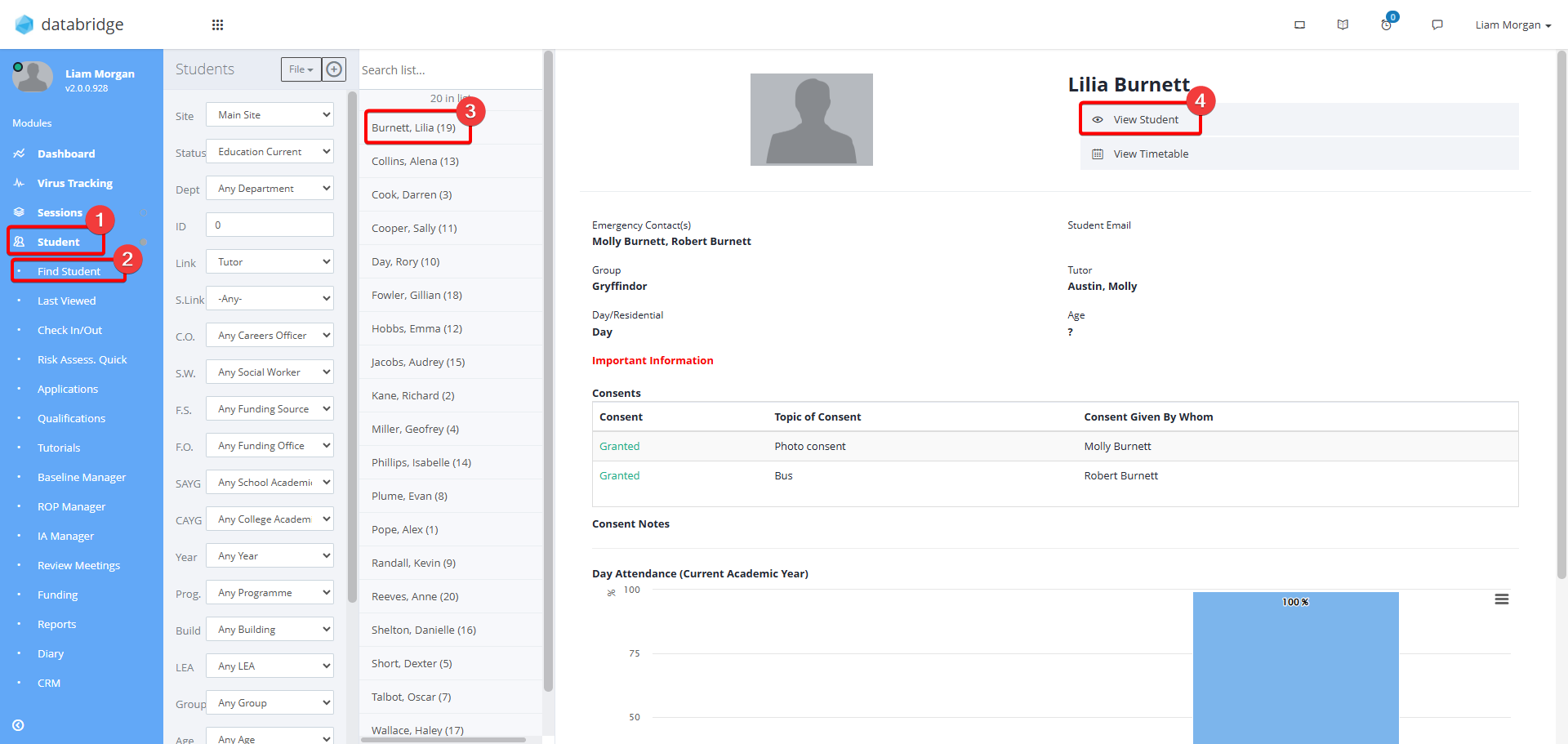
1. First navigate to the student's record by clicking Student > Find Student > *Student Name* > View Student.
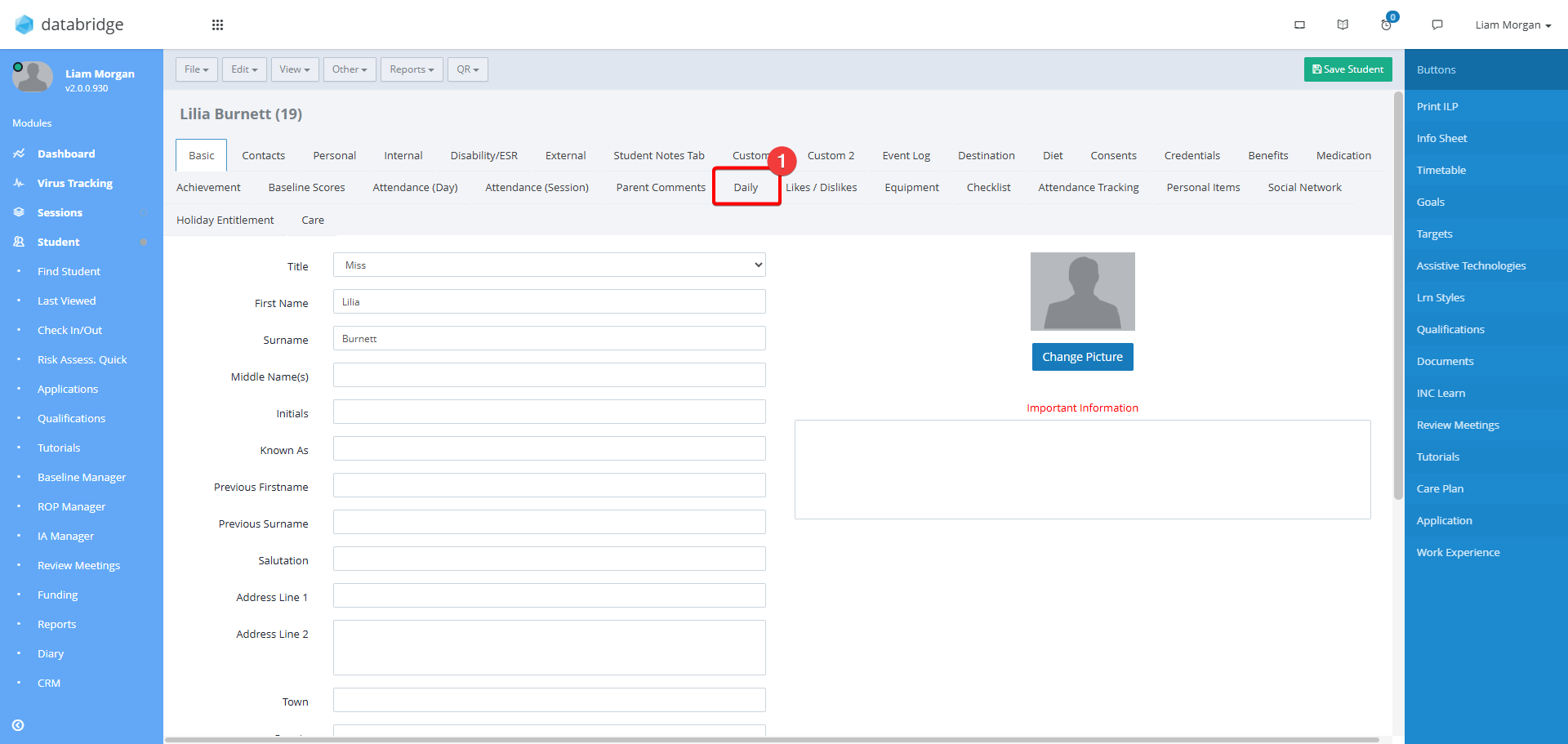
2. Click the Daily tab.
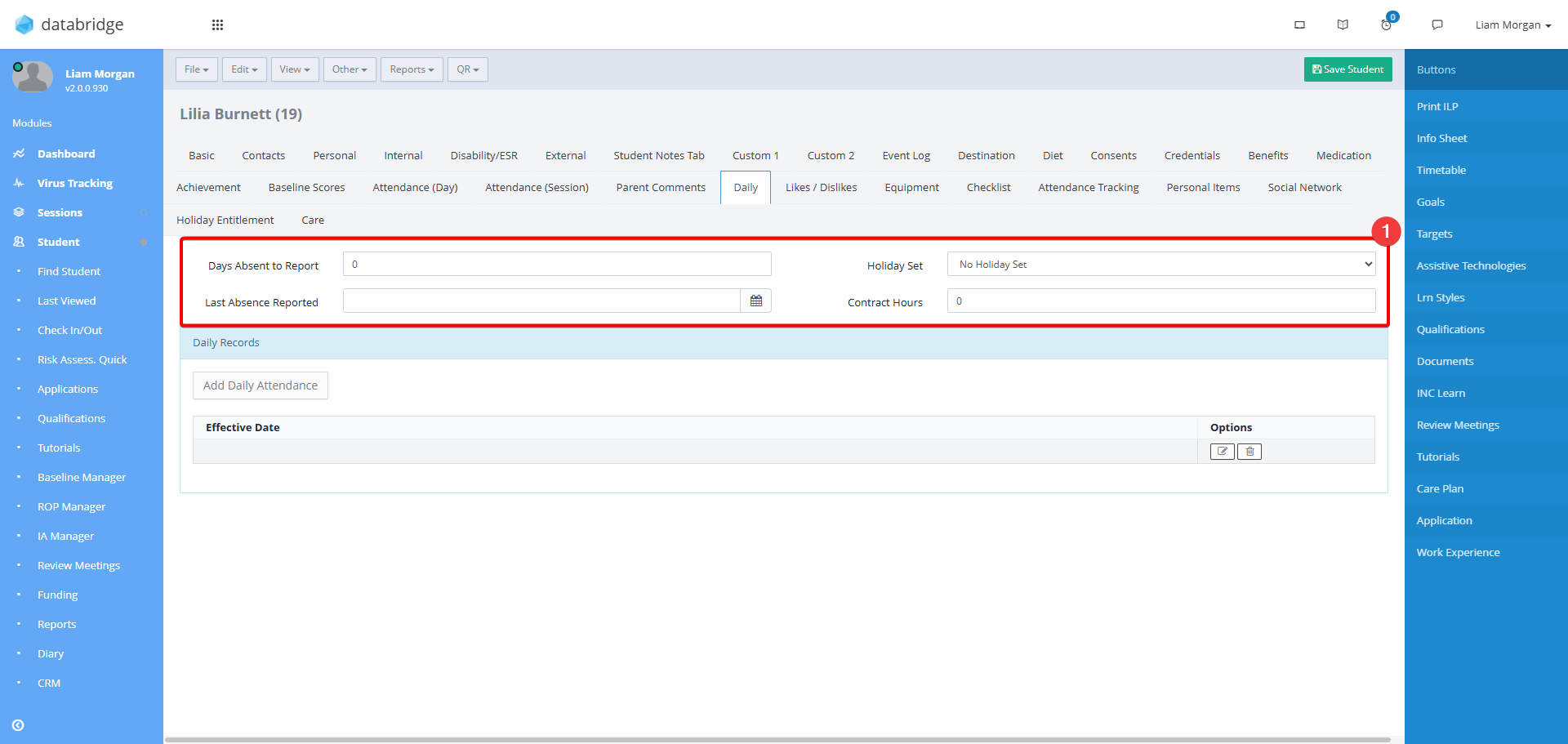
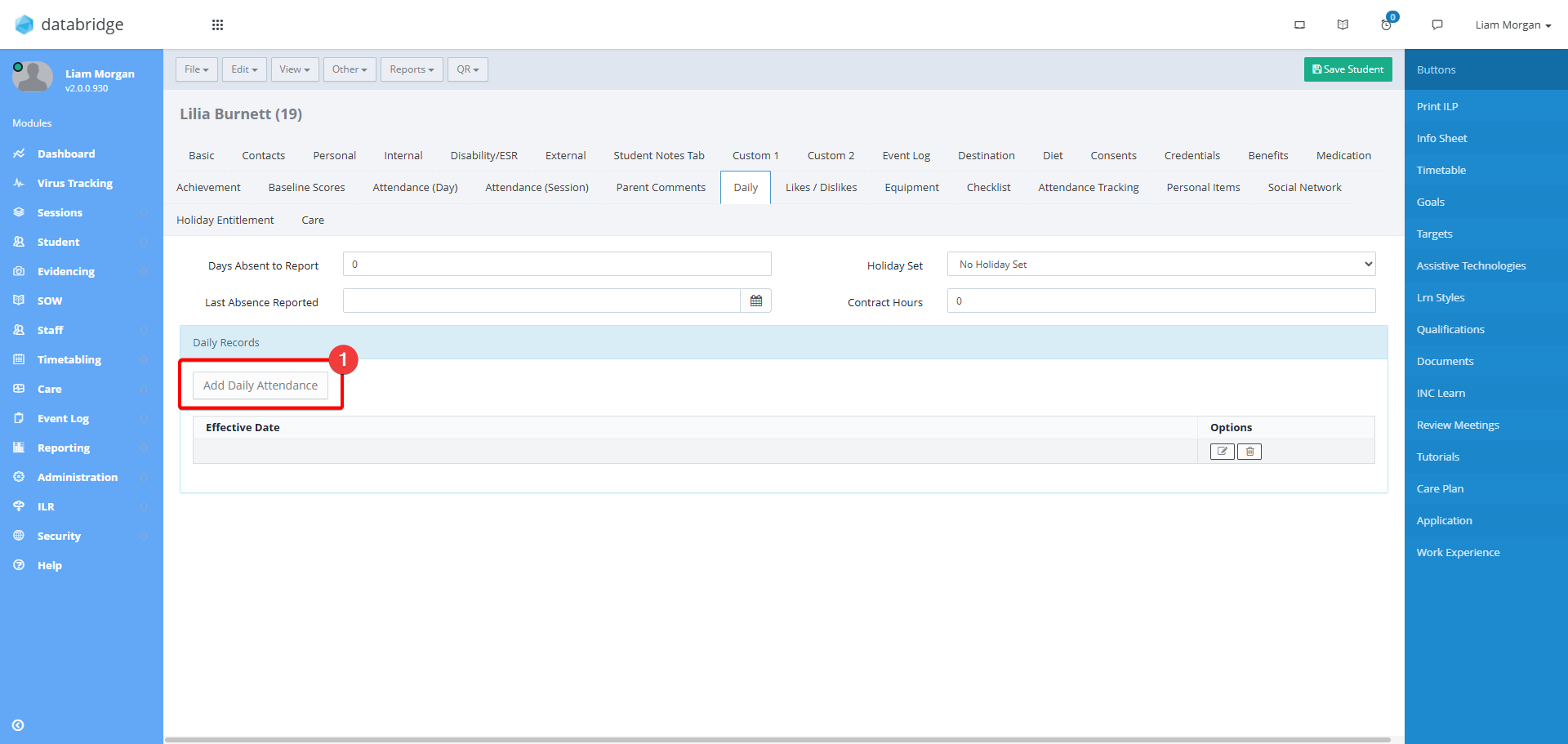
3. At the top of this tab you will see some initial fields:
- Days Absence to Report - Here you can set the number of consecutive days the student can be absent for until it's displayed on the main dashboard Day Attendance - Absence to Report widget.
- Last Absence Reported - You can enter a date here so the Day Attendance - Absence to Report widget only takes into account absences past this date.
- Holiday Set - This field allows you to set a holiday set for the student. Holiday sets are configured in Standard Values.
- Contract Hours - You can enter a number of hours here which is then used in the Attendance Analysis Report to calculate the percentage of their taught hours against the contract hours.
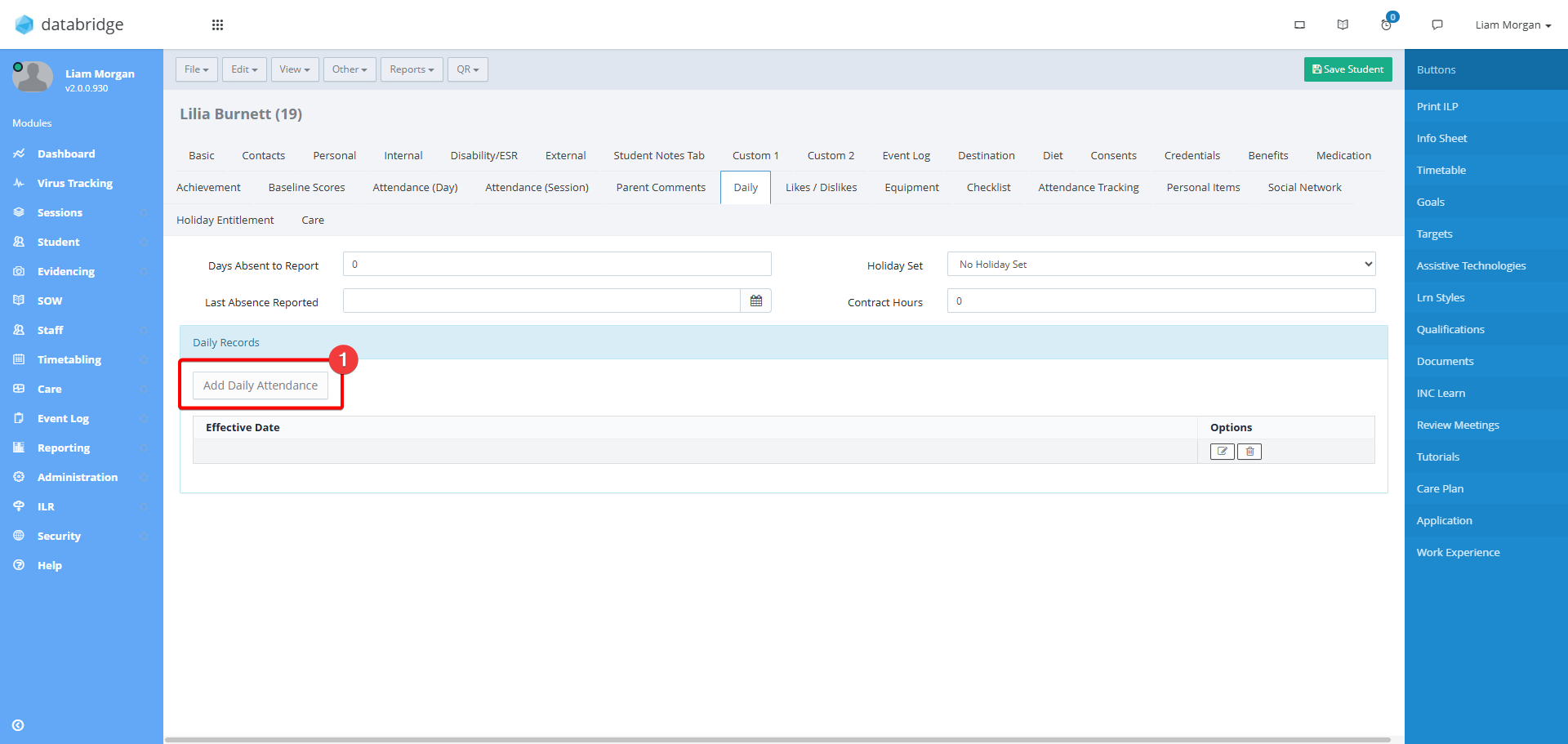
4. To create a new daily record, click on the Add Daily Attendance button.
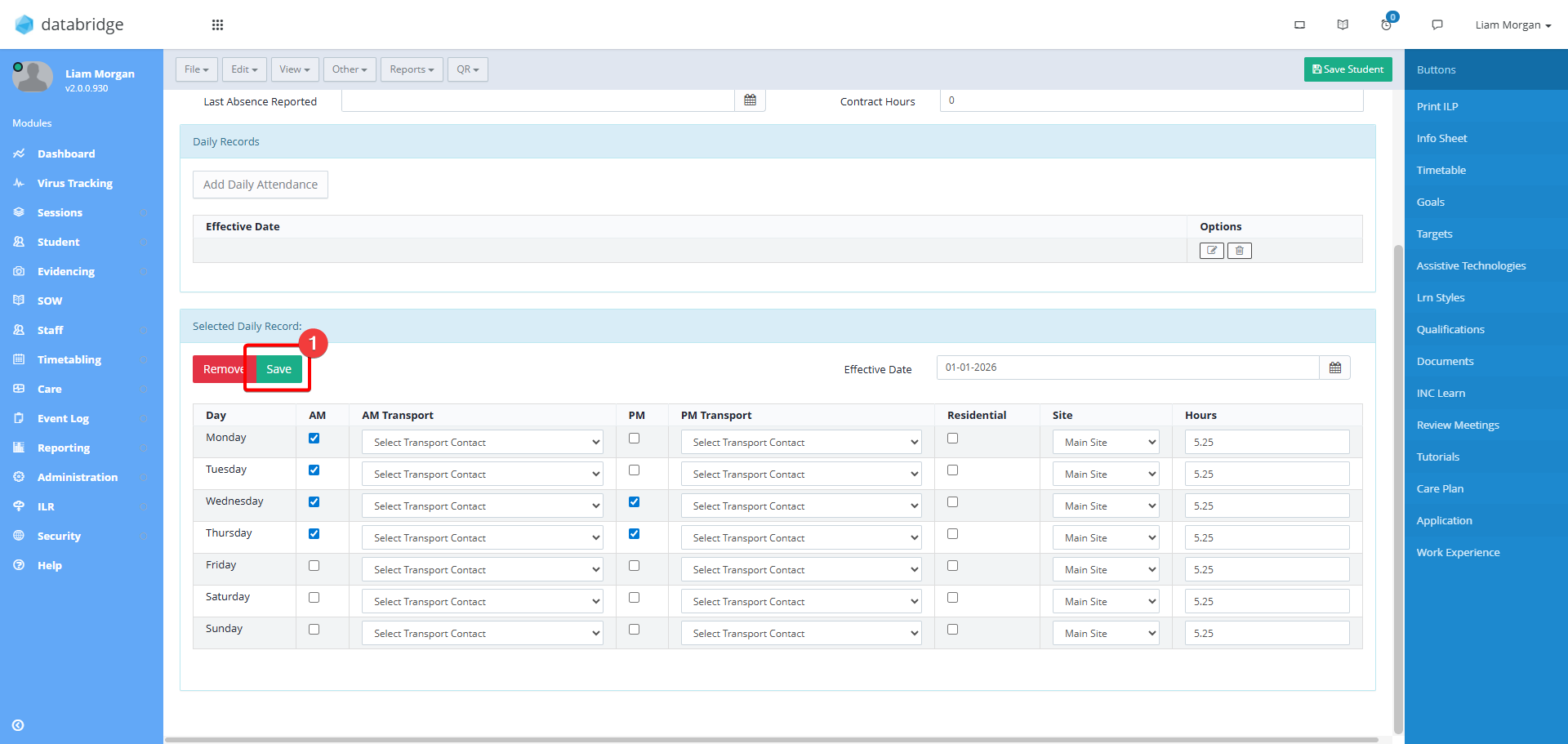
5. This will expand a new panel where you can fill in the Daily details:
- Effective Date - This is the date the daily record is to be effective from
- AM and PM - Check the boxes corresponding to when the Student is expected to be present.
- AM and PM Transport - These dropdown menus can be populated with the Student's transport details. These dropdowns are configured within Standard Values.
- Residential - Check this box if the Student is residential for the day.
- Site - For multi site users, select the Site the student is expected to attend.
- Hours - Enter the hours the student is expected to be present for.
Note: You can set multiple daily records to account for the student being expecting in for different days through the year. For example, set the effective date for Autumn term and then set the appropriate details for Monday, Tuesday and Thursday. Then, create a new daily attendance with the effective date set for Spring term and the appropriate details for Monday, Wednesday and Friday. All the daily records will be taken into when reporting on attendance.
6. When finished, click Save.
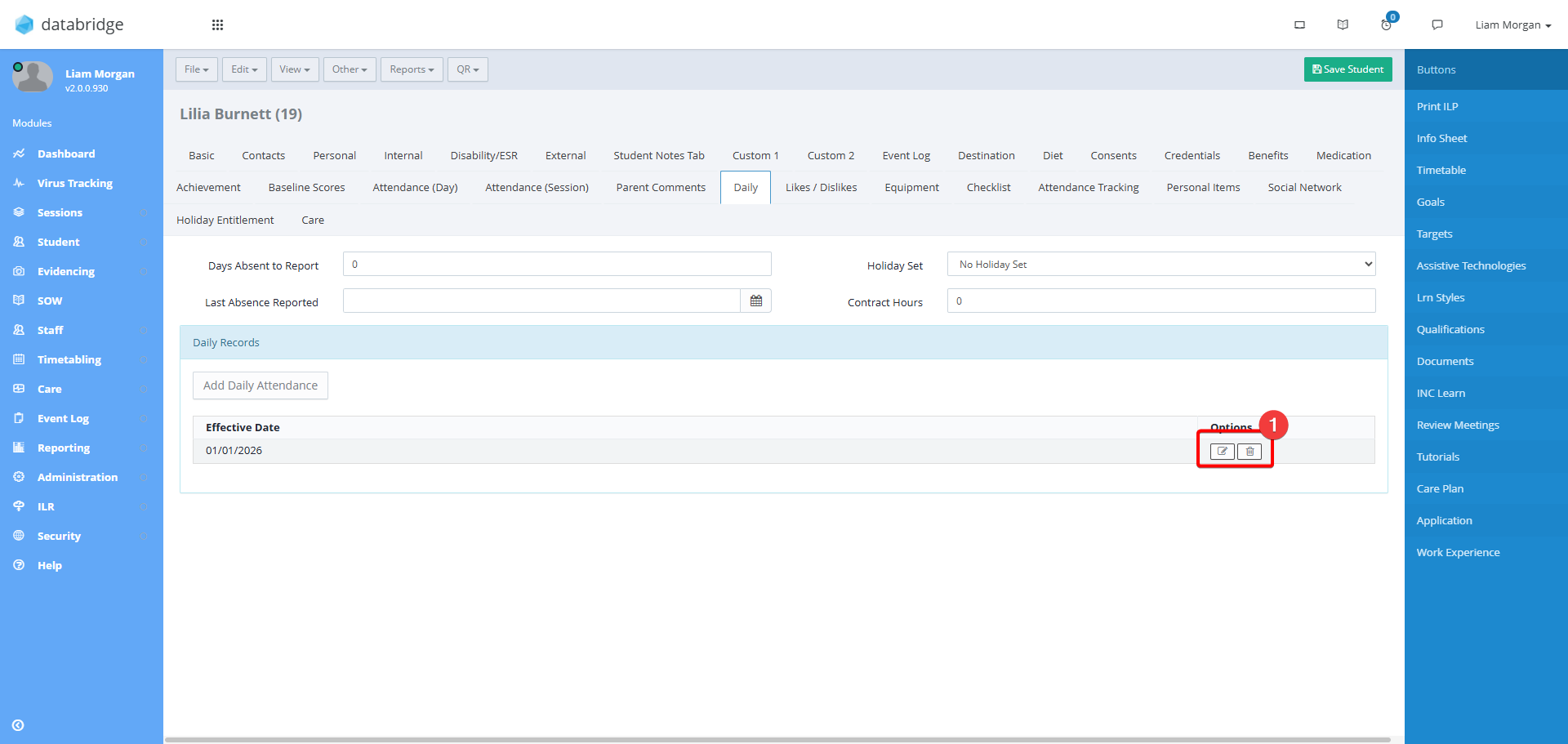
7. Any existing Daily records will appear here. Click the Pencil Icon to edit, which will expand the same window as the previous step. Click the Trashcan Icon to delete a Daily Record entry.
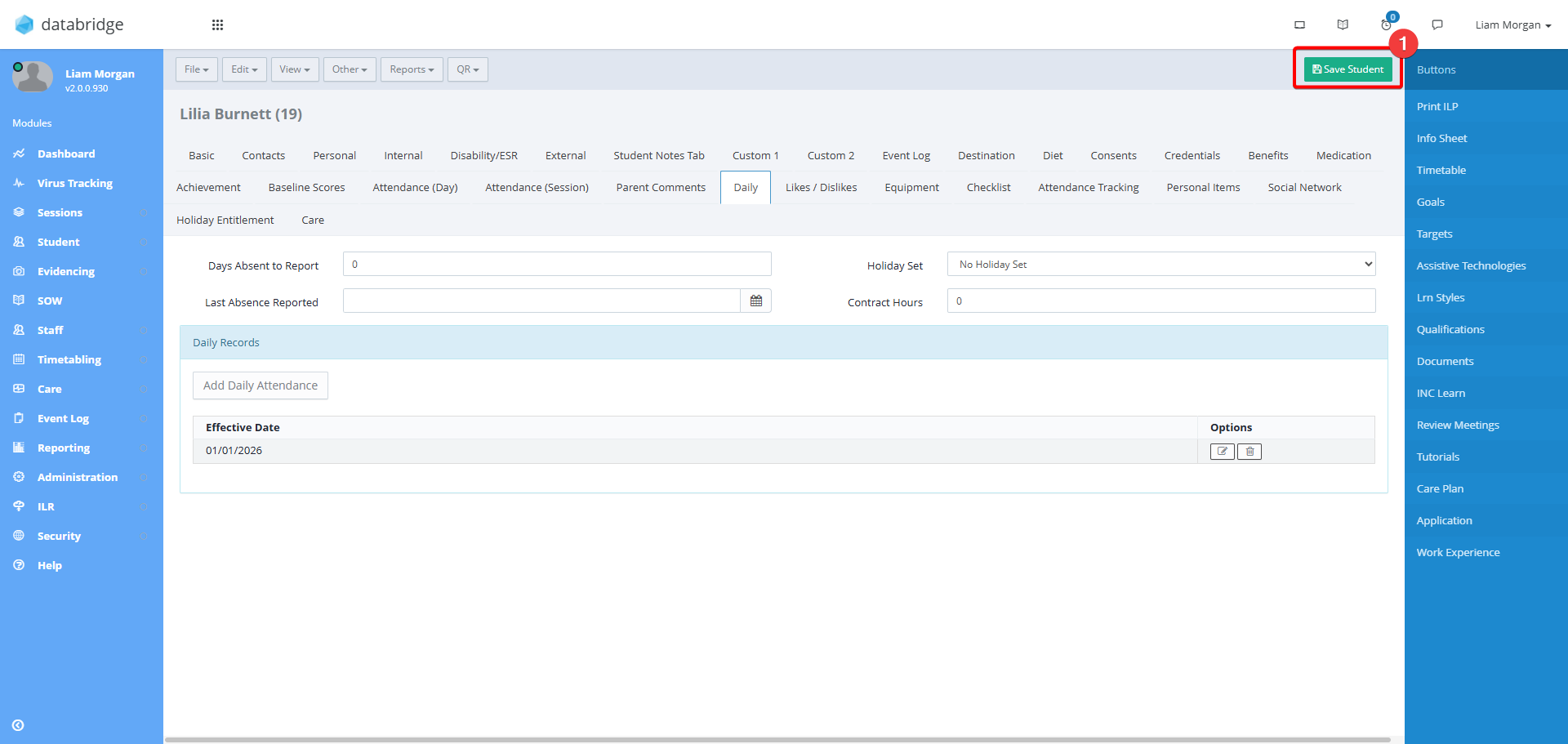
8. Click Save Student before leaving the Student Record.
Was this article helpful?
That’s Great!
Thank you for your feedback
Sorry! We couldn't be helpful
Thank you for your feedback
Feedback sent
We appreciate your effort and will try to fix the article