This guide will look at the Student Rewards page where we can record good and bad behaviour for Students using a points system.
TABLE OF CONTENTS
Configuring the Rewards Points System
1. First, head to Administration > Standard Values and locate the Student Values box.
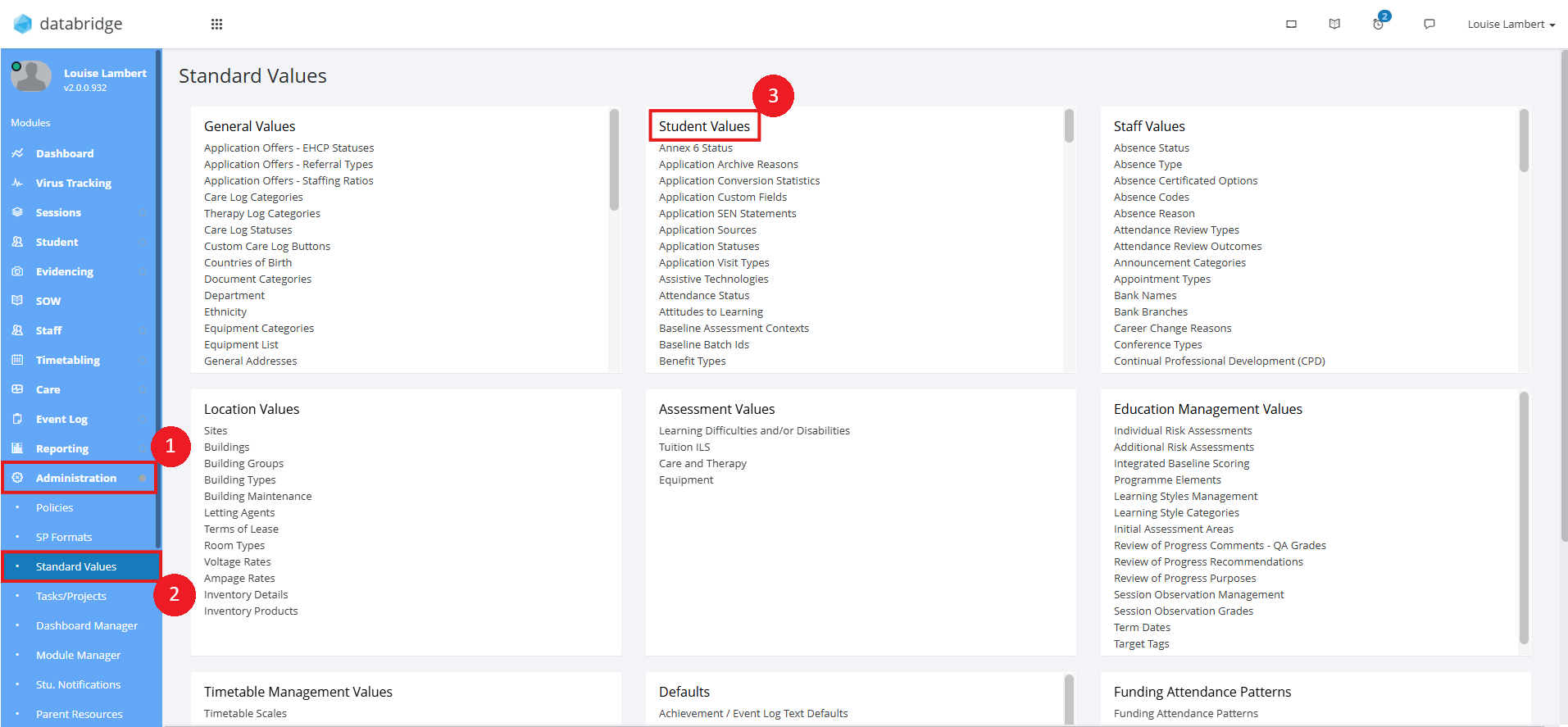
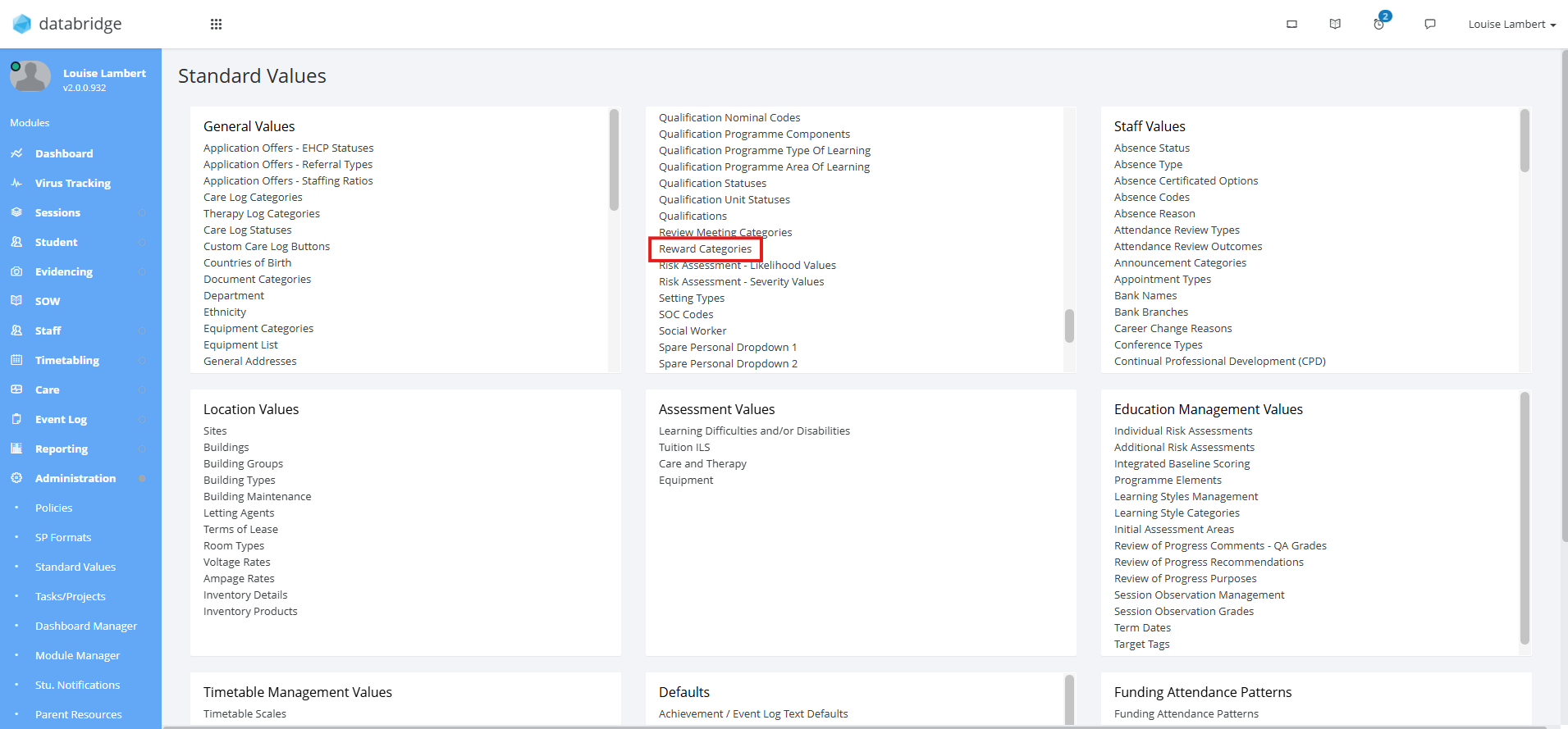
2. Within this box, click on Reward Categories.
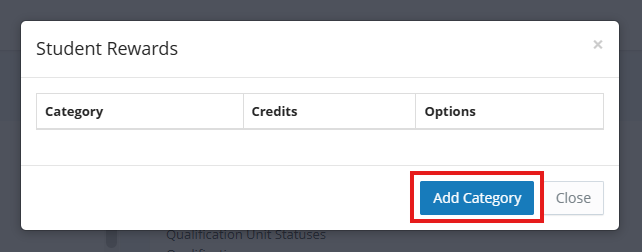
3. This will open a window listing all existing reward categories already on your system. To add a new category, click on the blue Add Category button.
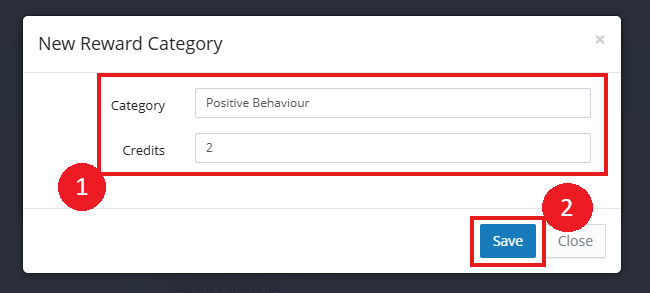
4. You can then input the label for the category, as well as the number of credits you want it to be worth. The numerical value is used to determine how many behaviour credits are given/taken from a Student. Click Save when done.
Note:
To set a reward category up as a negative value, simply input the value as a minus number.
Using the Student Rewards Page
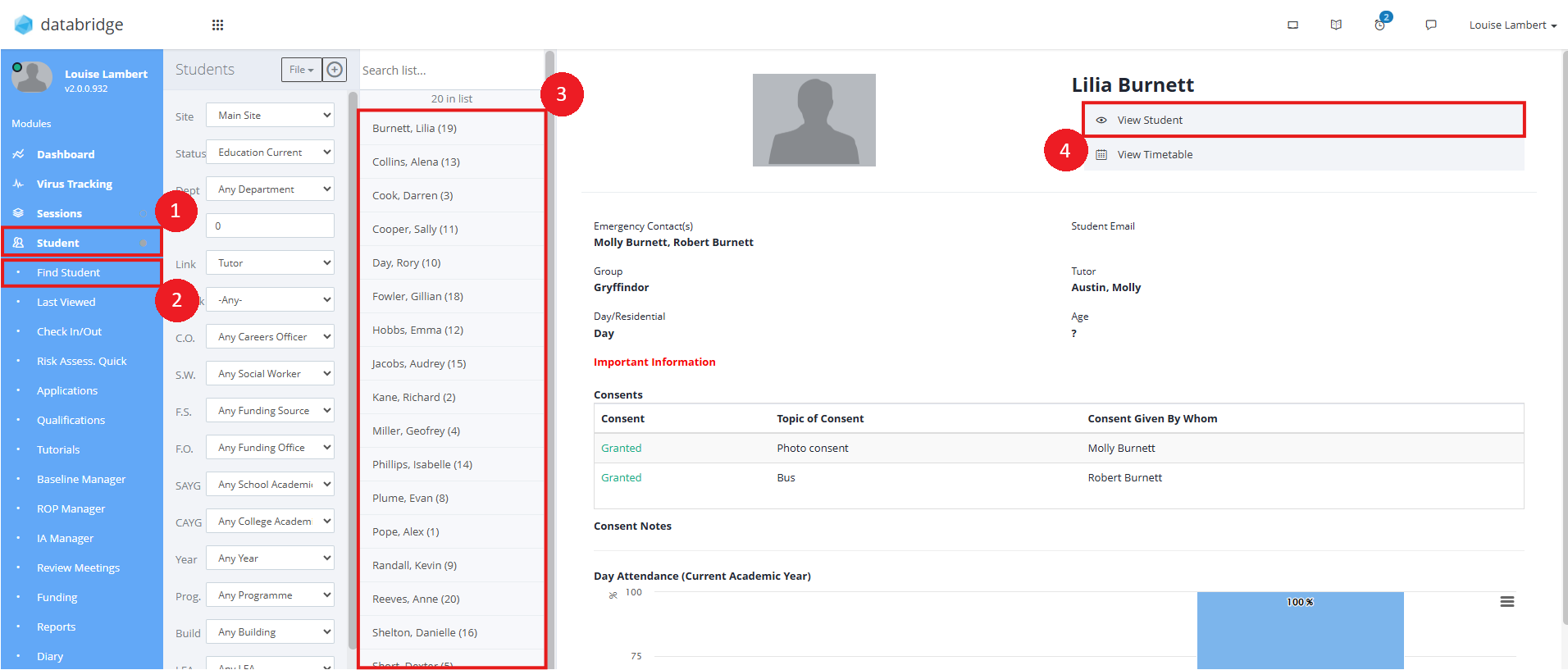
1. To access the Student Rewards page, head to the relevant Students record by navigating to Student > Find Student > *Select the relevant Student from the list* > View Student.
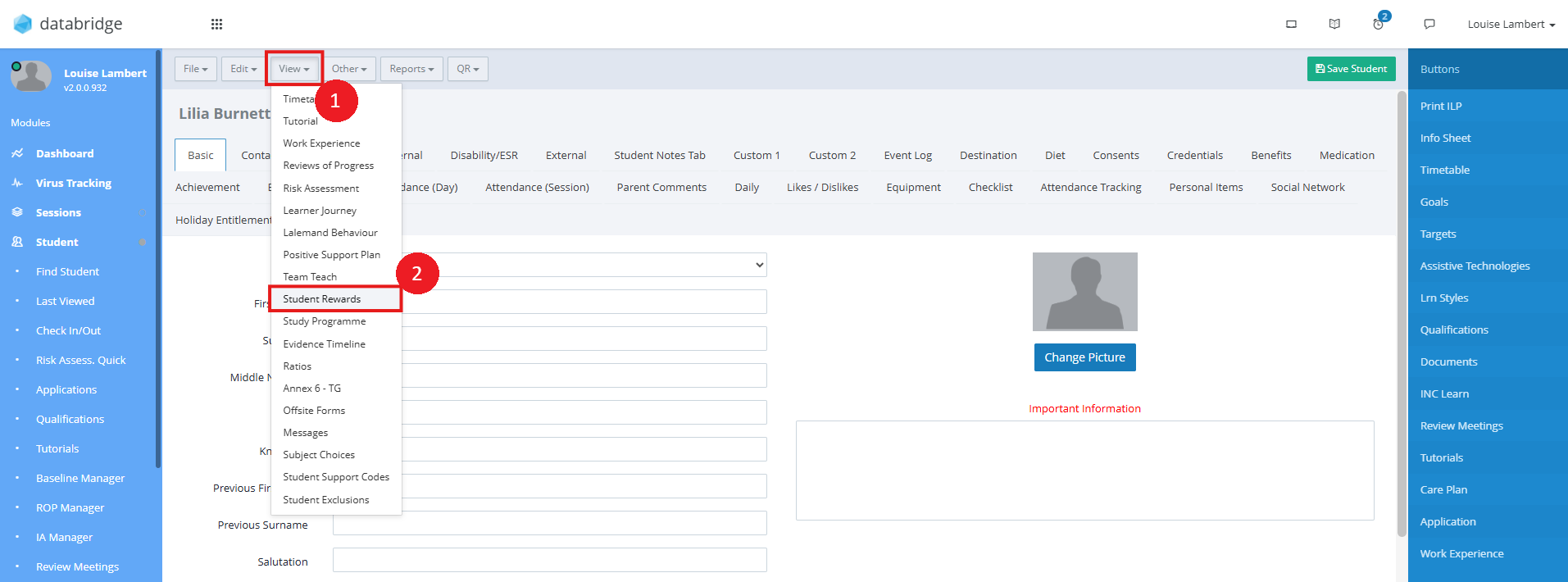
2. Click the View button along the top of the screen, and from the dropdown select Student Rewards.
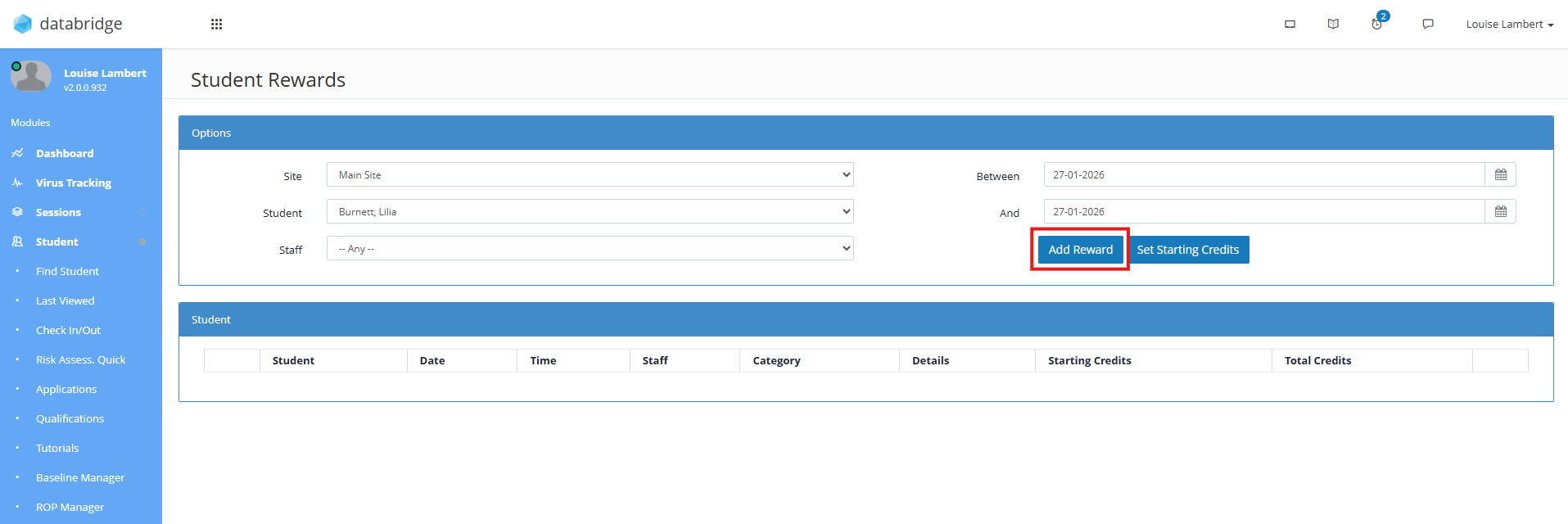
3. To add a reward, click Add Reward in the Options area.
Note:
You can use the filters in the Options section to determine the Student and narrow down which reward entries you wish to view.
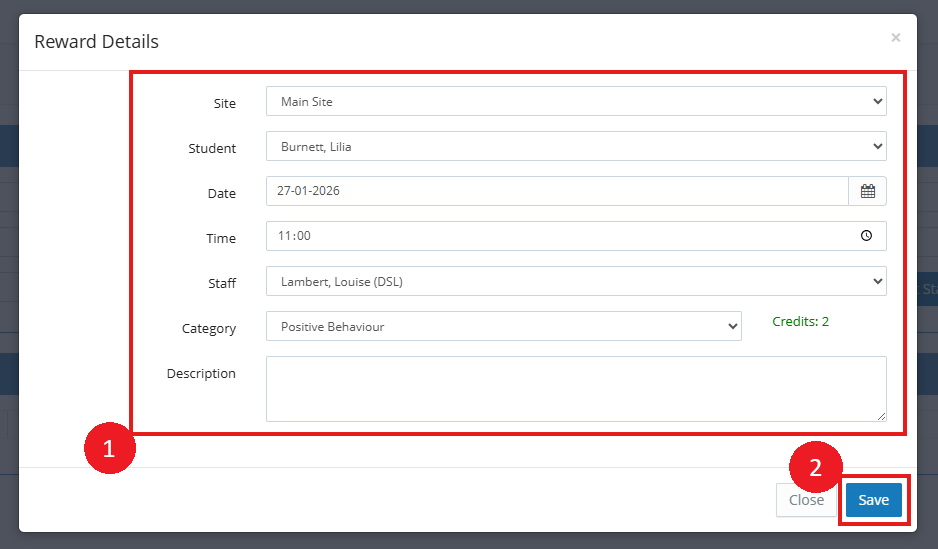
4. A window will appear where you can enter the details regarding the reward and click Save when finished.
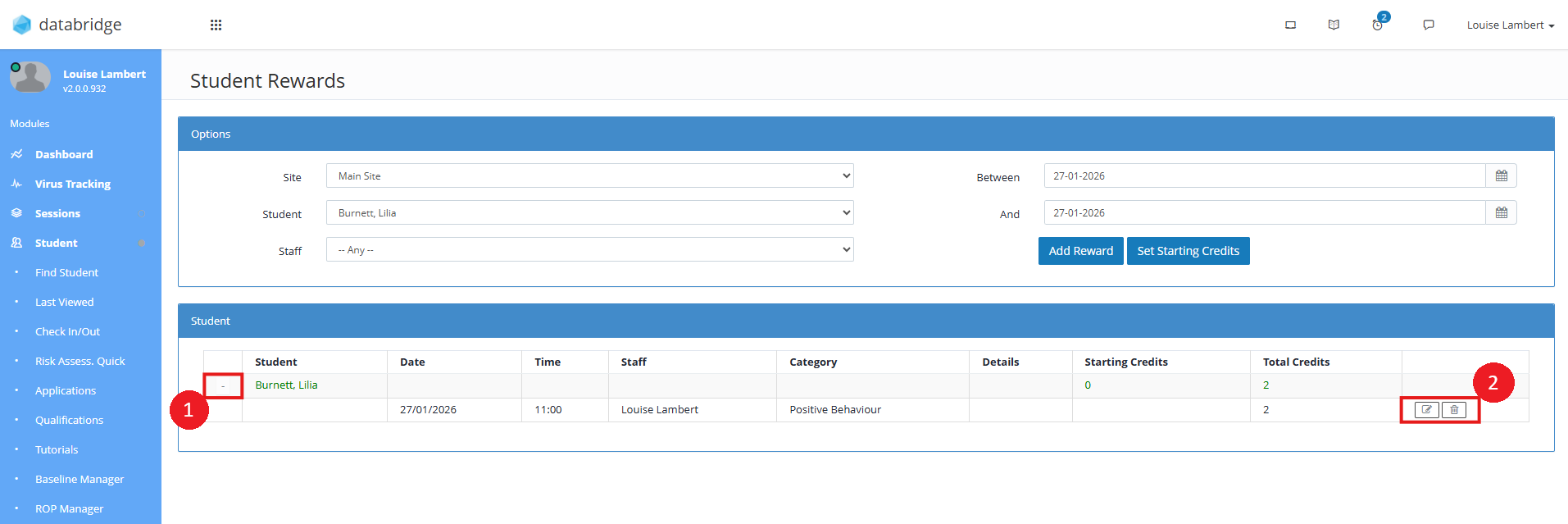
5. The Student will now appear in the list, and you can click the Plus Icon next to their name to view details of the entry. To edit this entry, click the Notepad Icon, and to delete an entry, click the Bin Icon.
Note:
You can also add reward entries from the Day Attendance screen by clicking File > Add Reward, or from a session plan by selecting Add Reward from the options on the right hand side.
Was this article helpful?
That’s Great!
Thank you for your feedback
Sorry! We couldn't be helpful
Thank you for your feedback
Feedback sent
We appreciate your effort and will try to fix the article