In this guide you will be shown how to setup the options for Learning Styles and how to apply these to a Student's record.
TABLE OF CONTENTS
- Configuring Learning Style Categories
- Configuring Learning Styles
- Applying Learning Styles to a Student's Profile
Configuring Learning Style Categories
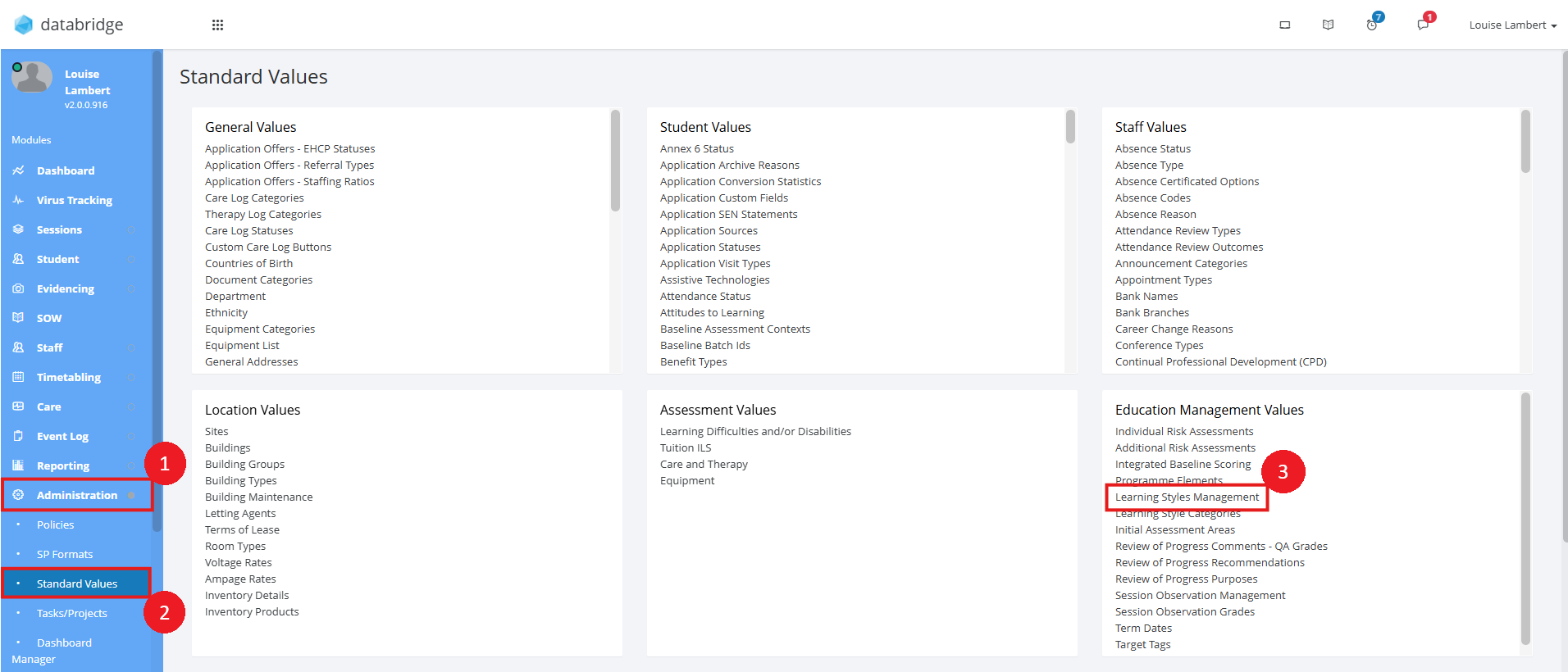
1. Click on Administration > Standard Values

2. Go to the Education Management Values section, and click on Learning Style Categories

3. Click the blue Add Value button, and then type in the name for the category - eg: Preferred Communication Method. Click Save to then add this category as an option.

4. Repeat until all categories have been added.
Configuring Learning Styles
1. Navigate to Administration > Standard Values. Within the Education Management Values box, select Learning Styles Management.
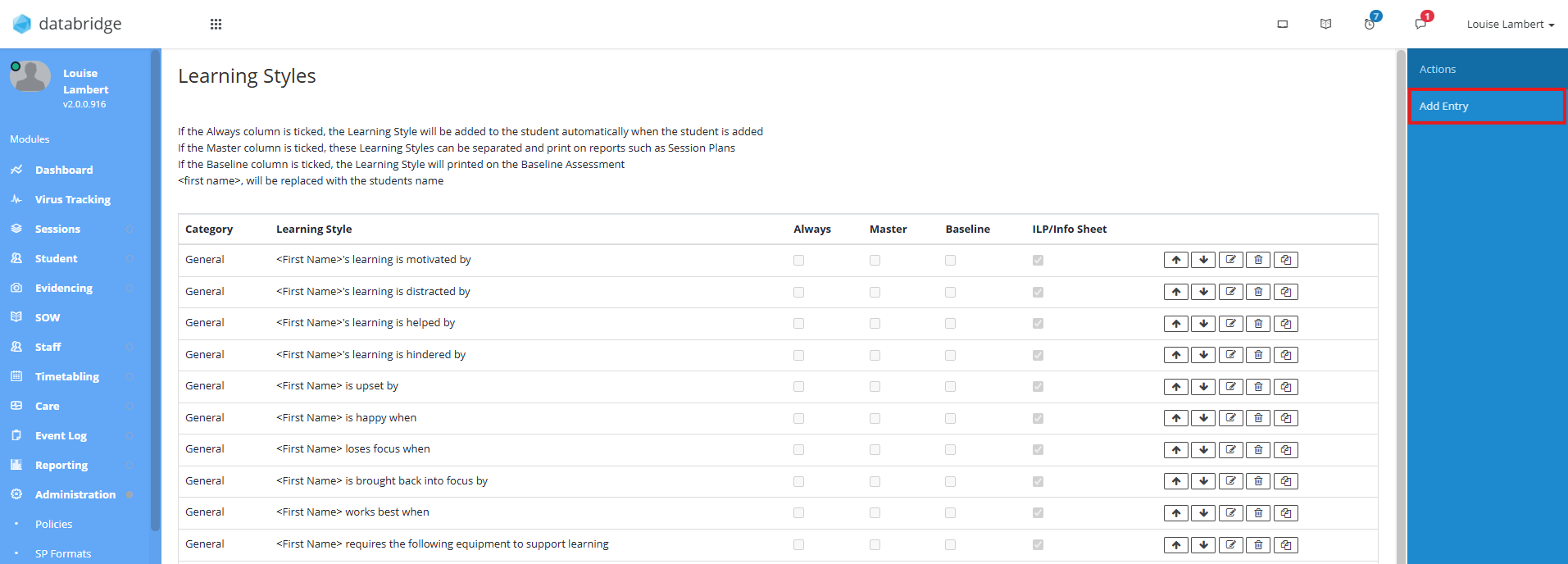
2. This will take you to a page where you can view all existing Learning Styles, add new ones, and configure the settings for them. To add a new Learning Style, click on Add Entry.
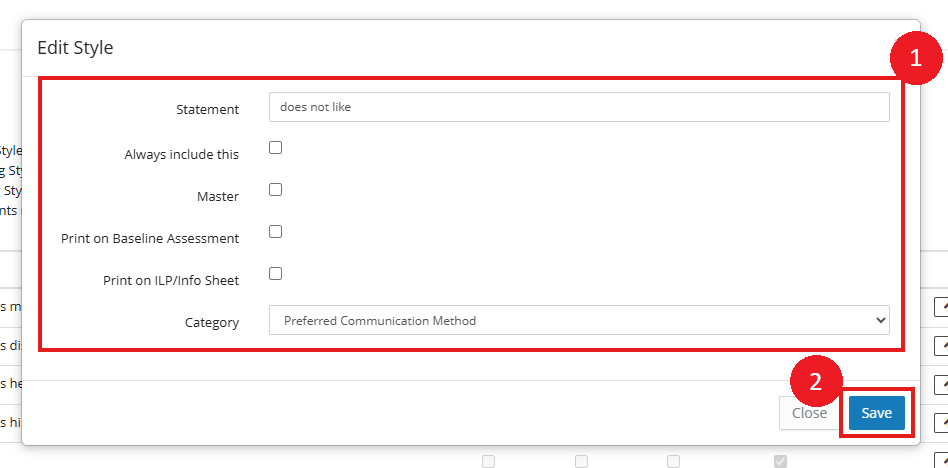
3. In the window that appears, fill in the details for the Learning Style and click Save.
Note:
The statement field when setting up Learning Styles works as a prefix. To work with the structure, the statement could be something like "does not like".
This way, when you go to apply the Learning Styles to a Student record, the statement will read '(Student name) does not like...' followed by the details you input here.
The 4 settings you can select here are:
Always - If this box is ticked, this Learning Style will automatically be applied when a new Student is added.
Master - If this box is ticked, this Learning Style can be printed and reported separately (on reports such as Session Plans).
Baseline - If this box is ticked, this Learning Style will be printed on the Baseline Assessment.
ILP/Info Sheet - If this box is ticked, this Learning Style will be printed on the ILP and the Info Sheet.
The Learning Style will now appear in the list.
Applying Learning Styles to a Student's Profile
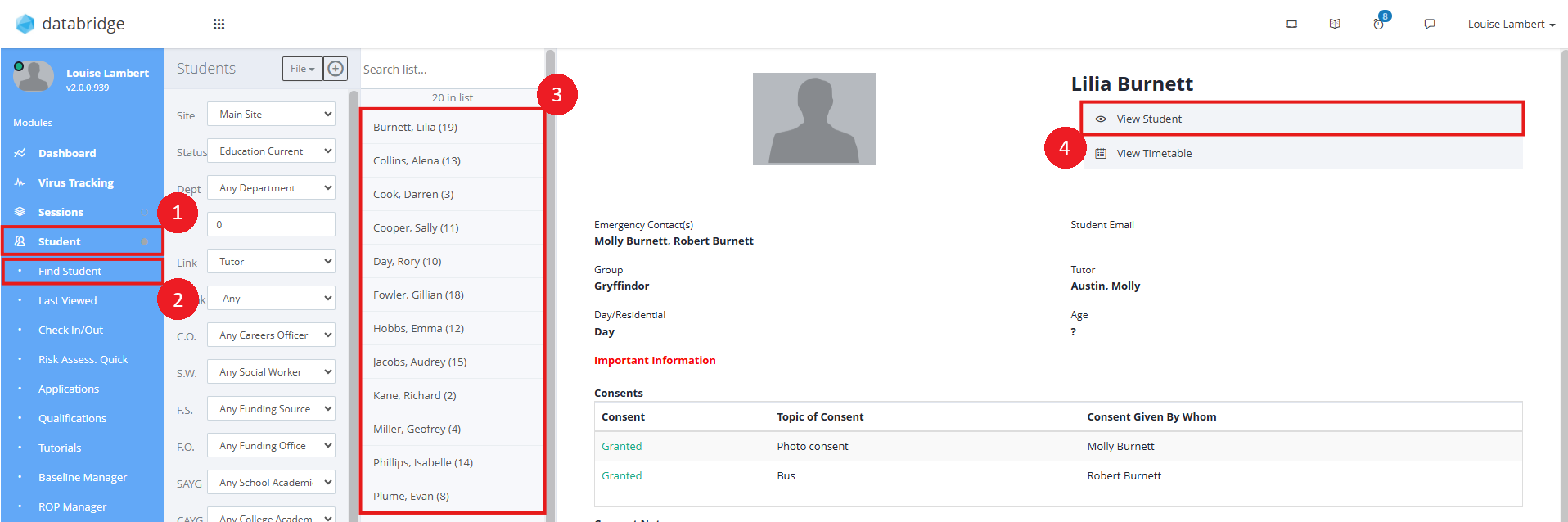
1. To add a Learning Style to a Student's profile, first navigate to their record via Student > Find Student > *selecting the relevant Student from the list* > View Student.
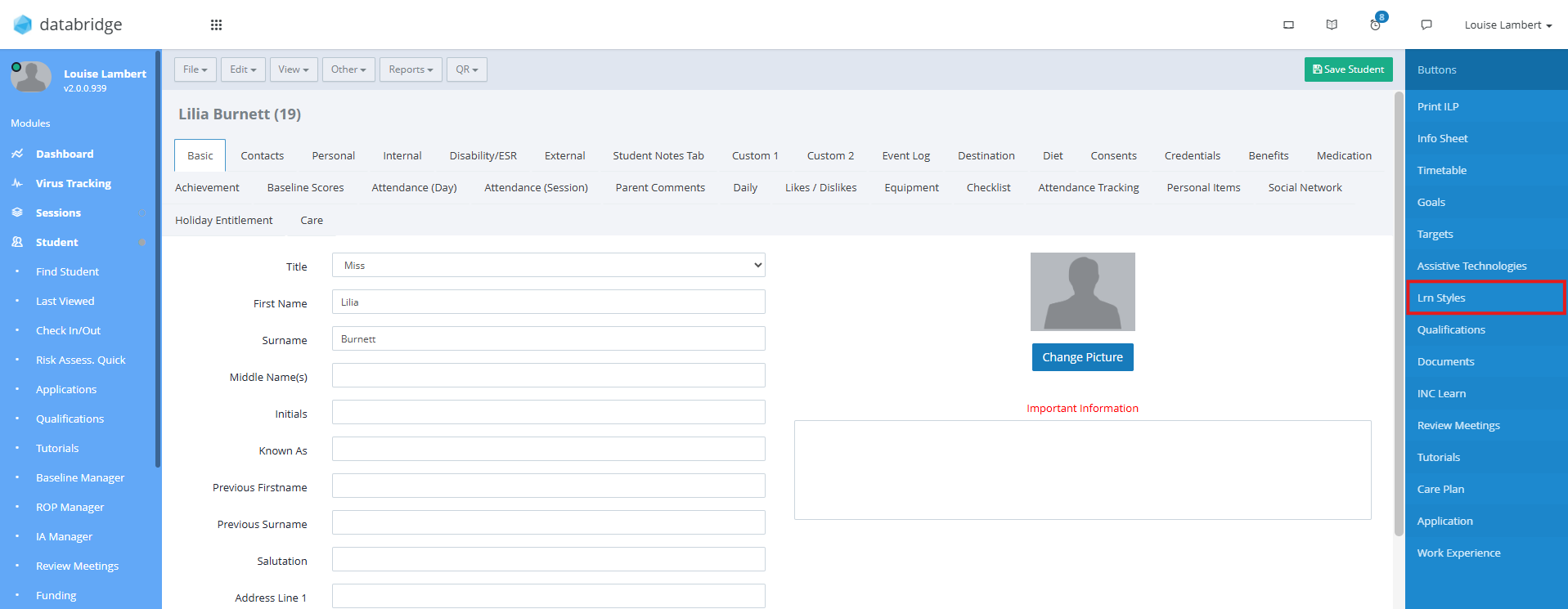
2. Click on Learning Styles.
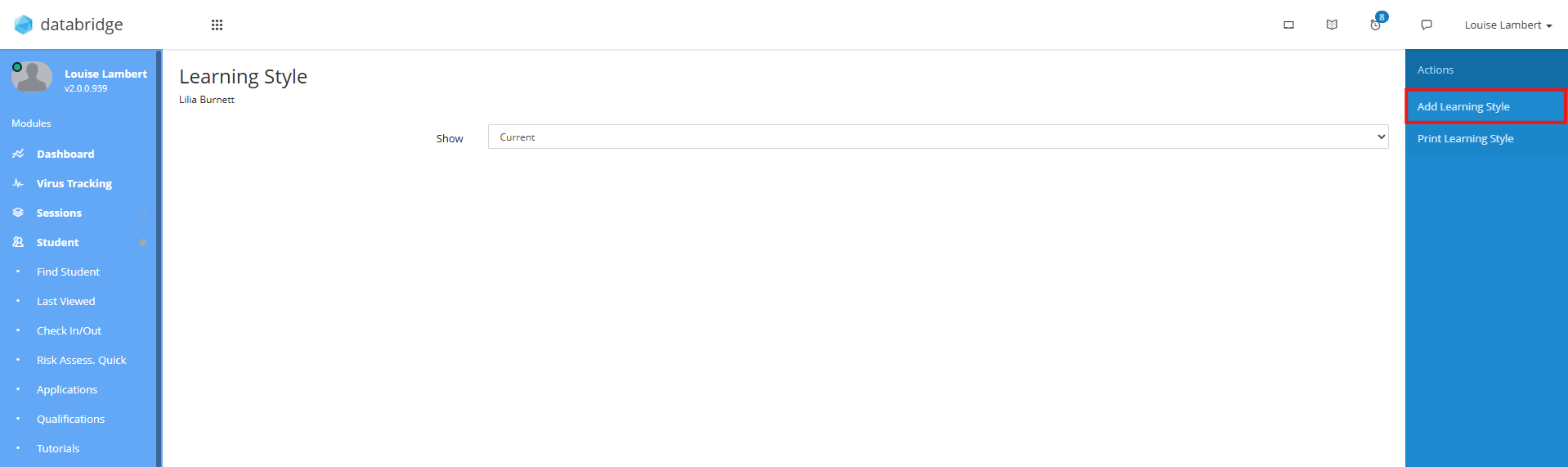
3. To add a new Learning Style, click Add Learning Style from the list on the right.
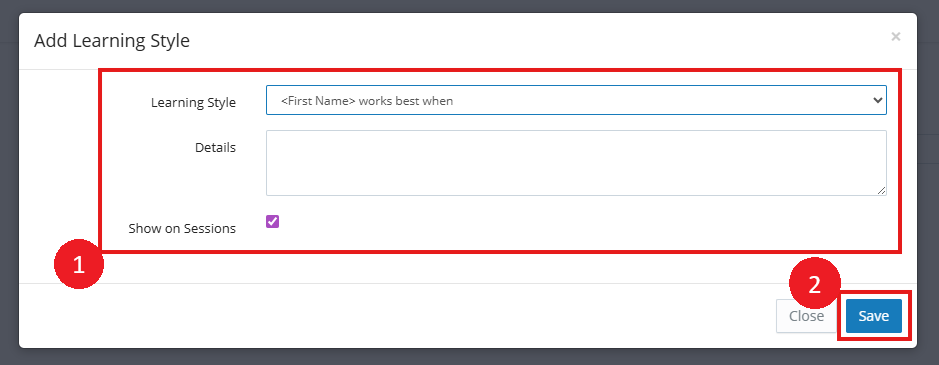
4. In the window that appears, select the relevant statement from the dropdown, fill in details and click the blue Save button to add the entry.
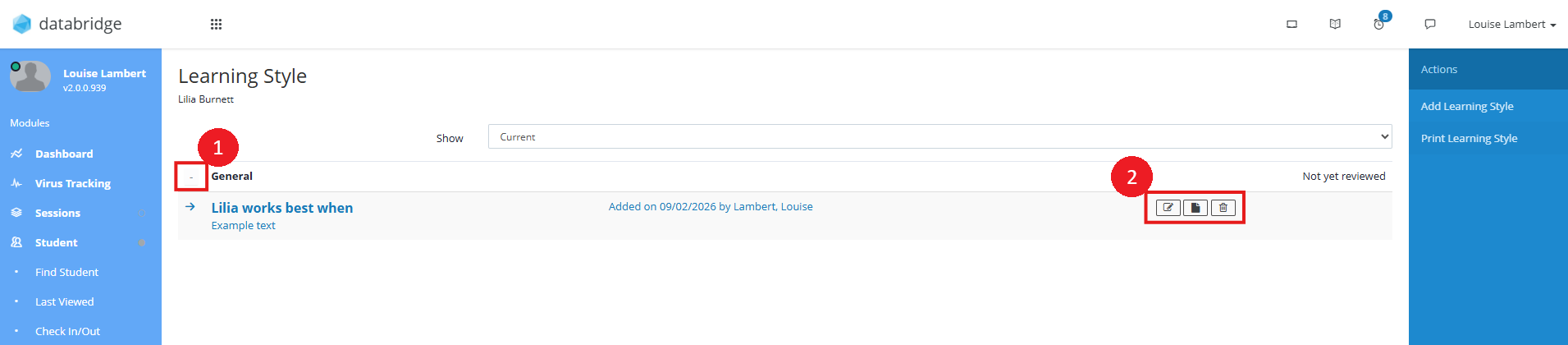
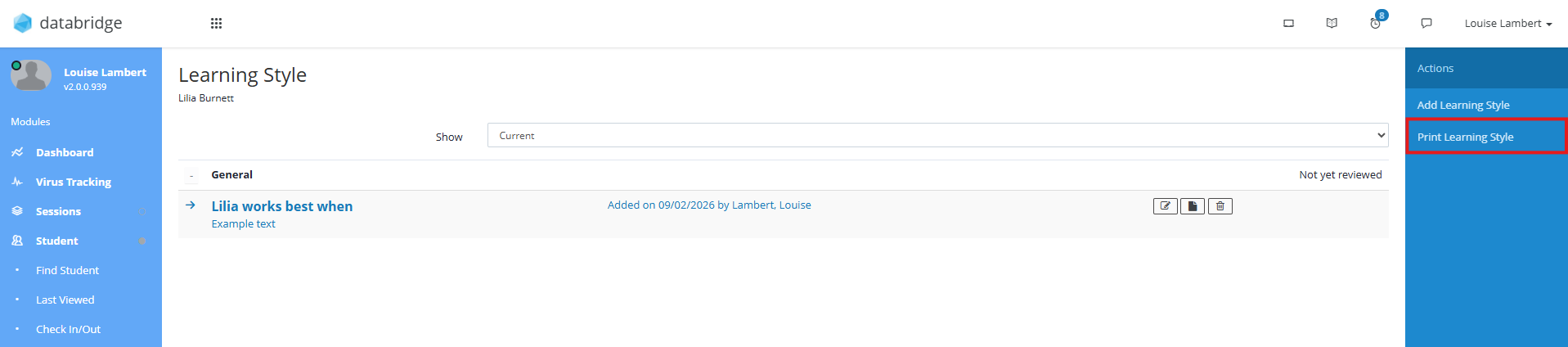
5. The entry will now appear on the page. To view the details of the entry, click the Plus Icon next to the Category. To edit an existing Learning Style, click on the Notepad Icon, and to delete a Learning Style, click the Bin Icon.
6. To print Learning Styles for a Student, click Print Learning Styles.
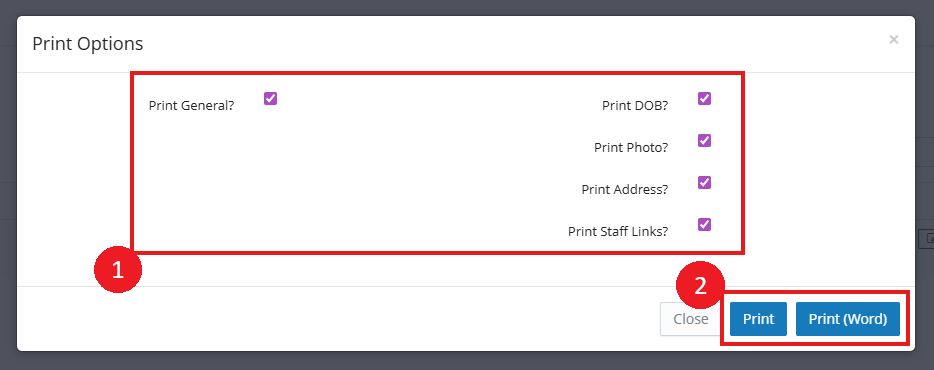
7. In the pop-up window, you can select which Styles you wish to print as well as opt to include DoB, Profile Photo, Address and any Staff Links for the Student. Click Print to print as a PDF, or Print (Word) to print to Word.
Was this article helpful?
That’s Great!
Thank you for your feedback
Sorry! We couldn't be helpful
Thank you for your feedback
Feedback sent
We appreciate your effort and will try to fix the article