This guide will look at how to create Event Log Templates. These are used to download and print Event Logs into a custom format.
TABLE OF CONTENTS
Creating Bookmarks
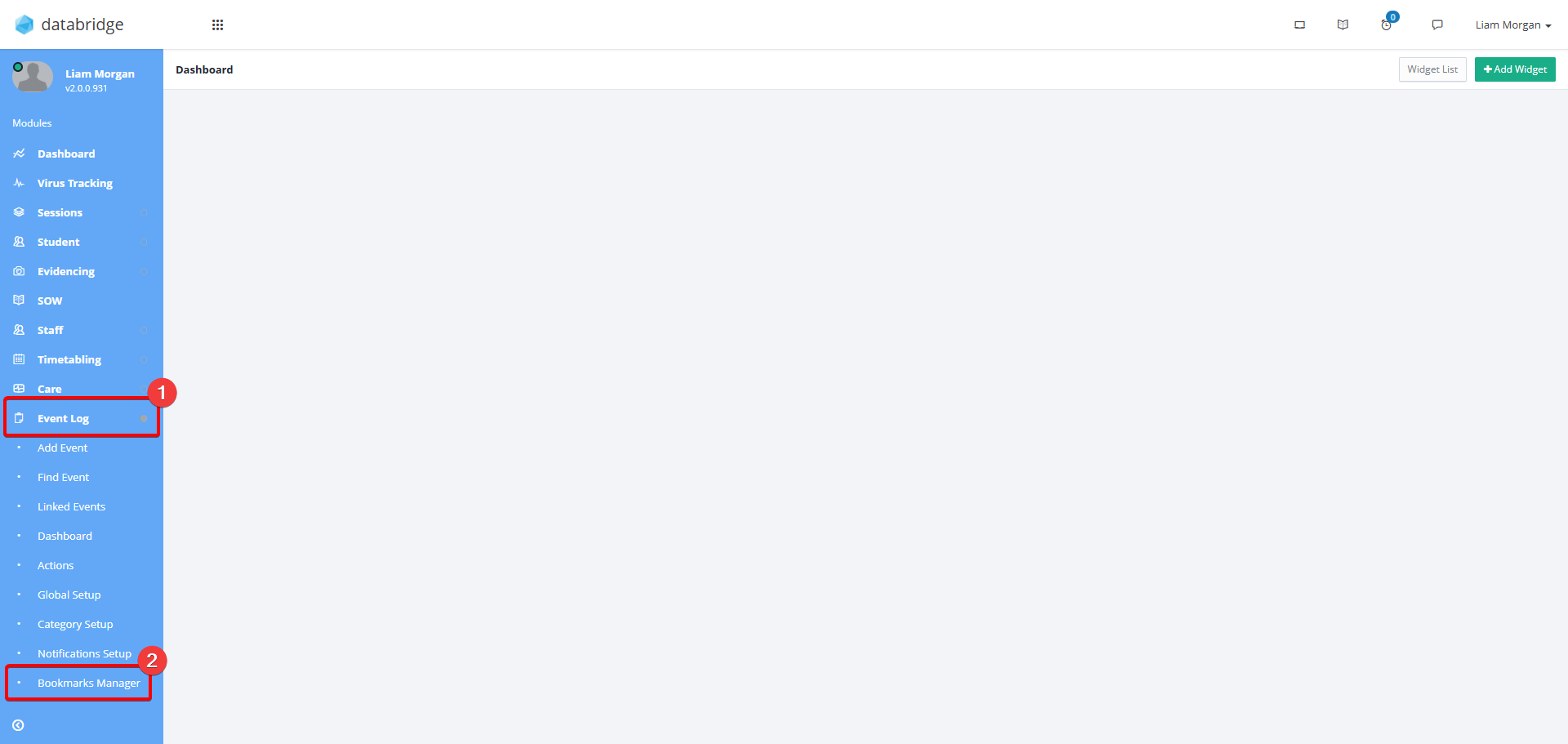
1. First you need to create the bookmarks relating to the Event. These are later used within your template as placeholders, similar to a mail merge. To manage these bookmarks navigate to Event Log > Bookmarks Manager.
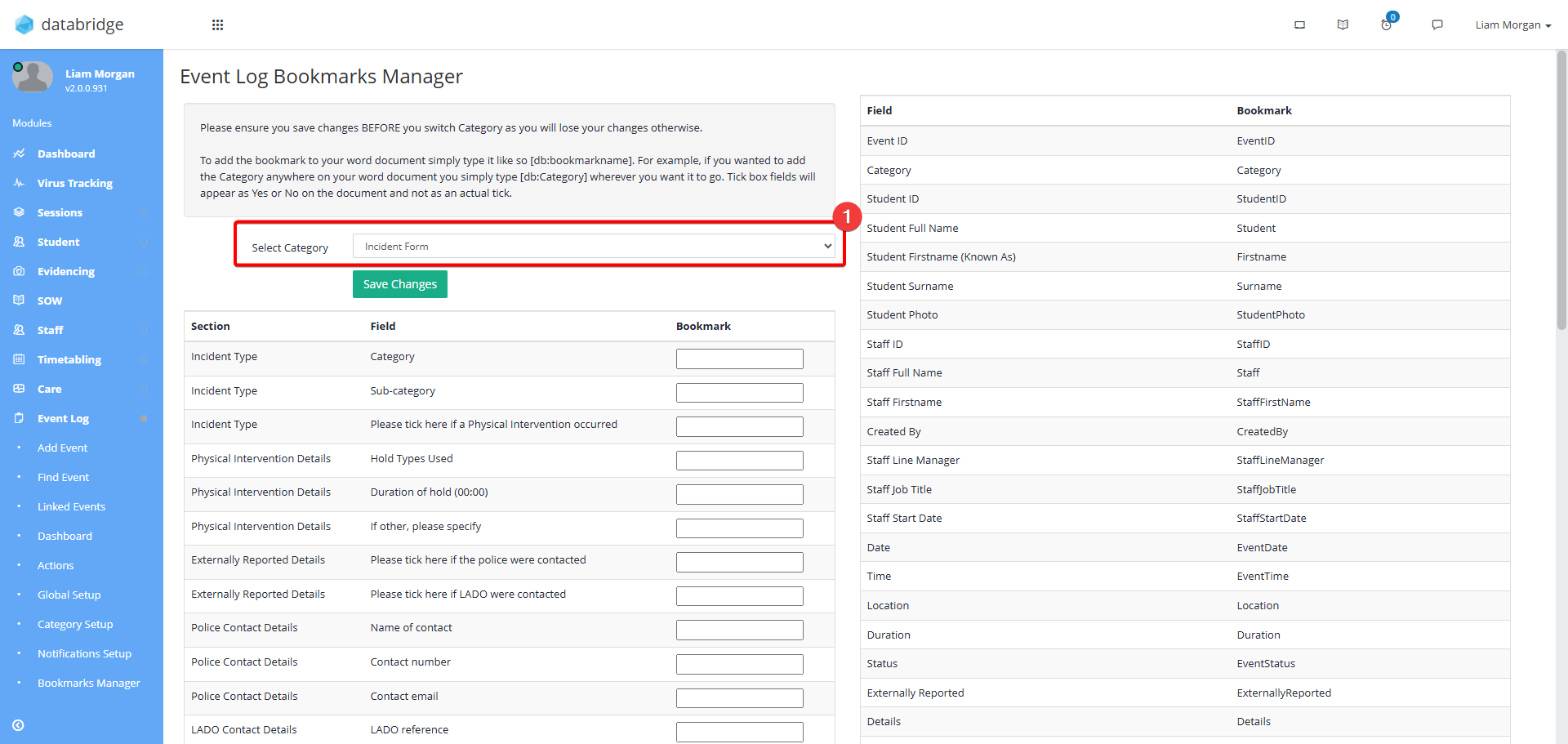
2. On the right hand side of the screen, you will see some universal bookmarks that can be used on any template, regardless of the Event Log Category. To manage the bookmarks for a specific Event Log Category, select a Category from the Select Category dropdown.
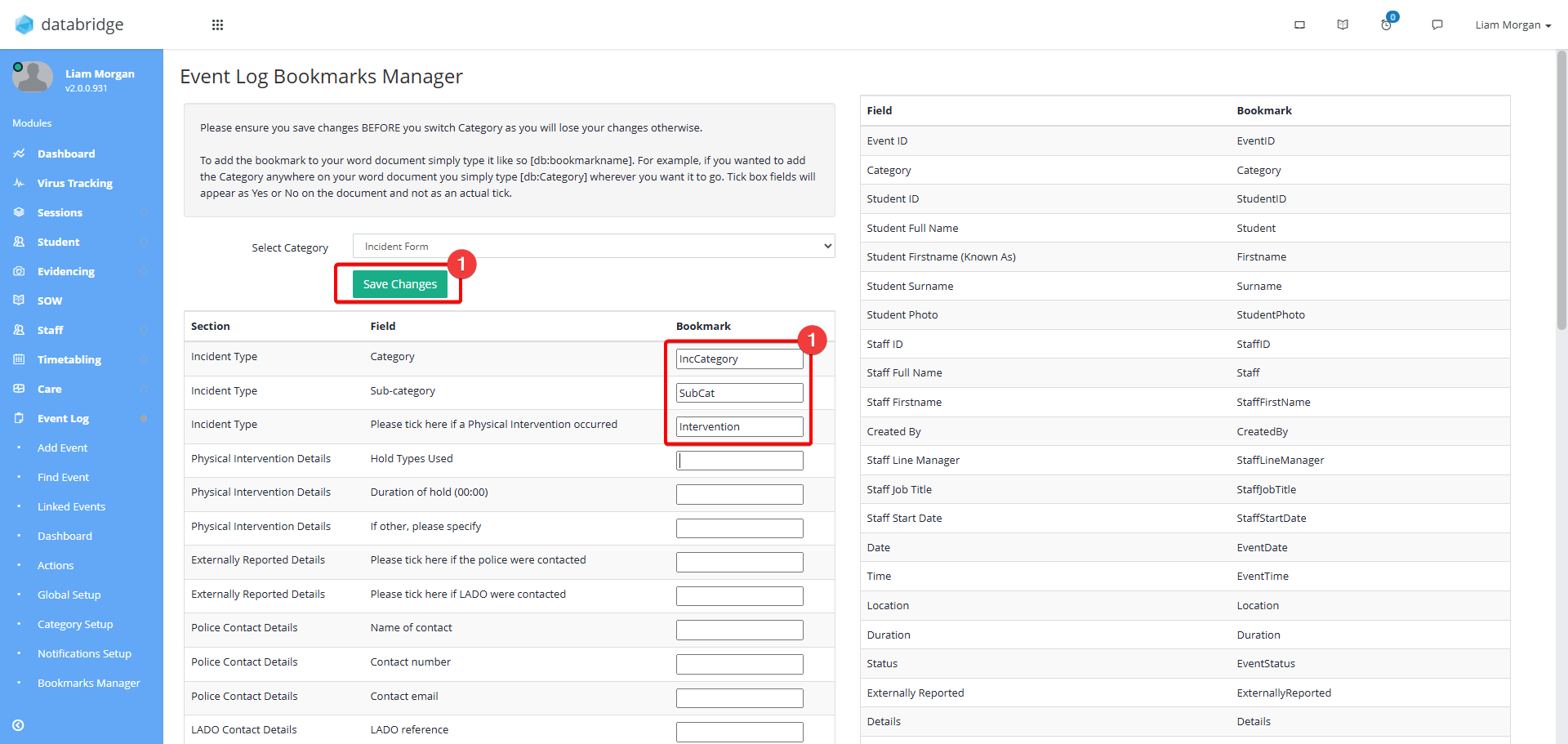
3. Enter a unique bookmark against the Event Log fields that you want to include in the Template. Examples of this can be seen in the screenshot below, then click Save Changes.
Creating a Template
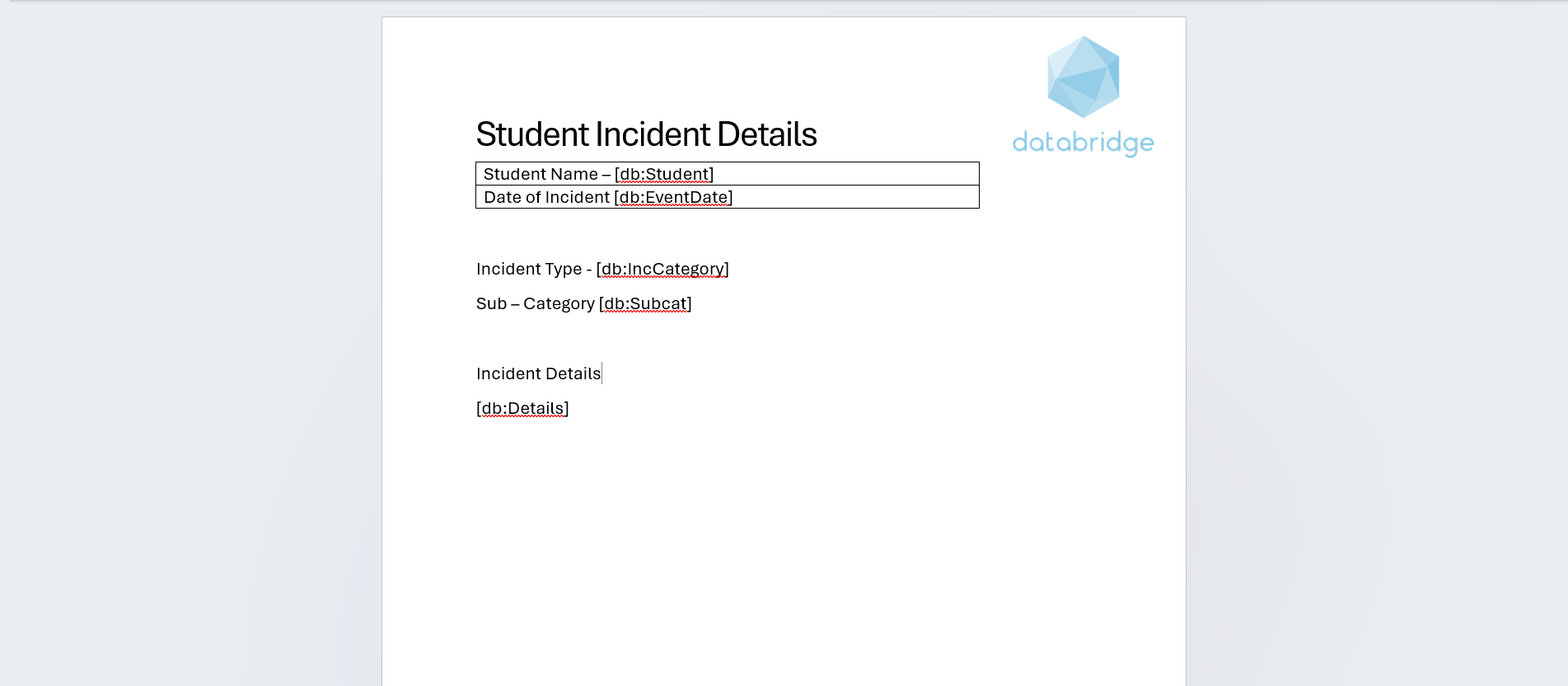
4. Next you need to create a Word document to be used as the template, by including the bookmarks you just configured in order to pull through the details from the Event Log.
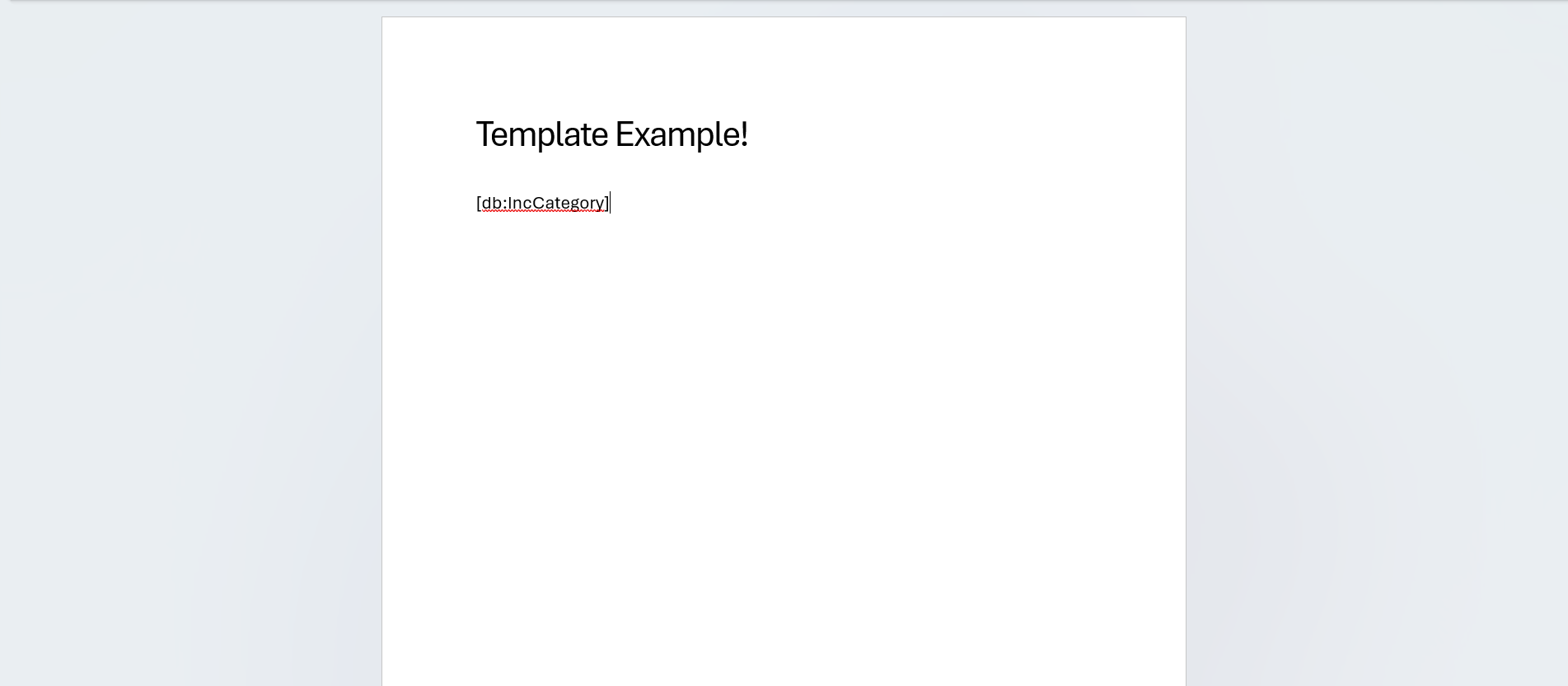
To use the bookmarks in the template, they need to be added in the following format [db:BookmarkName], for example if the bookmark created in the Bookmarks Manager was IncCategory, the word document would need to contain [db:IncCategory].
5. Repeat this process using a combination of custom bookmarks, the pre-set universal bookmarks and any other images, logos, text and formatting you want until the template is complete. An example of this can be seen in the screenshot below.
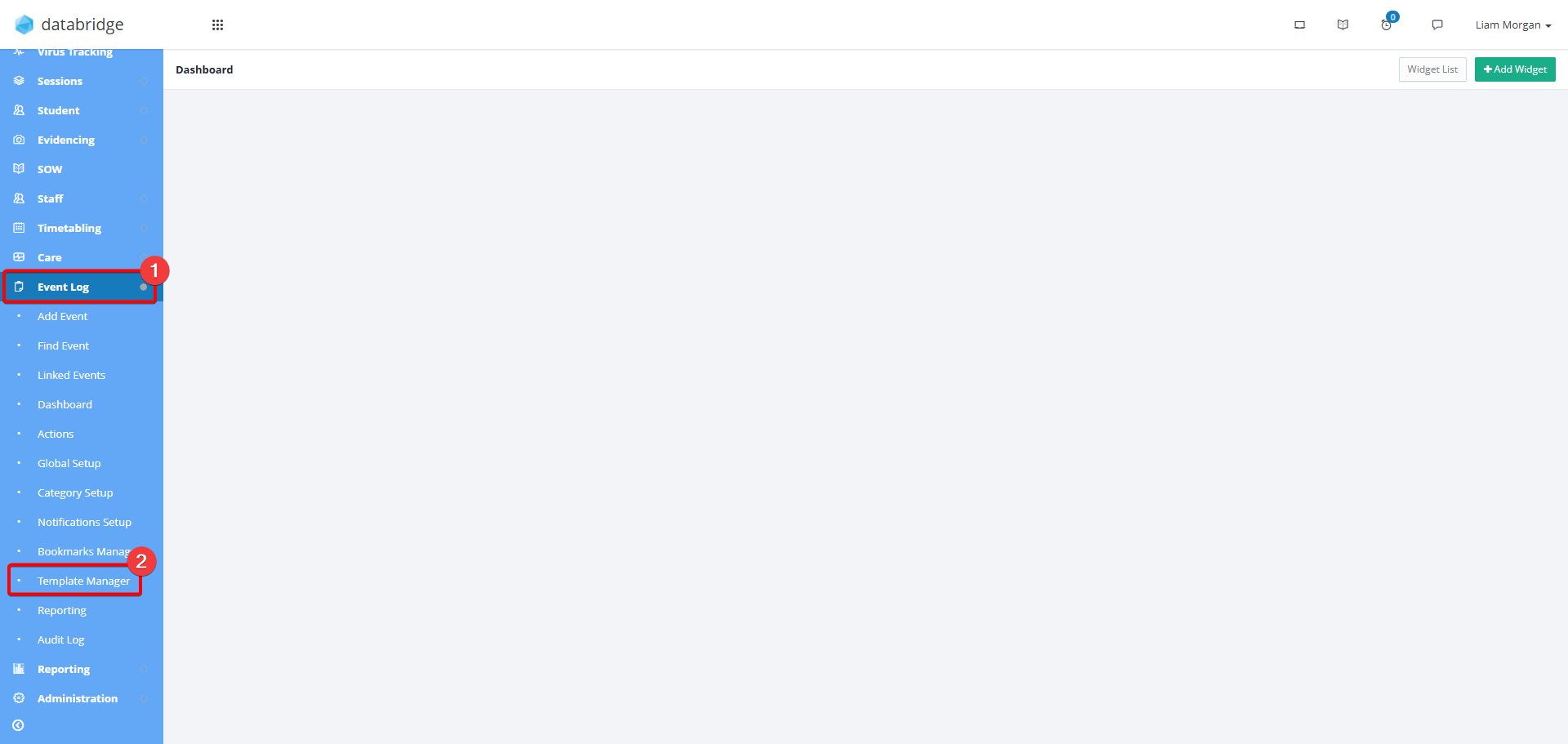
6. Lastly, the template needs to be uploading and linked to the Event Log Category. To do this, navigate to Event Log > Template Manager.
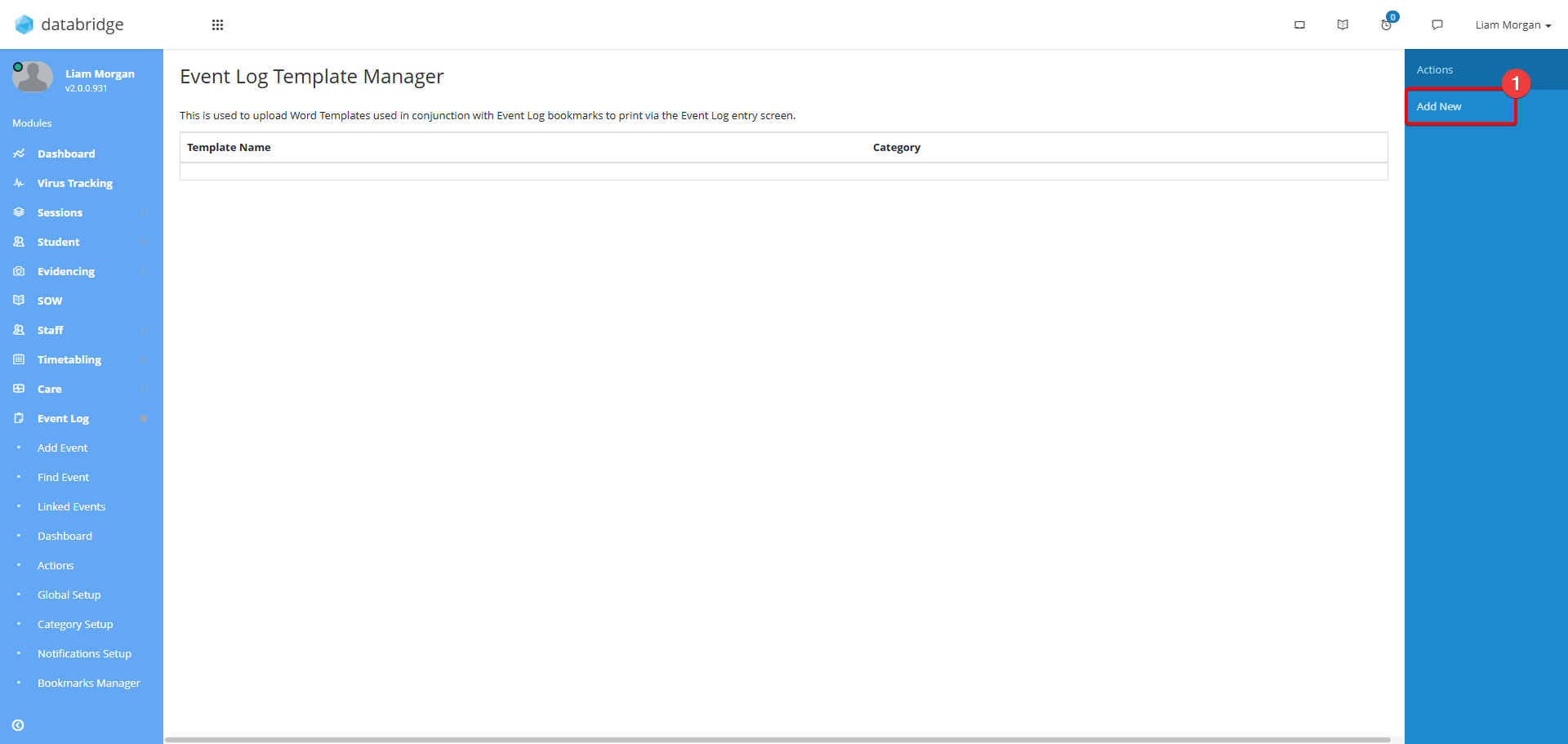
8. Click Add New from the panel on the right.
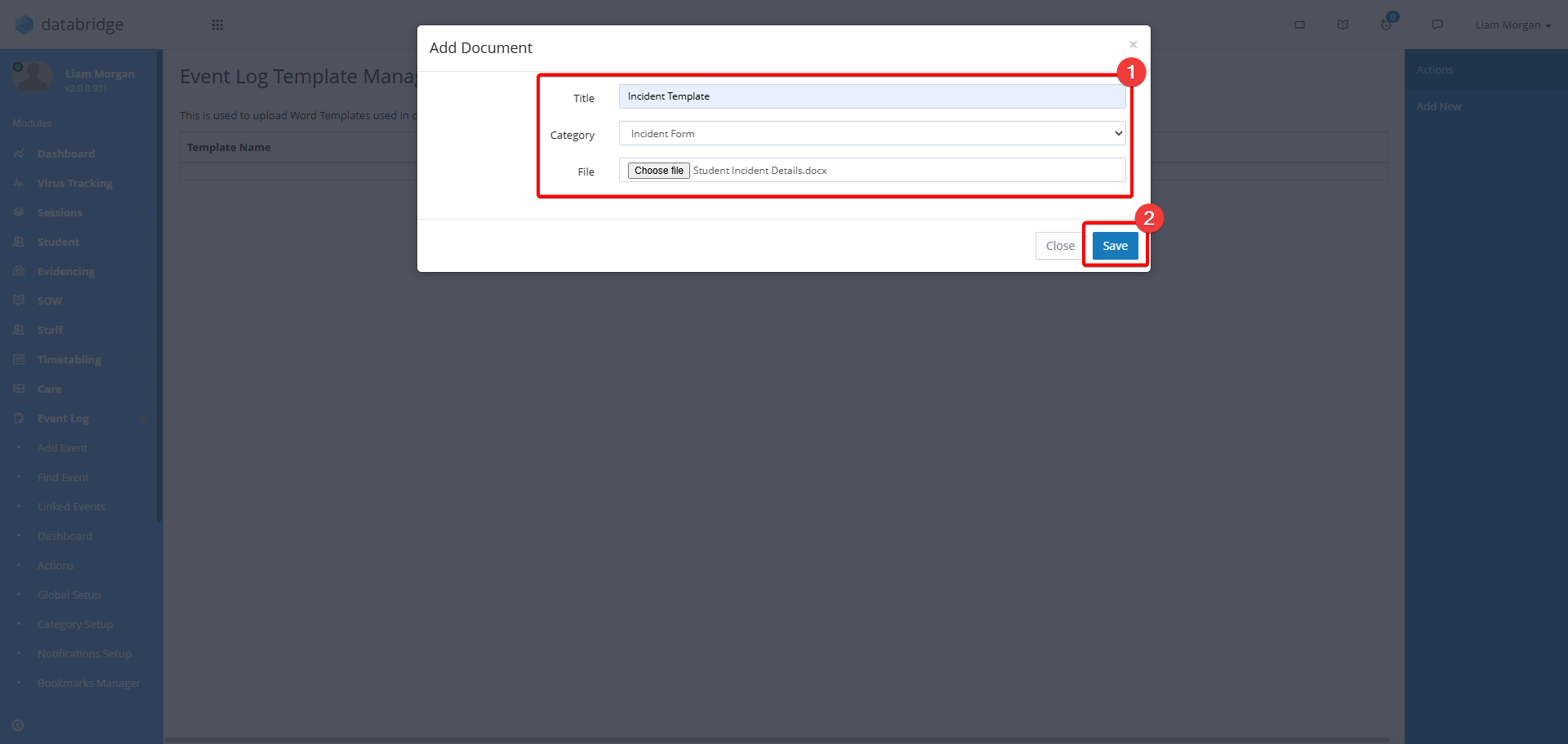
9. Give your template a Title, select the Event Log Category to be linked to and upload the Template. Then, click Save.
Printing an Event Log to Template
10. First navigate to the Event Log you want to print to Template. More information on finding / viewing Events can be found Here.
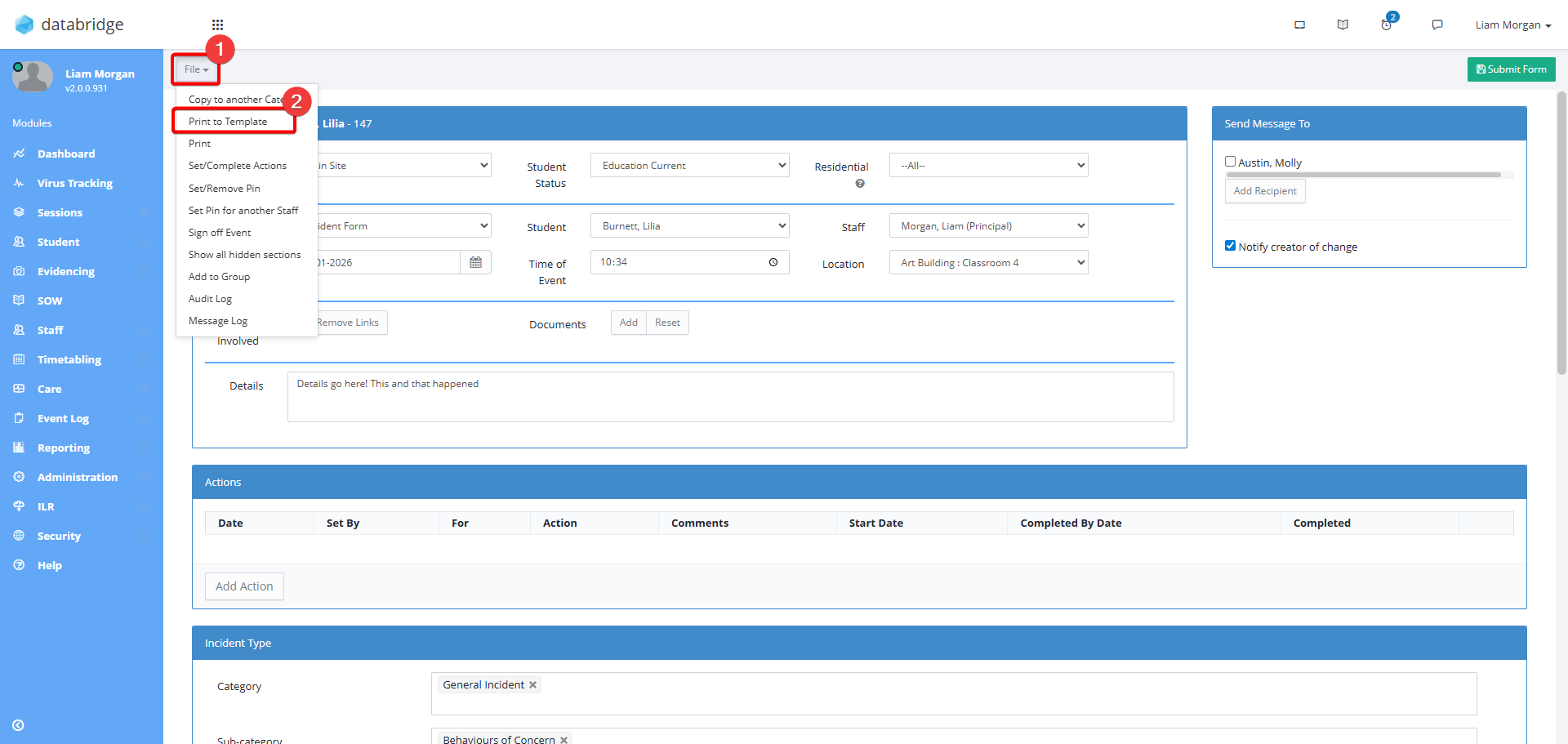
11. Click File > Print to Template.
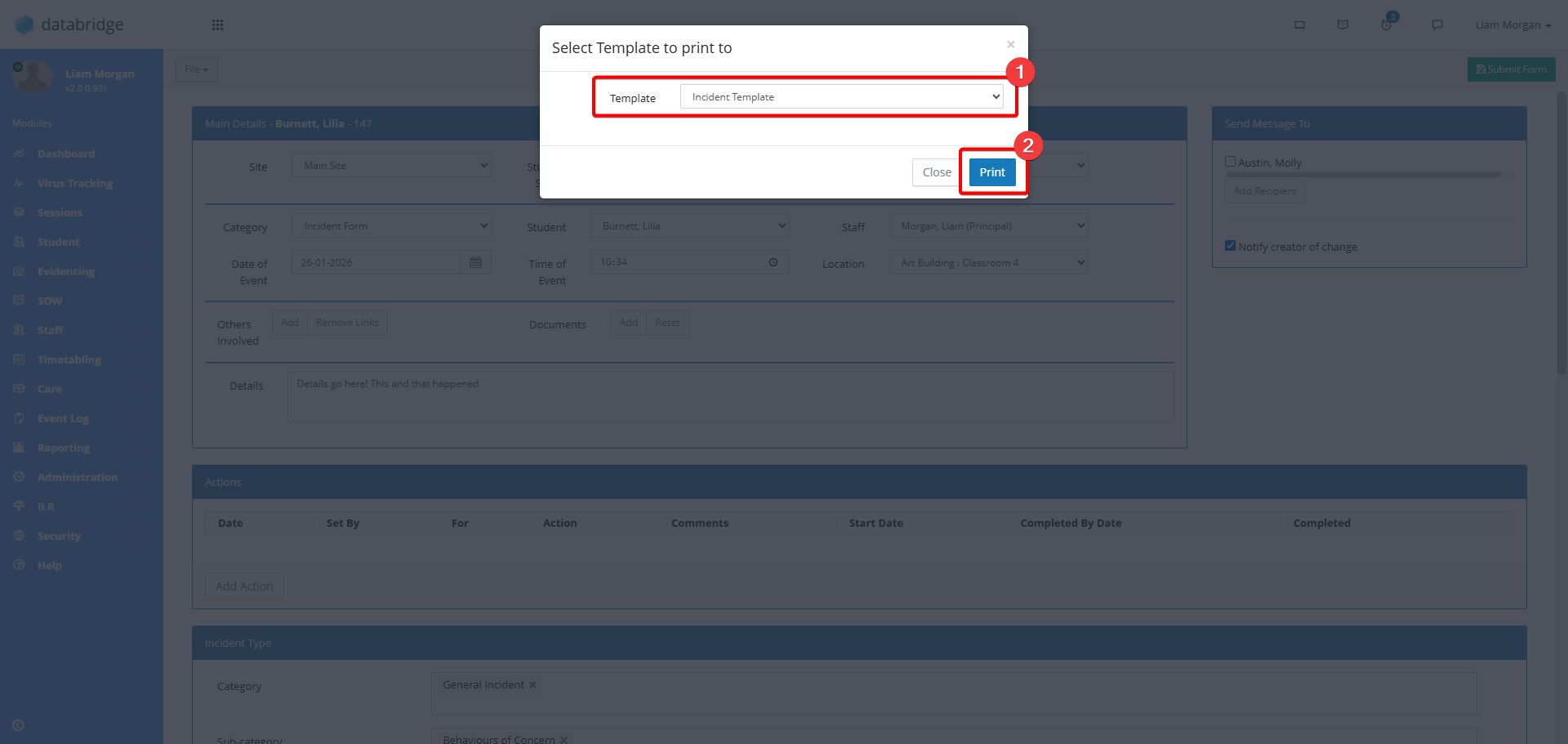
12. Select the template from the dropdown. This is required as multiple templates can be assigned to the same Event Category. Then click Print.
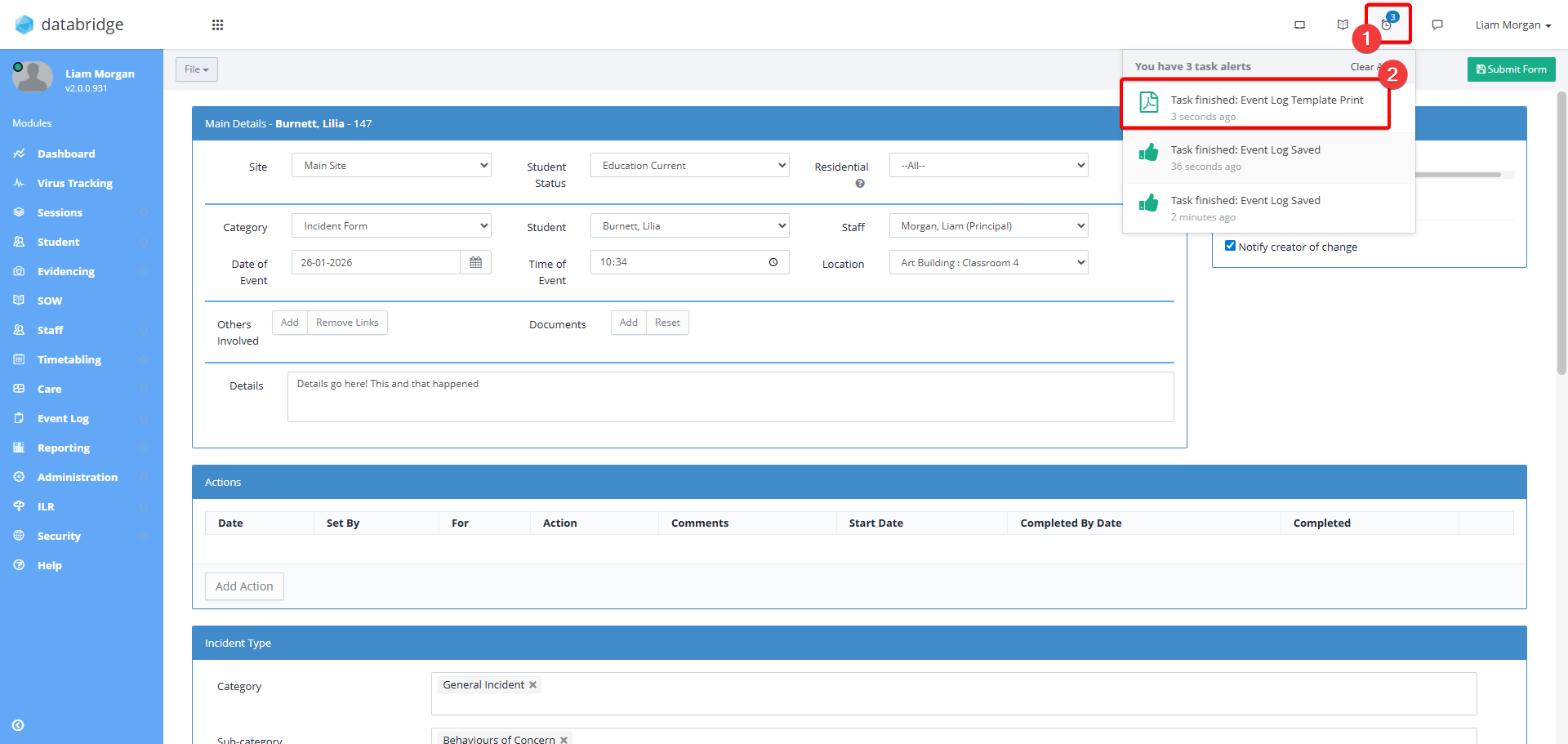
13. This will now run in the background. Once complete, click Alerts in the top right and then click the Task Finished notification to download the completed document.
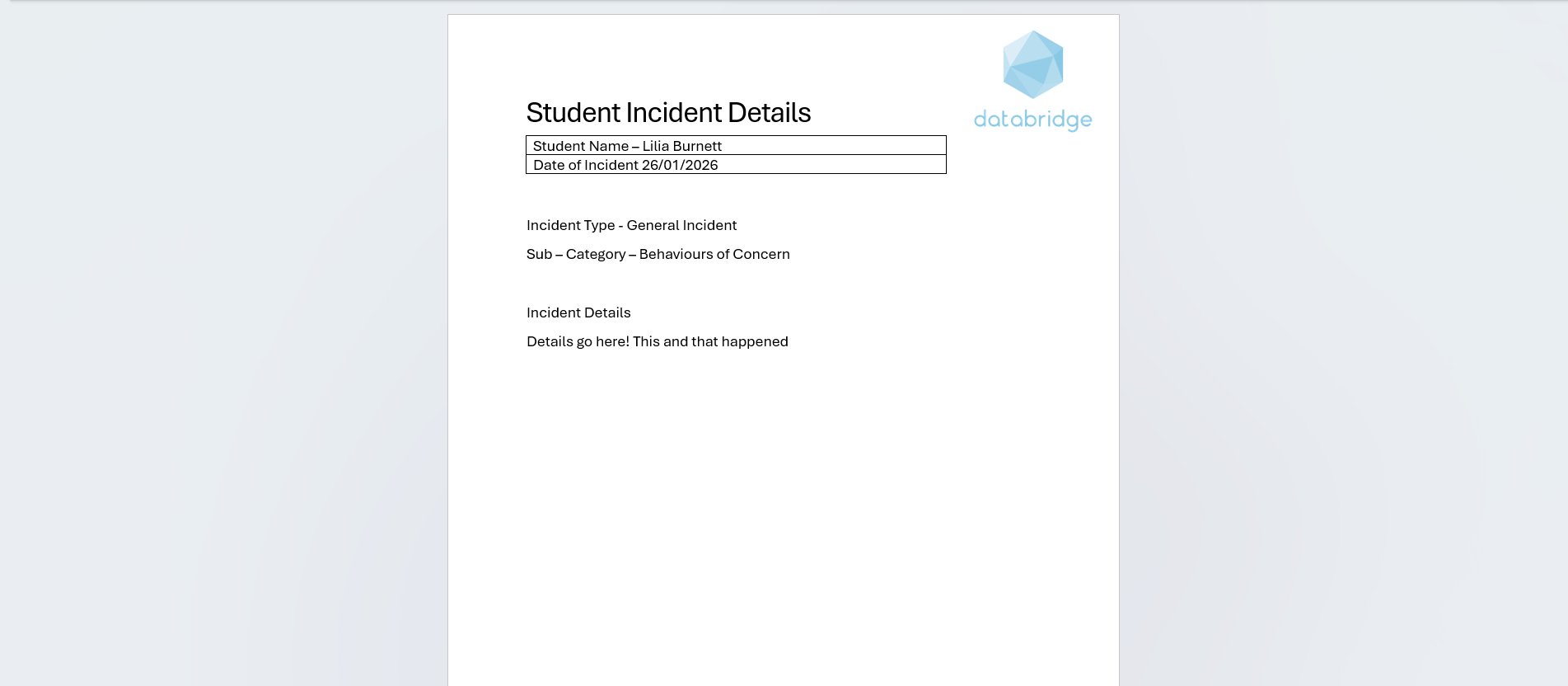
14. This will now appear within your computer downloads and will look like so, with the bookmarks you created earlier being replaced with the information from the Event.
Was this article helpful?
That’s Great!
Thank you for your feedback
Sorry! We couldn't be helpful
Thank you for your feedback
Feedback sent
We appreciate your effort and will try to fix the article