This guide will look at how to setup Triggers for Staff absences.
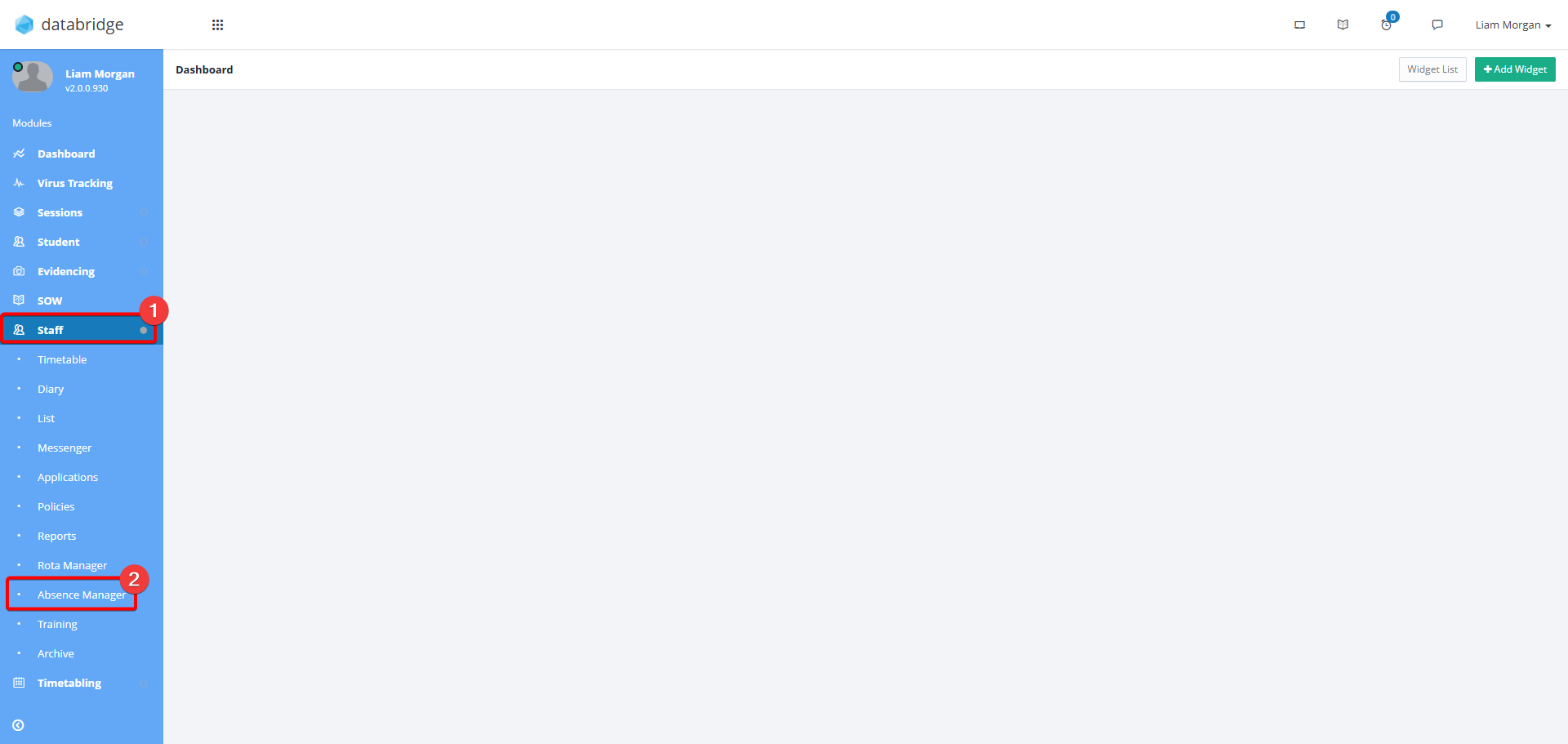
1. First navigate to the Absence Manager via Staff > Absence Manager.
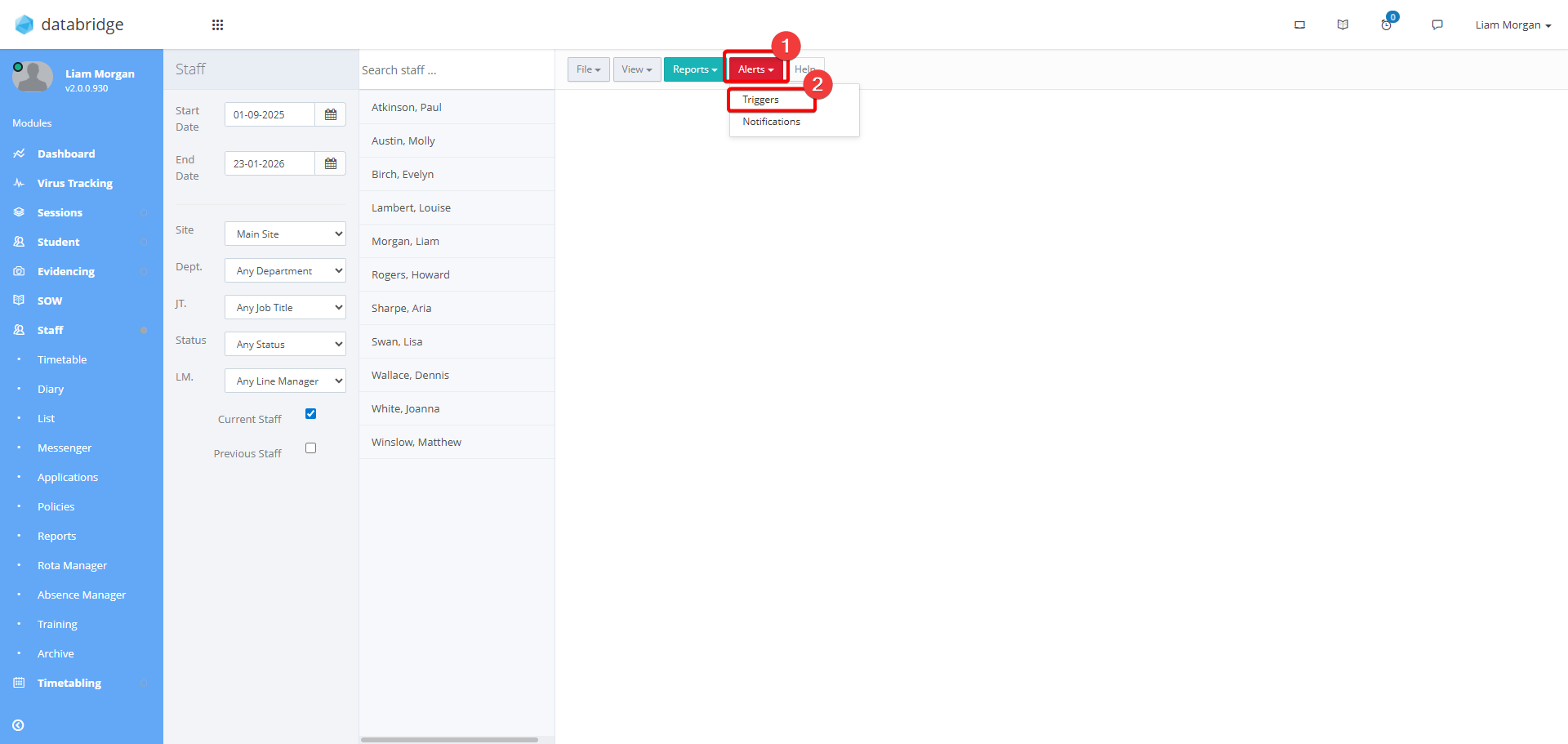
2. Click Alerts, and select Triggers from the Dropdown menu.
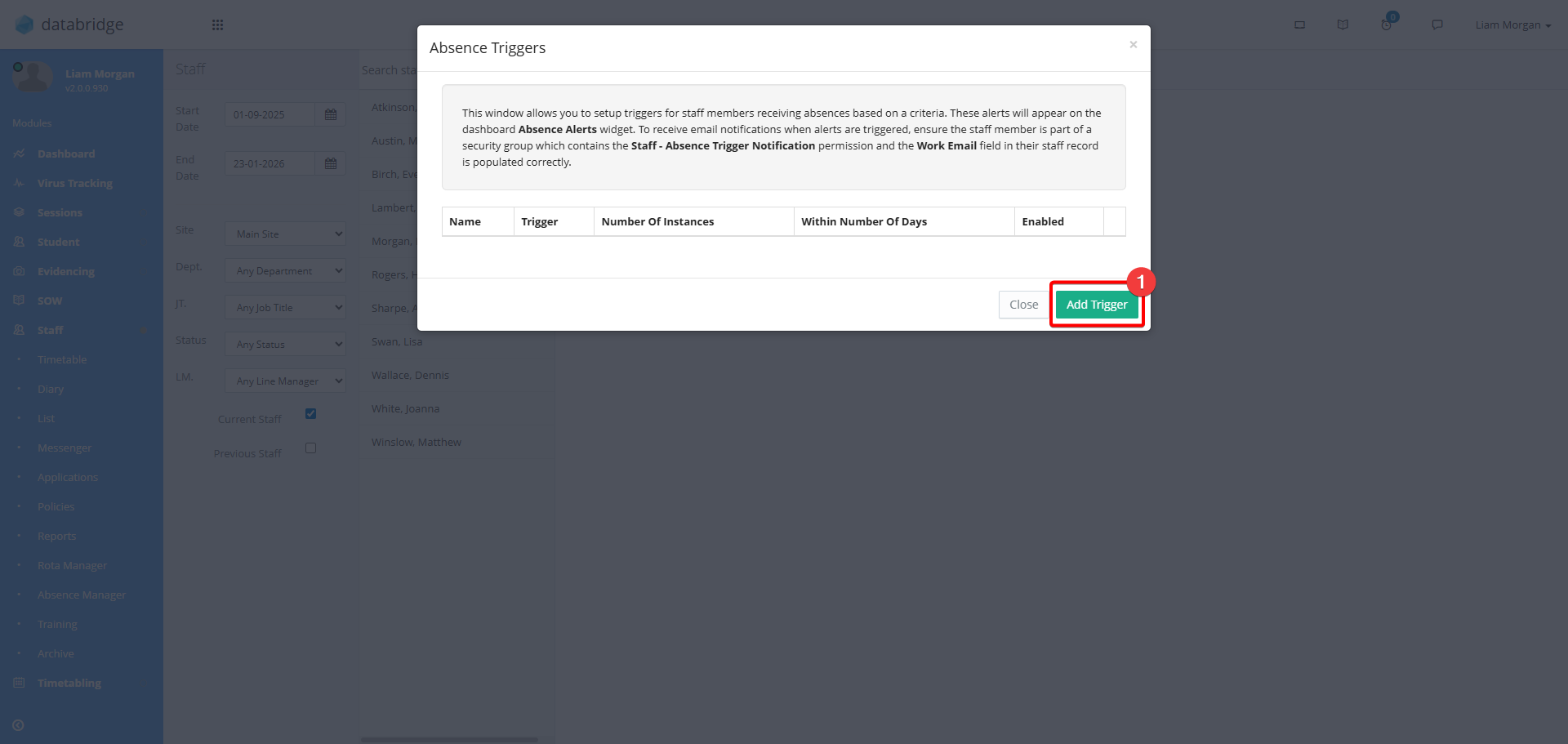
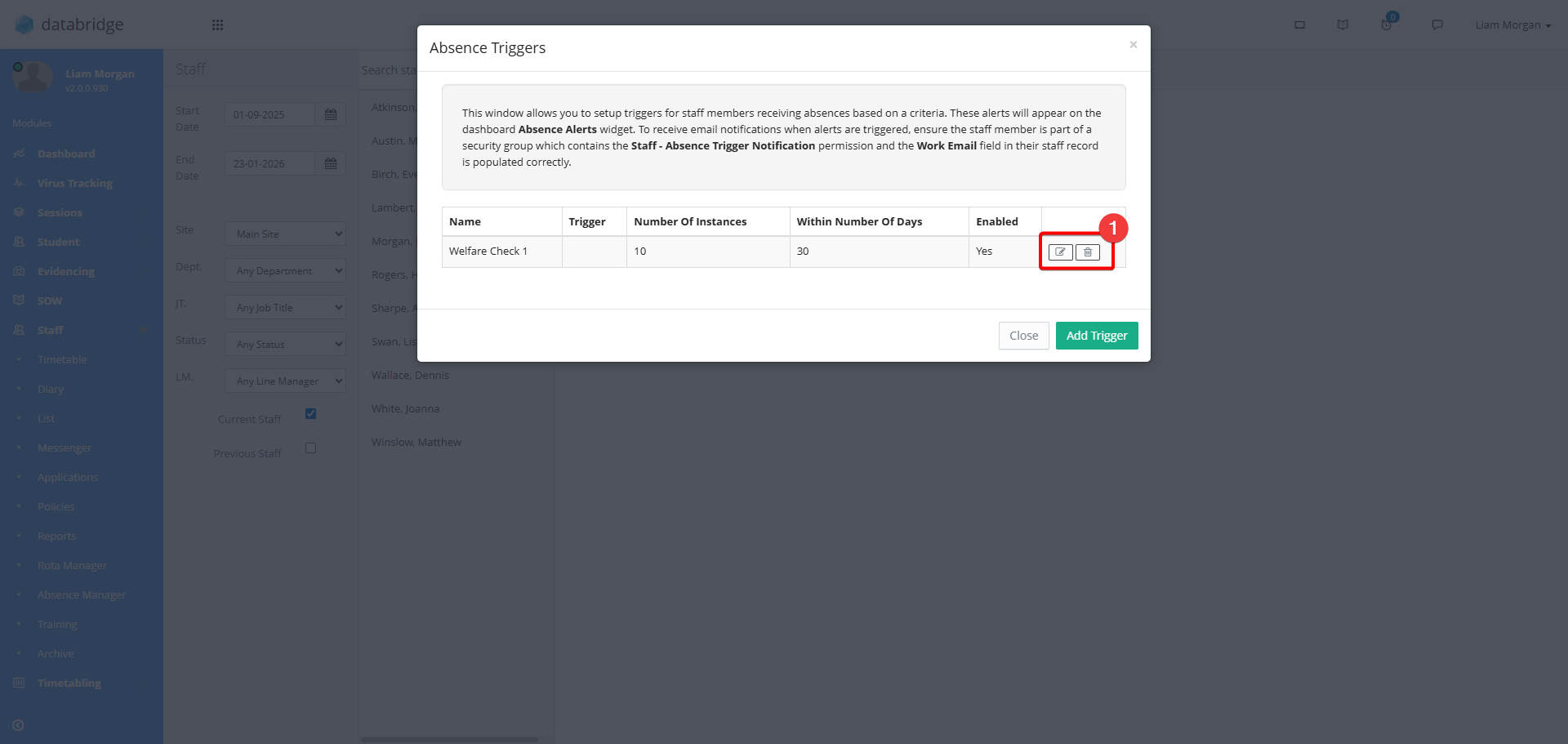
3. A window will appear displaying any existing triggers. To create a new one, click Add Trigger.
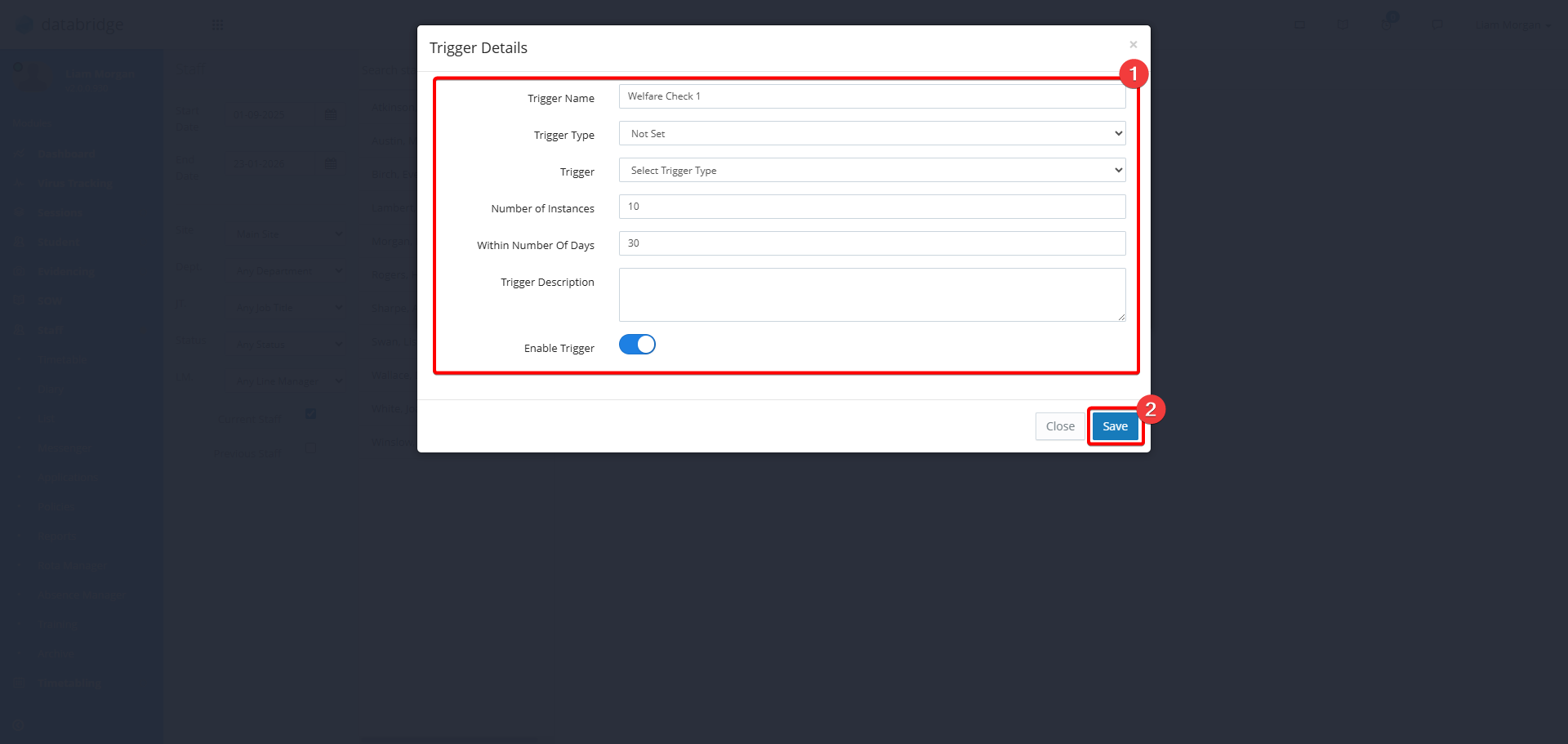
4. Fill in the triggers details using the fields on screen, then click Save.
5. The newly created Trigger will now appear in the list. To edit these click the corresponding Notepad Icon, or click the Trash Icon to delete.
Was this article helpful?
That’s Great!
Thank you for your feedback
Sorry! We couldn't be helpful
Thank you for your feedback
Feedback sent
We appreciate your effort and will try to fix the article