This guide will look at how to setup and view tracked Student attendances for day and session attendance. Attendance tracking is used to monitor any Attendance inconsistency and the location of a Student during an absence.
TABLE OF CONTENTS
Setting up Attendance Tracking
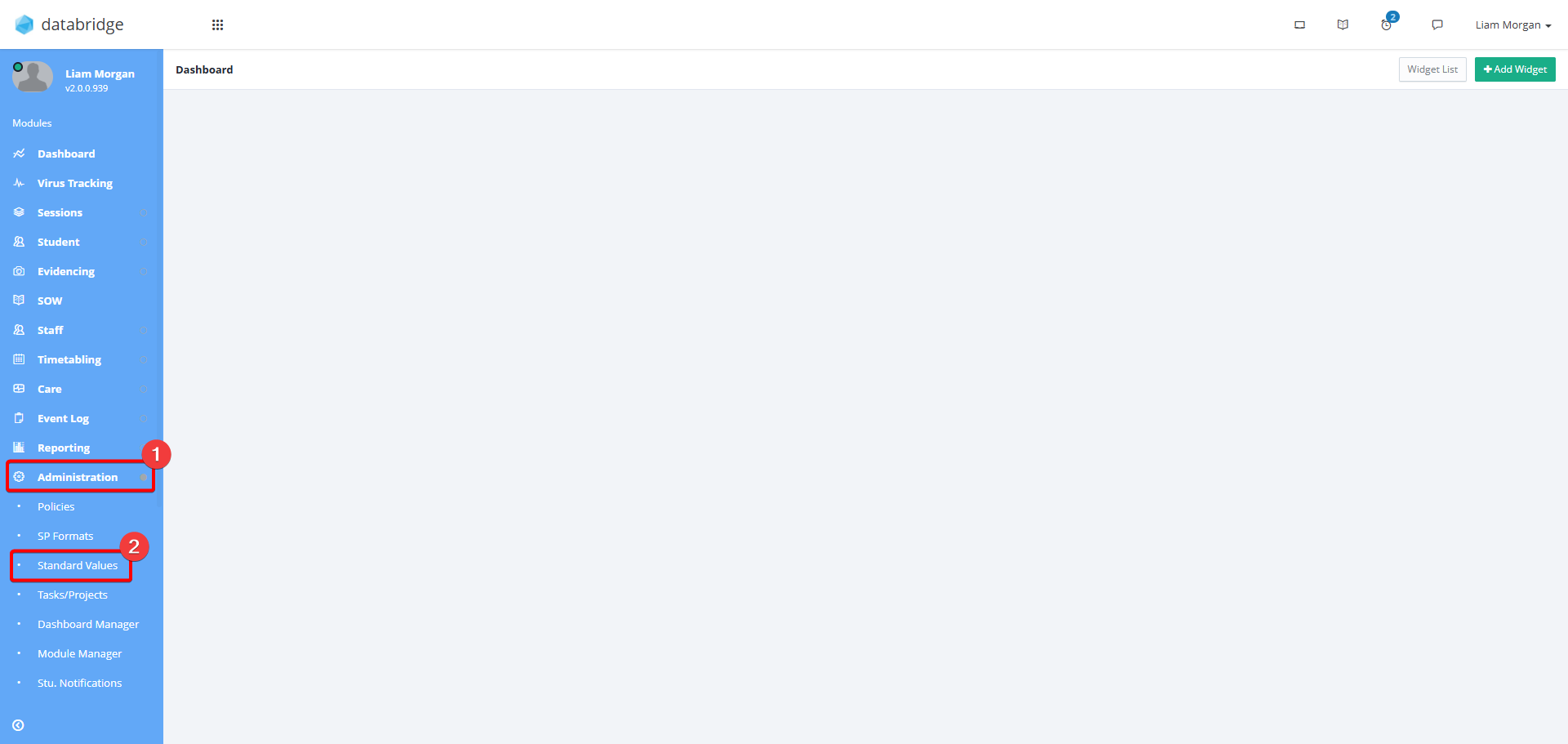
1. First, you need to configure which Attendance Statuses create a Tracking Record. To do this, navigate to Administration > Standard Values.
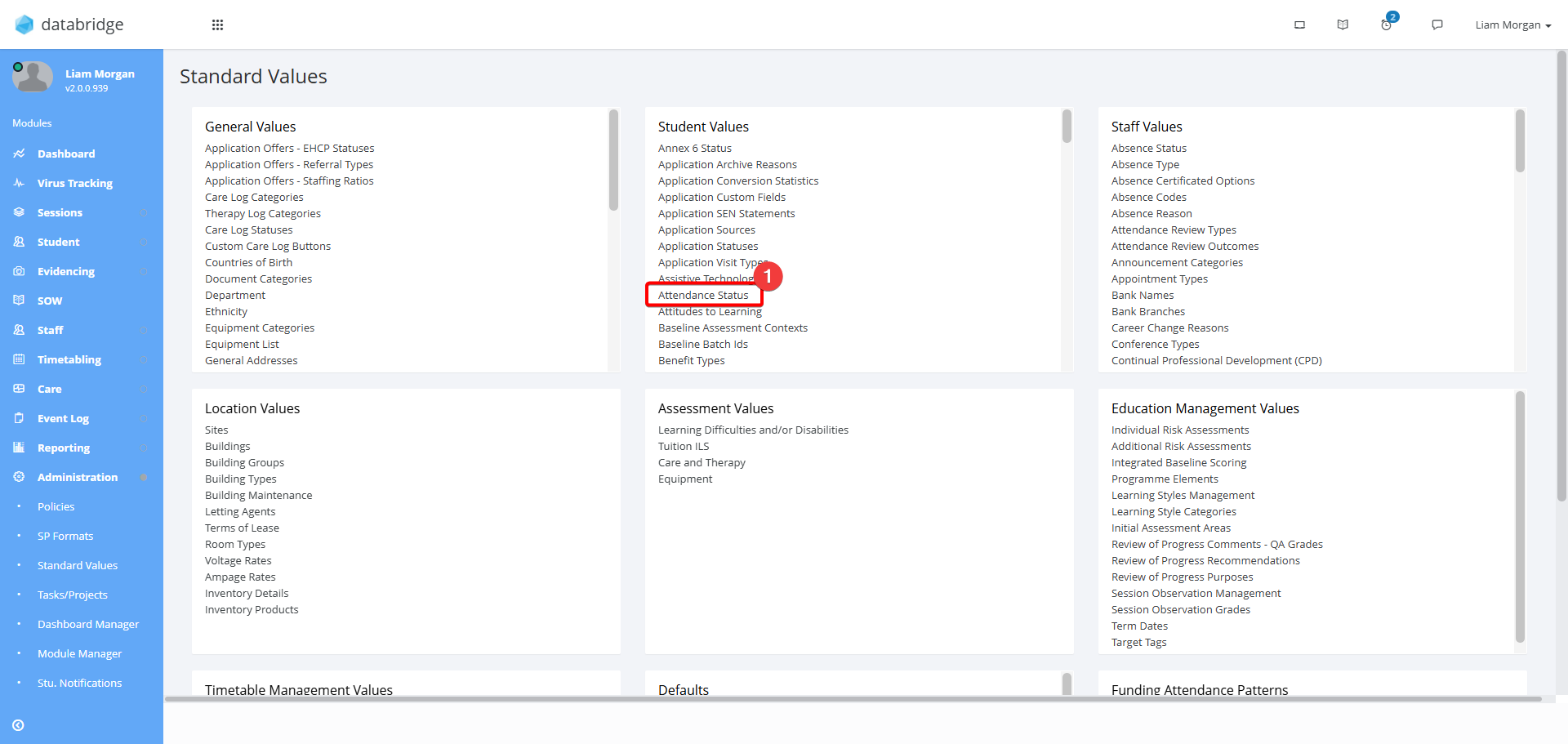
2. Within the Student Values box, click Attendance Status
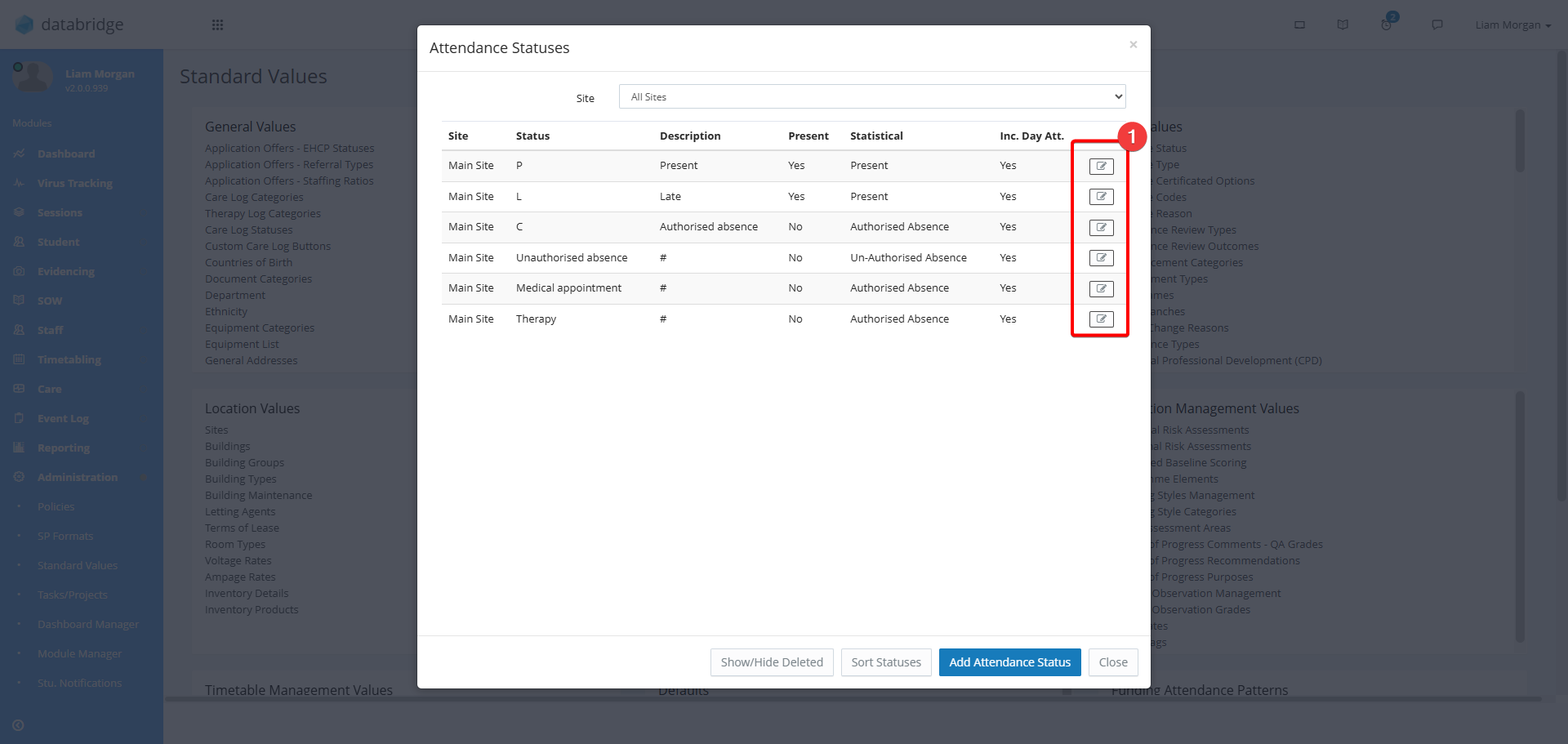
3. Click the Notepad Icon next to the Attendance Status that you wish to turn on tracking for.
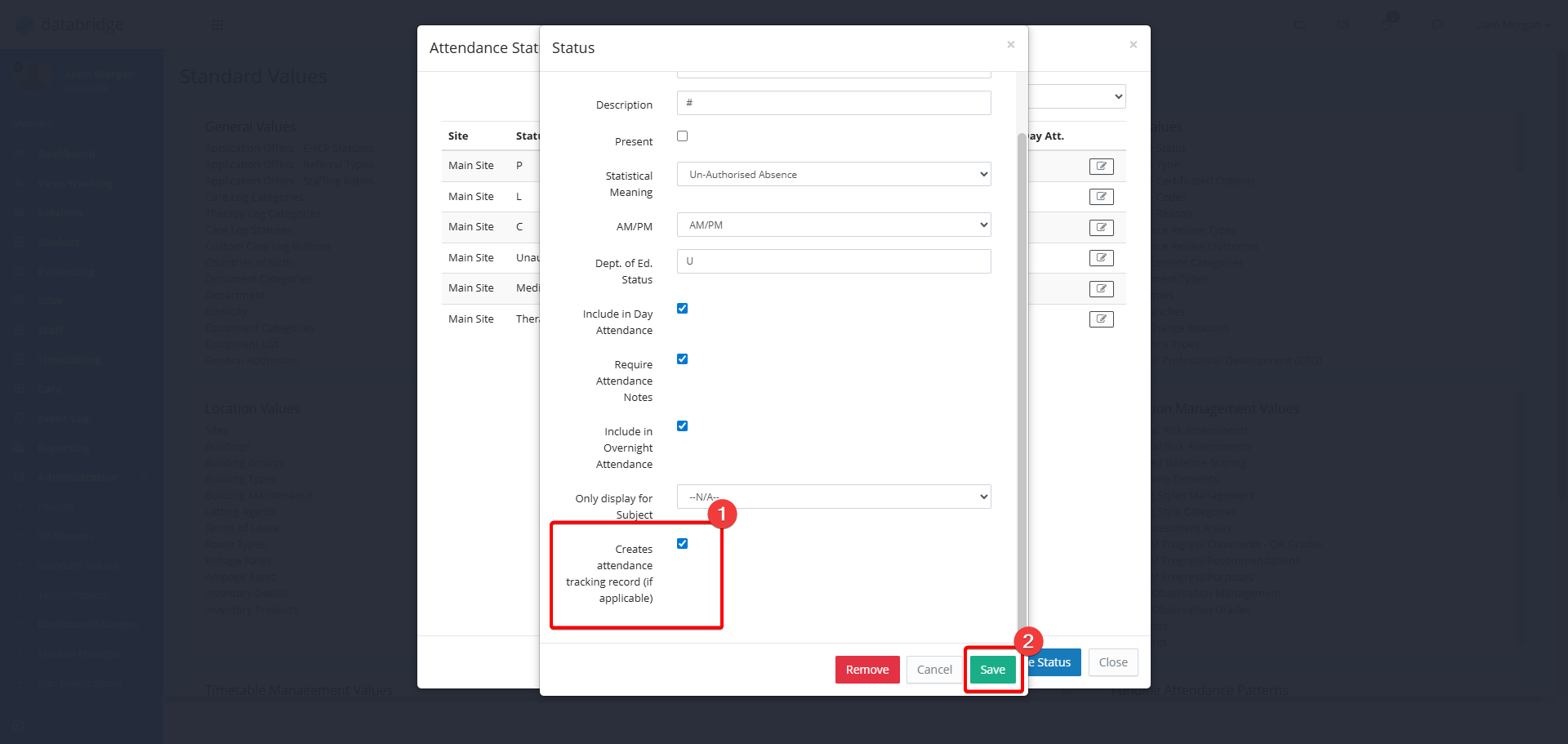
4. Tick the Creates Attendance Tracking Record (if applicable) checkbox, then click Save.
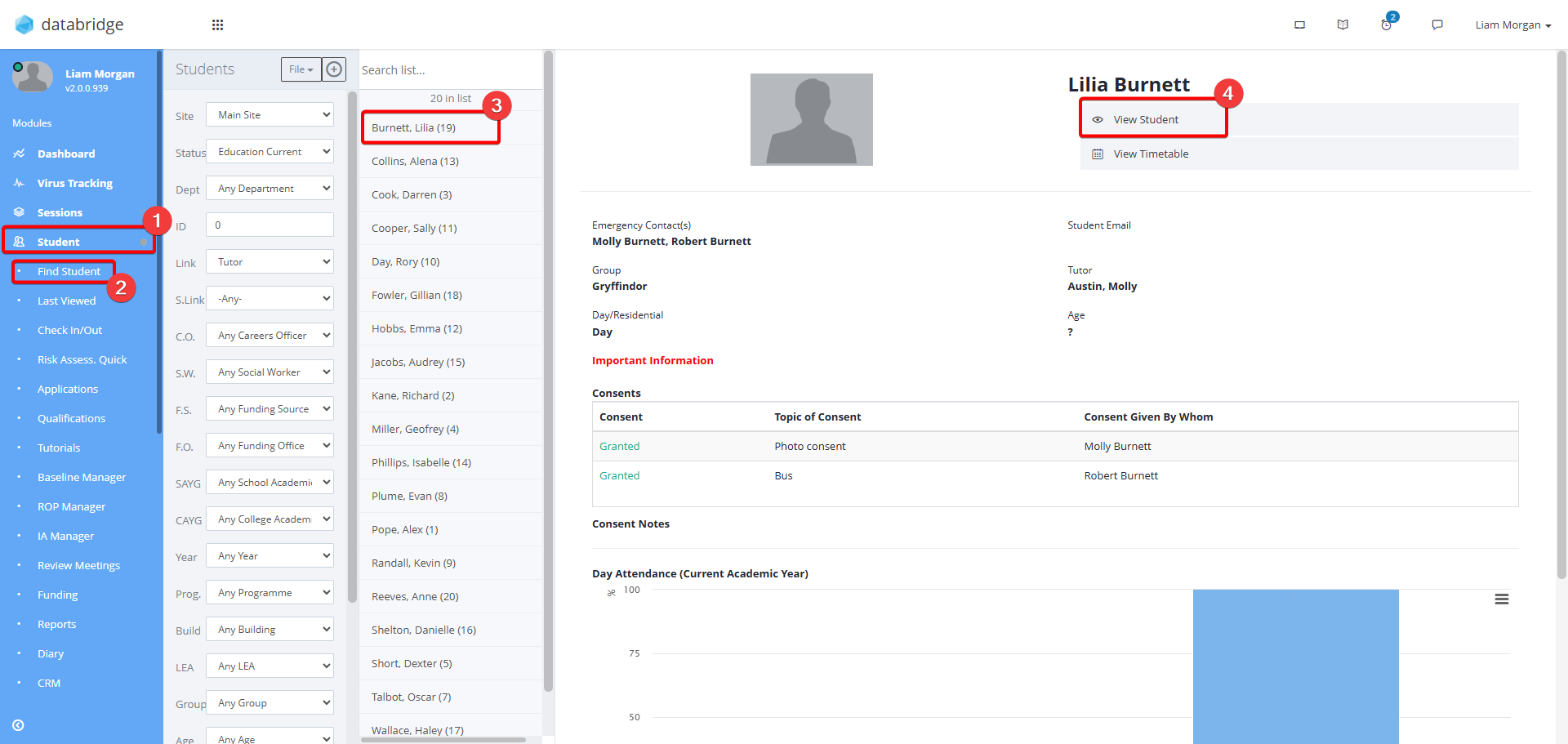
5. Next, to set up tracking for a Student, navigate to their record via Student > Find Student > *Student Name > View Student.
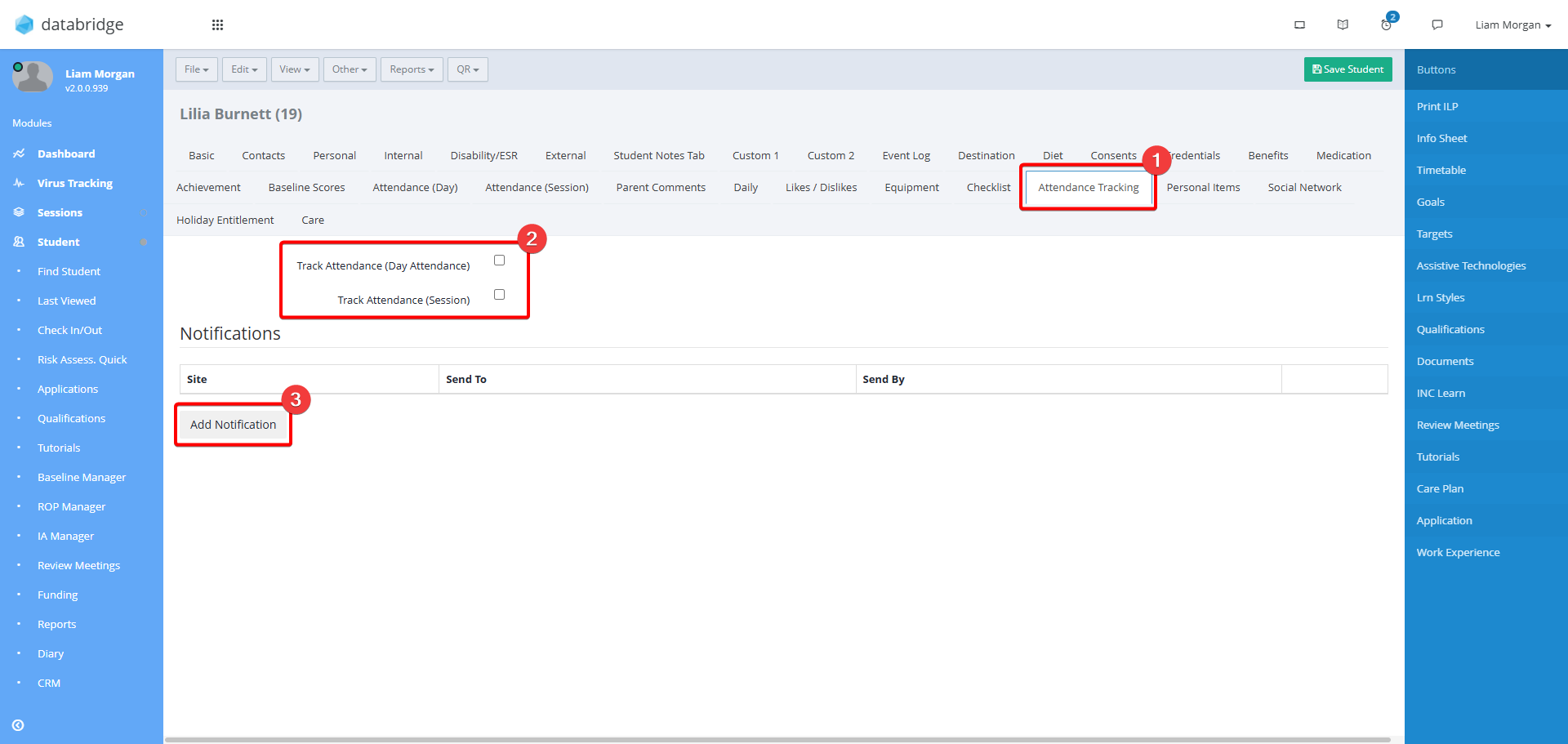
6. Navigate to the Attendance Tracking Tab. Use the checkboxes to select if you want to track Day and / or Session Attendance. Next, click Add Notification.
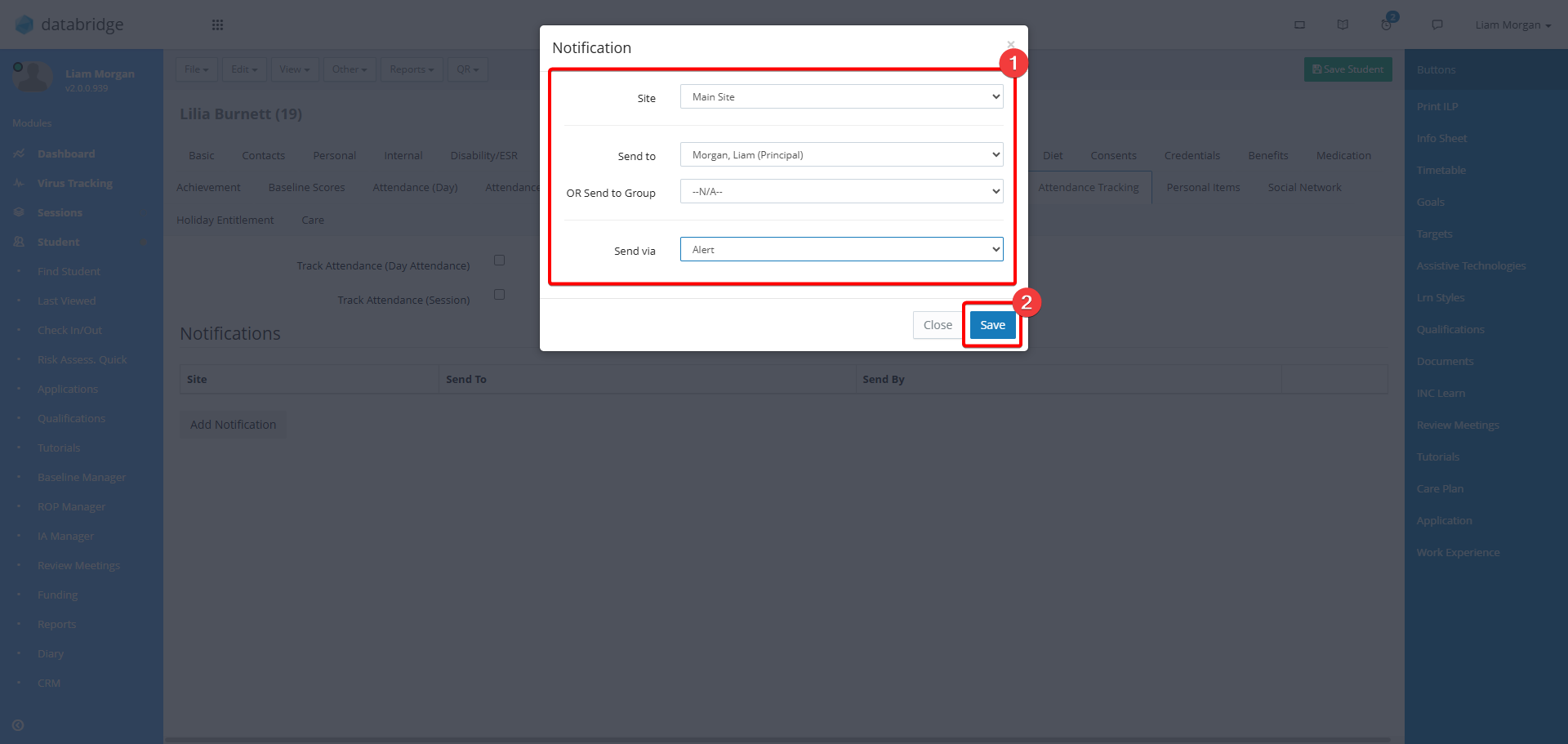
7. Configure the notification settings using the dropdown menus that appear, then click Save.
Viewing Tracked Attendance
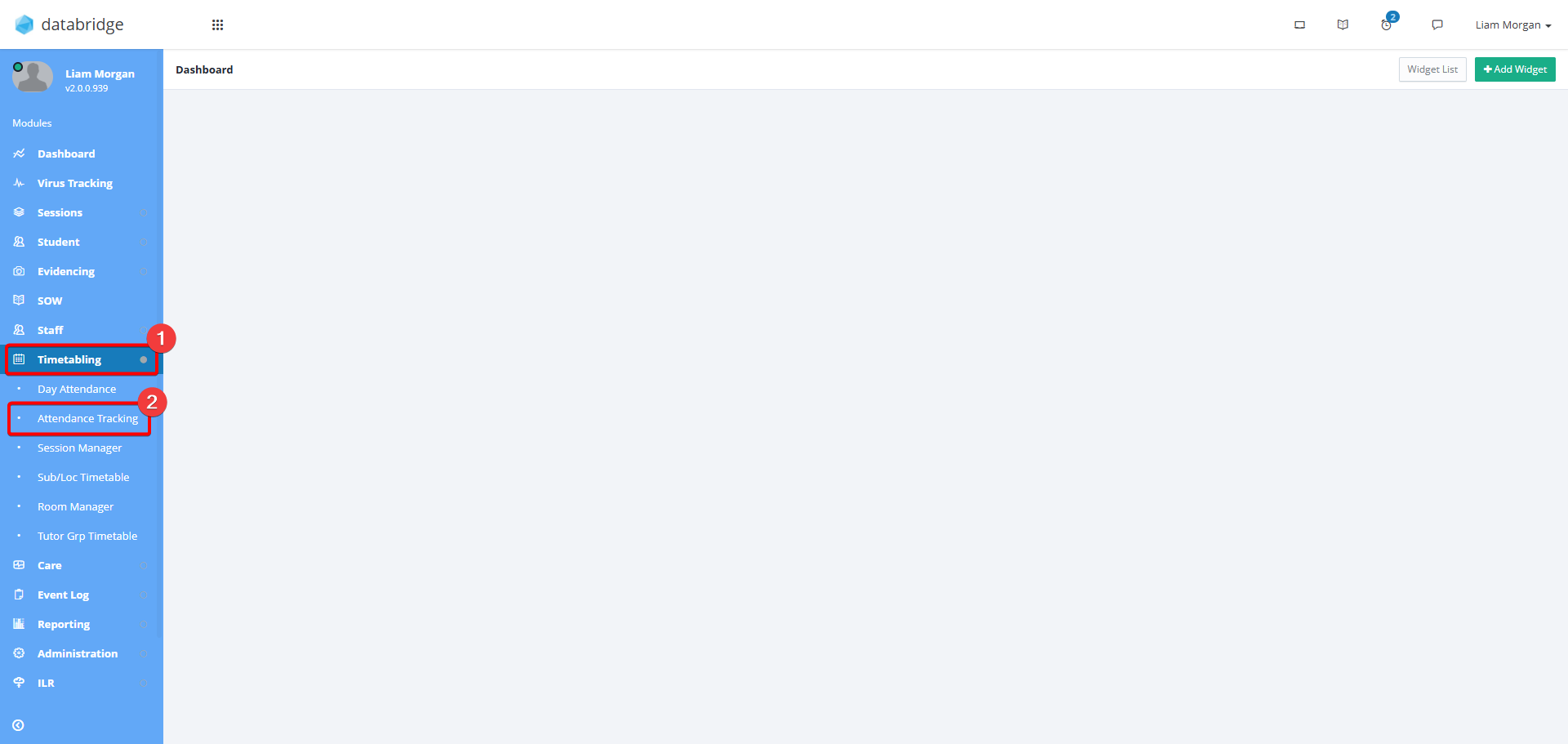
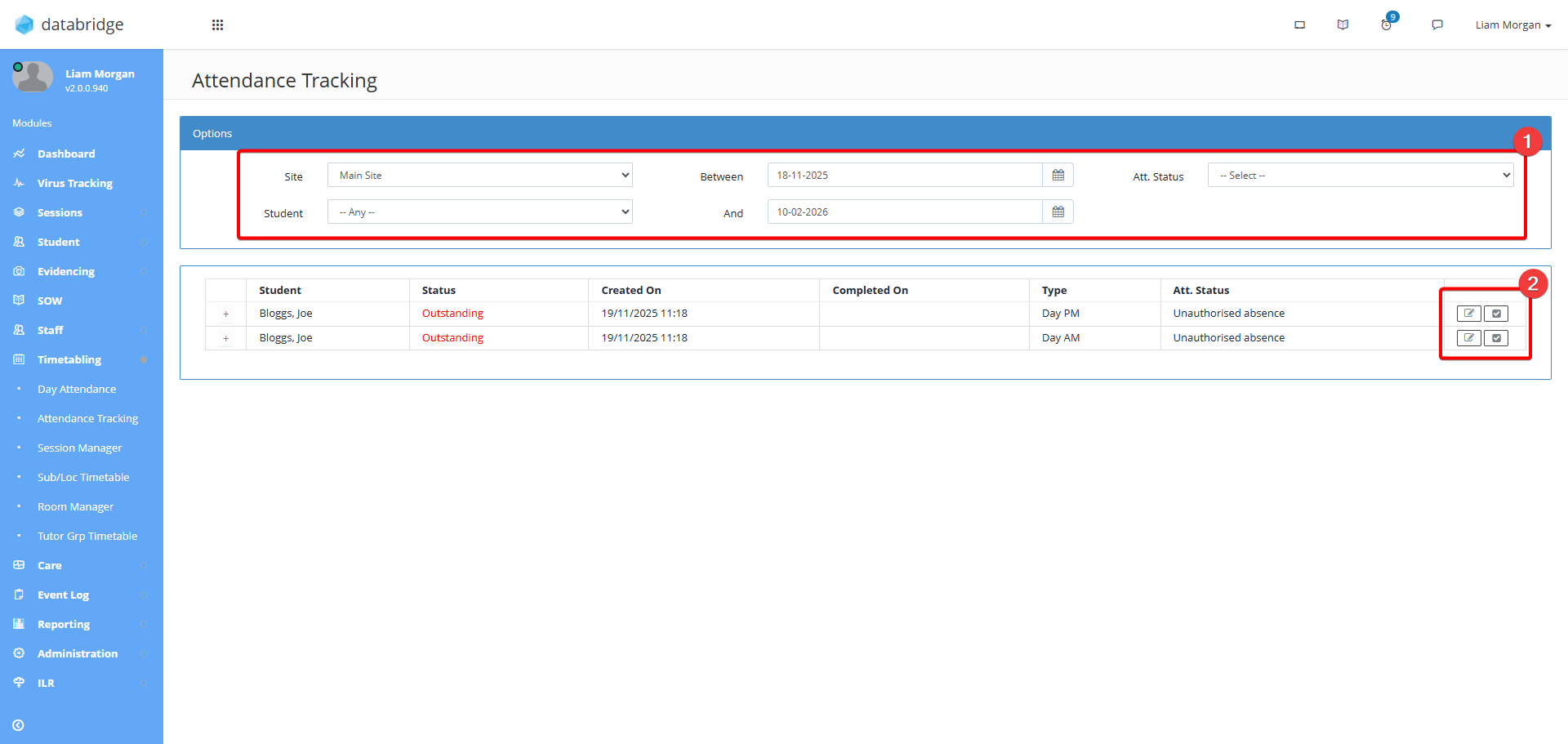
8. Navigate to Timetabling > Attendance Tracking.
9. Use the filters at the top of the screen to narrow down which tracked absences to view. Each absence will have a corresponding Notepad Icon and Tick Icon.
- The Notepad Icon allows you to add comments to an absence.
- The Tick Icon allows you to sign off an absence and add sign off comments. Once this is done, a sign off date will appear next to the absence.
Was this article helpful?
That’s Great!
Thank you for your feedback
Sorry! We couldn't be helpful
Thank you for your feedback
Feedback sent
We appreciate your effort and will try to fix the article