This guide will look at how to find and use the additional editing options within the Session Manager Screen.
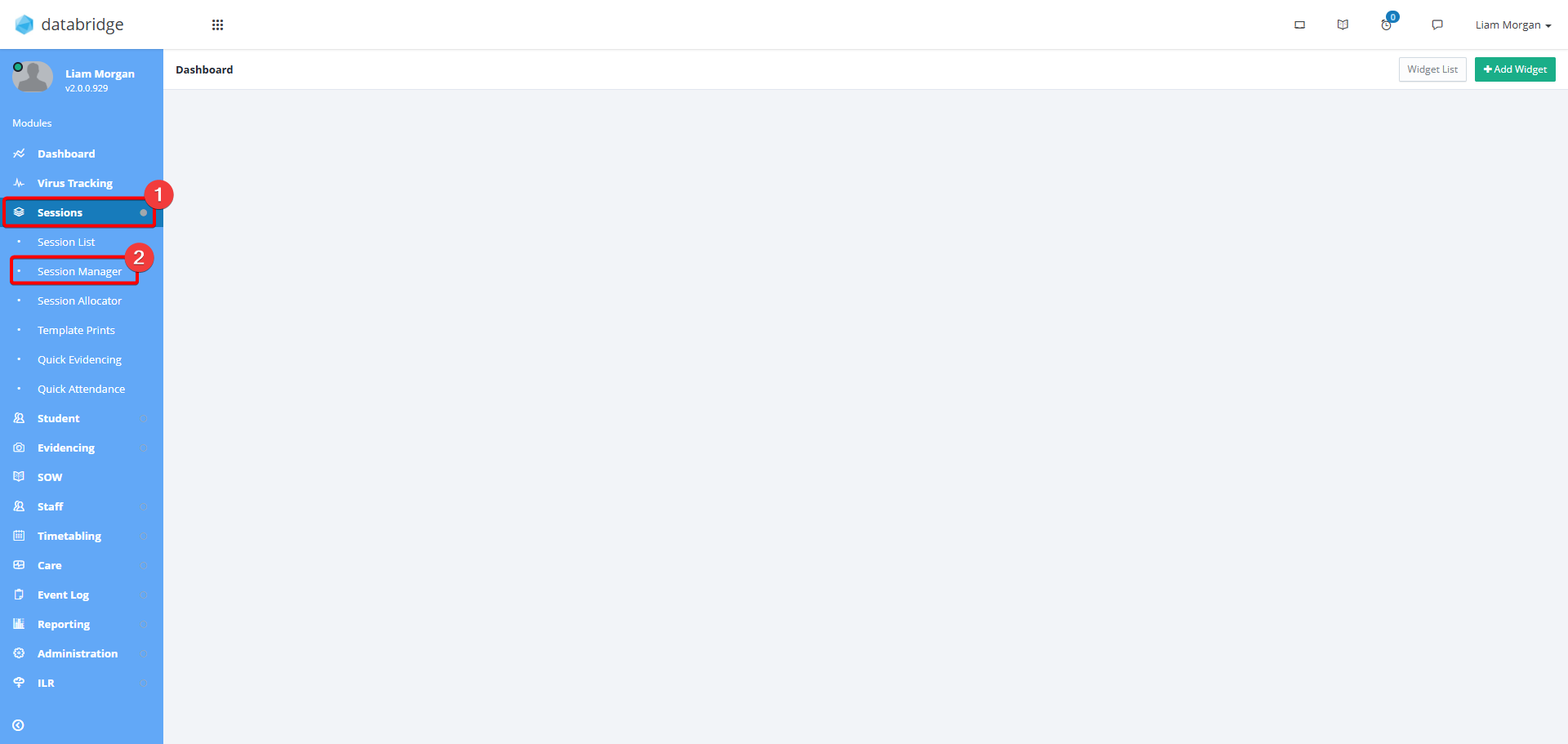
1. First, Navigate to the Session Manager Screen via Sessions > Session Manager.
2. Click Edit
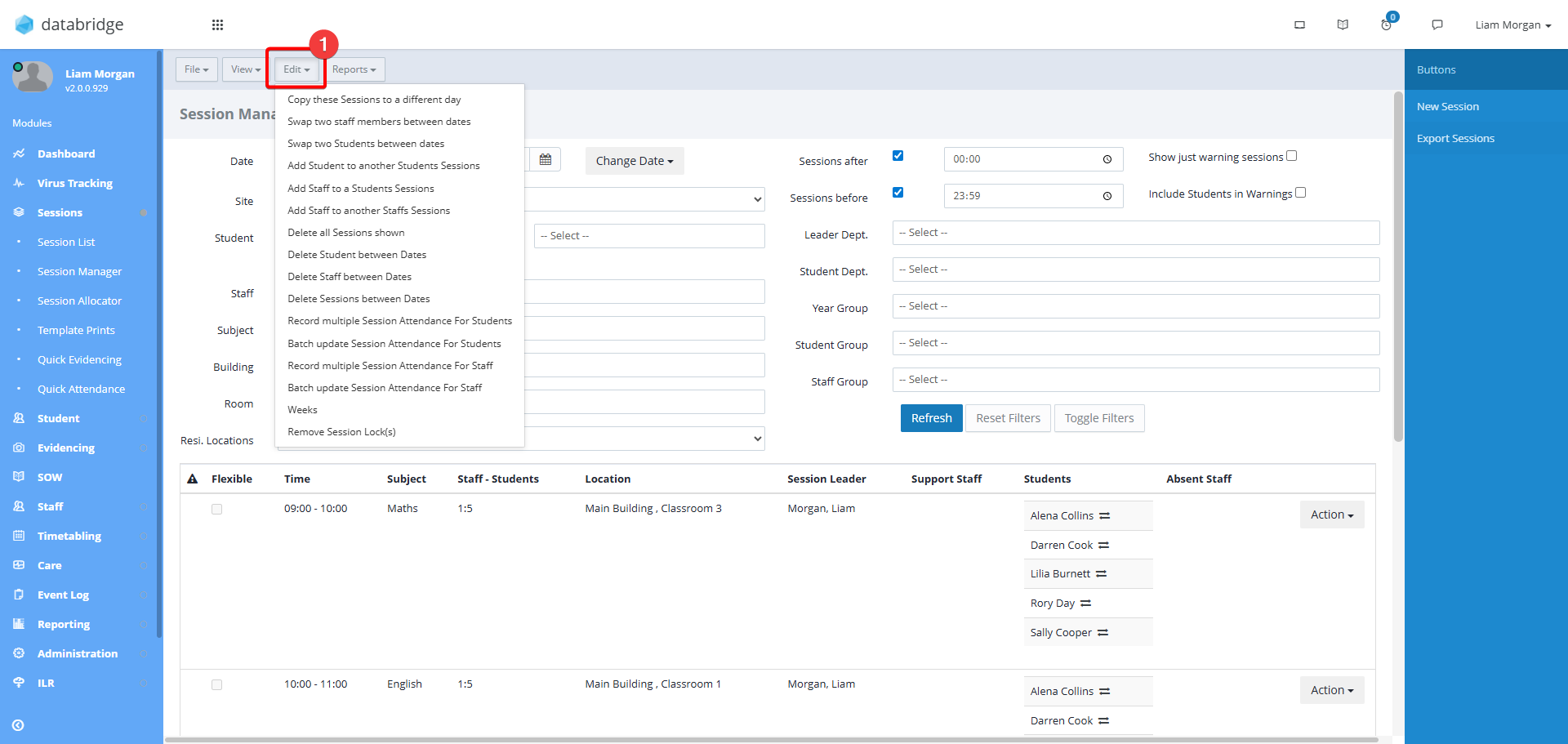
3. You will now be given a list of edit options. Please see each in more detail below:
Copy these Sessions to a different day
This option allows you to copy all or selected Sessions for the currently displayed date onto future dates. This may be used if your Timetable changes each week or if you created Sessions but forgot to set the End date correctly.
Set the date range, days of the week you want to copy to, and a relevant Holiday Set (to avoid copying on closed days).
You will notice as you set dates and days, the list on the right hand side will display all the dates the Session(s) will be copied to. Tick/untick the dates accordingly for when you want them to copy.
When you are happy with your selections, click Save.
Swap two Staff Members Between Dates
This option allows you to Swap or Replace Staff members between dates, rather than specific Sessions via Bulk Edit.
Select the Staff applicable, the date range that applies, and whether to Swap or Replace them accordingly.
When you are happy with your selections, click Save.
Swap two Students Members Between Dates
This option allows you to Swap or Replace Students between dates, rather than specific Sessions via Bulk Edit.
Select the Students applicable, the date range that applies, and whether to Swap or Replace them accordingly.
When you are happy with your selections, click Save.
Add Student to another Student Sessions
This option allows you to add a Student to all the Sessions another Student is currently in. This is useful for quick additions if a new Learner is joining later on for example and provides a quicker function for this than using Bulk Edit.
Select the Students applicable and the date range that applies.
When you are happy with your selections, click Save.
Add Staff to another Staff's Session
This option allows you to add a Staff to all the Sessions another Staff is currently in. This is useful for quick additions if a new Staff is joining later on for example and provides a quicker function for this than using Bulk Edit.
Select the Staff applicable and the date range that applies.
When you are happy with your selections, click Save.
Delete all Sessions shown
As per the title, this function will remove the Sessions currently displayed in the list.
This function lets you locate Sessions using the filter and removing them in bulk on a single day.
Delete Student between Dates
This option allows you to remove a Student from Sessions they are currently in. This is useful for quick removals if a Student is leaving for example and provides a quicker function for this than using Bulk Edit.
Select the Student applicable and the date range that applies.
When you are happy with your selections, click Save.
Delete Staff between Dates
This option allows you to remove a Staff from Sessions they are currently in. This is useful for quick removals if a Staff is leaving for example and provides a quicker function for this than using Bulk Edit.
Select the Staff applicable and the date range that applies.
When you are happy with your selections, click Save.
Record Multiple Session Attendance for Students
This function will provide a modal of all the Sessions currently listed, the Students within those Sessions and their current Attendance Status.
From here you can set Attendance individually as required or use the 'Set all unset to' dropdown to bulk set them. There is also a Minutes Late column to specify where a Student is more accurately.
When you are happy with your selections, click Save Attendance.
Batch Update Session Attendance for Students
This function is used to bulk set Attendance statuses via a date range for ALL Students and should be used with caution.
Select the Attendance status and date range as required.
When you are happy with your selections, click Save.
Record multiple Session Attendance for Staff
This function will provide a modal of all the Sessions currently listed, the Staff within those Sessions and their current Attendance Status.
From here you can set Attendance individually as required or use the 'Set all unset to' dropdown to bulk set them.
When you are happy with your selections, click Save Attendance.
Batch Update Session Attendance for Staff
This function is used to bulk set Attendance statuses via a date range for ALL Staff and should be used with caution.
Select the Attendance status and date range as required.
When you are happy with your selections, click Save.
Was this article helpful?
That’s Great!
Thank you for your feedback
Sorry! We couldn't be helpful
Thank you for your feedback
Feedback sent
We appreciate your effort and will try to fix the article