This guide will look at the additional configurable options for the Goals and Targets screens within Databridge.
1. To access these policies, navigate to Administration > Policies.
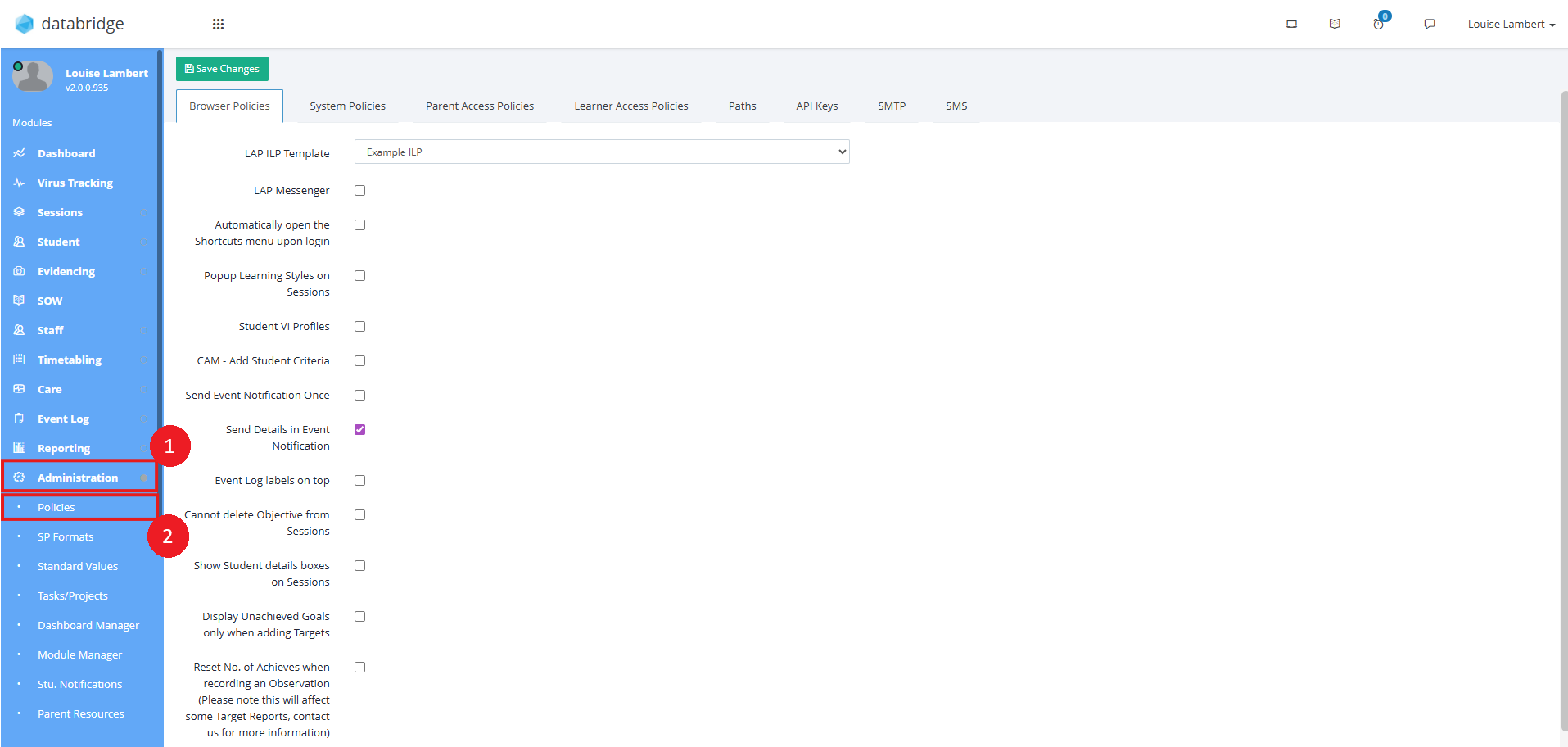
2. Within the page that loads there are a couple of options relating to Goals and Targets.
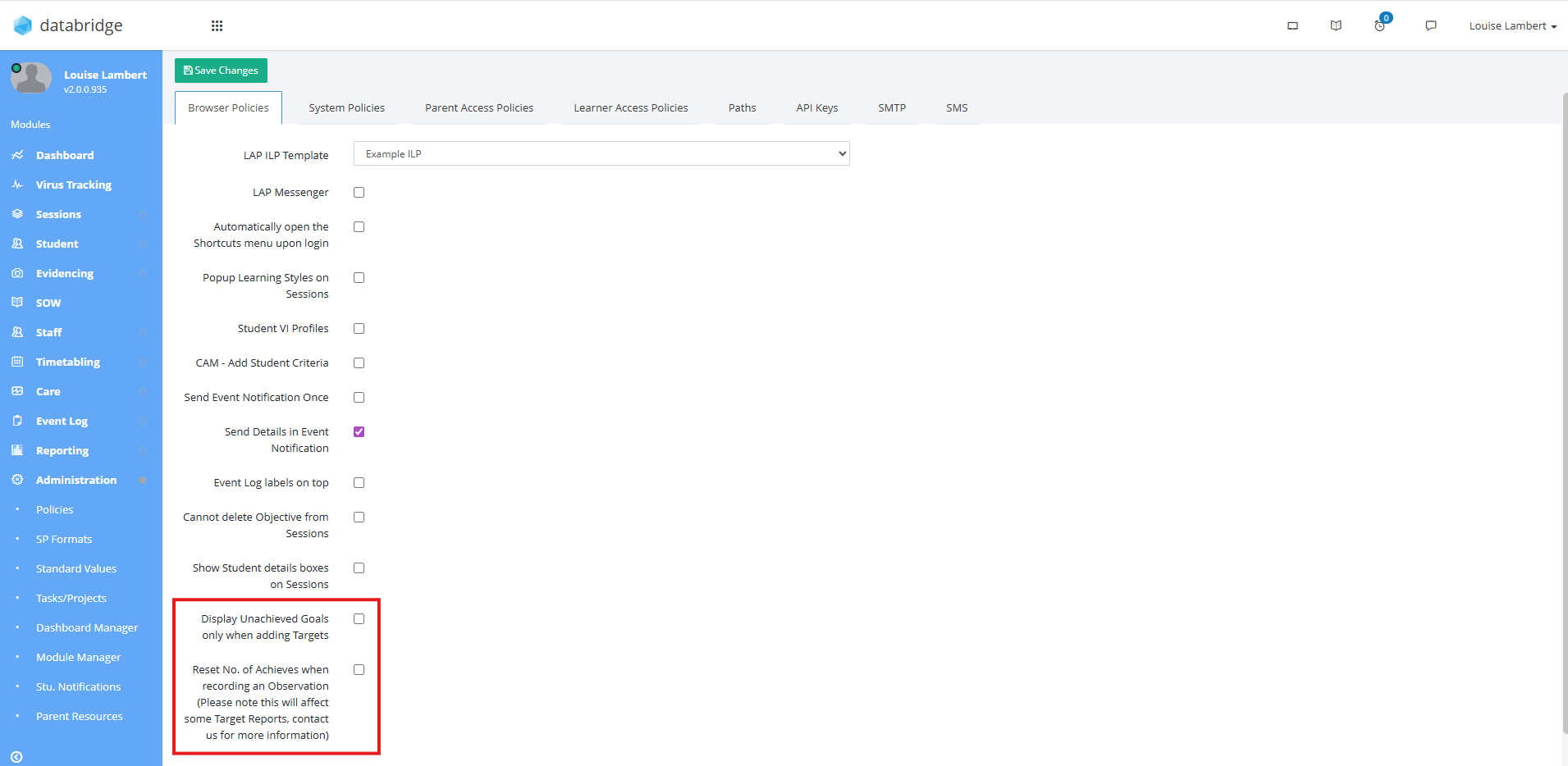
Display Unachieved Goals only when adding Targets - By default, when adding Targets, the Medium Term Goal dropdown populates all Goals. By ticking this, it will only show those that have not yet been marked as achieved.
Reset No. of Achieves when recording an Observation - This should be used with caution and recommended speaking to us before switching on. If switched on, when an Observation is recorded, the total number of Achievements tally is reset back to 0.
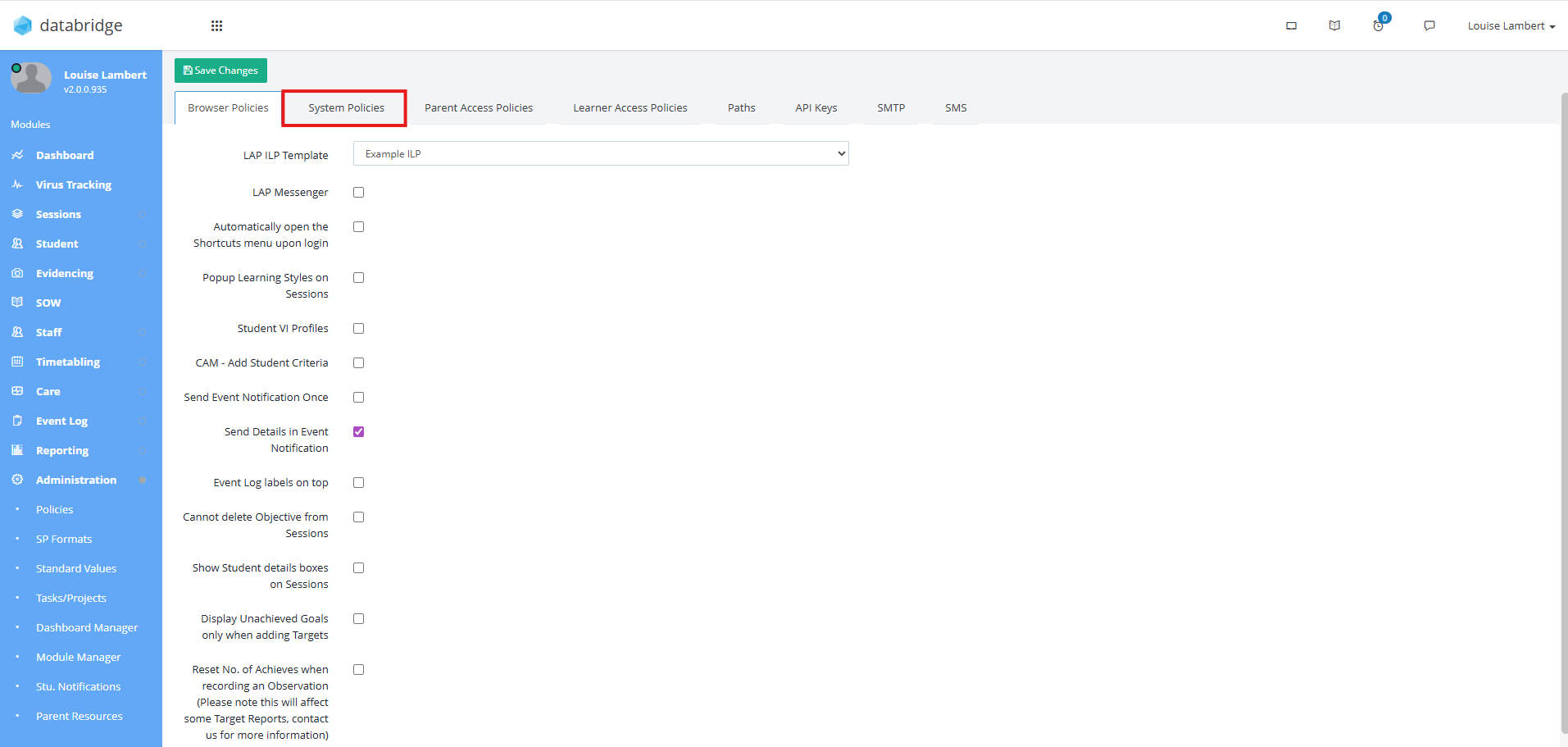
3. Using the tabs across the top of the page, select System Policies to view other relevant Policies.
4. Click Targets and Goals Policies to expand the selection.
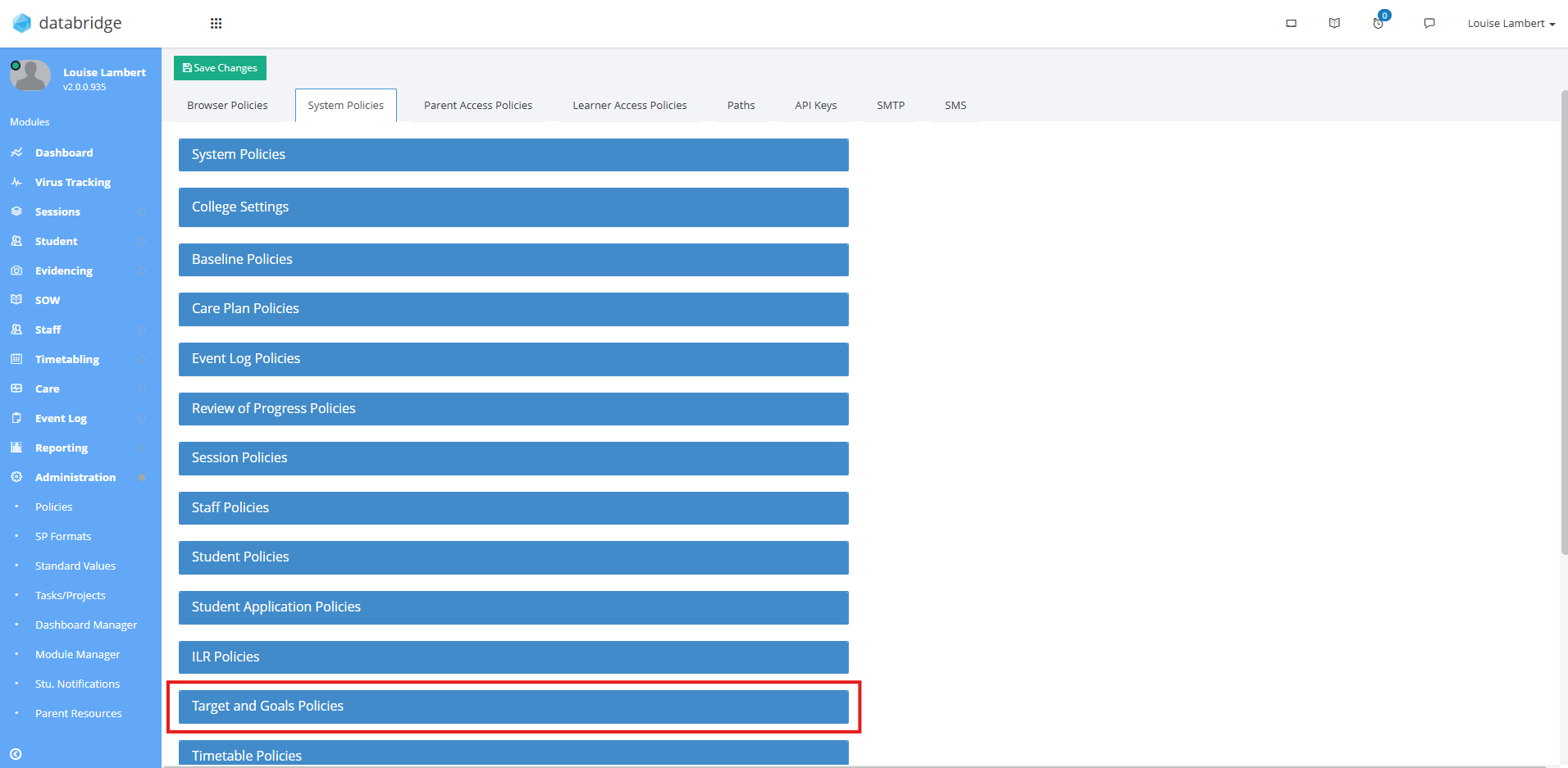
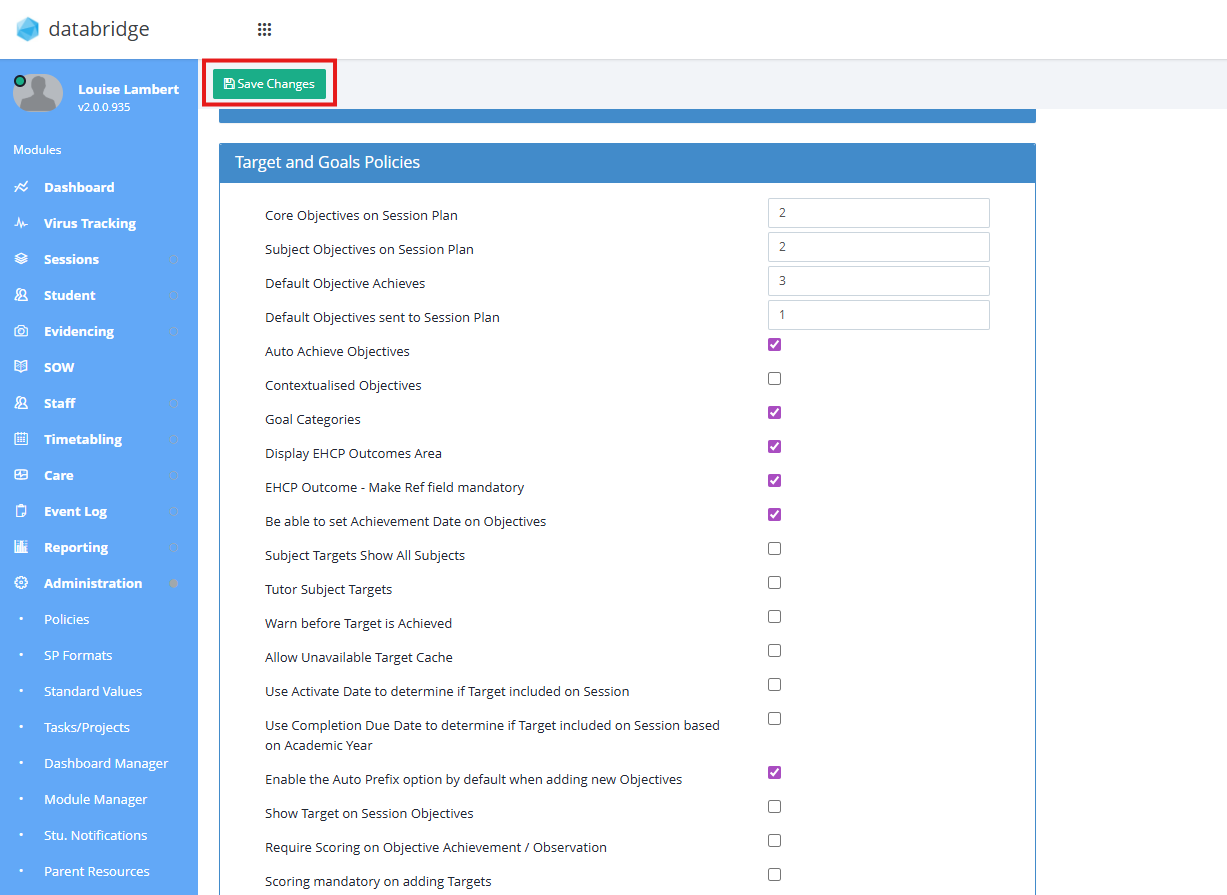
Options listed here are as follows:
Core Objectives on Session Plan - The total number of Objectives to display on a Session Plan for each Student from their Core Targets.
Subject Objectives on Session Plan - The total number of Objectives to display on a Session Plan for each Student from their Subject Targets.
Default Objective Achieves - The default number used for total number of Achievements required when adding Objectives.
Default Objectives sent to Session Plan - The default number used for number of Objectives to list on a Session Plan when adding Targets.
Auto Achieve Objectives - When switched on (which is the default), when Achievements for an Objective total its number of Achievements required, the Objective is achieved automatically. If all the Objectives for the corresponding Target are achieved, it will also auto achieve the Target.
Contextualised Objectives - If switched on, an option to contextualise an Objective within a Session becomes available.
Goal Categories - If switched on, Long Term Goals use Categories for selection.
Display EHCP Outcomes area - When ticked, the EHCP Outcomes will display on the Goal screen.
EHCP Outcome - Make Ref field mandatory - If ticked, when adding an EHCP outcome, you will be required to enter a Reference before saving.
Be able to set Achievement Date on Objectives - If switched on, when recording Achievement/Observation, the user can change the date it records for.
Subject Targets Show All Targets - If ticked, when adding Subject Targets, the available list is changed to display all Subjects instead of just the ones they are timetabled for.
Tutor Subject Targets - If ticked, as per the policy just above, it changes the available Subjects to choose from to include Subjects the related Tutor for the Student teaches.
Warn before Target is achieved - If ticked, when recording an achievement, if after saving both the Objective and related Target will auto achieve, it will prompt a warning beforehand in case you need to add additional Objectives.
Allow unavailable Target Cache - If ticked, when selecting from the Target Cache when adding Targets, it will also display Cache areas marked as unavailable.
Use Activate Date to determine if Target included on Session - If ticked (which is the default), it will add Objectives to Sessions only if the Target's Activate Date has passed. Otherwise it will simply list the first Objectives of all Targets.
Use Completion Due Date to determine if Target included on Session based on Academic Year - Similar to policy above, this determines if an Objective is listed on a Session or not. If ticked, Objectives where the corresponding Target's due date falls into the current academic year are the only ones listed.
Enable the Auto Prefix option by default when adding new Objectives - The default option for prefixing Objectives when adding.
Show Target on Session Objectives - If ticked, the Objective's corresponding Target text/label will be displayed next to it on the Session Plan screen.
Require Scoring on Objective Achievement/Observation - If ticked, when recording Achievement/Observation, the scoring option is a mandatory field.
Scoring mandatory on adding Targets - If ticked, when adding Targets, you cannot finish without adding Baseline/Predicted scores.
Update Score option when recording Observation - If ticked, you can add a score when recording an Observation.
Update Score option when editing Achievement - If ticked, when editing an Achievement, you can change its score.
Allow Unlinked Core Targets - If ticked, allows you to add Core Targets without having to link them to a Medium Term Goal.
Display only In Progress Medium Term Goals when adding Targets based on current Academic Year - If ticked, when adding Targets, only in progress Medium Term Goals will appear to link them to.
Set Actual Score to same as Baseline selected when adding Targets - If ticked, the Actual Score for a Target will default to the Baseline selected when creating the Target.
Mark Auto-Achieved Targets to prompt End Score - If ticked, when a Target is auto achieved it is marked to have a final score recorded for it. The list of these marked Targets are available in the dashboard widget Staff > My Links. There you can record a final score and complete them.
Default Academic Year filter to current year - If ticked, the Academic Year filter on the Target/Goal screen is automatically set to the current academic year.
Default displaying Achieved Targets - If ticked, when accessing the Targets page for a Student, all achieved Targets will appear on screen automatically.
Default displaying Not Started Targets - If ticked, when accessing the Targets page for a Student, all Targets not yet started will appear on screen automatically.
Default Target View - Determines which of the view types between Target, Goal and Area is the default view for all users.
Only Show Scores Match Pop-up, when 'Student Target Edit' permission is set for a user - If ticked, this pop-up will only appear for users with the Student Target Edit permission.
Show Gatsby Benchmark dropdown on target creation - If ticked, the Gatsby Benchmark dropdown will appear when creating a Target to link the Target to a benchmark.
Show Objectives on the Evidence Browser - Allows Objectives to be viewed from the Evidence Browser screen.
5. Once you are happy with the options you have selected, ensure you click Save Changes.
Was this article helpful?
That’s Great!
Thank you for your feedback
Sorry! We couldn't be helpful
Thank you for your feedback
Feedback sent
We appreciate your effort and will try to fix the article