Observations can be added against a Session to record details of any teaching observations taking place at your organisation. You can also setup different templates as to the information you record.
Adding/Editing Session Observation templates
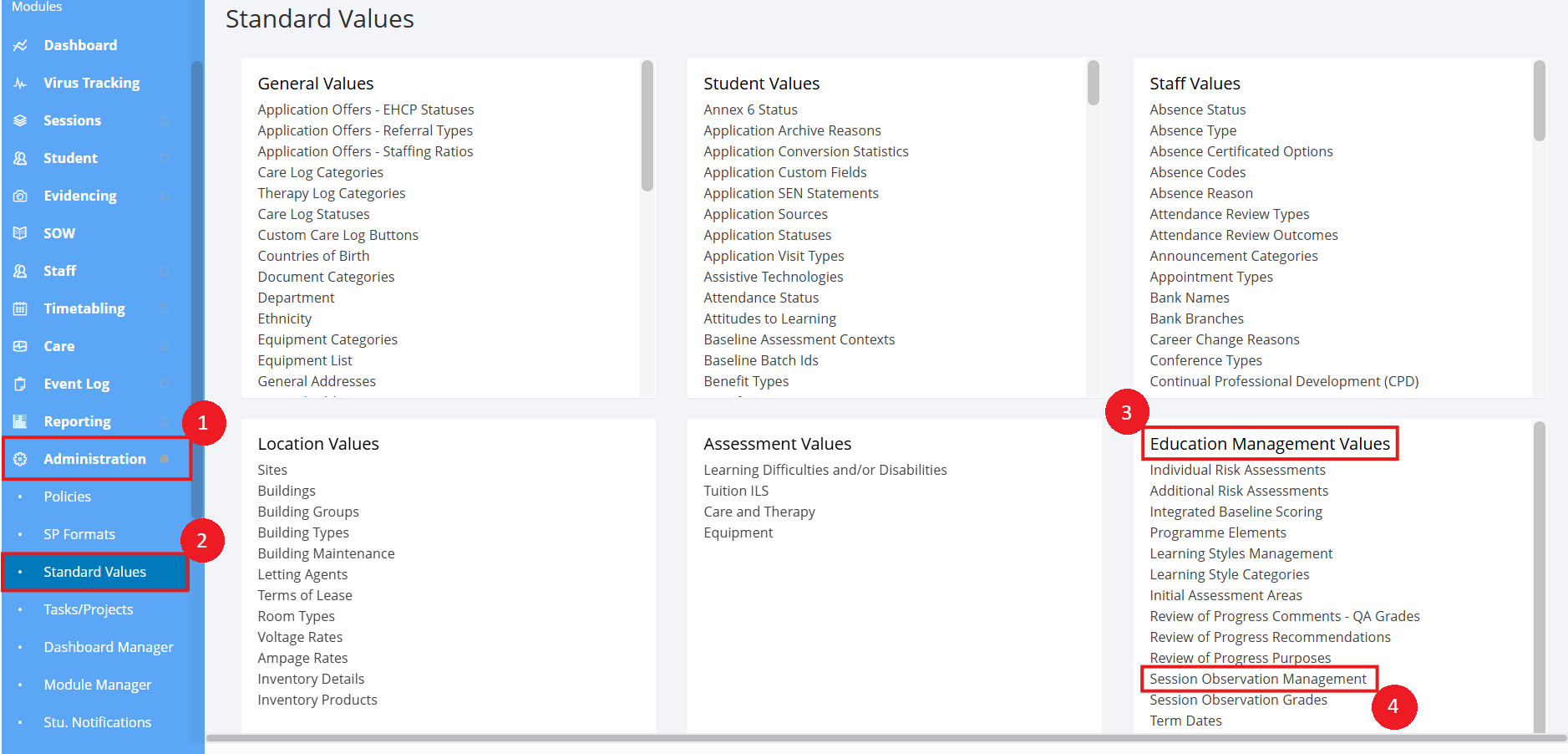
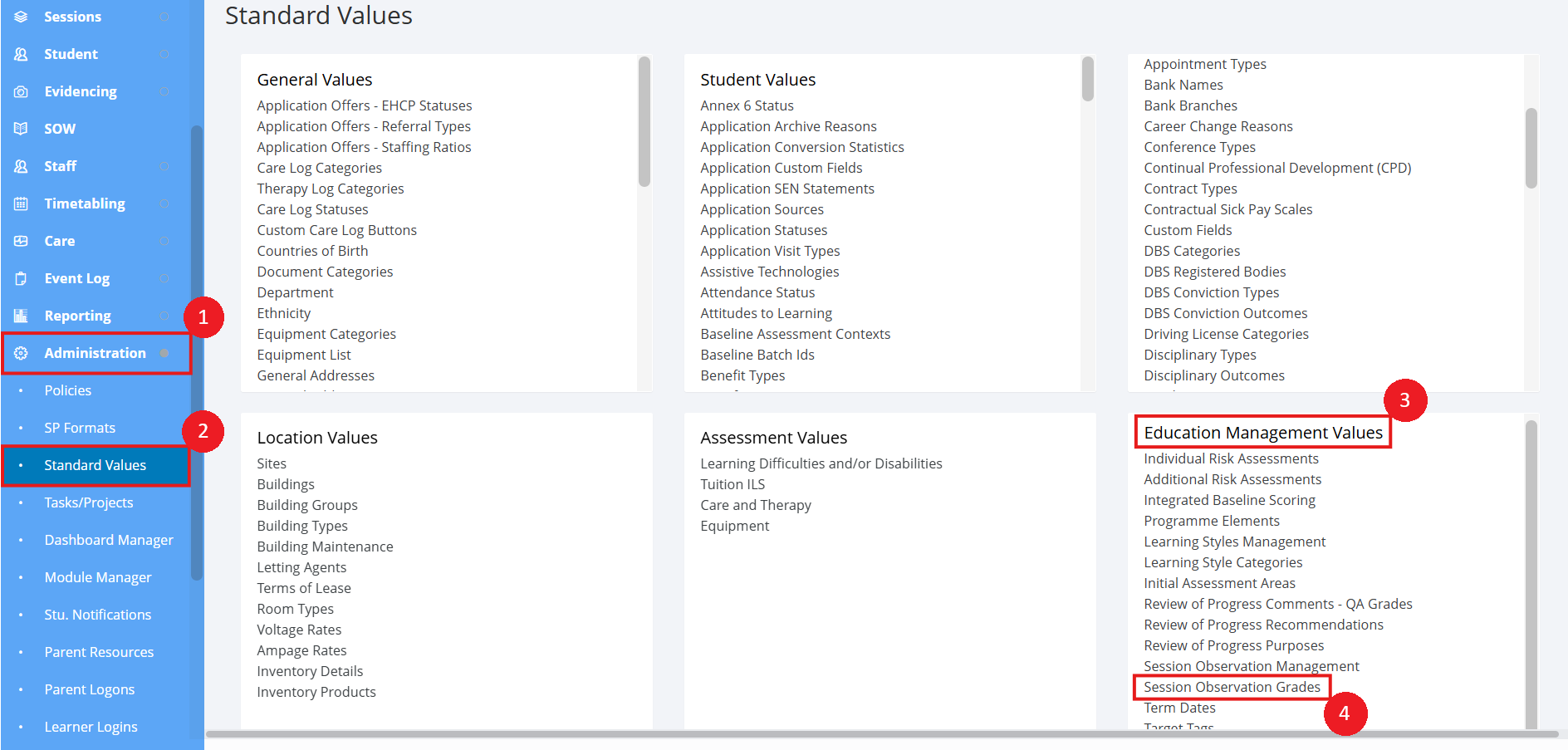
In the left hand navigation menu, select Administration > Standard Values. Under the Education Management Values area, select Session Observation Management.
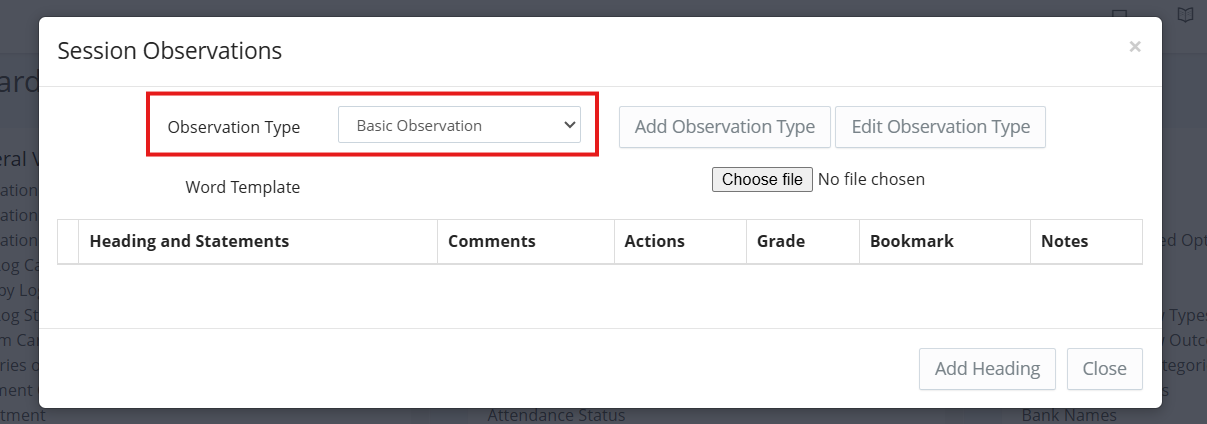
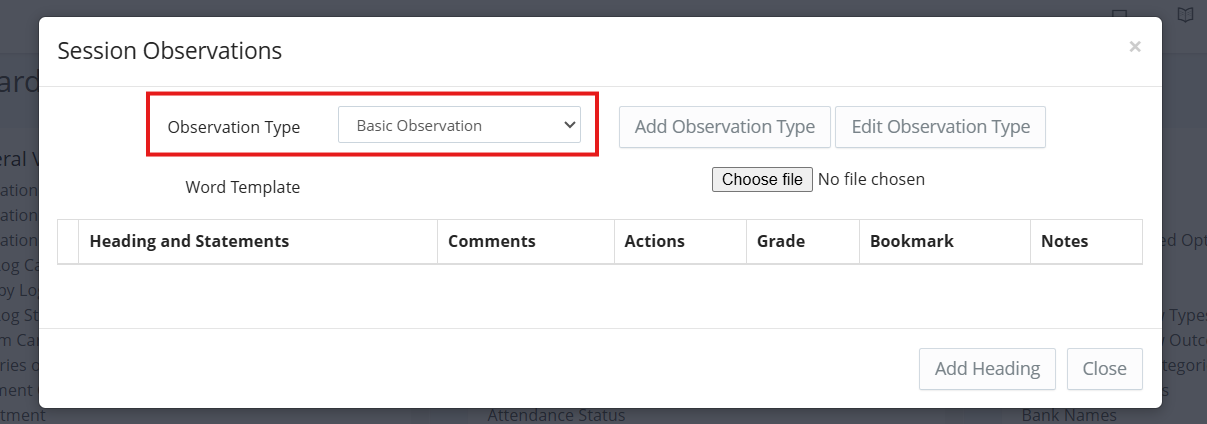
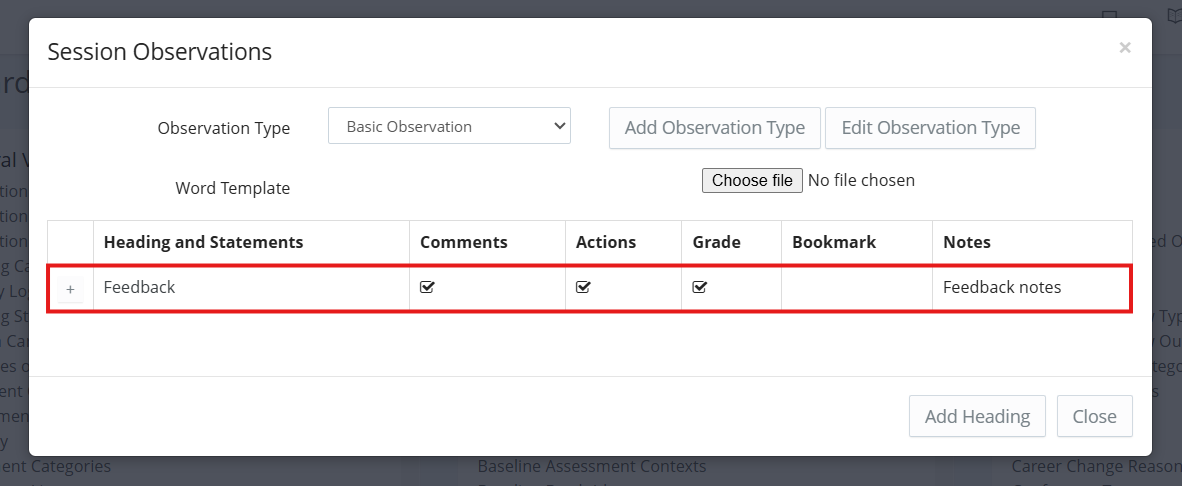
This will open a modal with a dropdown for Observation Type. Changing the option in here will change the list of headings and statements listed below.
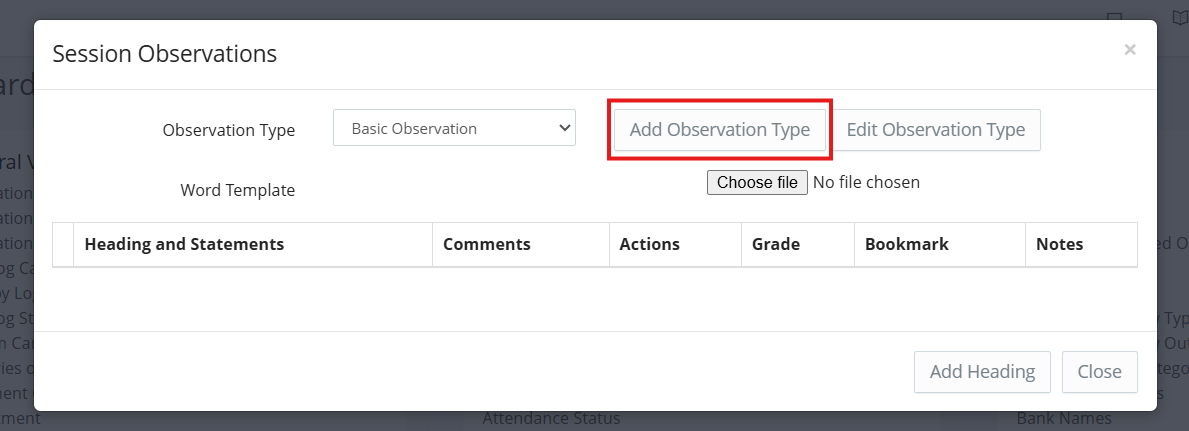
Start by creating a new Observation Type by clicking Add Observation Type.
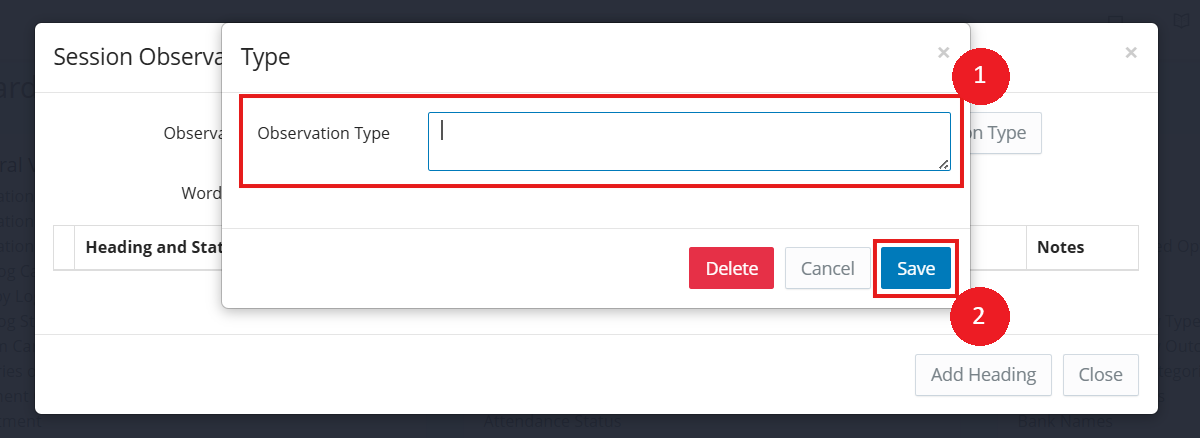
This will bring up a window where you can give the new type a relevant name e.g. 'Basic Observation', before clicking the blue Save button.
Information
You can use the Edit Observation Type to change the title
If you haven't already, select the new type you have created in the dropdown.
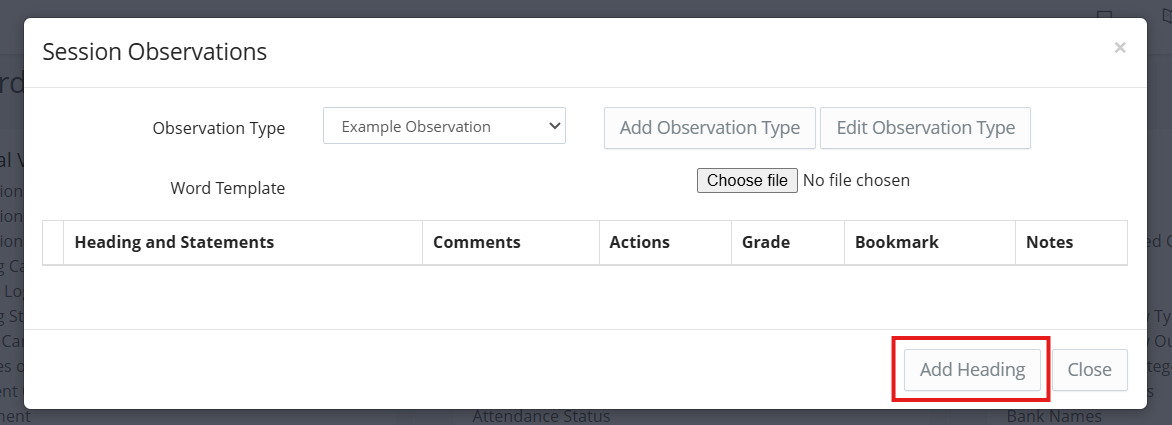
Next, click Add Heading to add the fields we want to record for this Observation Type.
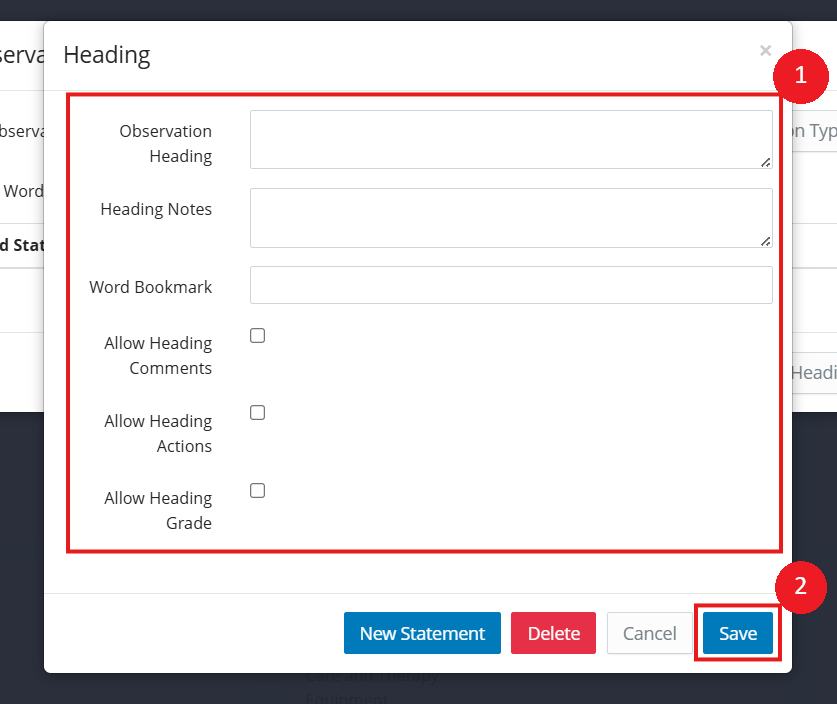
Once you have entered the relevant details, ensure to click the blue Save button. The list for Heading/Statements will now change accordingly.
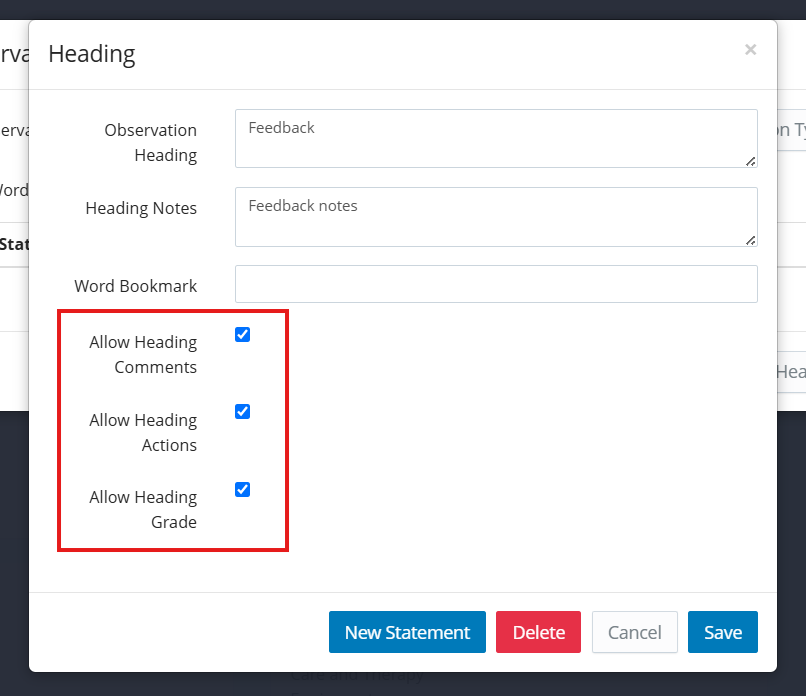
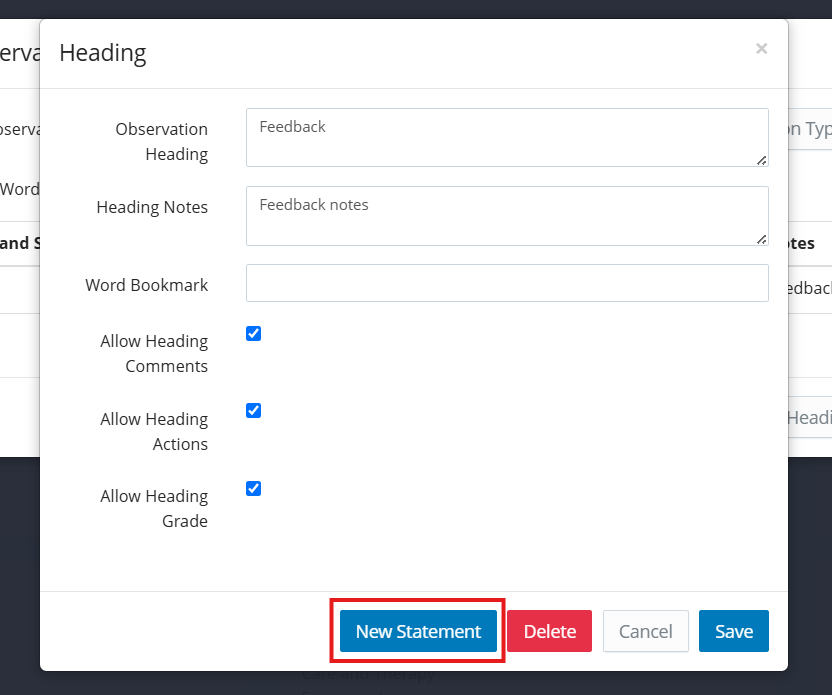
The relevant tick boxes will determine whether a Comments, Heading Actions, or Heading Grade section is displayed underneath this heading.
To finish, we need to add fields/statements underneath the headings. Click on a Heading to see the modal from before where we can edit the details.
At the bottom click on New Statement.
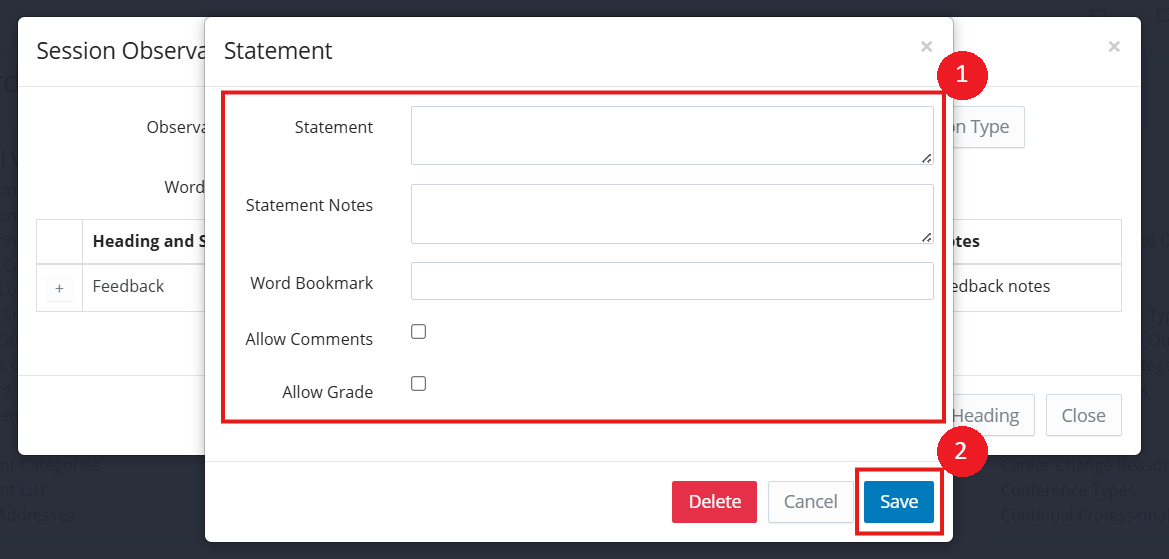
This will open a new window where you can add the relevant details for this Statement before clicking the blue Save button.
The headings/statement list will update accordingly.
Continue to add more Headings/Statements as required.
Adding/Editing Session Observation Grades
In the left hand navigation menu, select Administration > Standard Values. Under the Education Management Values area, select Session Observation Grades.
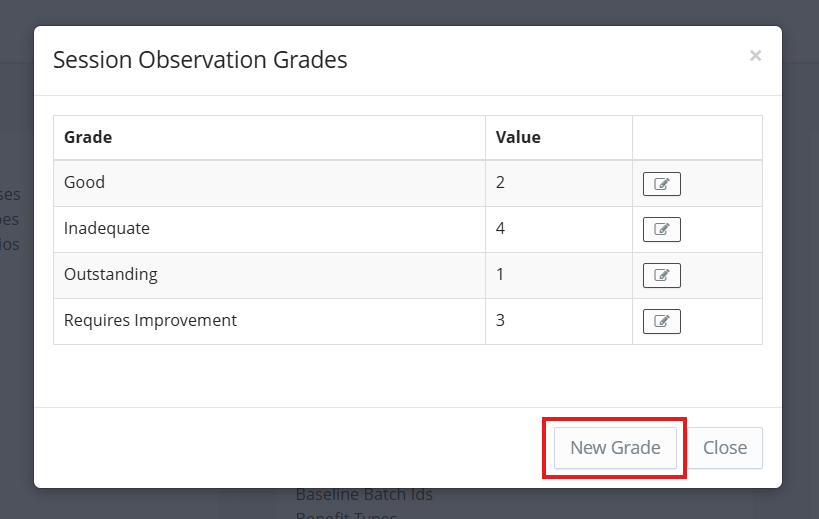
Create new grades by clicking on the New Grade option at the bottom of the modal. Give the grade a relevant title/label and appropriate numeric value e.g. Outstanding - 1.
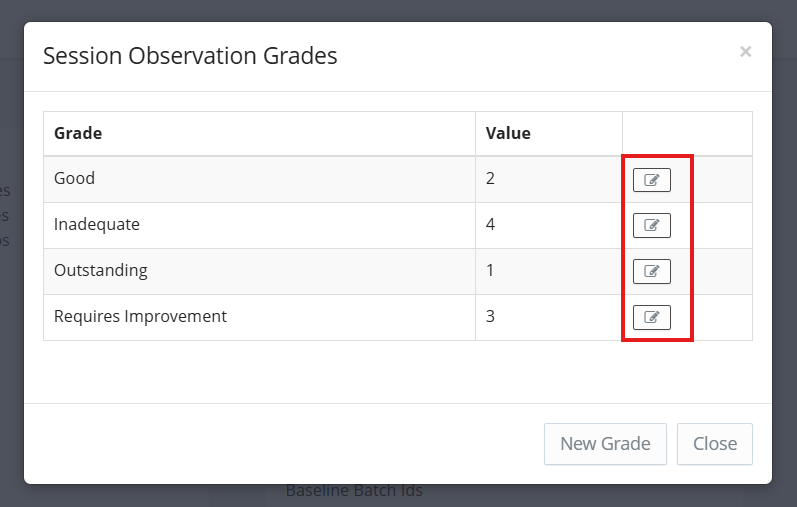
To edit a grade, click the notepad icon in the same row and change details accordingly.
Setting up a Session Observation
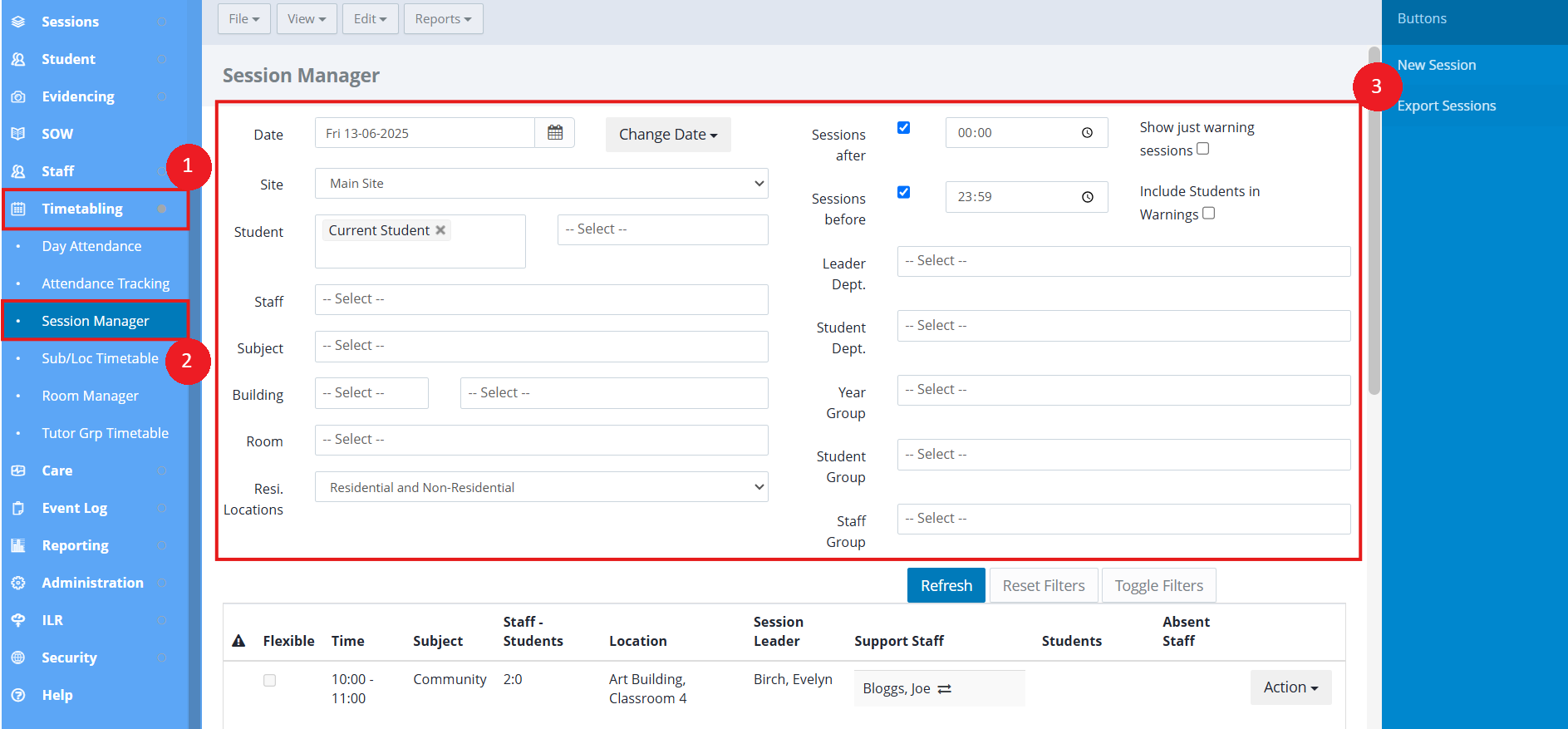
All Observations are created via the Timetabling > Session Manager screen. Using the filters available, locate the individual Session you wish to create an Observation for.
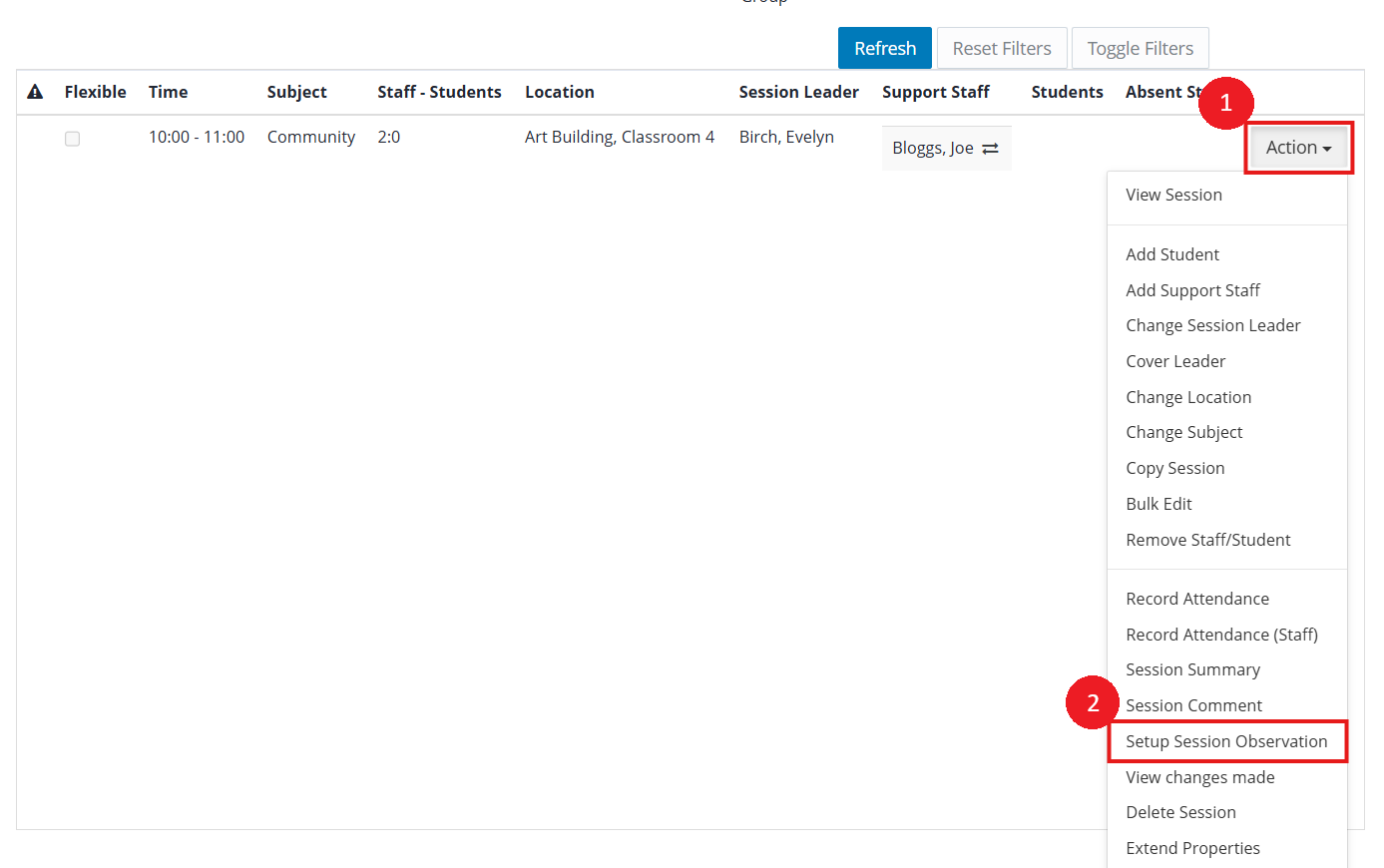
Click on the Actions option in the same row and select Setup Session Observation.
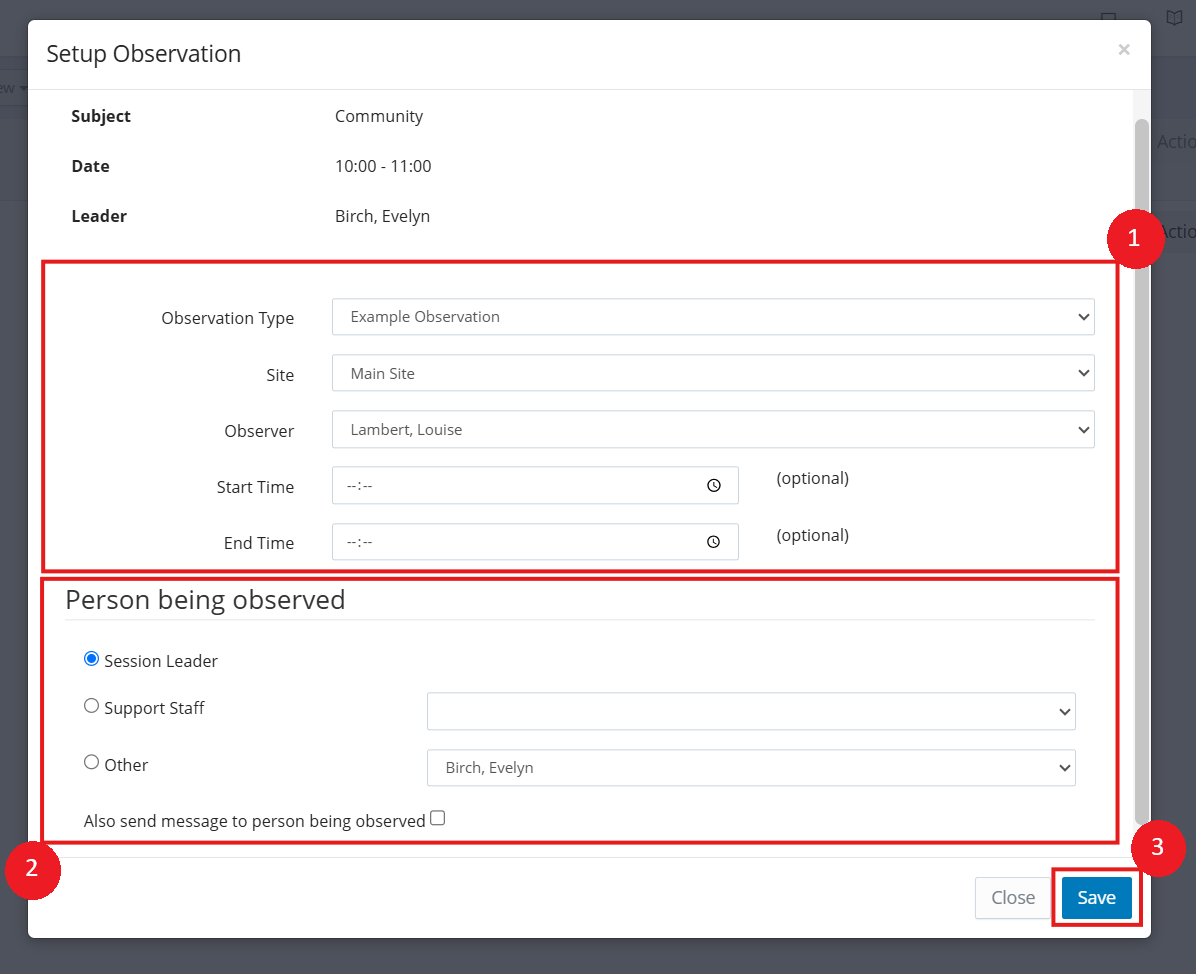
A modal will appear asking you to select the relevant Observation Type, Site, Observer, Start/End Time (if different to Session Time) and the Person Being Observed. Enter the relevant details and click Save.
Observing the Session
Now that an Observation was setup, the Observer can now go to the details via the Dashboard in one of two ways:
| Widget | Description |
|---|---|
| Staff - My Links | A link is available in this widget for Session Observations to list all Observations. You can click on any in the list to open the details for it. You must also have the relevant Session Manager permission to see this. |
| Staff - My Data | There is an option on this widget to see My Session Observations. It will only list if you have been set as the Observer. You can click on one to open the details for it. |
Once you have clicked on any to open the Observation details you will see the details of the Session itself (e.g. Subject, Date/Time, Leader), an Overall Grade, an option to mark as Complete and tabs/fields for anything you setup as per the Session Management options at the top of this article.
To record the details, simply enter/select details and grades accordingly to what you have setup. If you selected to display comments, actions or grade, these will display for entry accordingly.
When you have finished updating details, ensure to click the Save Changes button.
In the top right of the screen when viewing the details for the Observation, you'll see the option to Delete the Observation if needed, as well as Print the Observation as well.
Information
Marking the Observation complete will display a tick next to it in the Session observations screen from the My Links widget
Was this article helpful?
That’s Great!
Thank you for your feedback
Sorry! We couldn't be helpful
Thank you for your feedback
Feedback sent
We appreciate your effort and will try to fix the article