This guide will look at how to set up a Test Staff login in Databridge. This login can be used to view different Security Groups on your system to check staff members have the correct permissions.
It's very important that once you’ve tested access for a security group, you lock down the test account to prevent inadvertent access to sensitive information.
Databridge does not accept any responsibility for managing your test staff accounts.
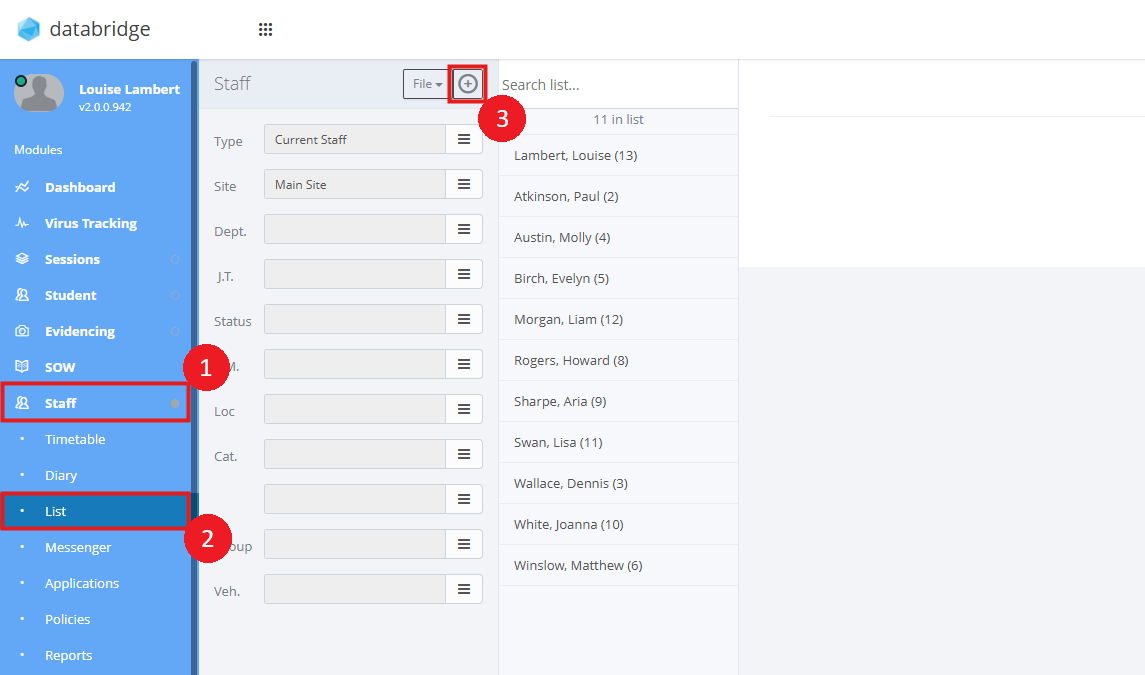
1. Firstly, you will need to add your Test Staff member to the system by navigating to Staff > List and clicking the + Icon at the top of the screen.
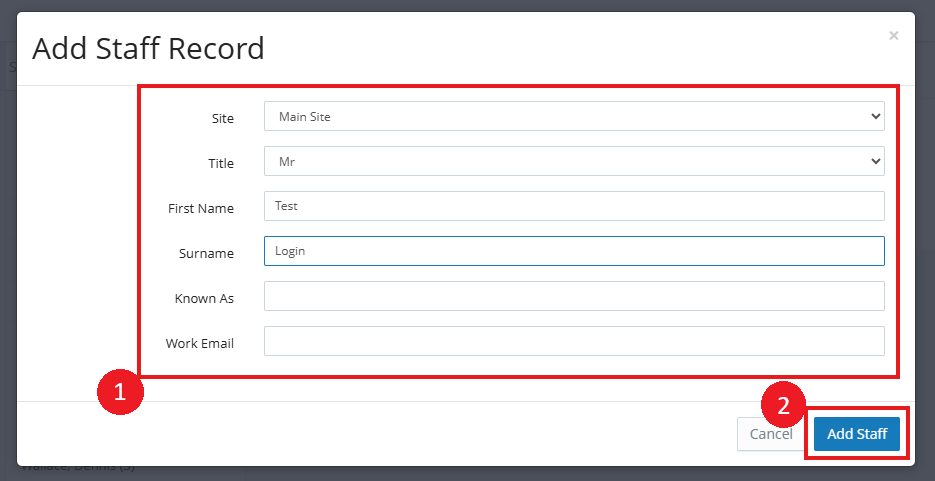
2. Give your Test login a name and click Add Staff.
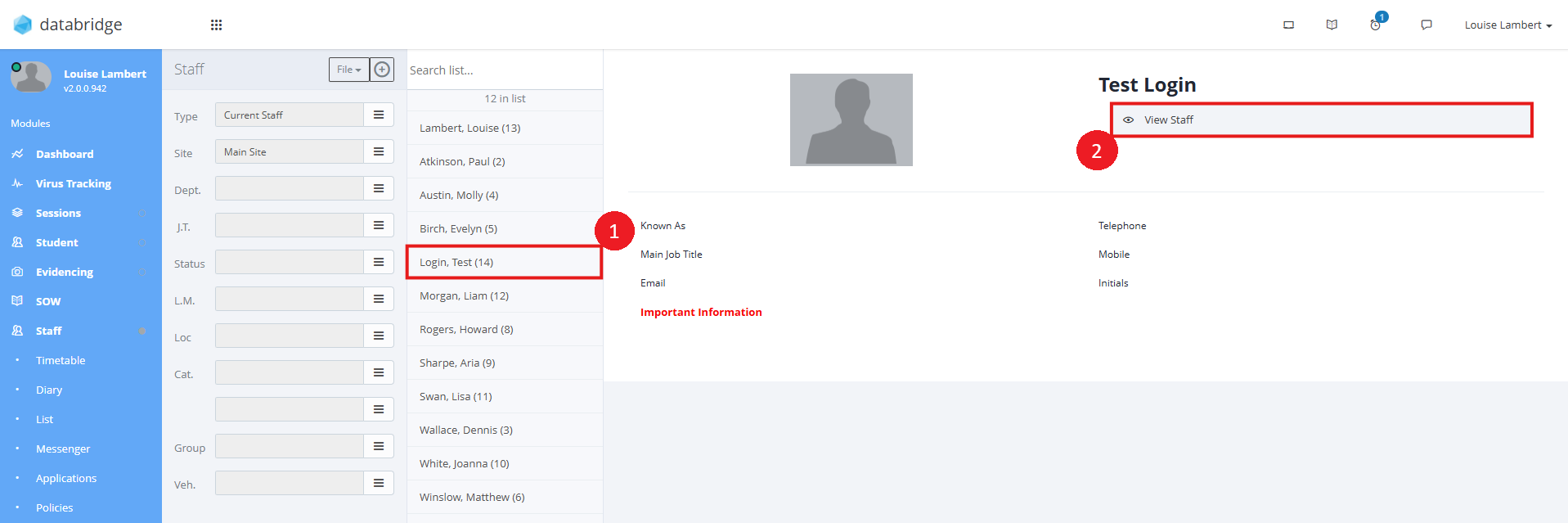
3. Your new 'Staff Member' will appear in the list. Click on the name and View Staff to open the Staff record.
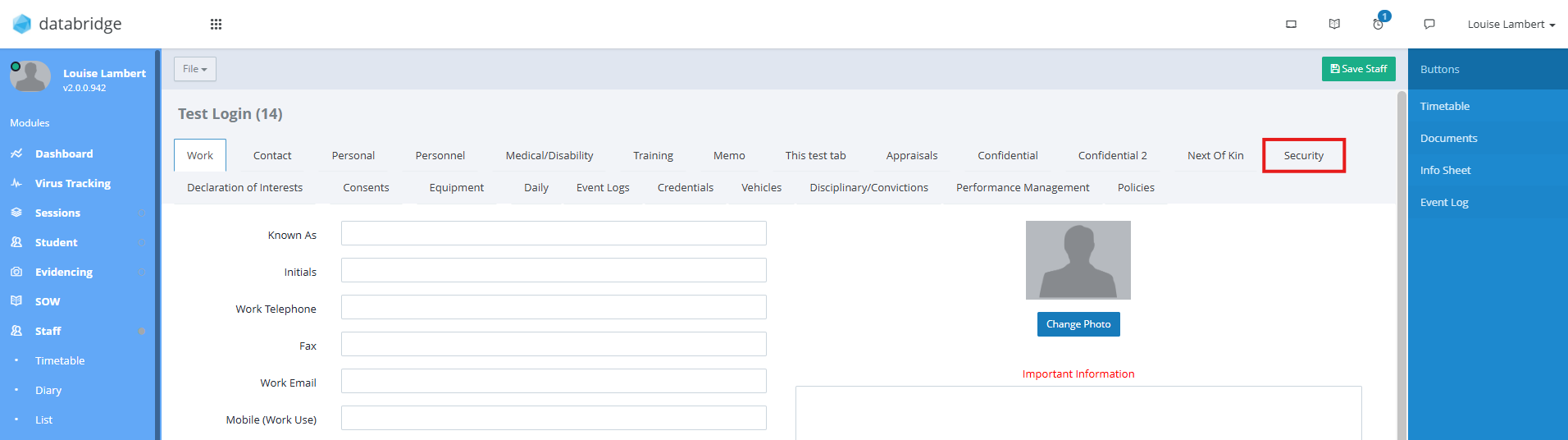
4. Click on the Security tab to set up your login details.
5. Click the Spanner Icon next to the Username field.
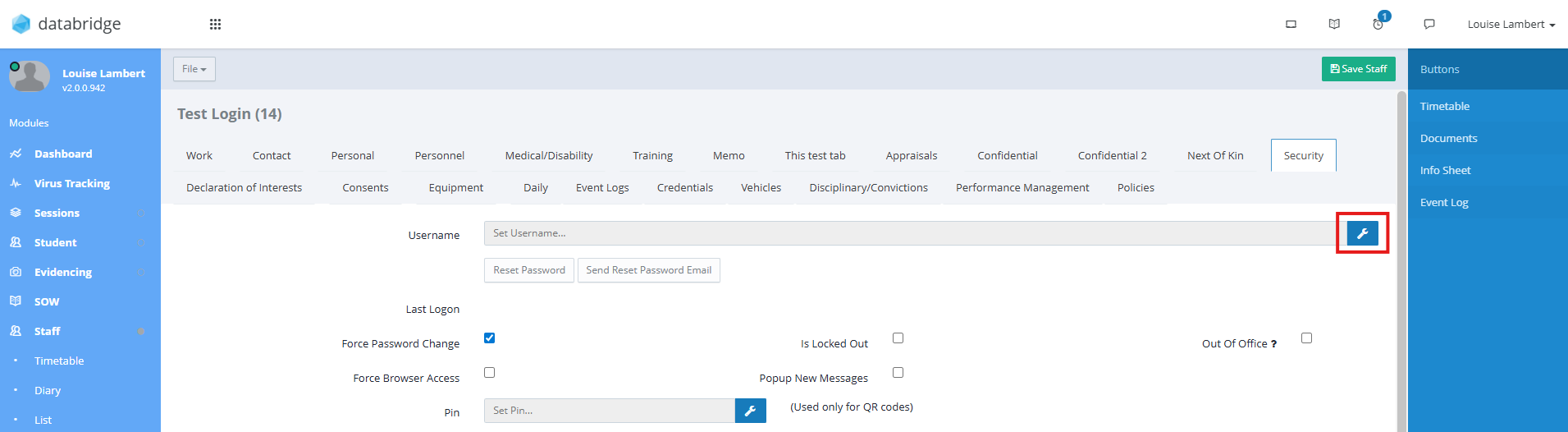
6. Type in a username for this account, and click Save.
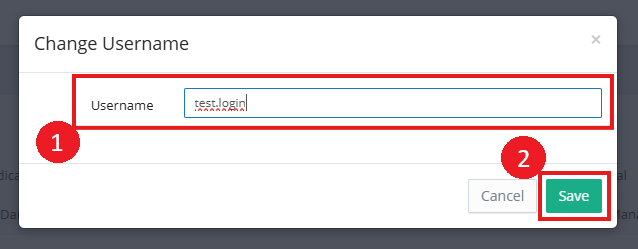
7. Next, select Reset Password.
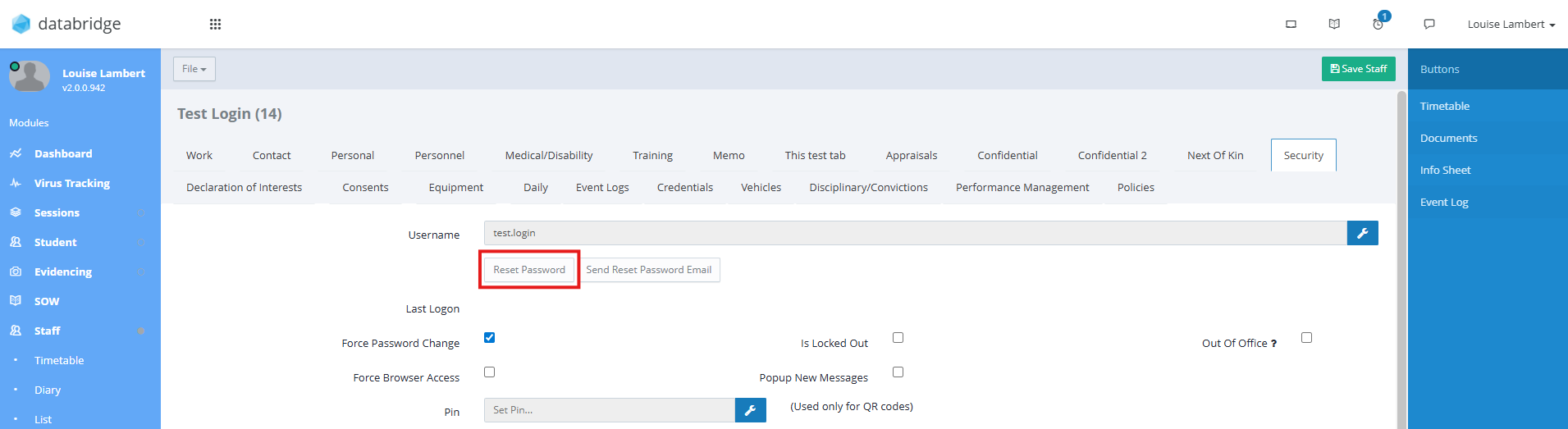
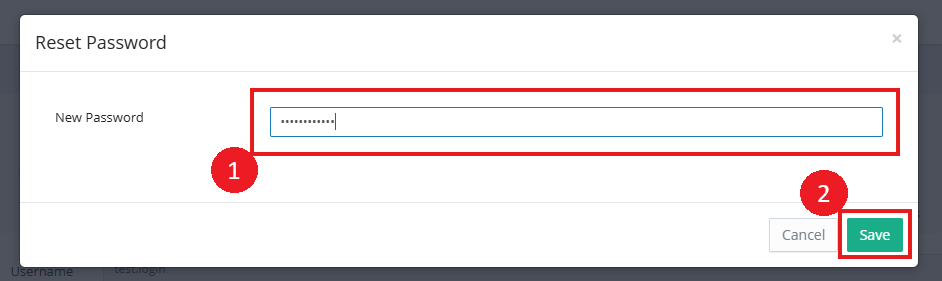
8. Type in the password you'd like to set for this login, and click Save.
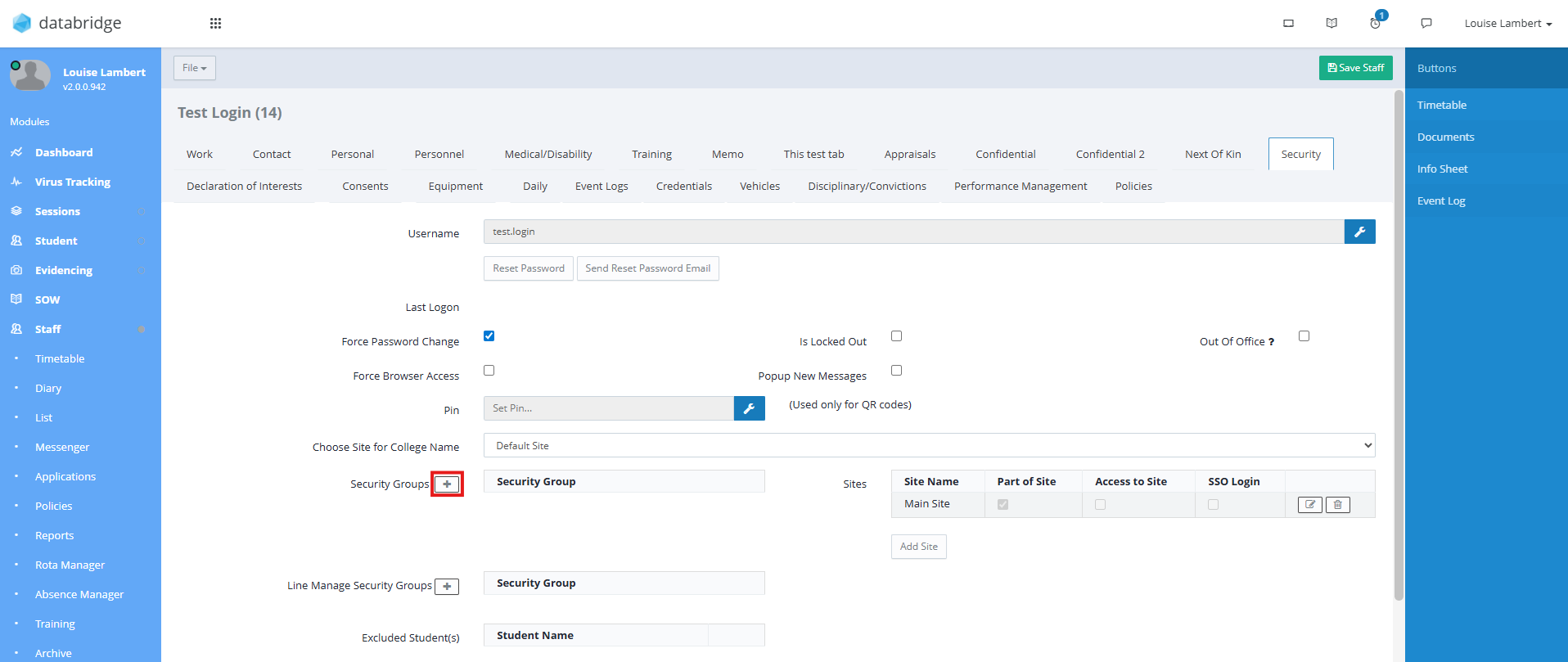
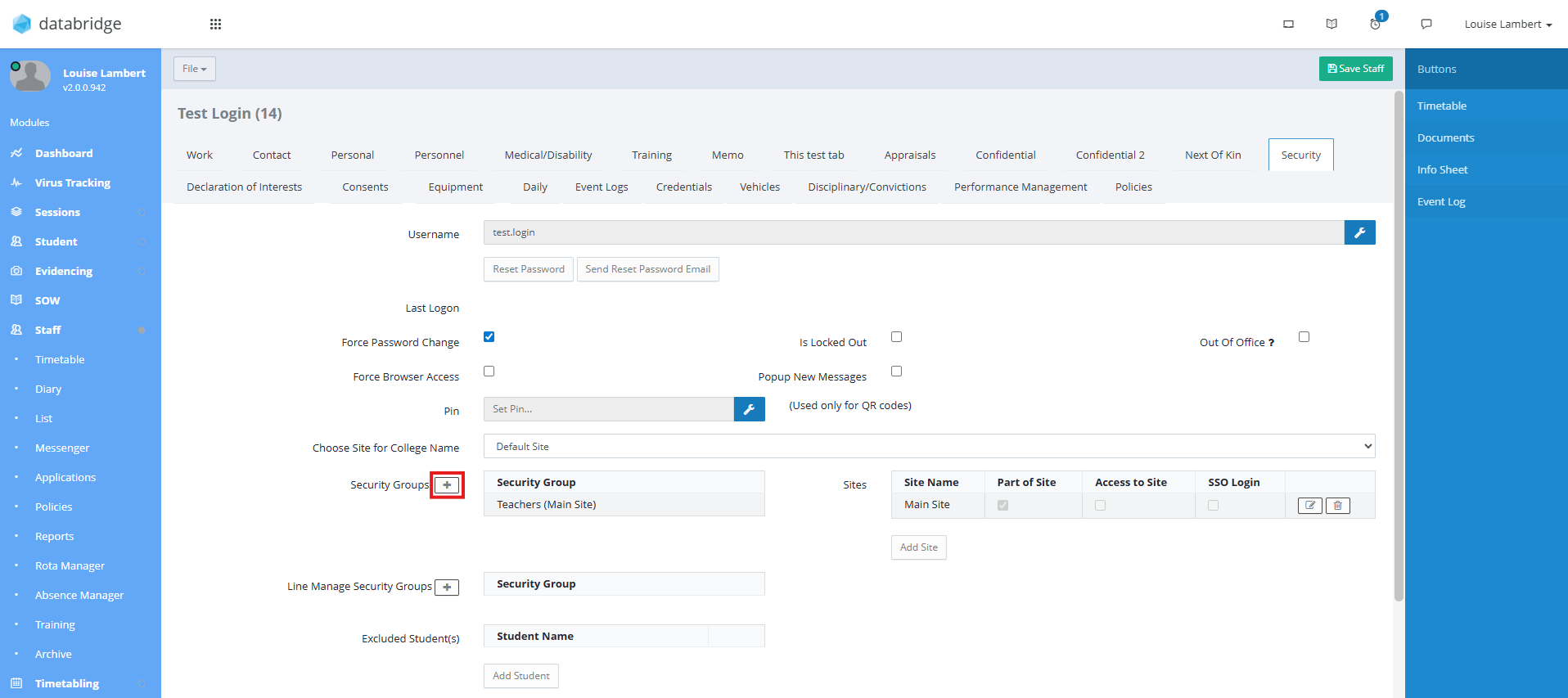
9. To add your Test login to a security group, click the + Icon next to 'Security Group'.
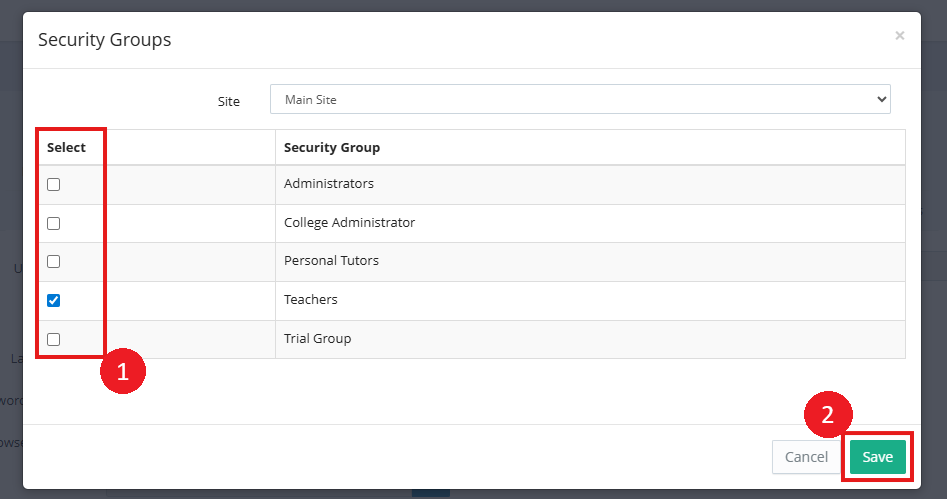
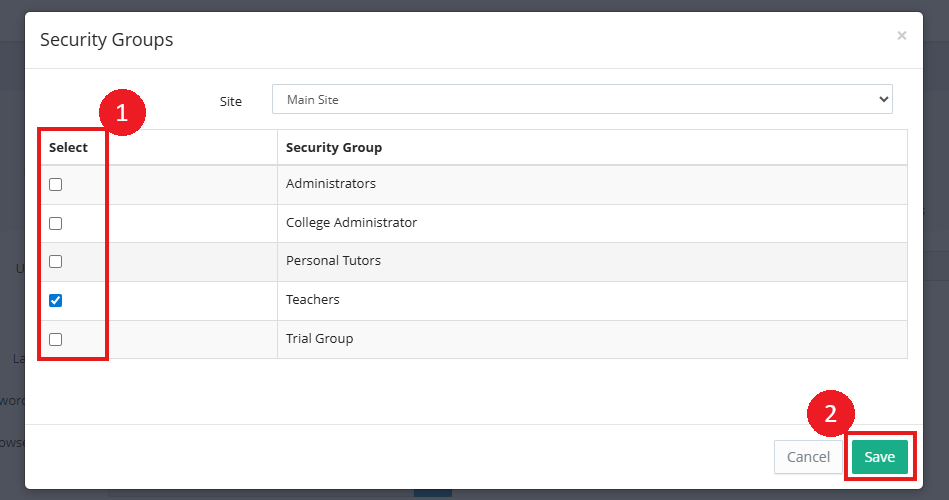
10. This will open up a window where you can tick the relevant group before clicking Save.
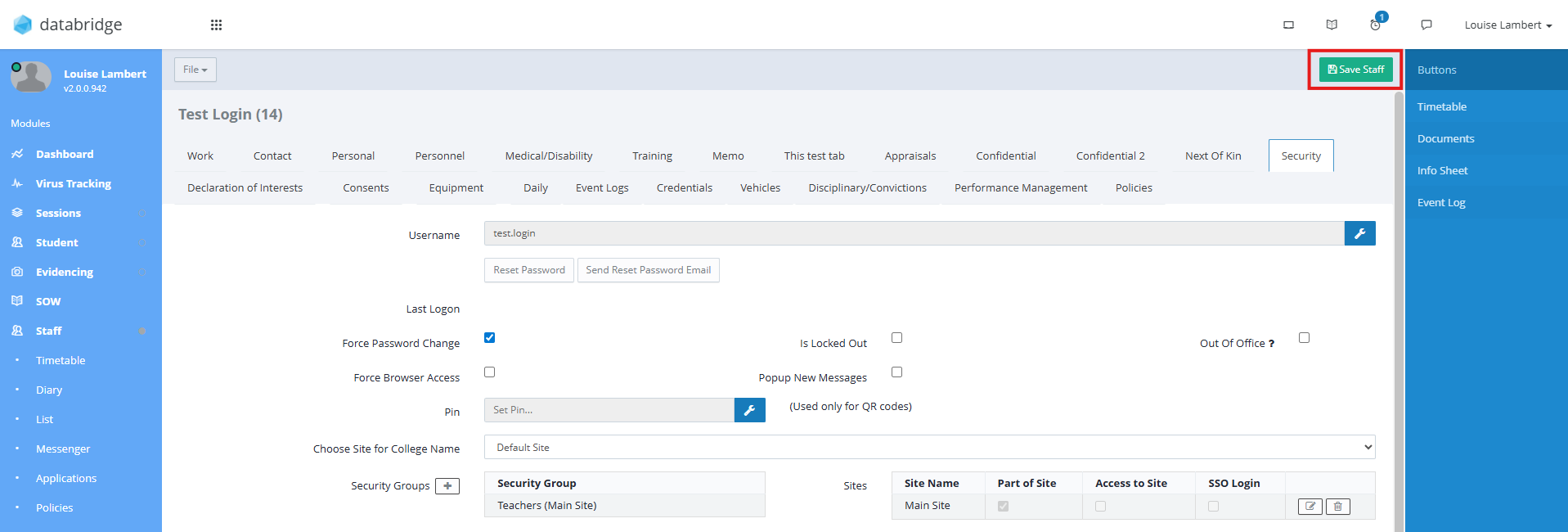
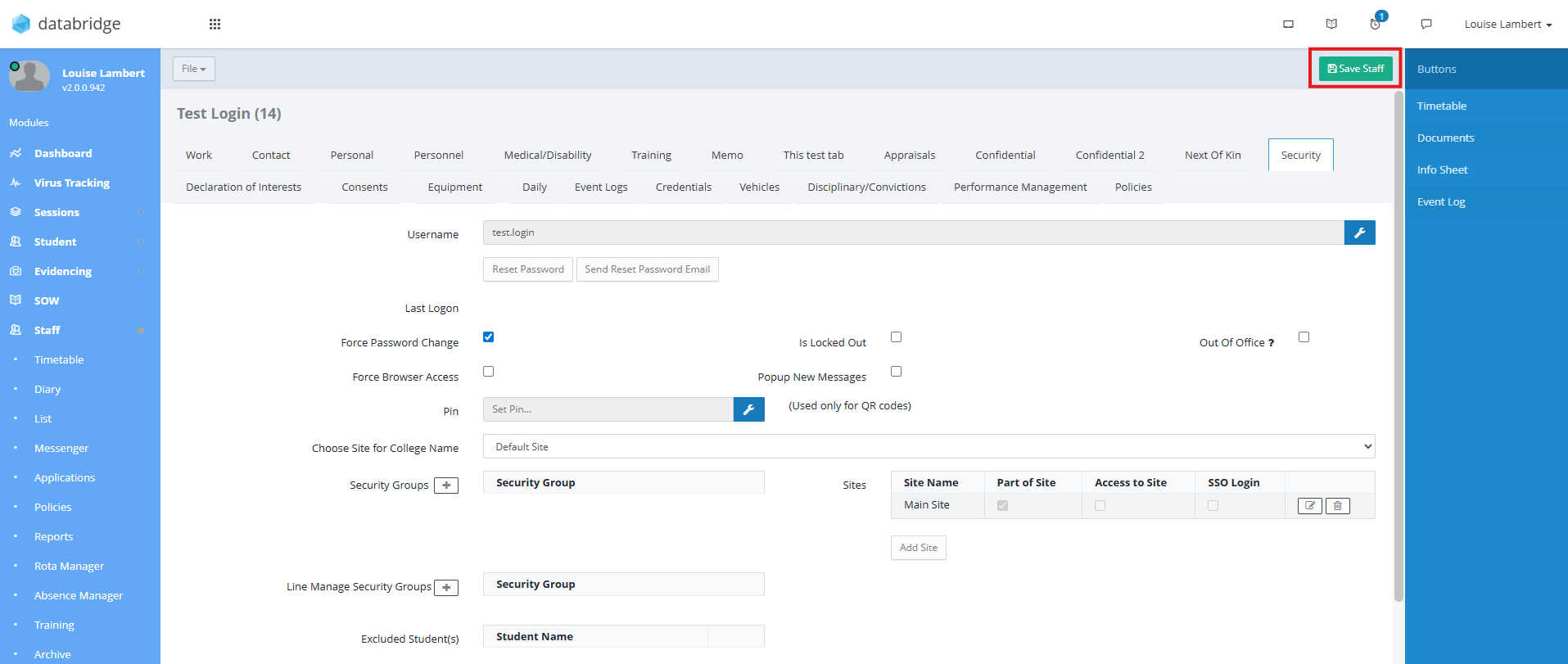
11. Ensure to click Save Changes at the top of the Staff record anytime you make any changes here.
You can now log out of your own account, and using the Login you've just created, sign in as the Test Staff to view permissions for the relevant security group.
It's very important that once you’ve tested access for a security group, you lock down the test account to prevent inadvertent access to sensitive information.
For example, if you are testing the permissions for a security group that has access to confidential or sensitive data, if you don’t remove the test account from the security group you have tested and lock the login for the account, anyone with the login details for the test account will have access to all areas for the security group you have been testing.
Databridge does not accept any responsibility for managing your test staff accounts.
12. To ensure you've locked down the Test account when you are done, log back into Databridge as yourself, and once again navigate to the Test Staff record, and their Security tab.
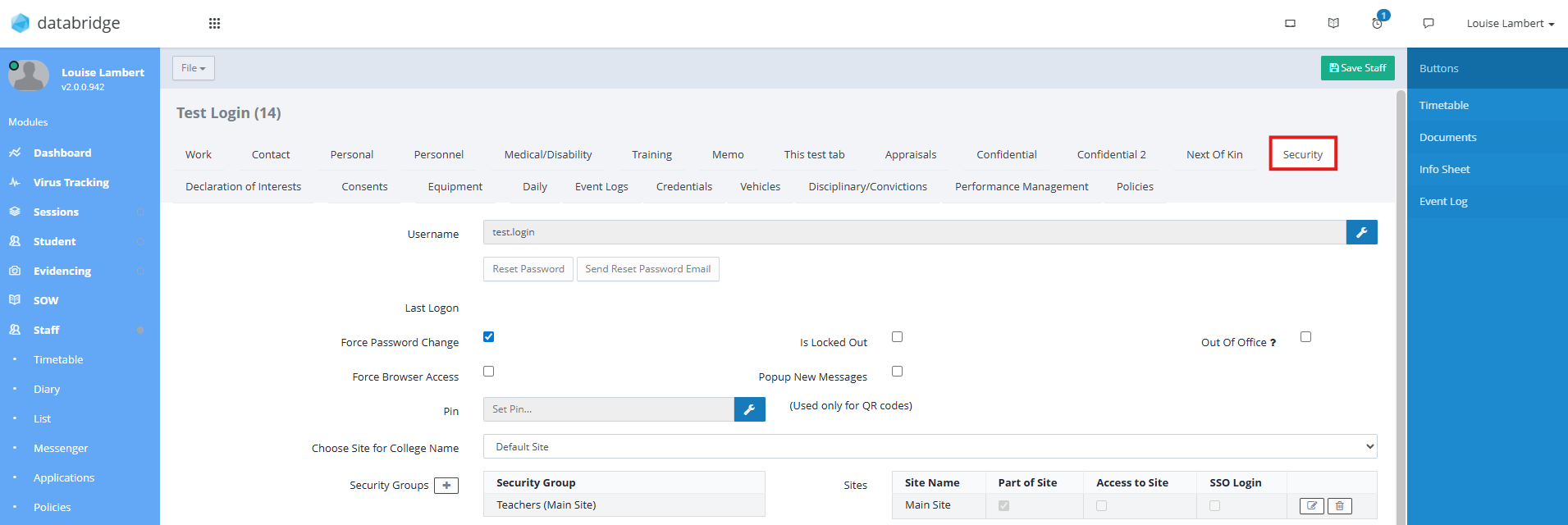
13. Click the + Icon next to 'Security Groups'.
14. Now untick the security group and click Save.
15. Ensure to click Save Staff when finished.
Was this article helpful?
That’s Great!
Thank you for your feedback
Sorry! We couldn't be helpful
Thank you for your feedback
Feedback sent
We appreciate your effort and will try to fix the article