This guide will look at how to create, edit and apply Staff Shift Patterns.
TABLE OF CONTENTS
Creating / Editing Shift Patterns
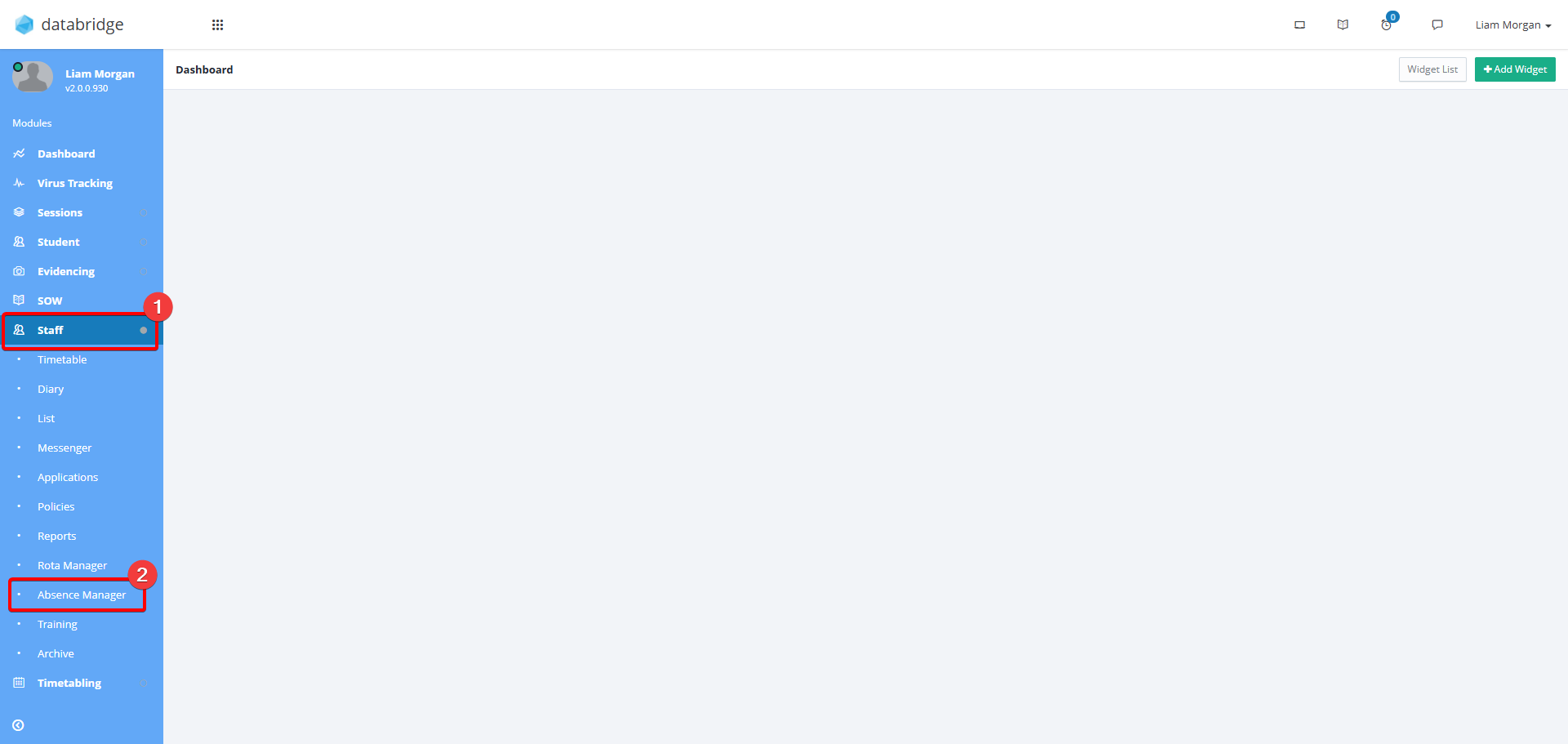
1. Navigate to Staff > Absence Manager
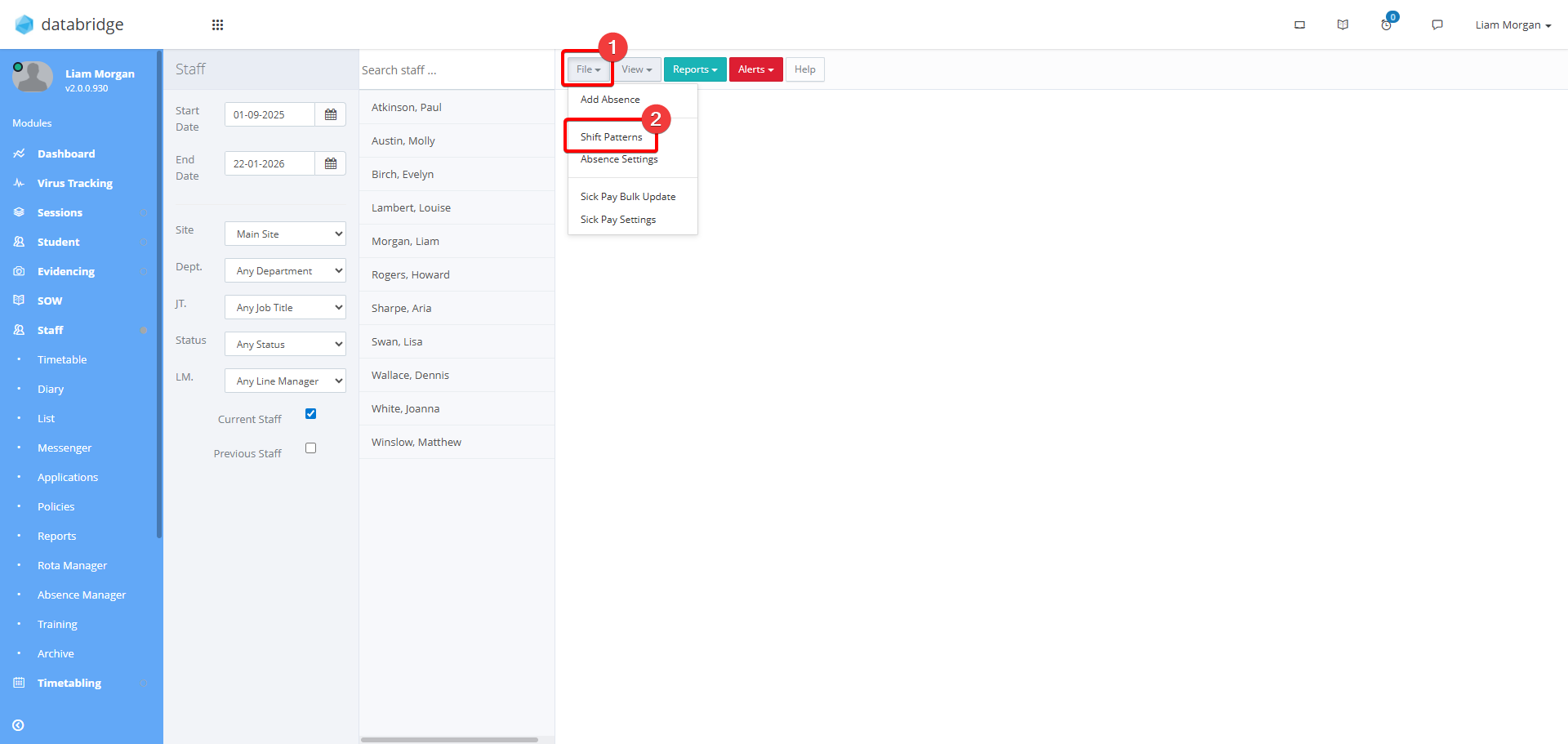
2. Click File > Shift Patters.
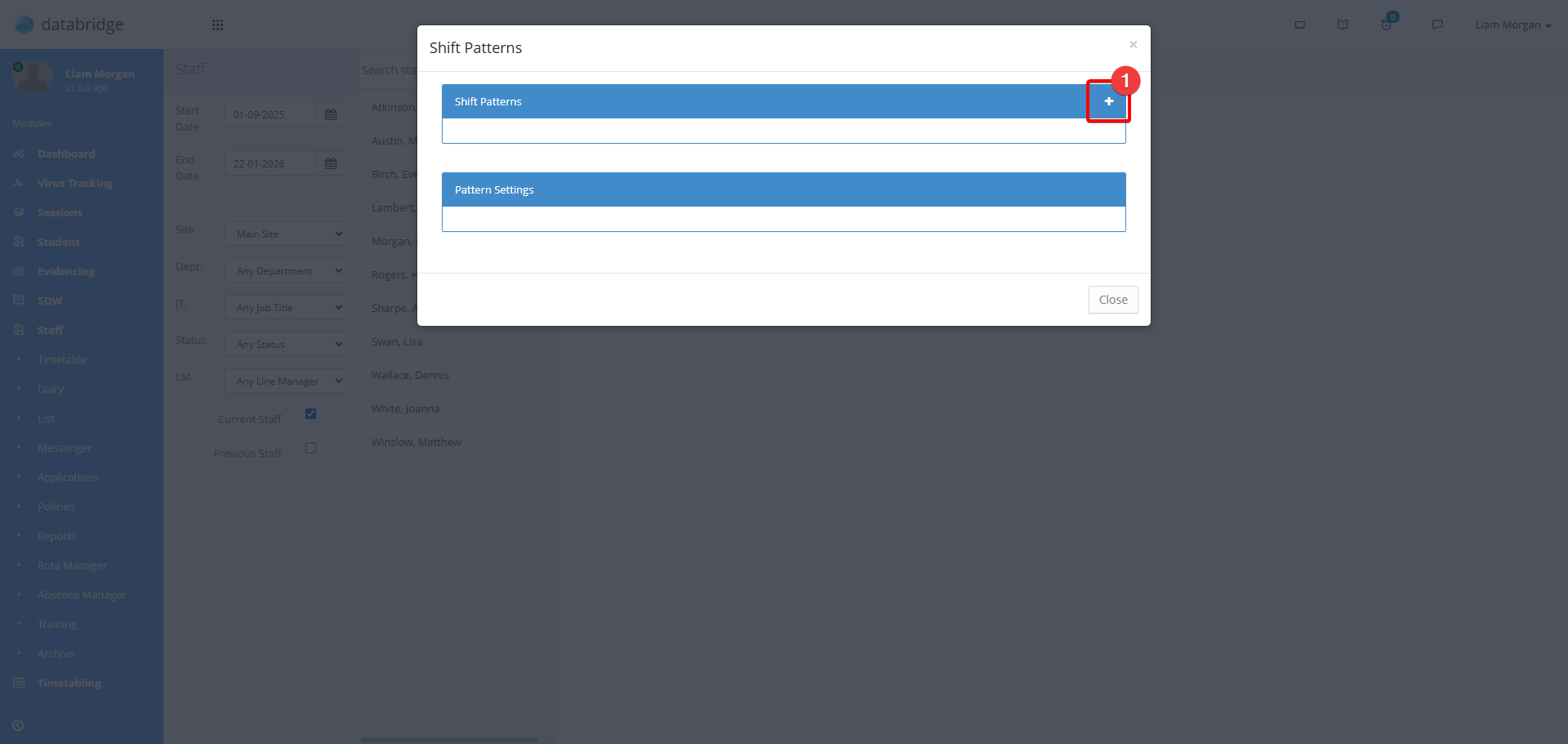
3. Click the + Icon
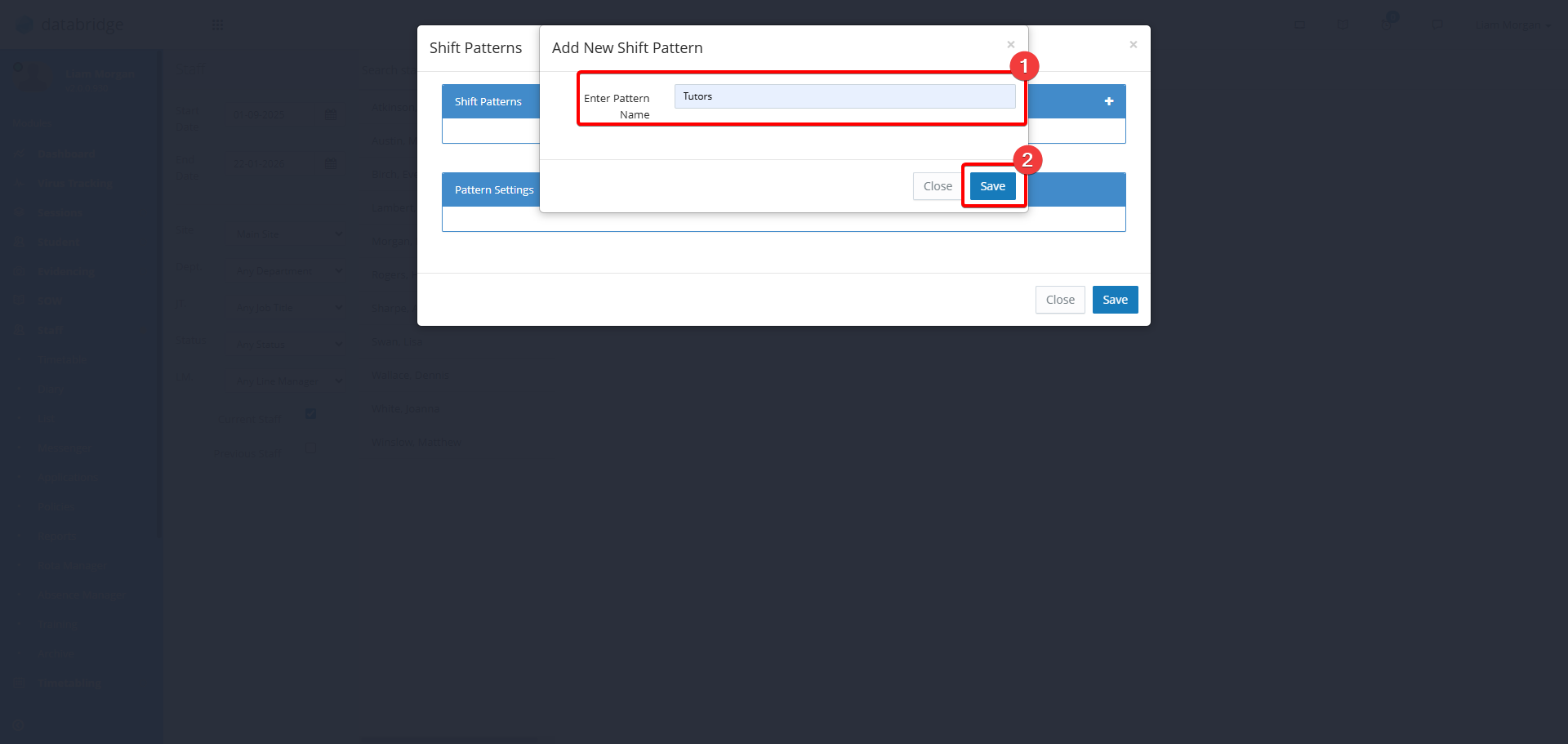
4. Give the Shift Pattern a name, then click Save.
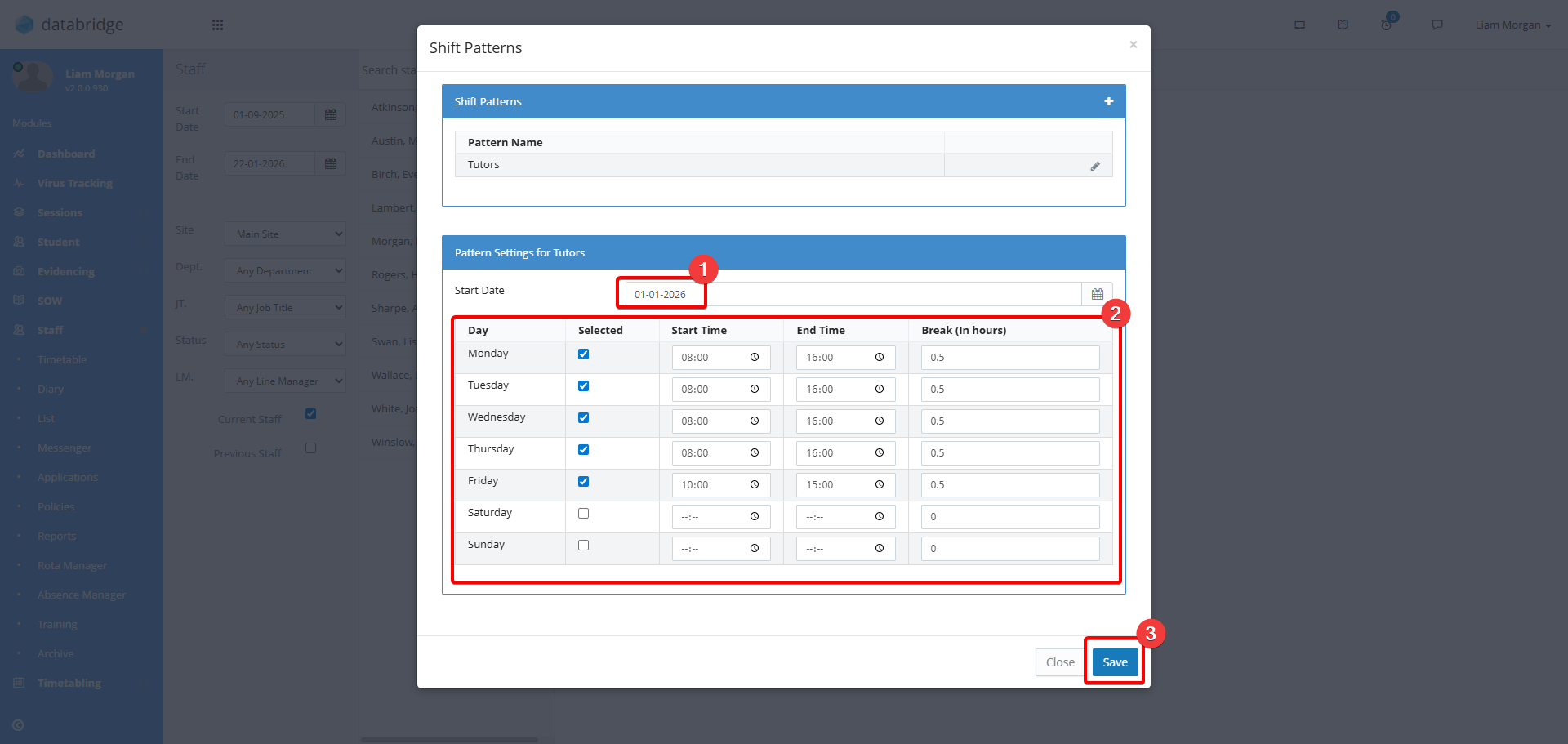
5. Enter a date within the Start Date box, then use the Daily checkboxes, Start Time, End Time and Break fields to populate when those with this Shift Pattern are expected to be working. When complete, click Save.
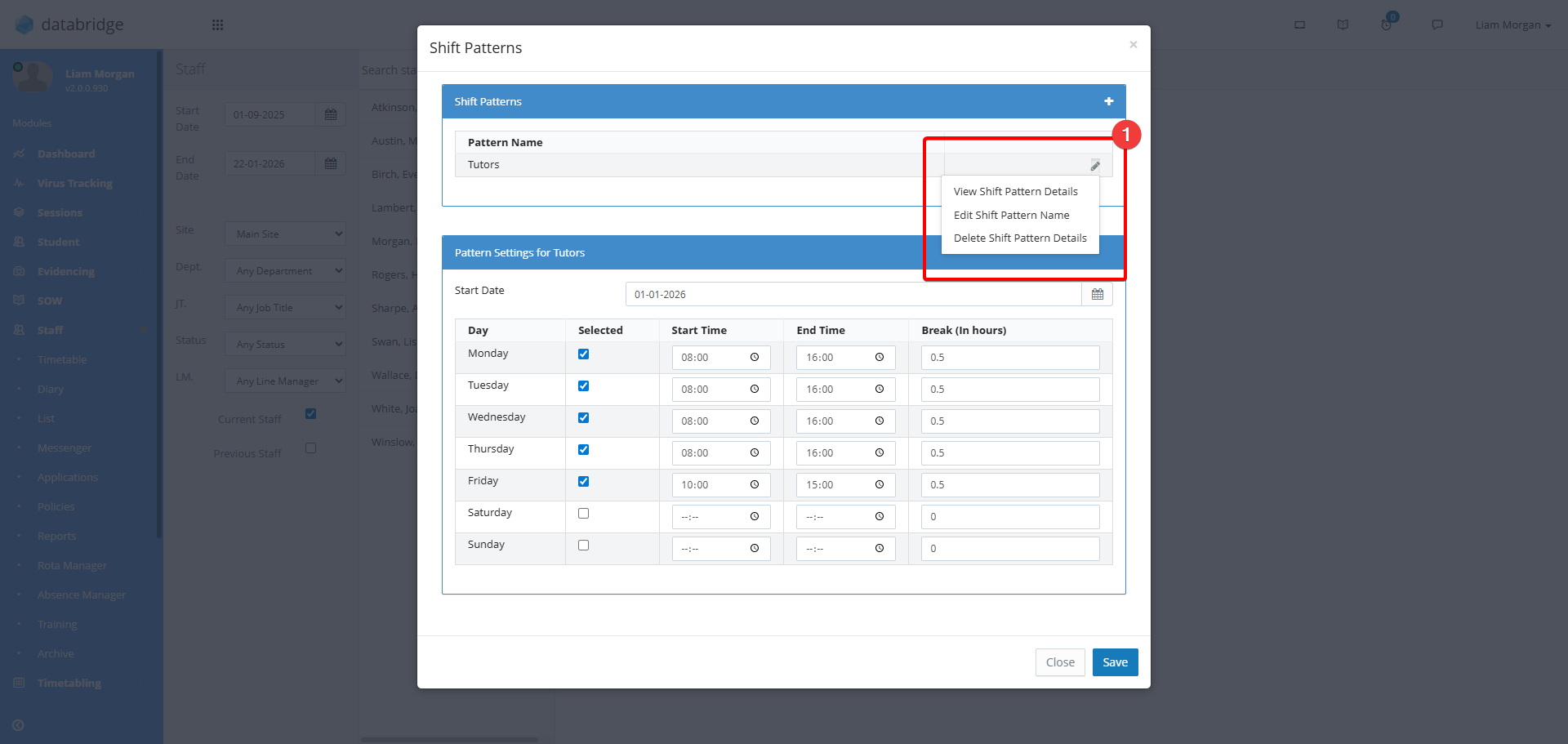
6. Your new shift pattern will now appear in the top of the window. Clicking the Pencil Icon allows you to View, Edit, or Delete the selected Shift Pattern.
Applying Shift Patterns to Staff
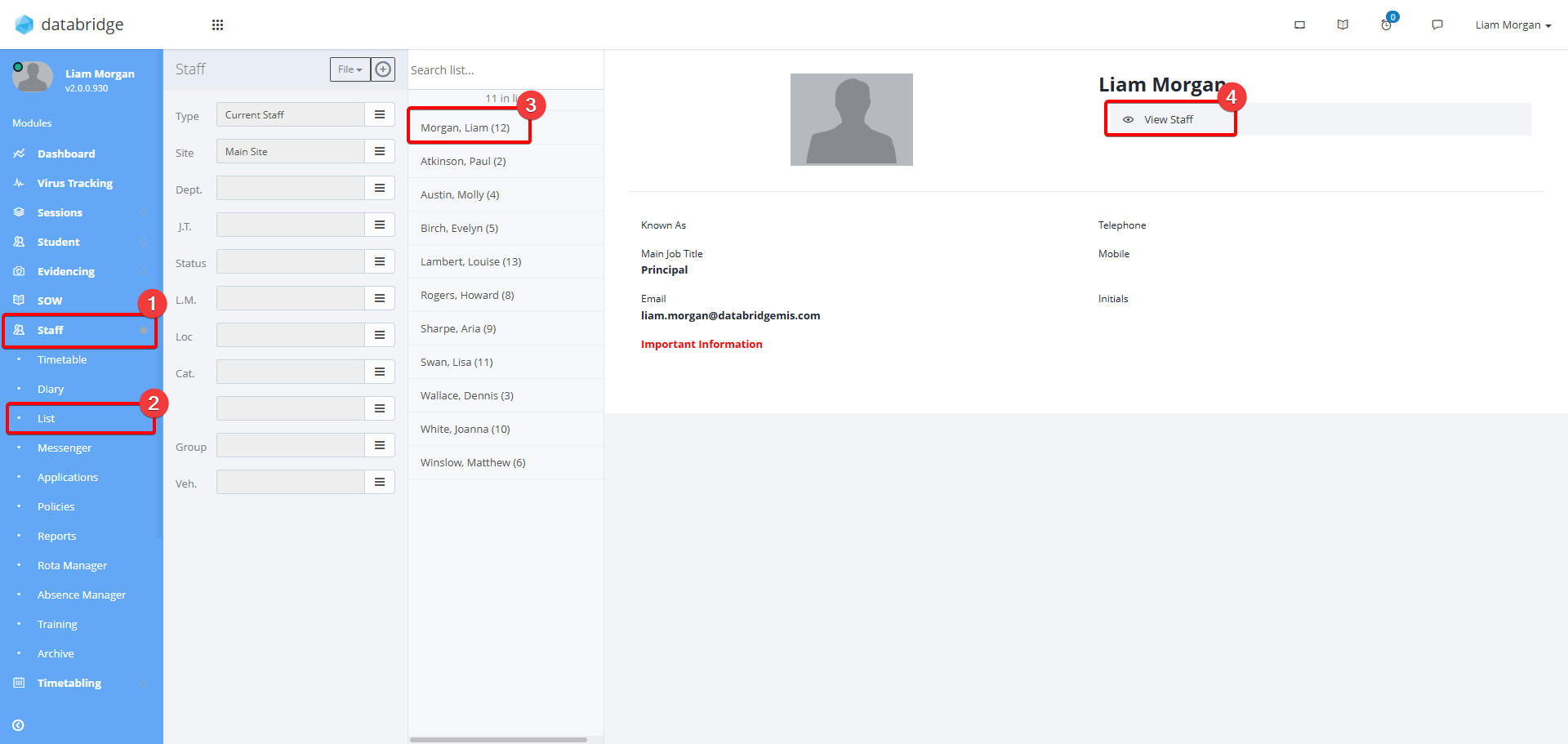
1. Navigate to the Staff Record via Staff > List > *Staff Name* > View Staff
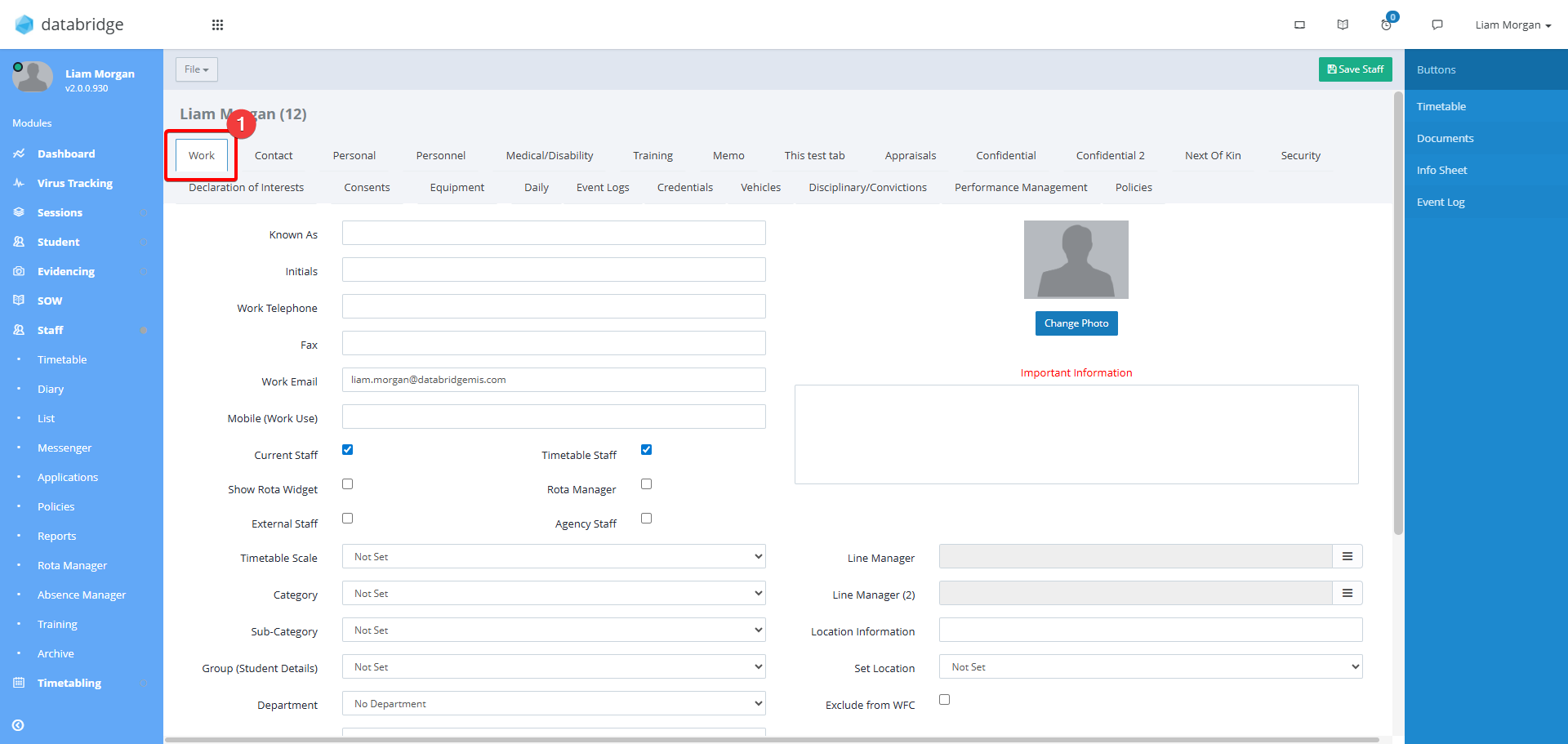
2. Navigate to the Work Tab.
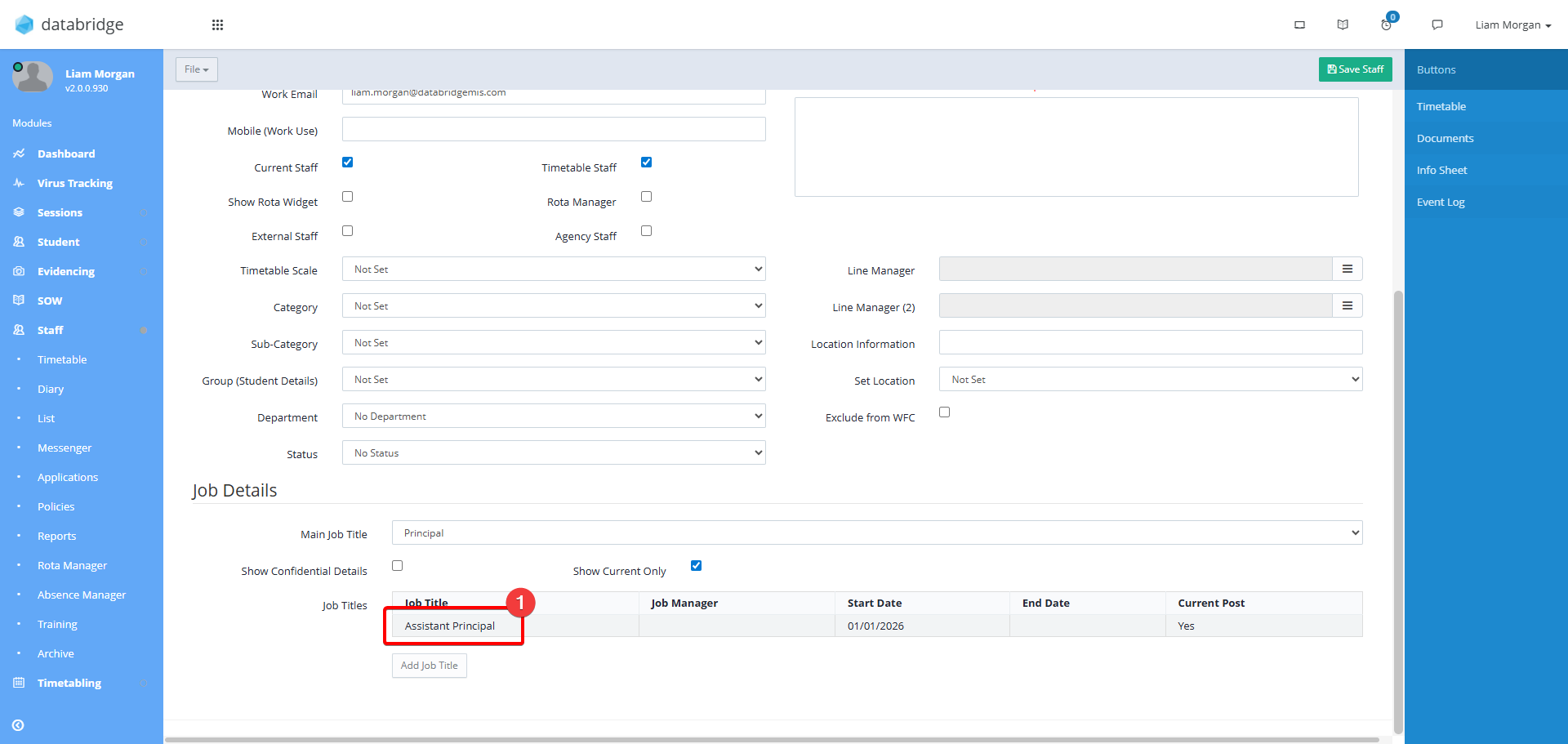
3. Scroll down and click on the Staff Member's Job Title.
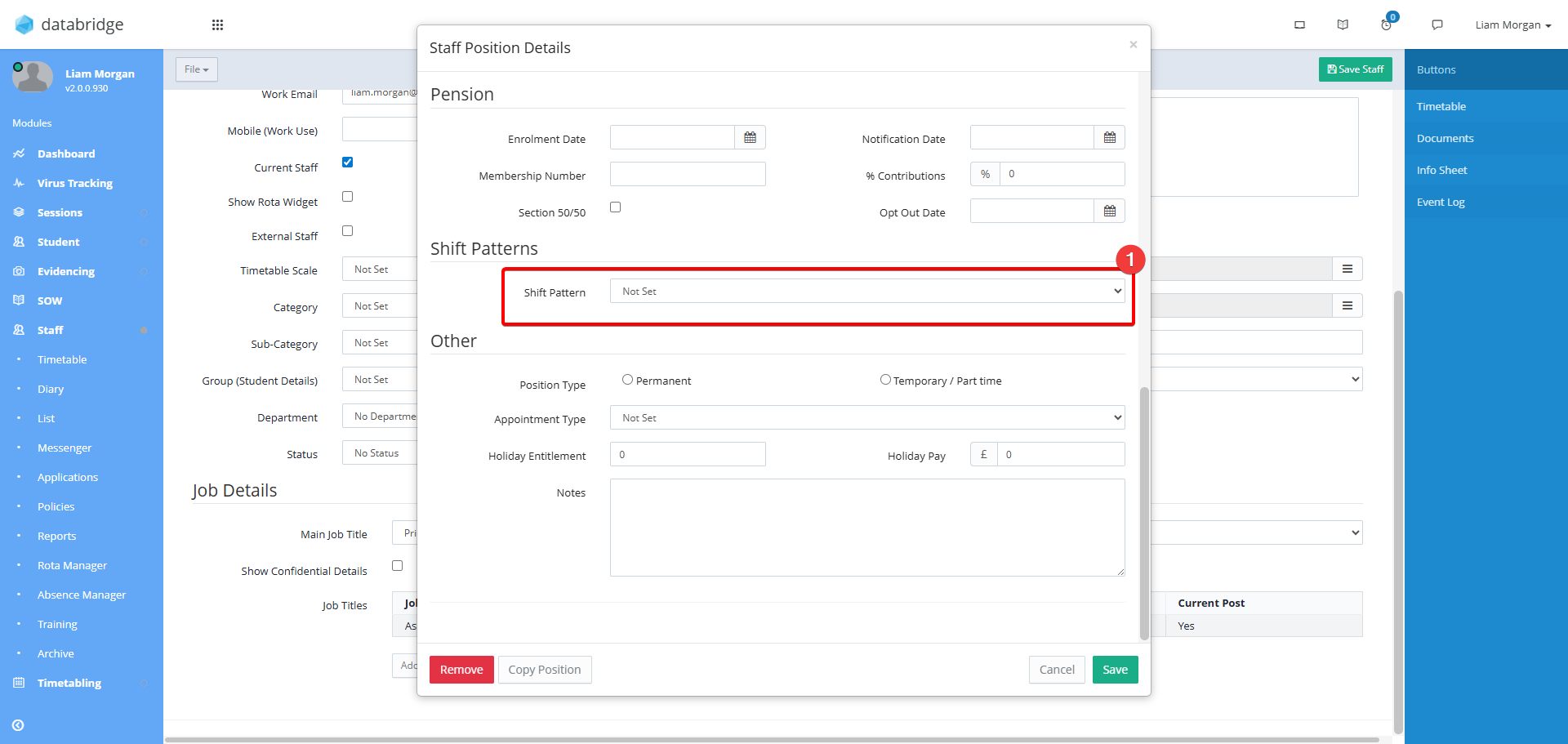
4. Scroll to the Shift Pattern Dropdown and select the relevant pattern.
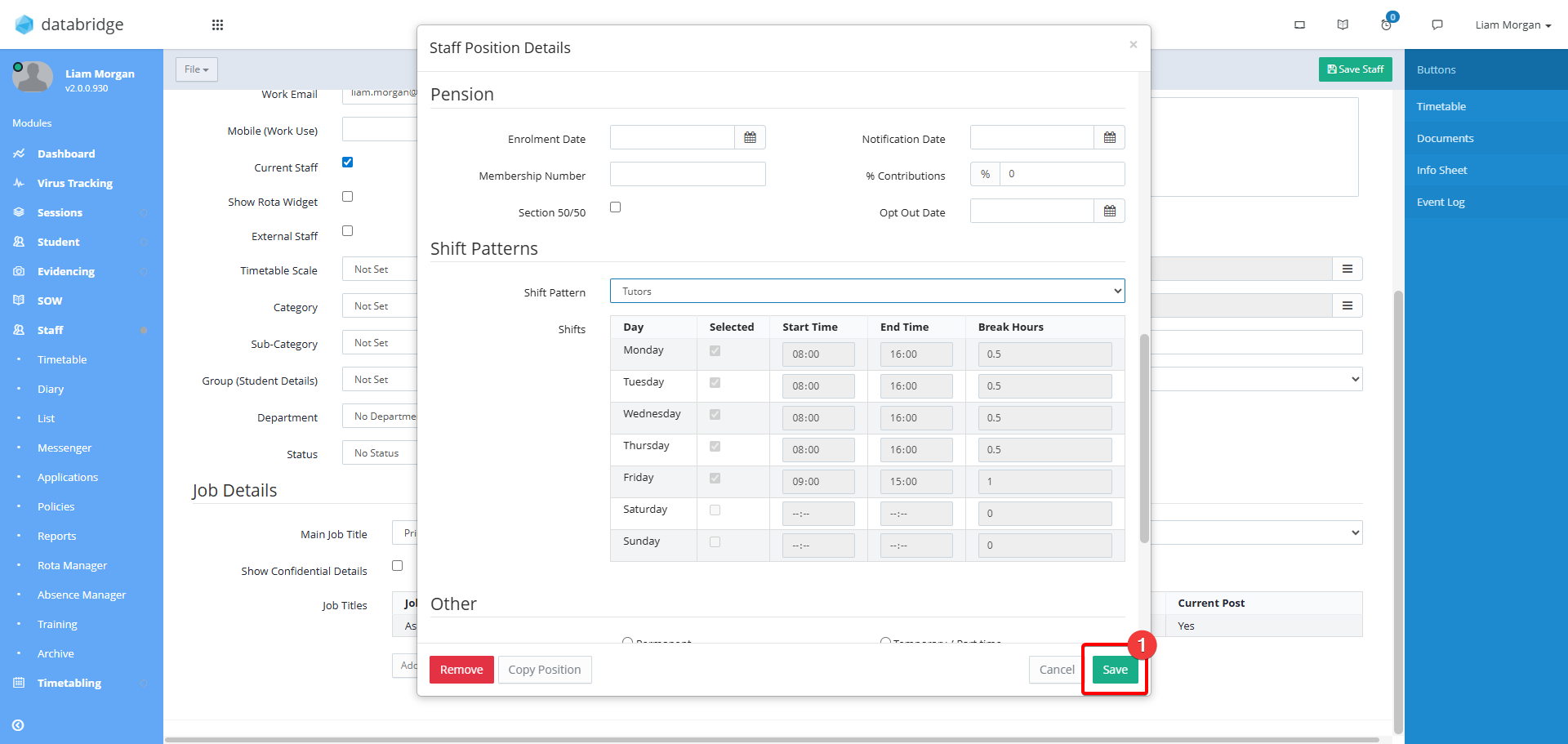
5. Click Save.
Was this article helpful?
That’s Great!
Thank you for your feedback
Sorry! We couldn't be helpful
Thank you for your feedback
Feedback sent
We appreciate your effort and will try to fix the article