This guide will look at setting up and editing Parent Logins for the Parent Portal.
TABLE OF CONTENTS
Adding Parent Logon Details
1. To assign Portal Logins for Parents, navigate to Administration > Parent Logons
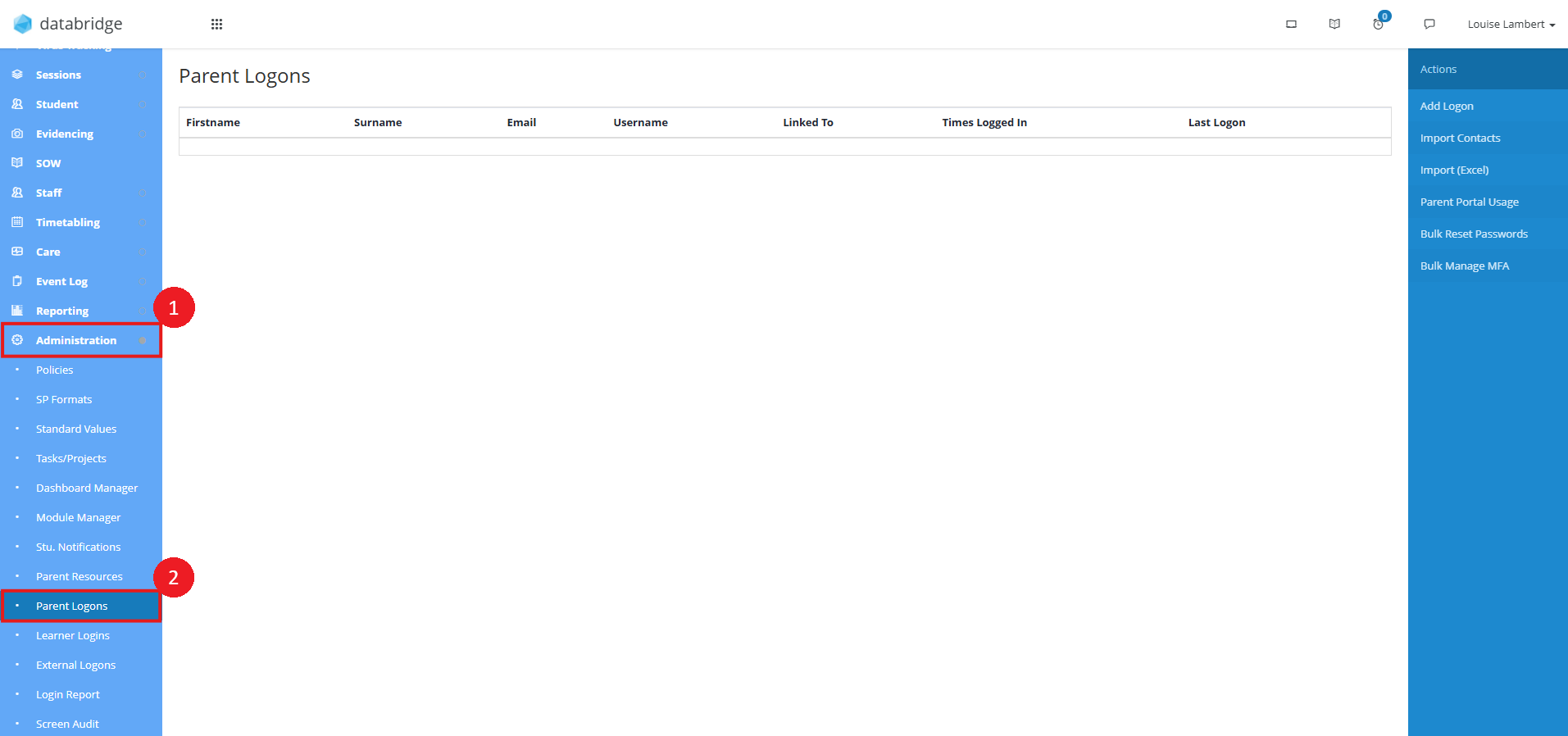
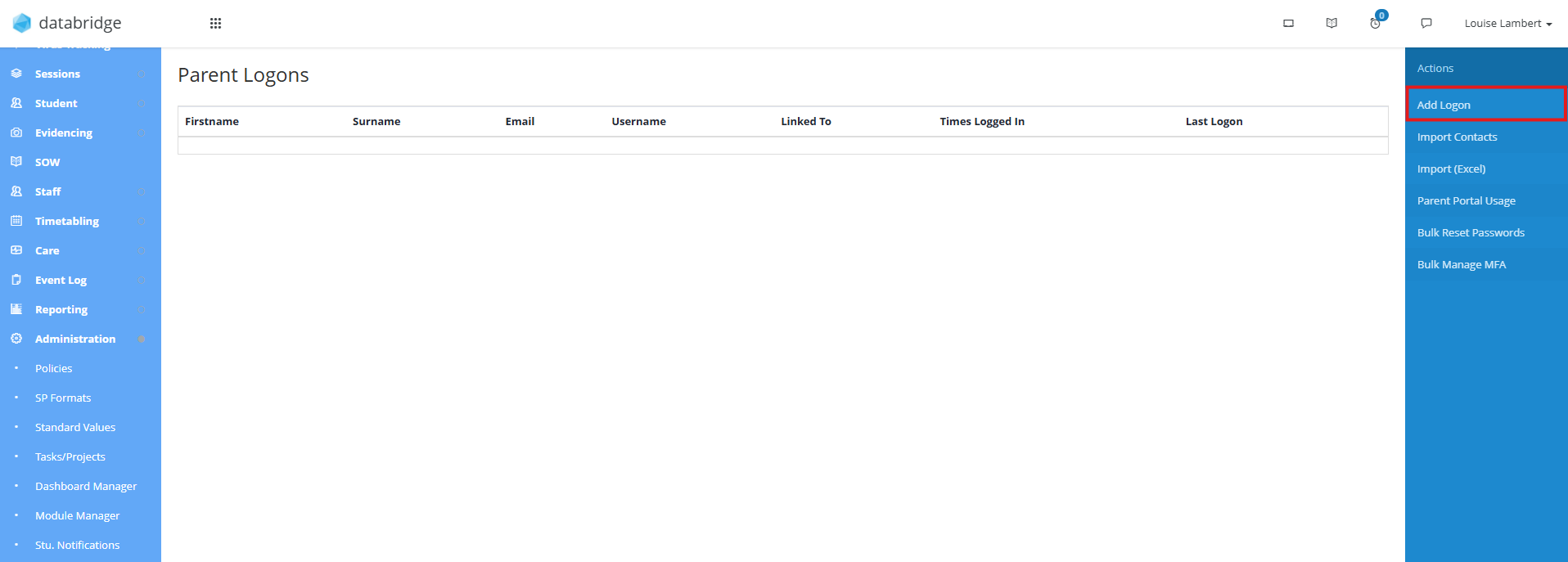
2. To add a new set of credentials for a Parent, click Add Logon
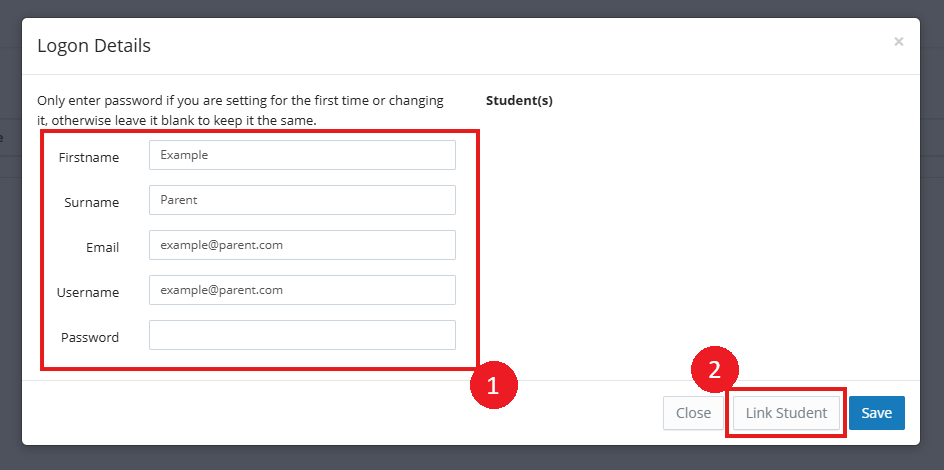
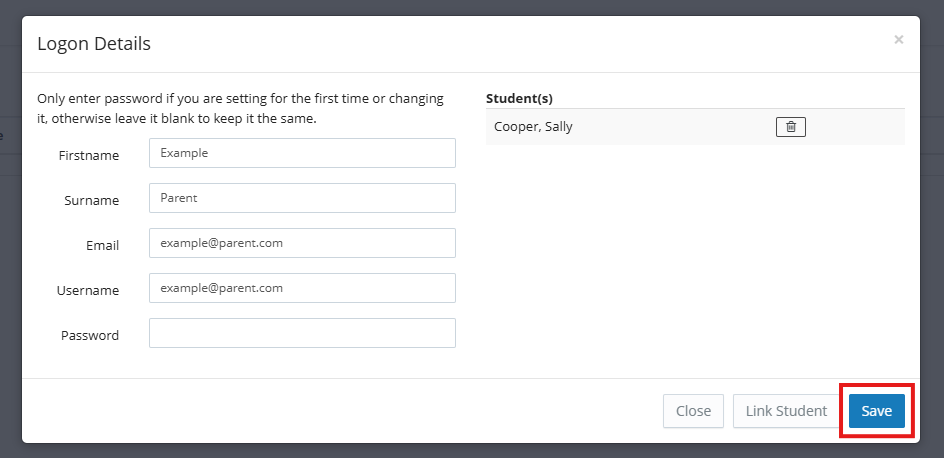
3. Fill out the relevant details in the window that appears and click Link Student.
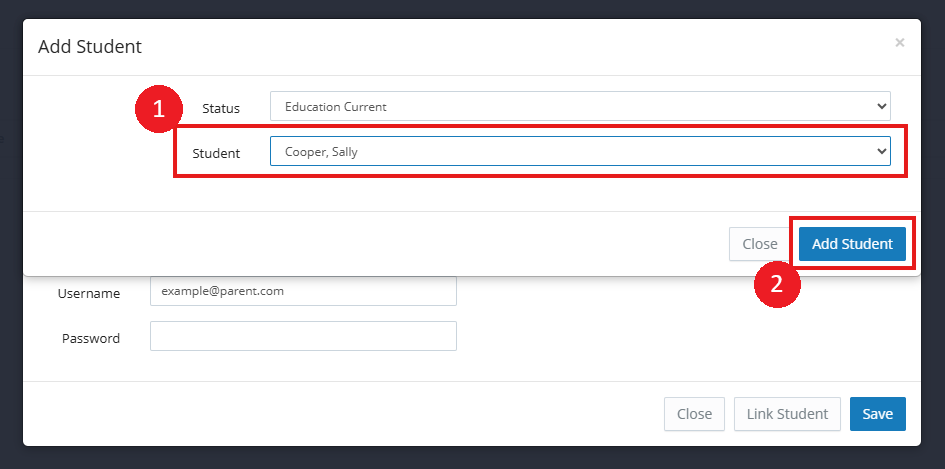
4. Using the dropdown, select the Student you wish to link to this Parent Login and click Add Student.
Note:
You can link more than one Student at a time by repeating this process.
5. This will take you back to the Logon details window, where you can click Save to add these credentials.
6. Next to each entry there are 4 symbols with different options:
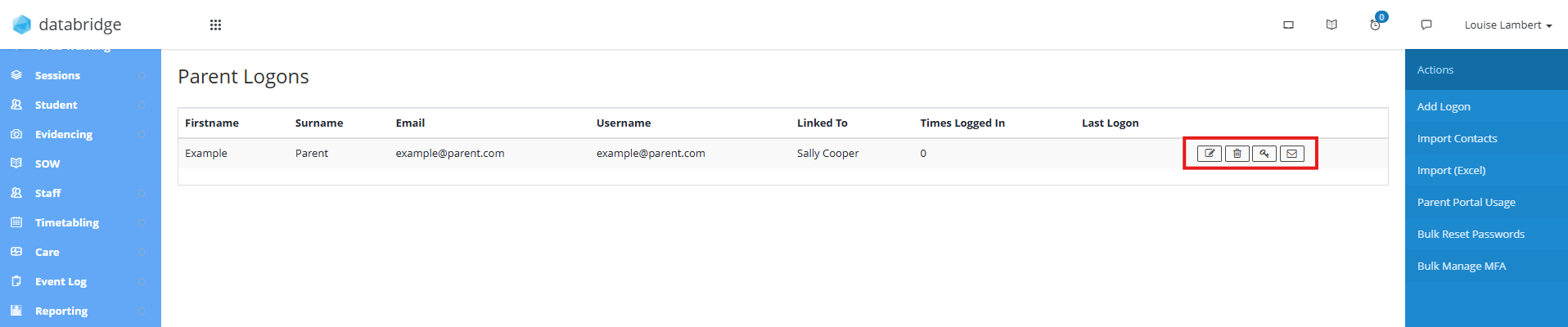
Notepad Icon - Allows you to edit the contact information and Students linked.
Bin Icon - To delete a Logon.
Key Icon - Assign 2 Factor Authentication to Parent Logons for added security.
Email Icon - Will send the Parent their full login details and reset their password.
Importing Contacts for Parent Logons
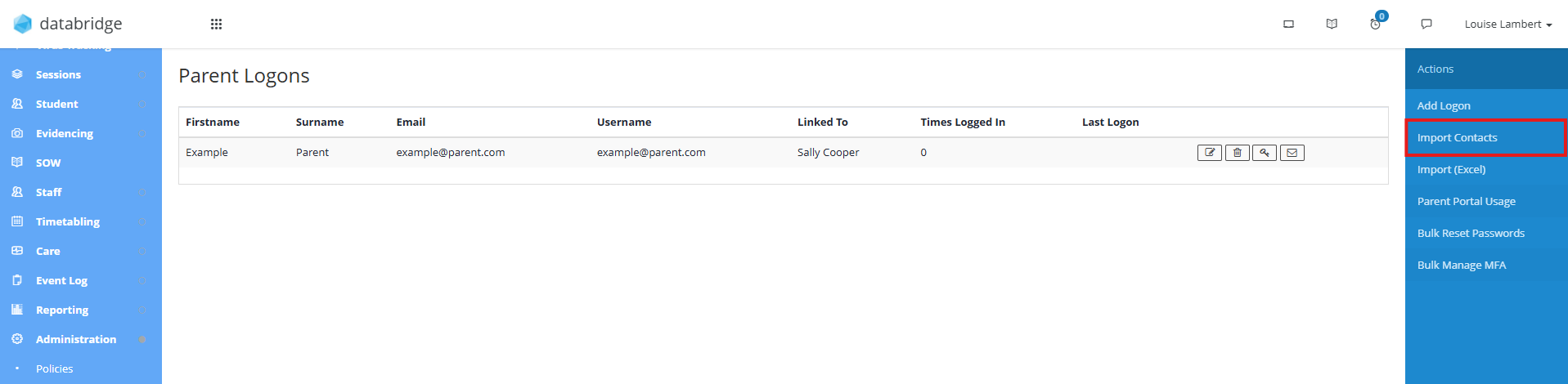
1. There are two methods for importing Student contacts onto the Parent Logons page. The first is by clicking Import Contacts.
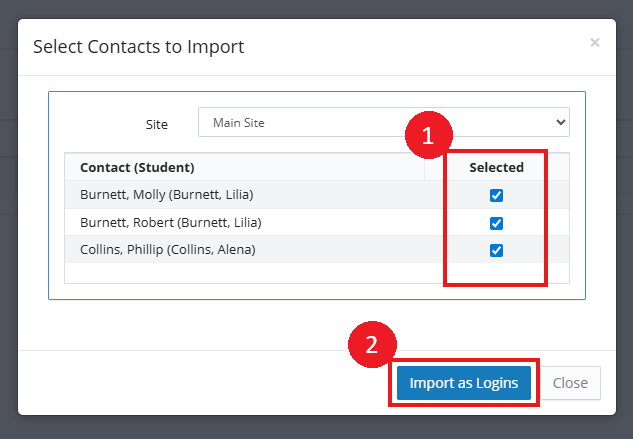
2. This will open a window displaying a list of contacts with the corresponding Student they are attached to. This will display any contacts on a Student's record that have the Parental Responsibility checkbox ticked. Select the contacts you wish to import and click Import as Logins.
3. Another way to import contacts is by Excel. First, click Import (Excel).
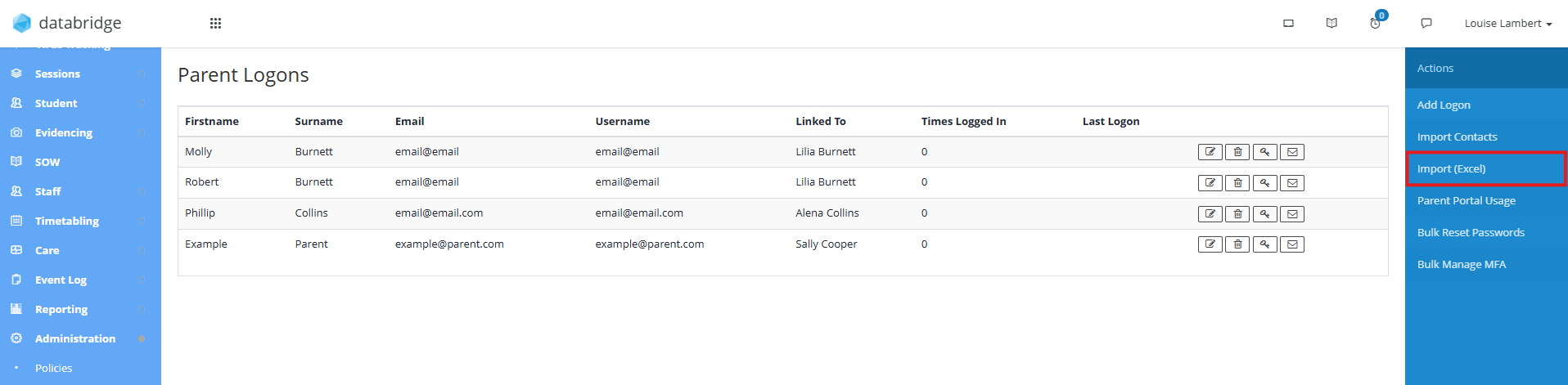
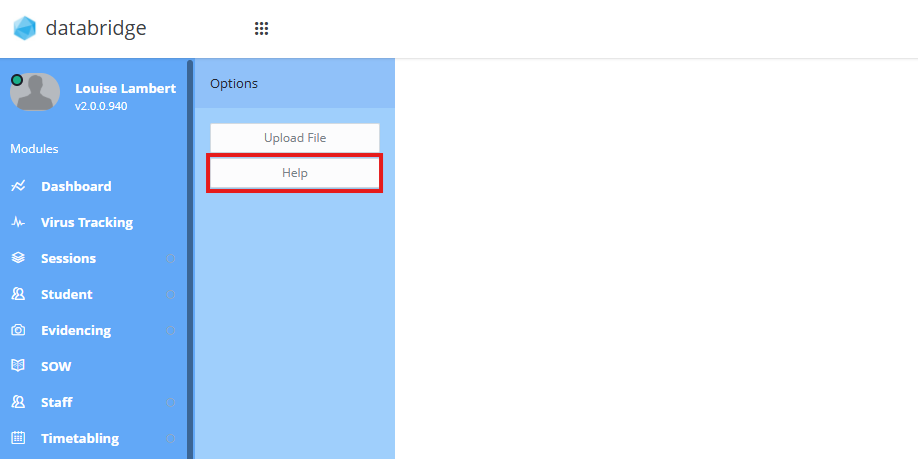
4. This will take you to a page with two options: Upload File and Help. Clicking the Help button will bring up a window giving you more information on how to format your Excel document in order for the import to work.
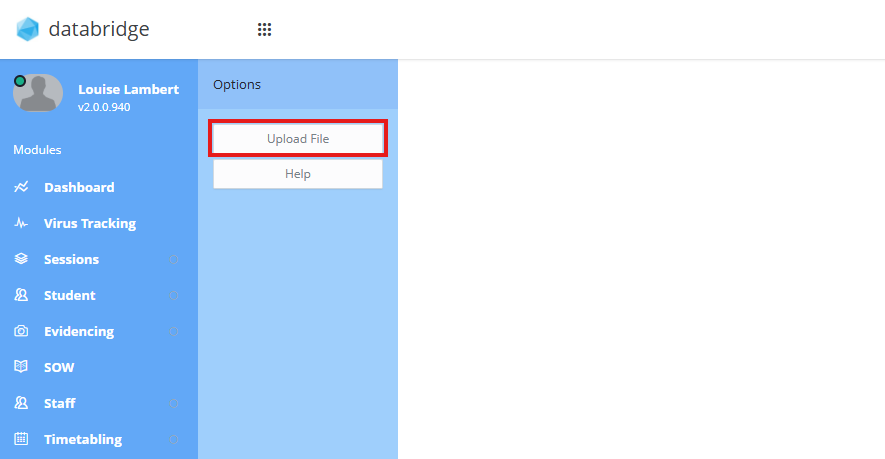
5. Once you have an Excel document in the correct format, click Upload File.
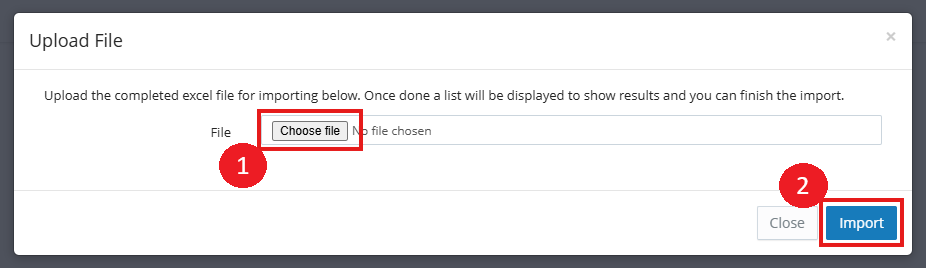
6. In the window that appears, click Choose File. Select the Excel document and click the blue Import button.
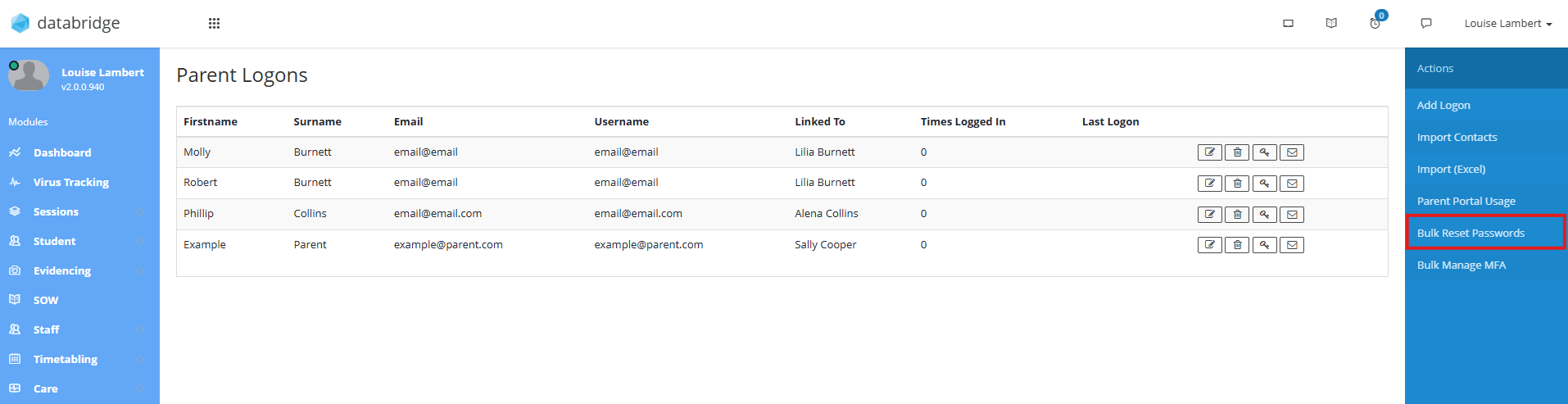
7. You can also reset passwords in bulk from the Parent Logon screen by clicking the Bulk Reset Passwords button.
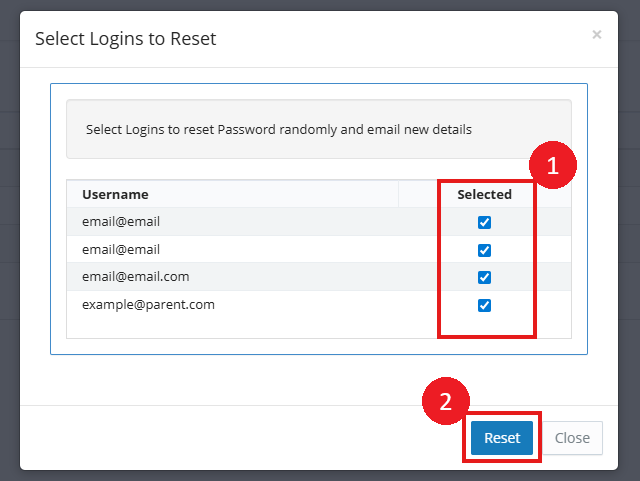
8. This will open a window with a list of Parent usernames. Use the checkboxes next to each entry to specify which users you want to reset the password for. Click the blue Reset button to send the selected users an email containing their new password for the Parent Portal.
Parent Portal Usage
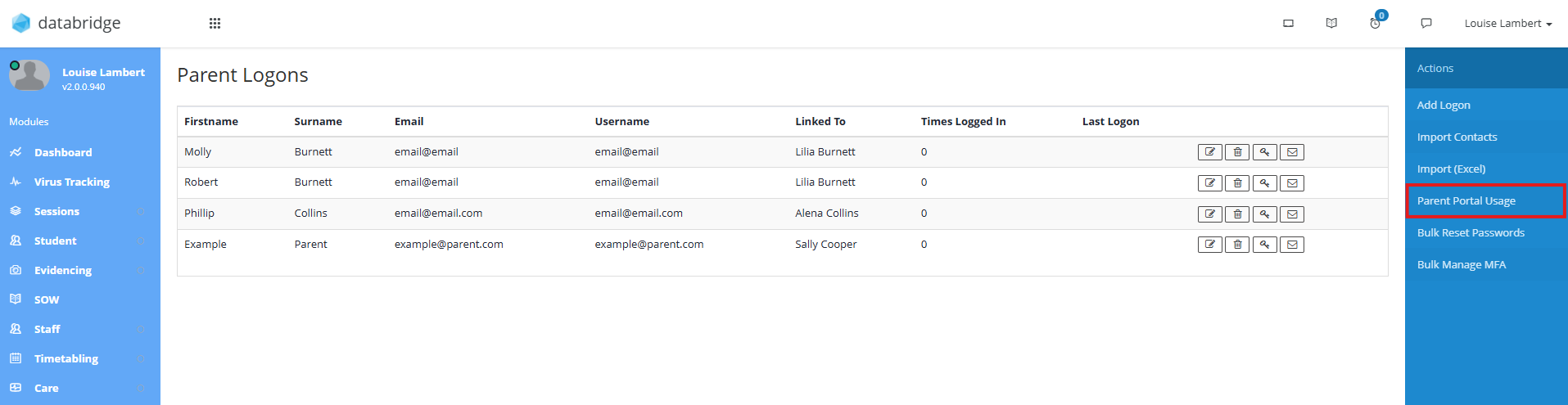
1. The Parent Portal Usage feature is used to create an audit log of when Parents have used the Parent Portal. To view this report, click Parent Portal Usage from the options on the right hand side.
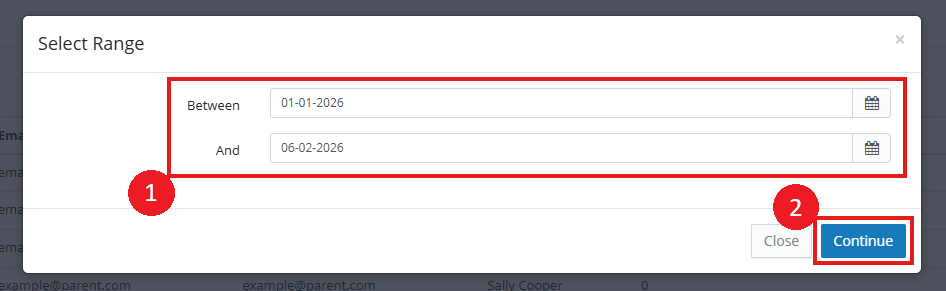
2. In the window that appears, you can choose the start and end dates for the timeframe you want to create the login audit for. Once you've selected these dates, click the blue Continue button.
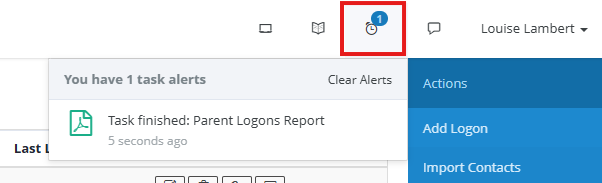
3. The report will appear in the Tasks Alerts notification bar when it is finished.
Was this article helpful?
That’s Great!
Thank you for your feedback
Sorry! We couldn't be helpful
Thank you for your feedback
Feedback sent
We appreciate your effort and will try to fix the article