This guide will look at how to create Baseline Assessment Templates and how to assign them to Students.
TABLE OF CONTENTS
Creating Assessment Templates
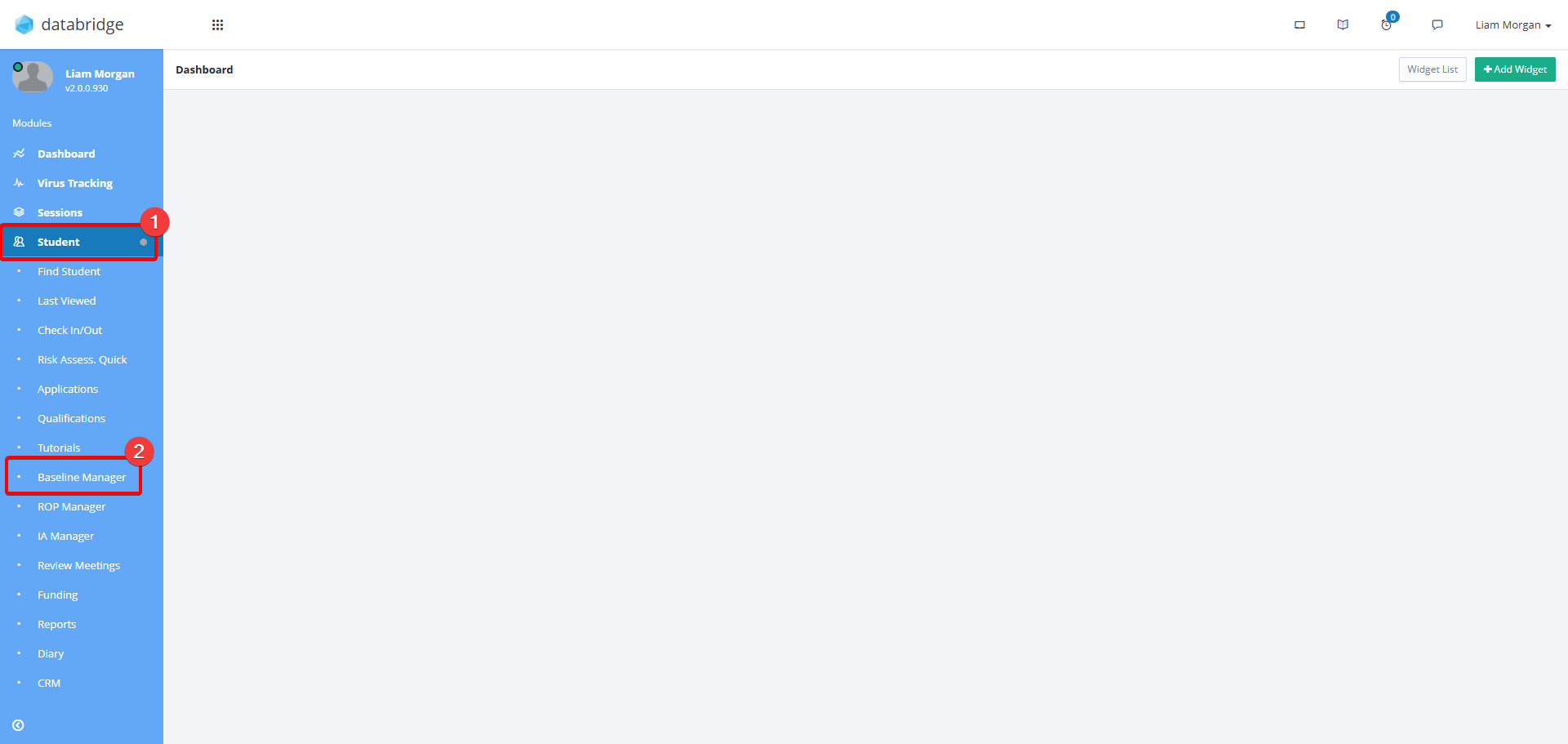
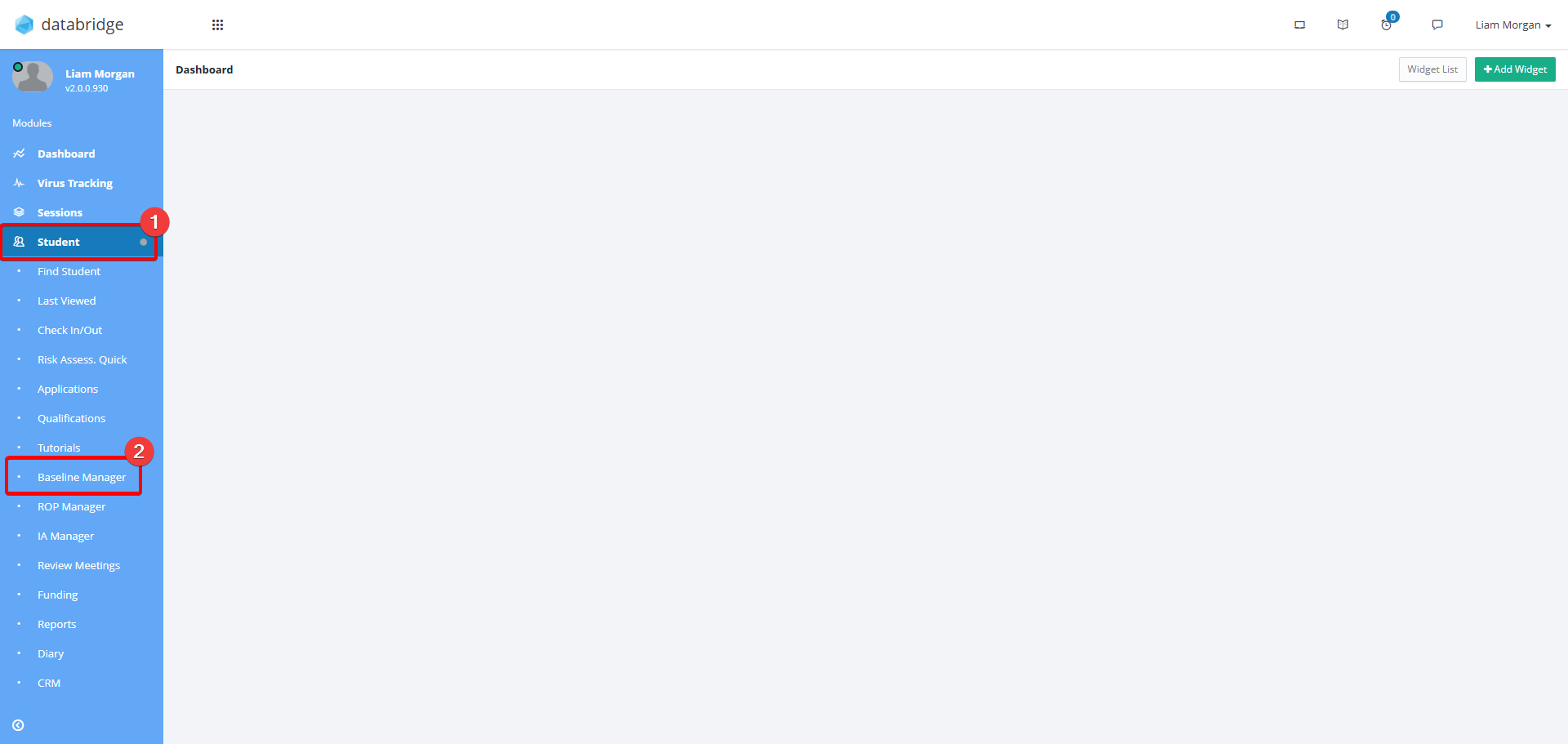
1. First, navigate to the Baseline Manager screen via Student > Baseline Manager.
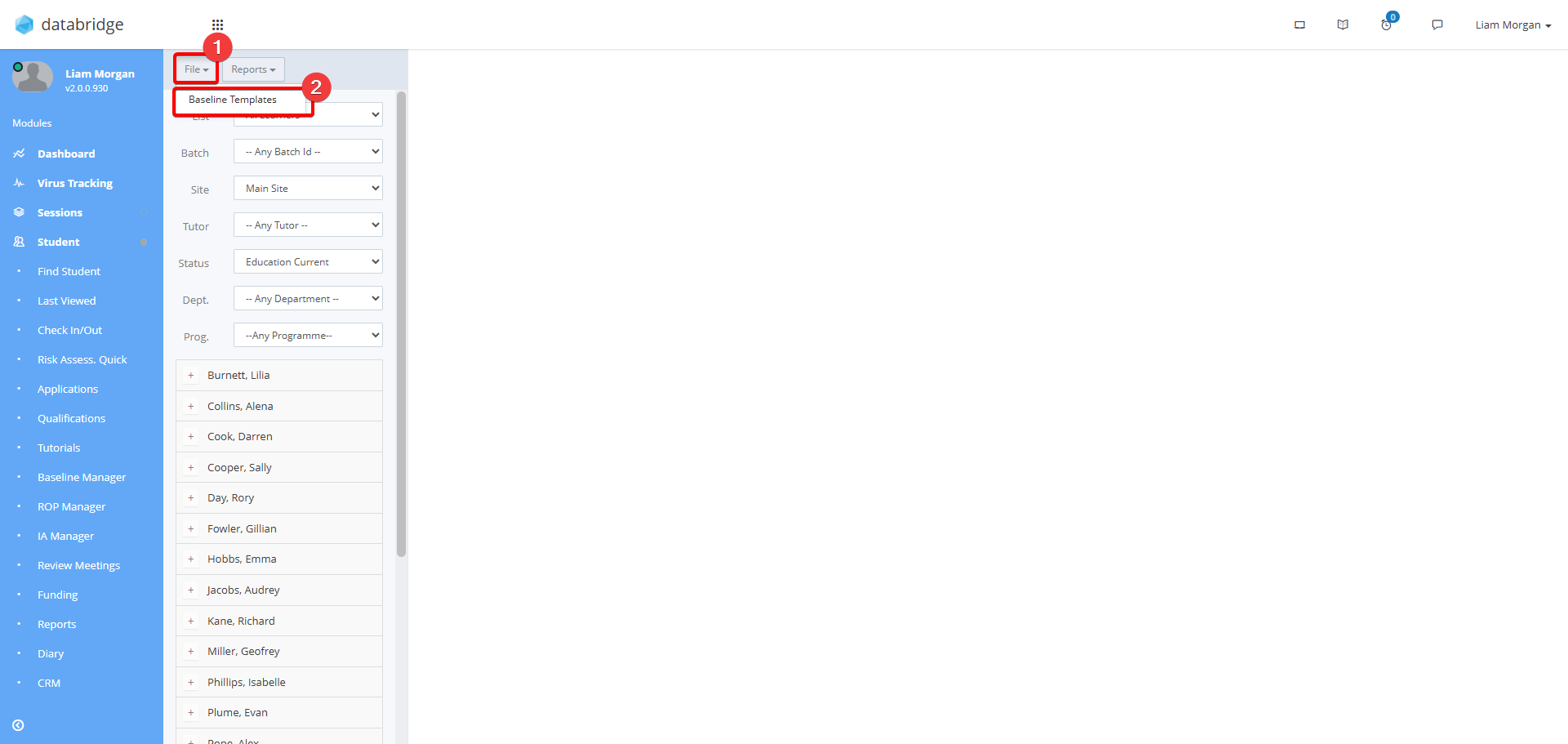
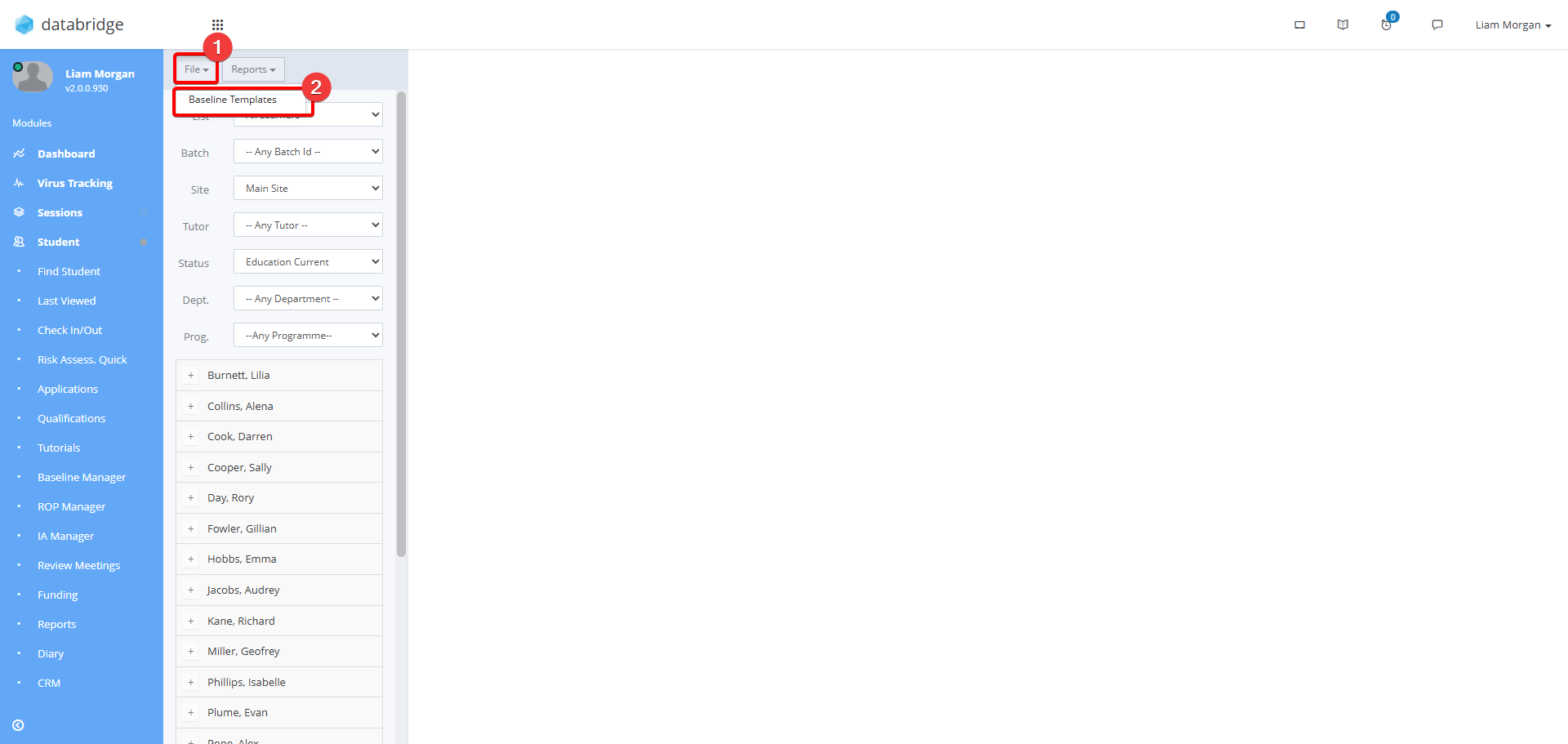
2. Click File > Baseline Templates.
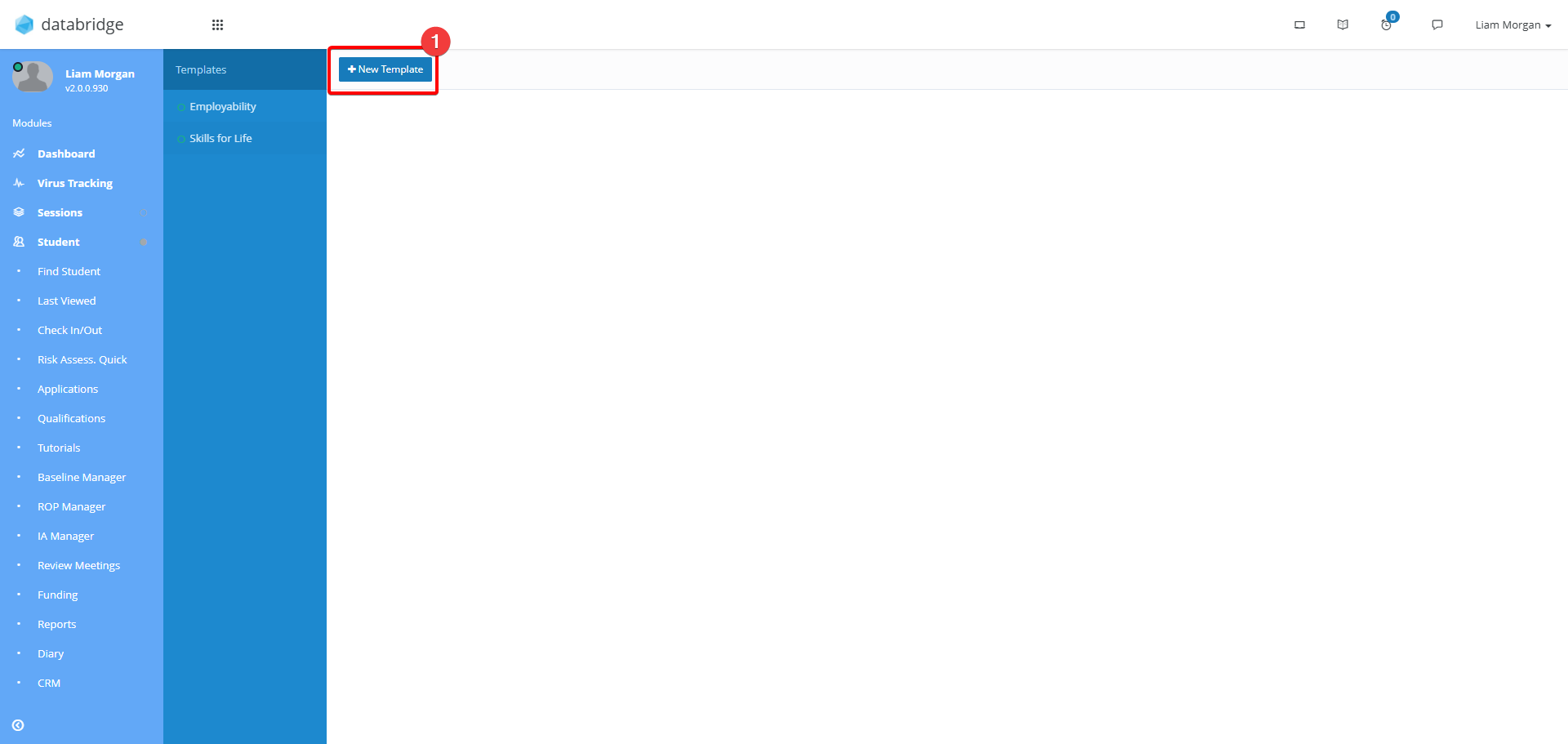
3. Click New Template and enter a Template name in the window that appears.
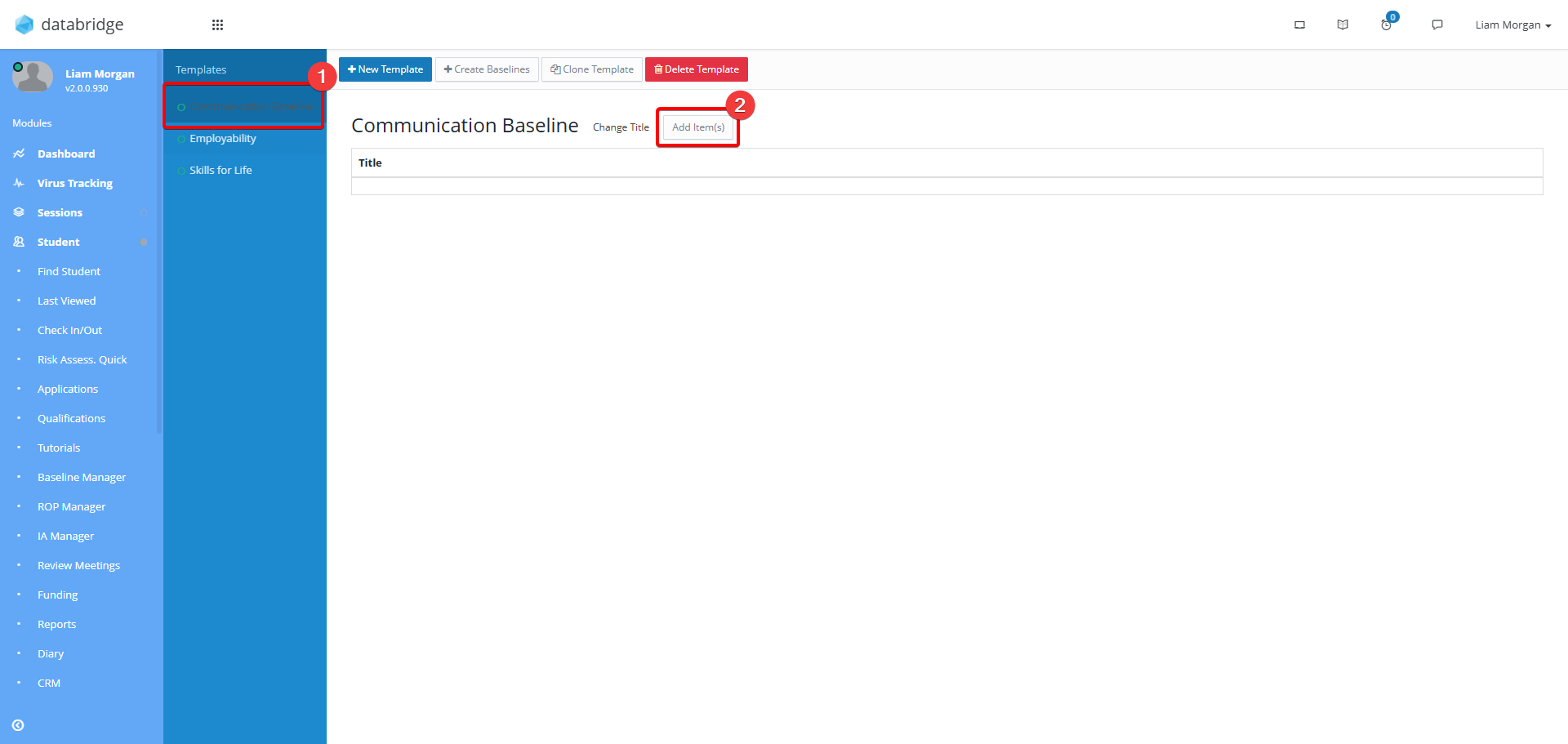
4. This new Template will now appear in the left column. To populate the Template, click it from this list and then click Add Items.
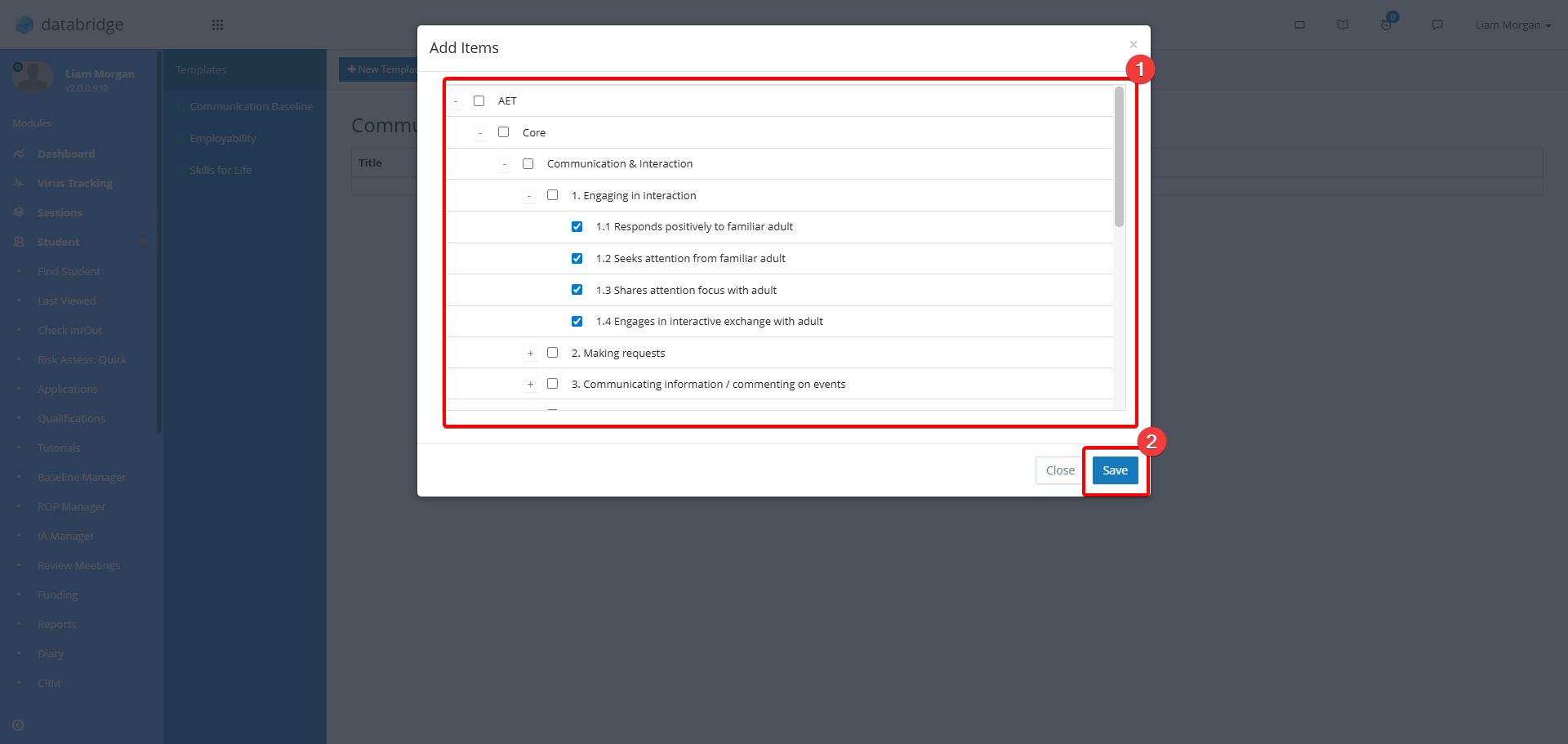
5. This will open a window displaying all baselines from the Target Cache. Use the + Icon to expand each curriculum area and use the checkboxes to select the Targets to be added to the template. Once you are happy with the selections, click Save.
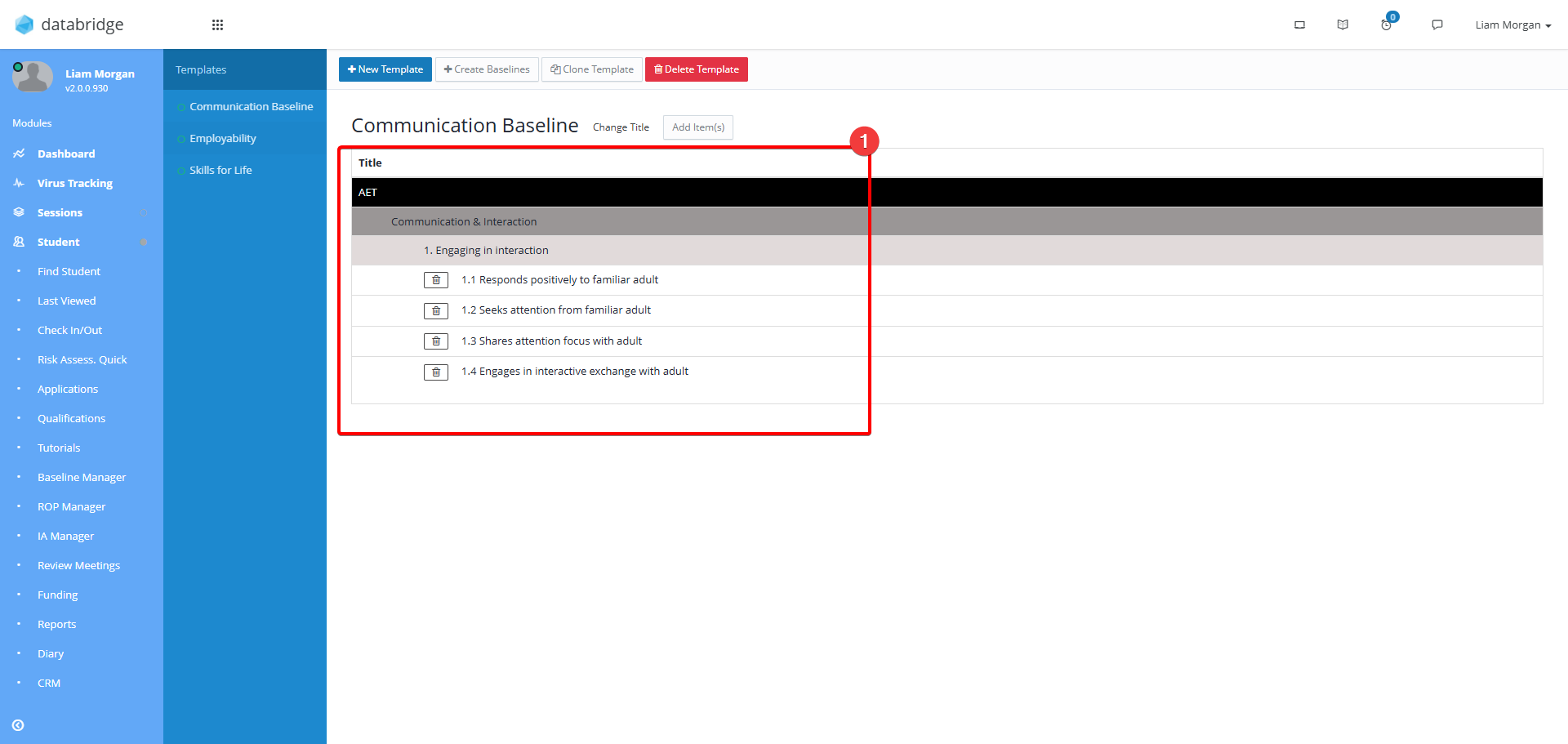
6. The selected Targets will now appear on screen. Clicking the Trash Icon will remove any unwanted Targets from the Template.
Assigning Baseline Templates to Students
1. First, navigate to the Baseline Manager screen via Student > Baseline Manager.
2. Click File > Baseline Templates.
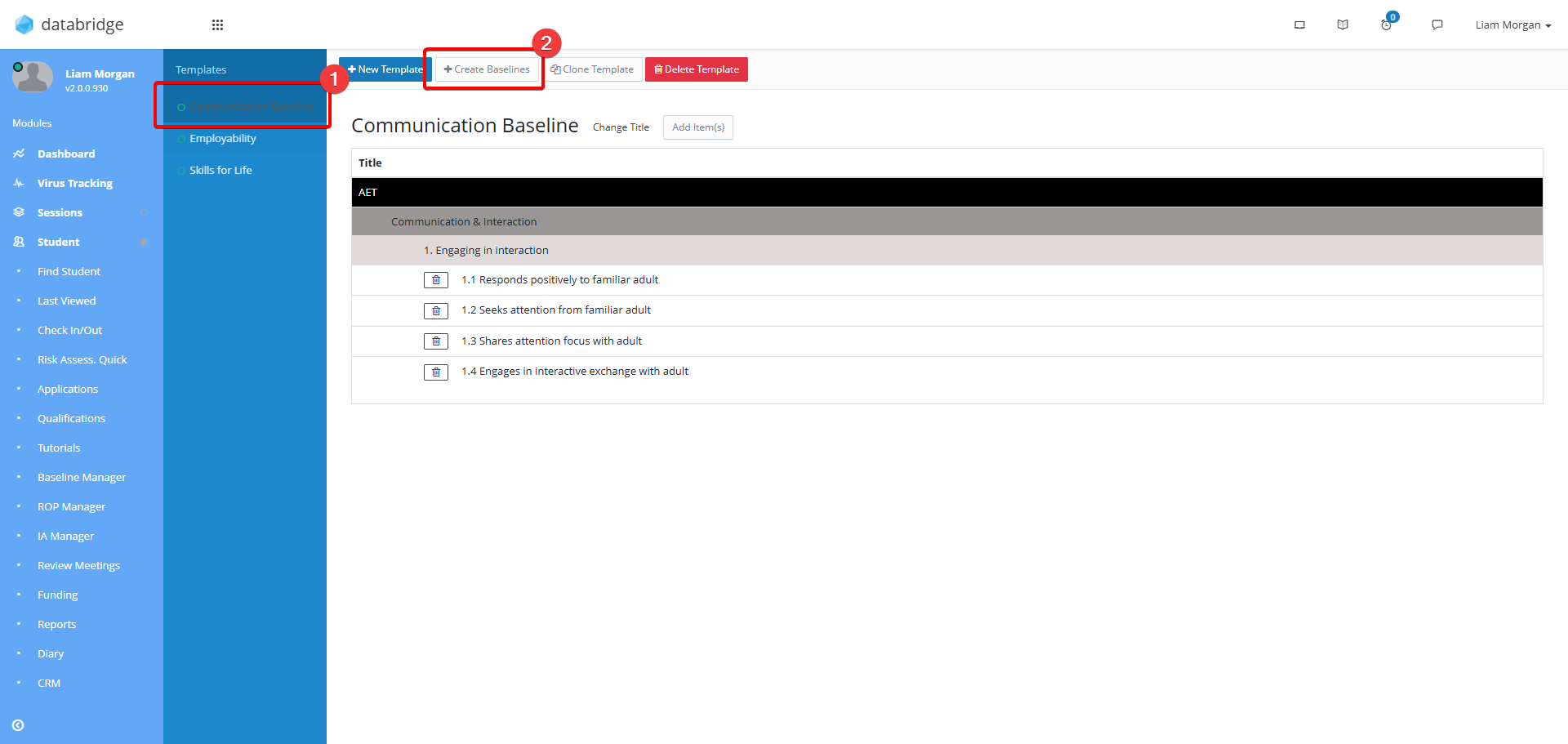
3. Click the Template Name from the list on the left and then click Create Baselines.
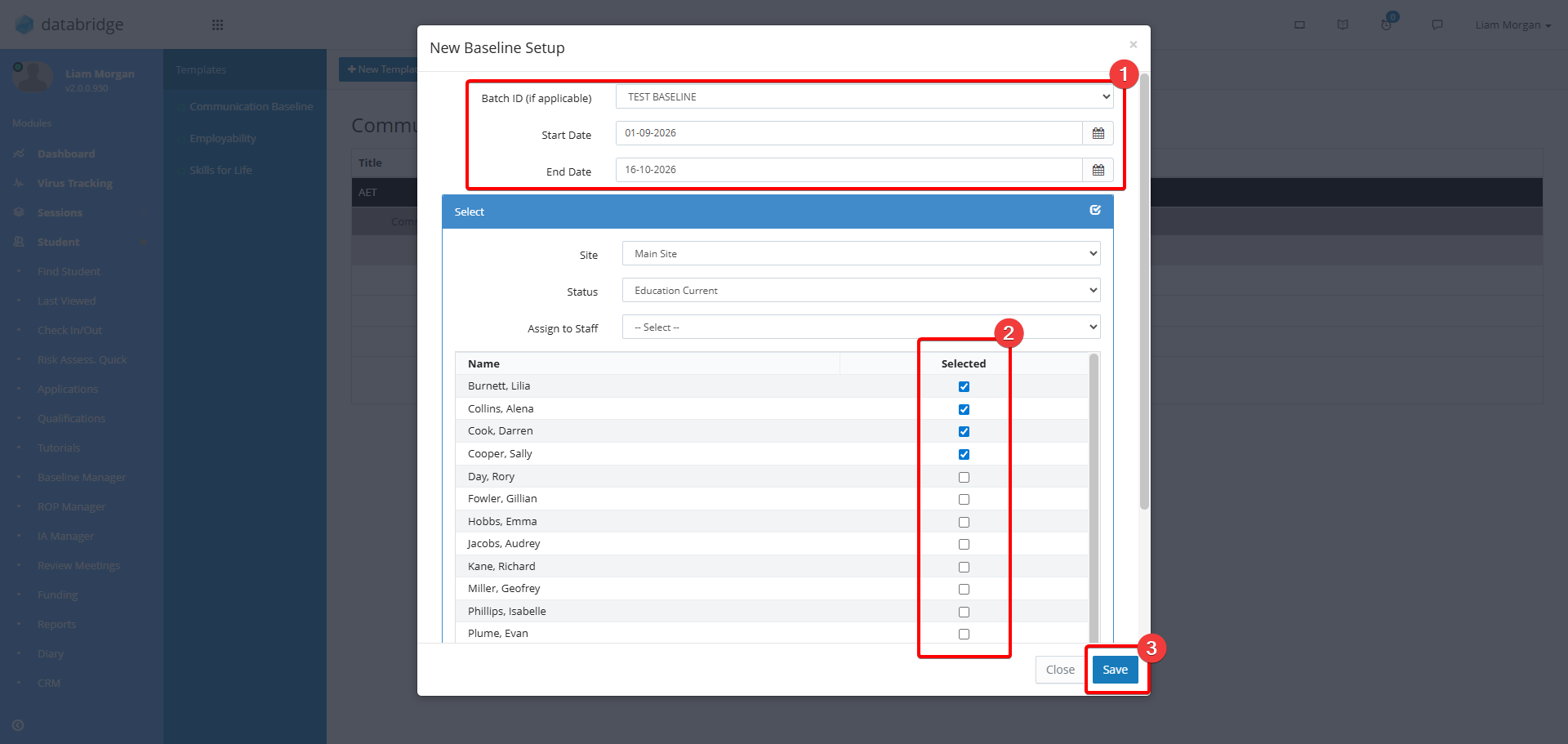
4. Select the Batch ID, start and end date from the top of the window, then use the Checkboxes to select the students to assign the Baseline to. When finished, click Save.
Was this article helpful?
That’s Great!
Thank you for your feedback
Sorry! We couldn't be helpful
Thank you for your feedback
Feedback sent
We appreciate your effort and will try to fix the article