This guide will look at setting up and recording Tutorials for Students.
TABLE OF CONTENTS
Setting Tutorial Types
1. To begin creating Tutorials for Students, you will first need to set up their types. To do so, navigate to Administration > Standard Values and locate the Student Values box.
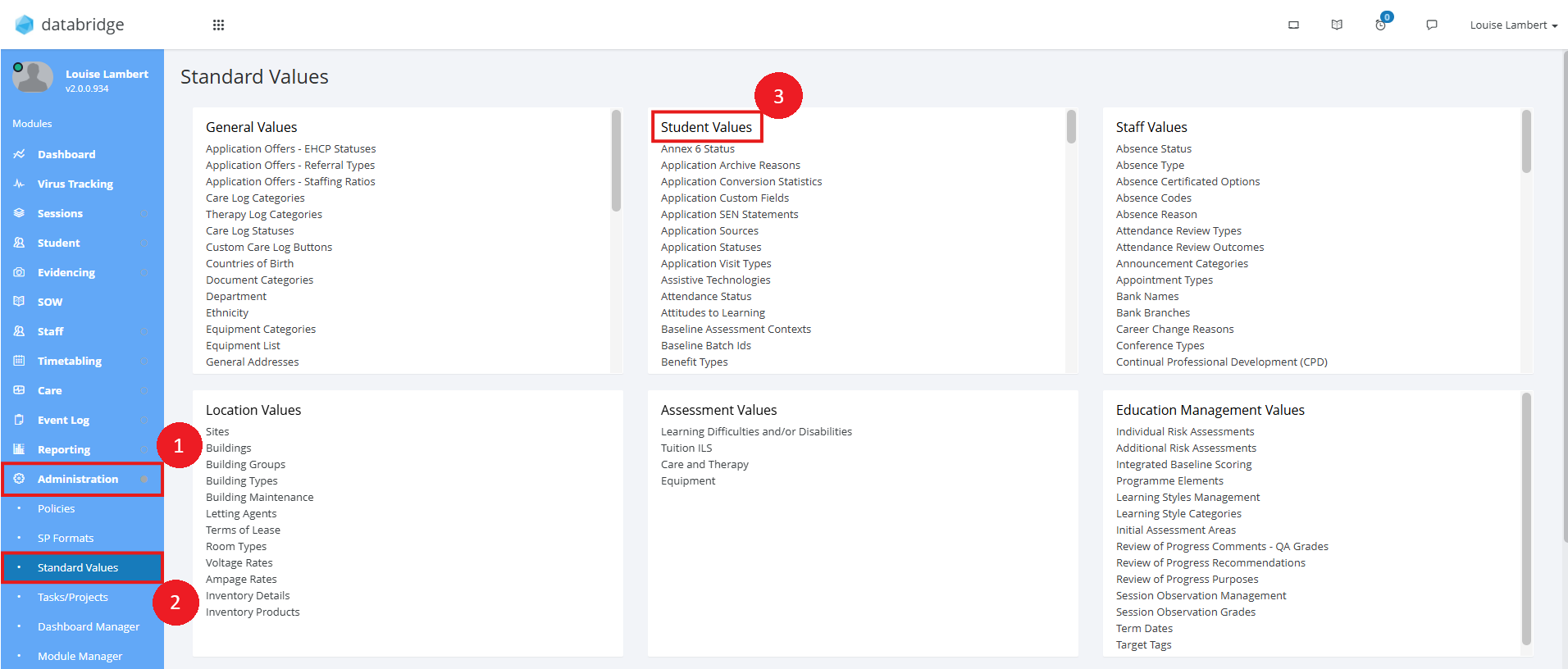
2. Within this box, click Tutorial Types.
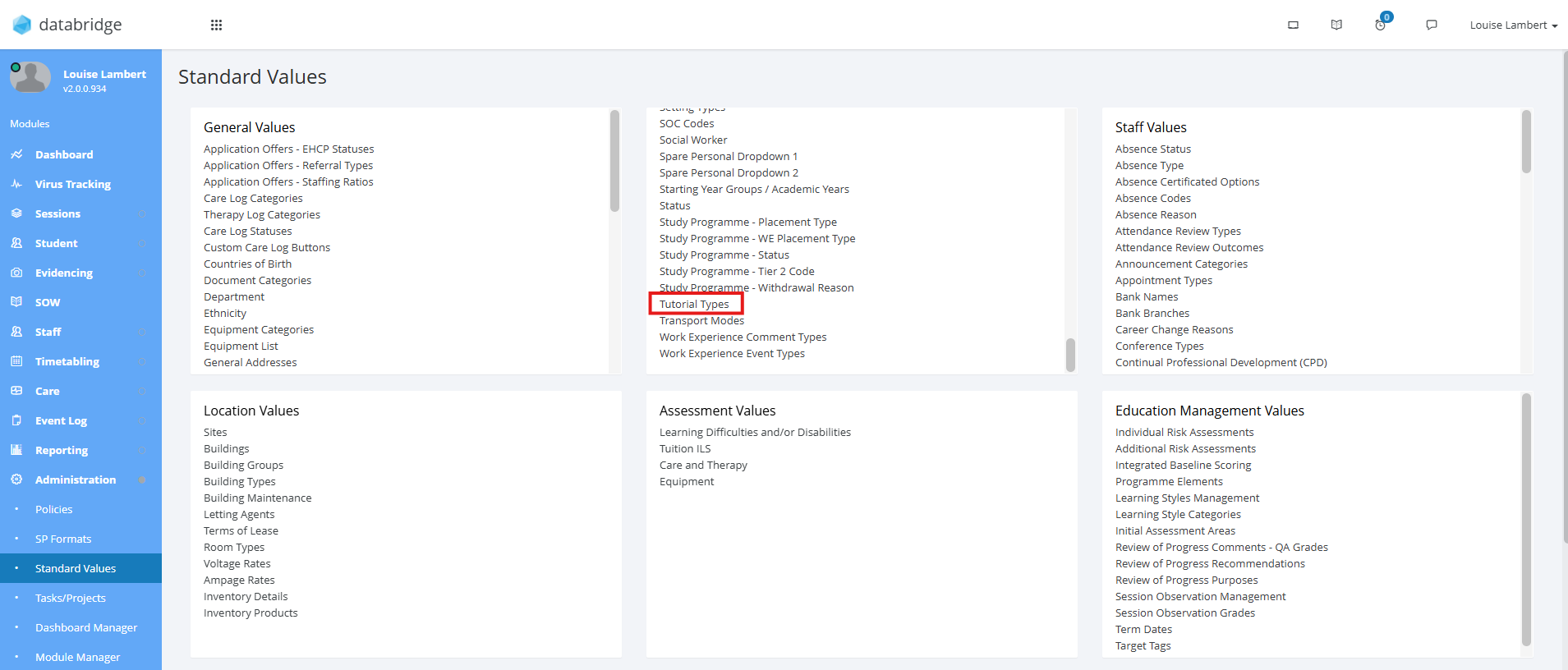
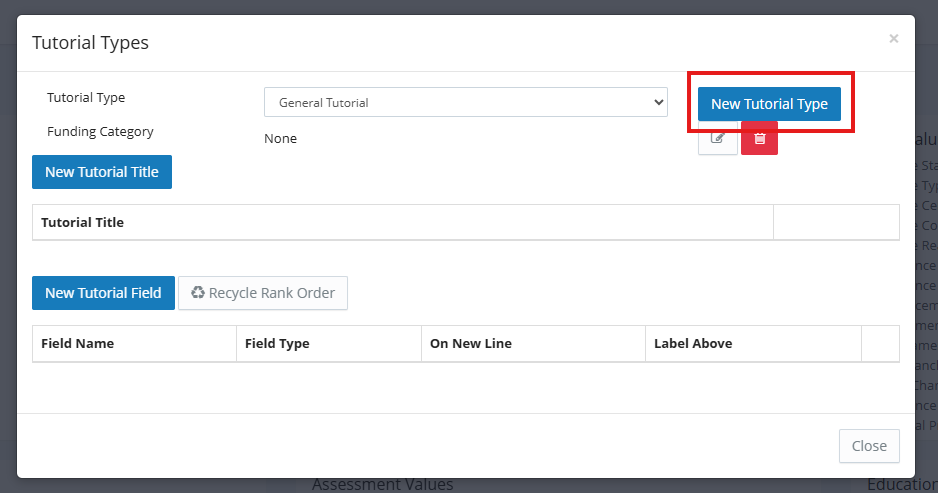
3. Within the box that appears, click New Tutorial Type.
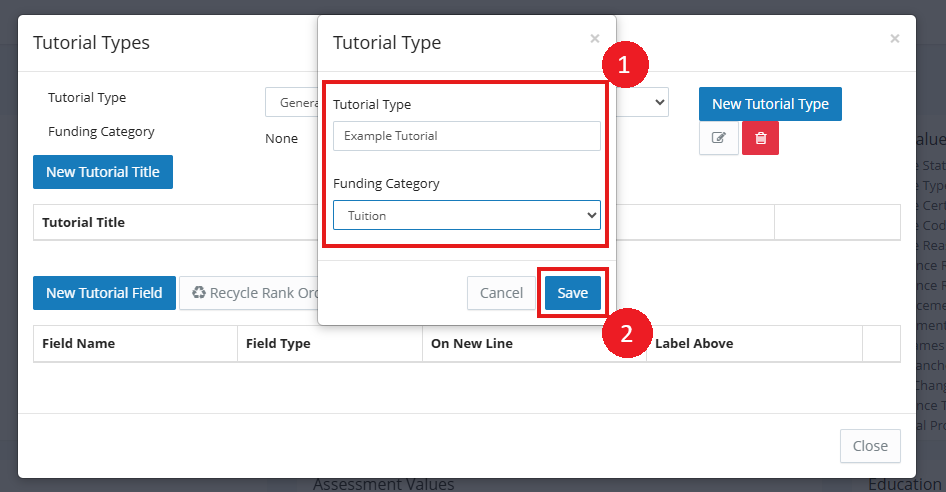
4. A modal will appear for you to record the Title/Label of the new Type and the Funding Category it may relate to. Enter these details and click Save.
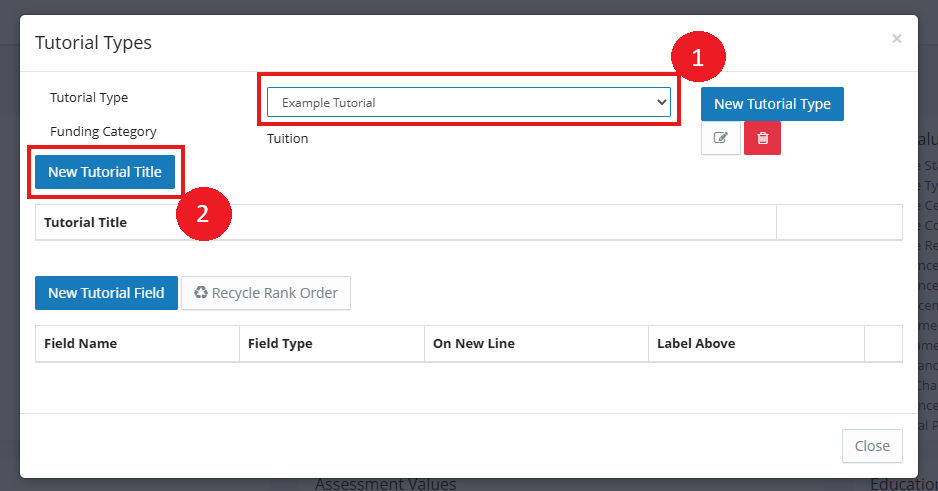
5. This Type will now appear in the dropdown for you to select. To add a new Tutorial Title, after selecting the type from the dropdown, click New Tutorial Title.
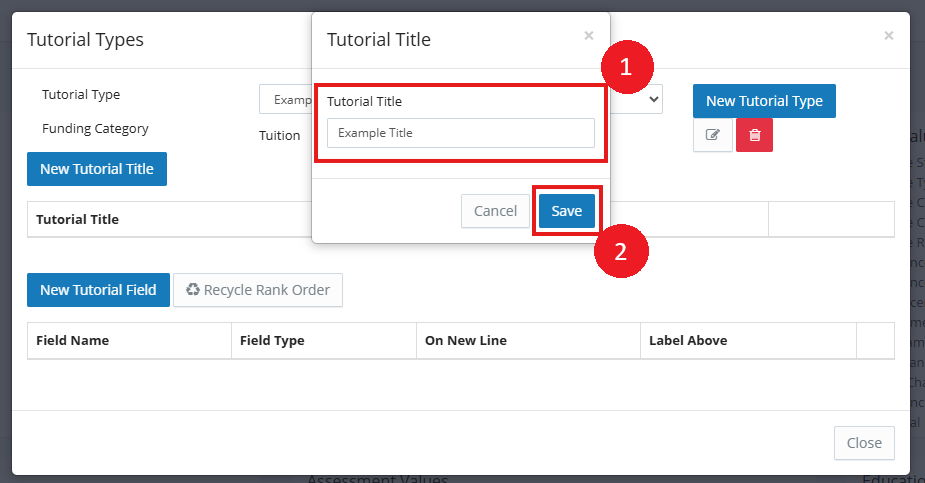
6. Enter your Title and click Save.
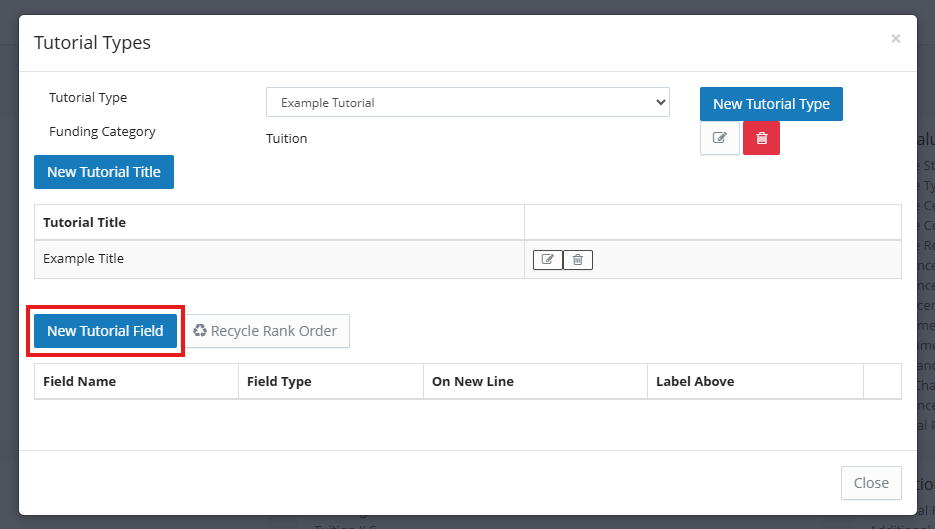
7. You can now add multiple custom fields for this Tutorial Type. To add one, click New Tutorial Field.
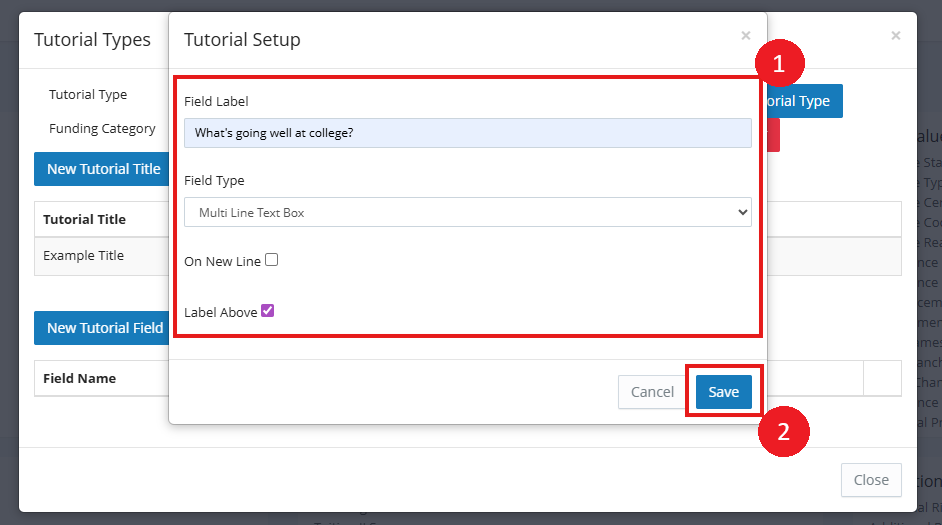
A window will appear with the following options:
Field Label - The title/label to display for the field.
Field Type - Select a text, tick or date field to use.
On New Line - Used in previous desktop system, no longer applies.
Label Above - Determine if the label should appear above this field instead of alongside it.
8. Fill in these details as required and click Save when done. Repeat the process for as many fields as you would like to add.
Adding Tutorials
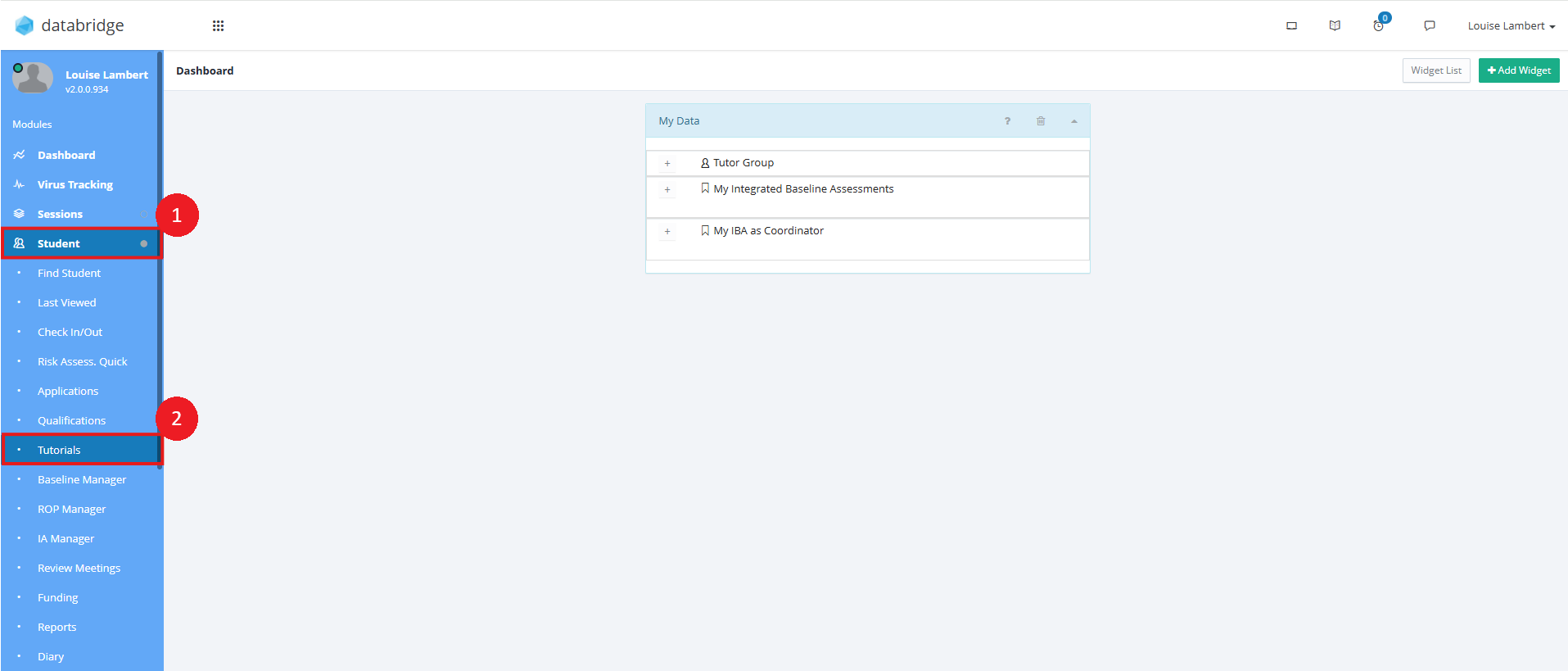
1. First, navigate to Student > Tutorials.
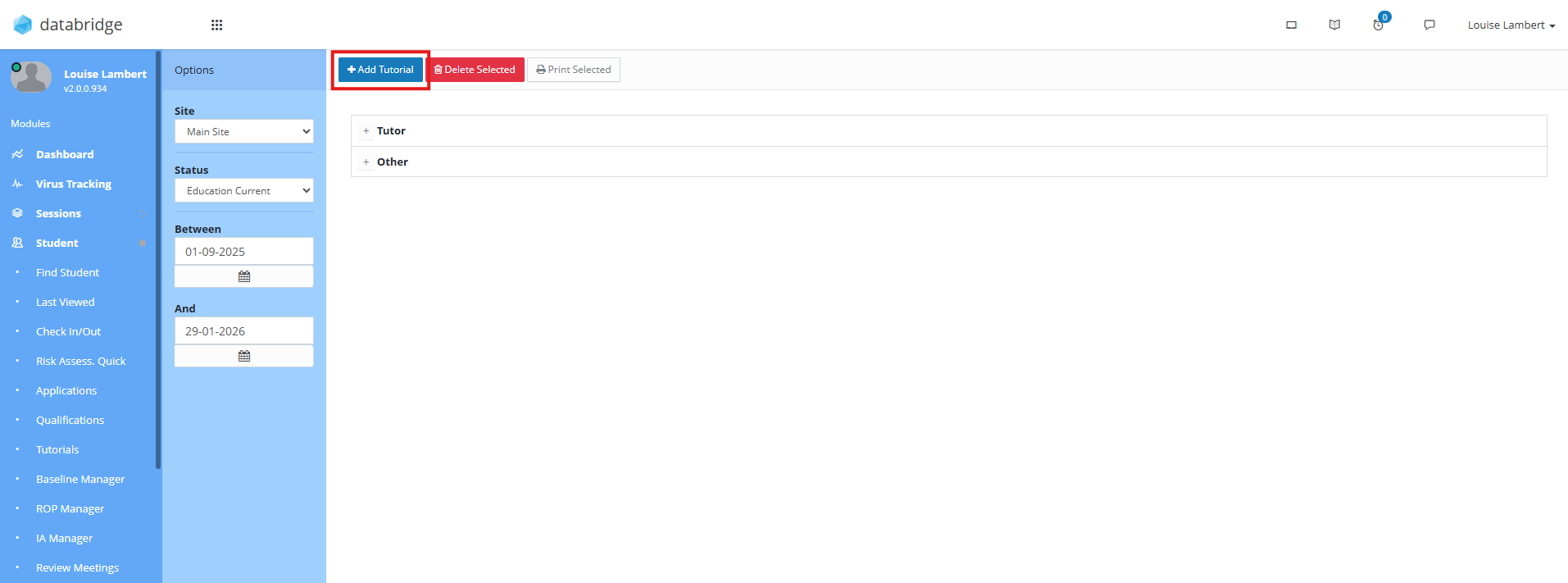
2. Click Add Tutorial.
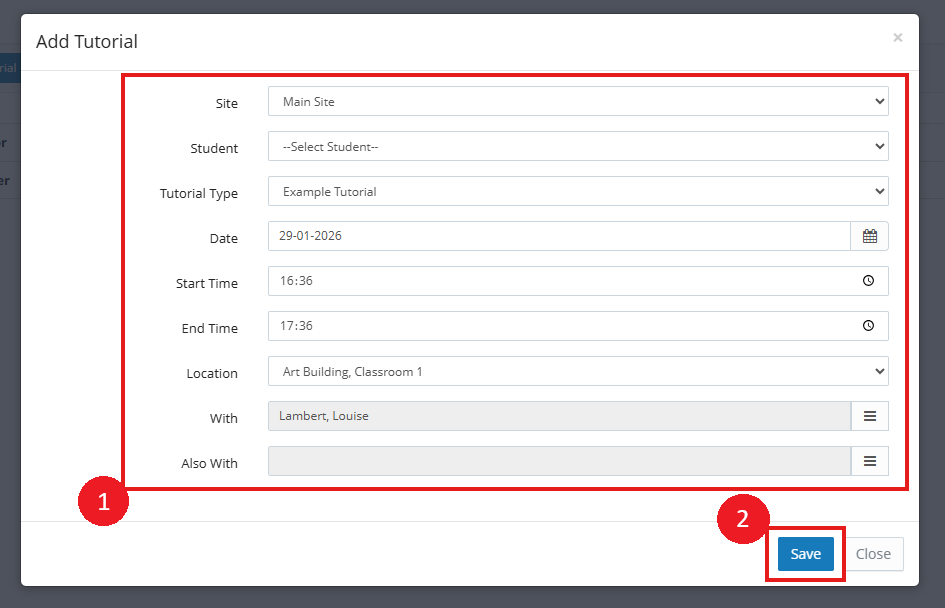
3. A window will appear where you can enter the details for the Tutorial. Once you have filled these out, click Save.
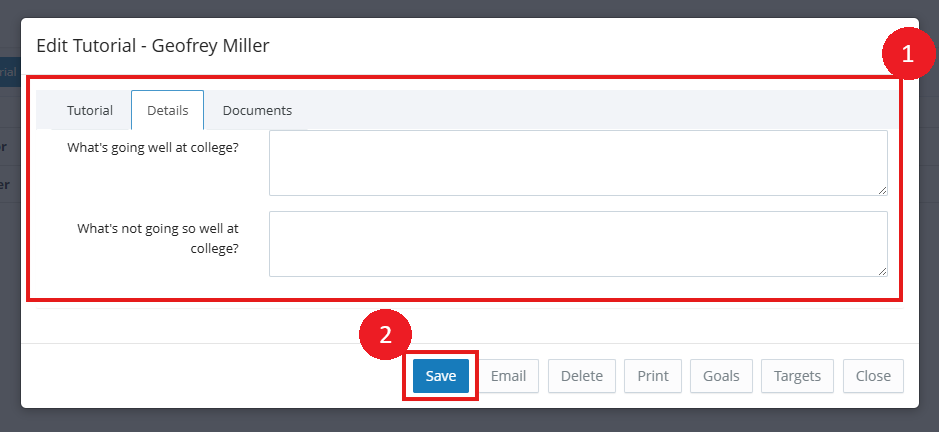
4. This will open up a new window with further details. Using the tabs along the top, you will be able to input details for the fields you set up in Standard Values, add any Student/Staff comments and upload any relevant Documents. Click Save when finished.
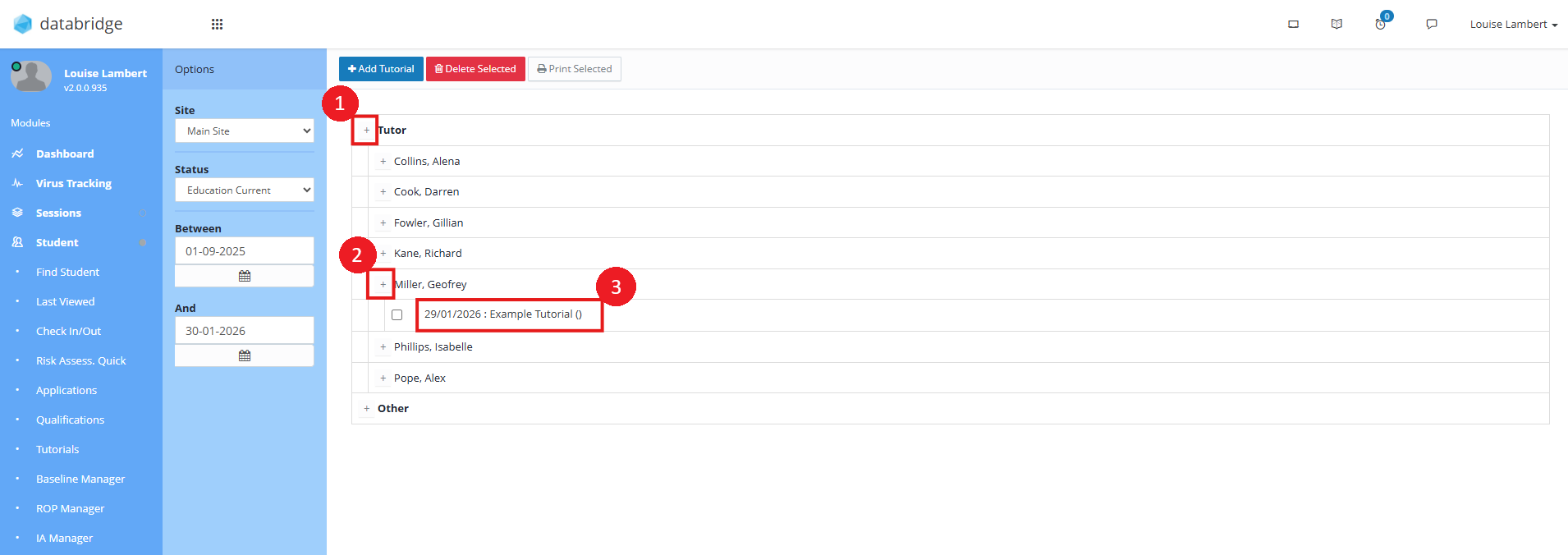
5. You can locate this Tutorial by clicking the + icons to expand the selection. Click on the Tutorial to open the Details window.
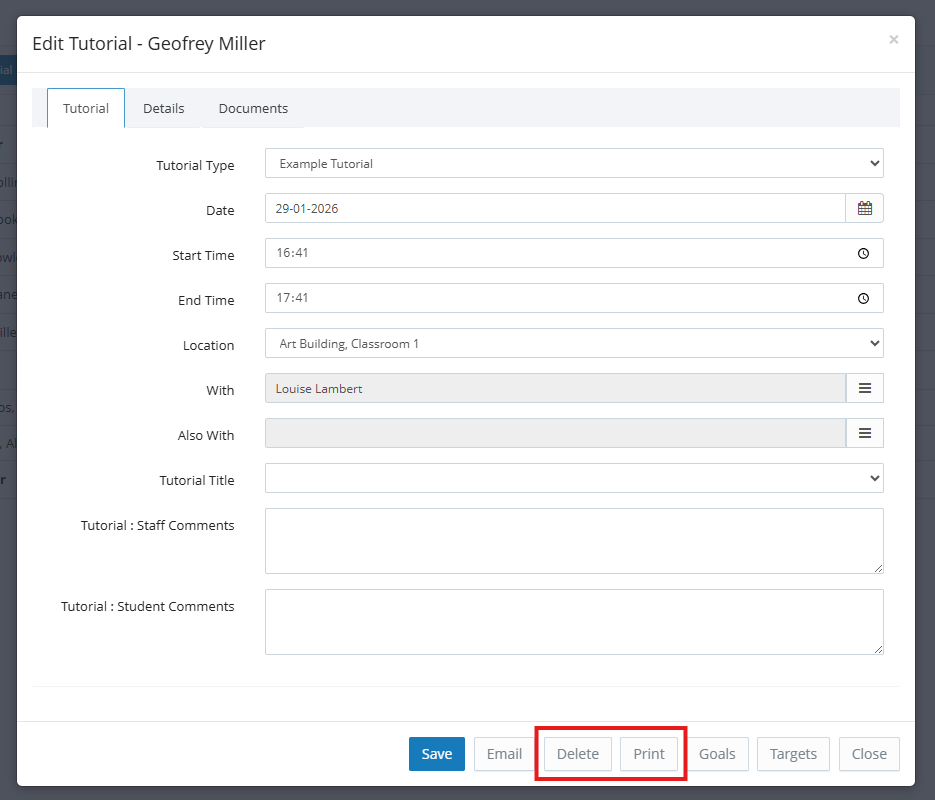
6. From here, you can make any edits, click the Delete button to delete the Tutorial, or Print to print this.
Note:
You can also Print or Delete Tutorials in bulk by ticking the checkbox next to the relevant Tutorials in the list and clicking Delete Selected or Print Selected at the top of the screen.
Was this article helpful?
That’s Great!
Thank you for your feedback
Sorry! We couldn't be helpful
Thank you for your feedback
Feedback sent
We appreciate your effort and will try to fix the article