This guide will look at Student Information Sheets in Databridge. The Information Sheet provides the ability to create a printout of various information about the Student by selecting the areas of their record you wish to include/exclude on the printout.
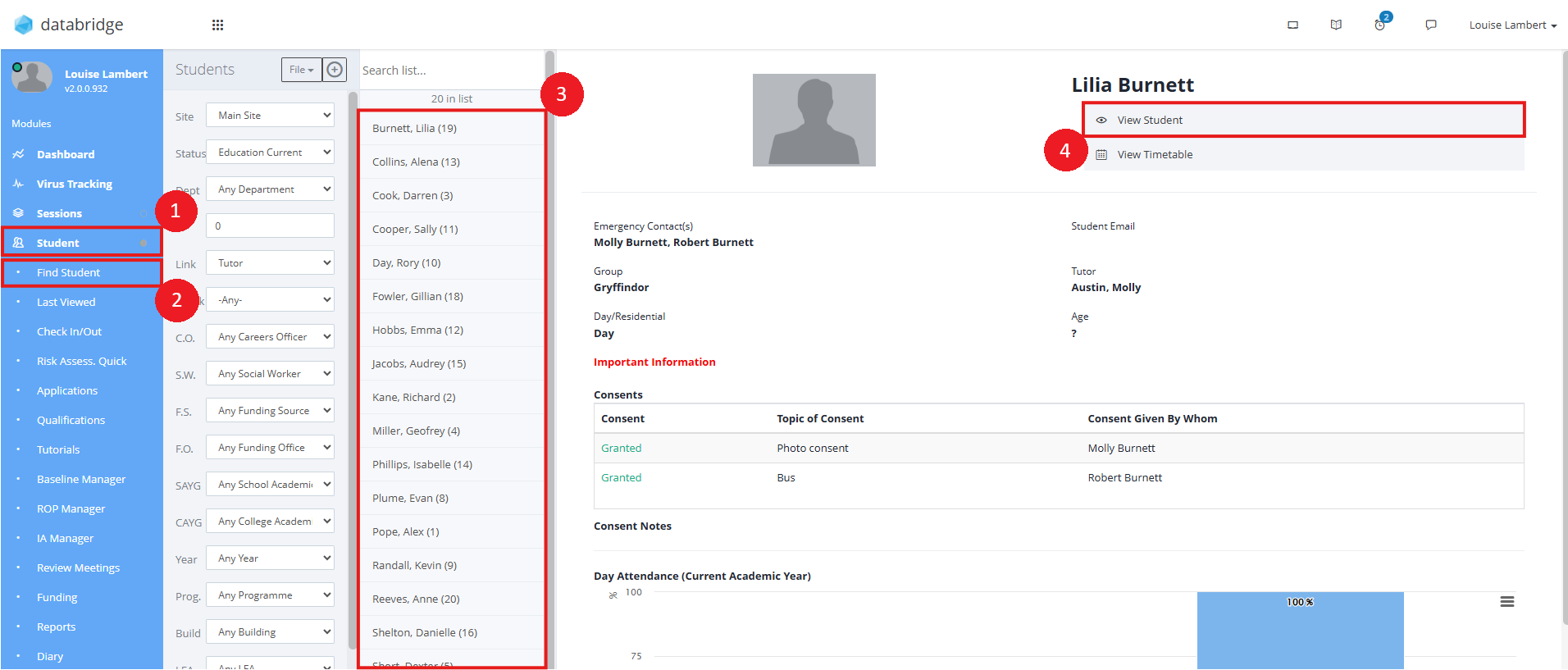
1. To access the Information Sheet screen, first navigate to a Student record via Student > Find Student > *selecting the relevant Student from the list* > View Student.
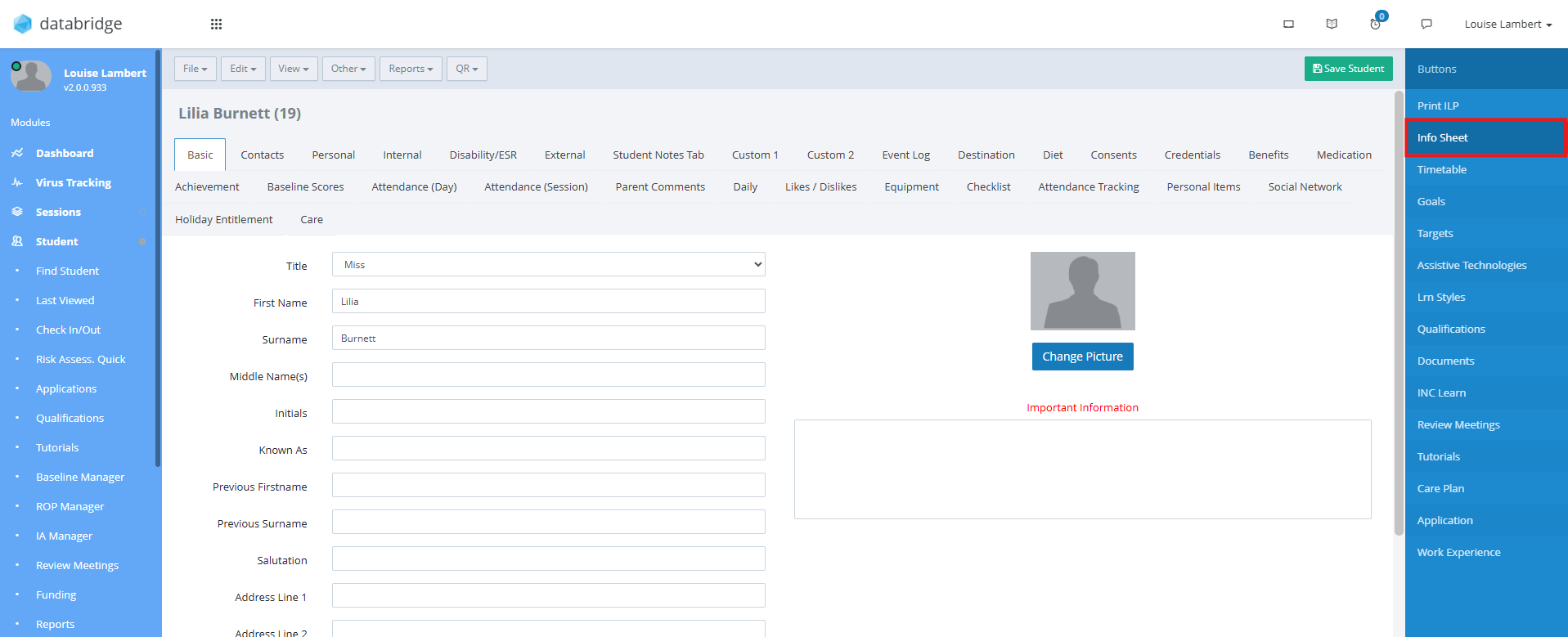
2. Next, click Info Sheet on the right hand side.
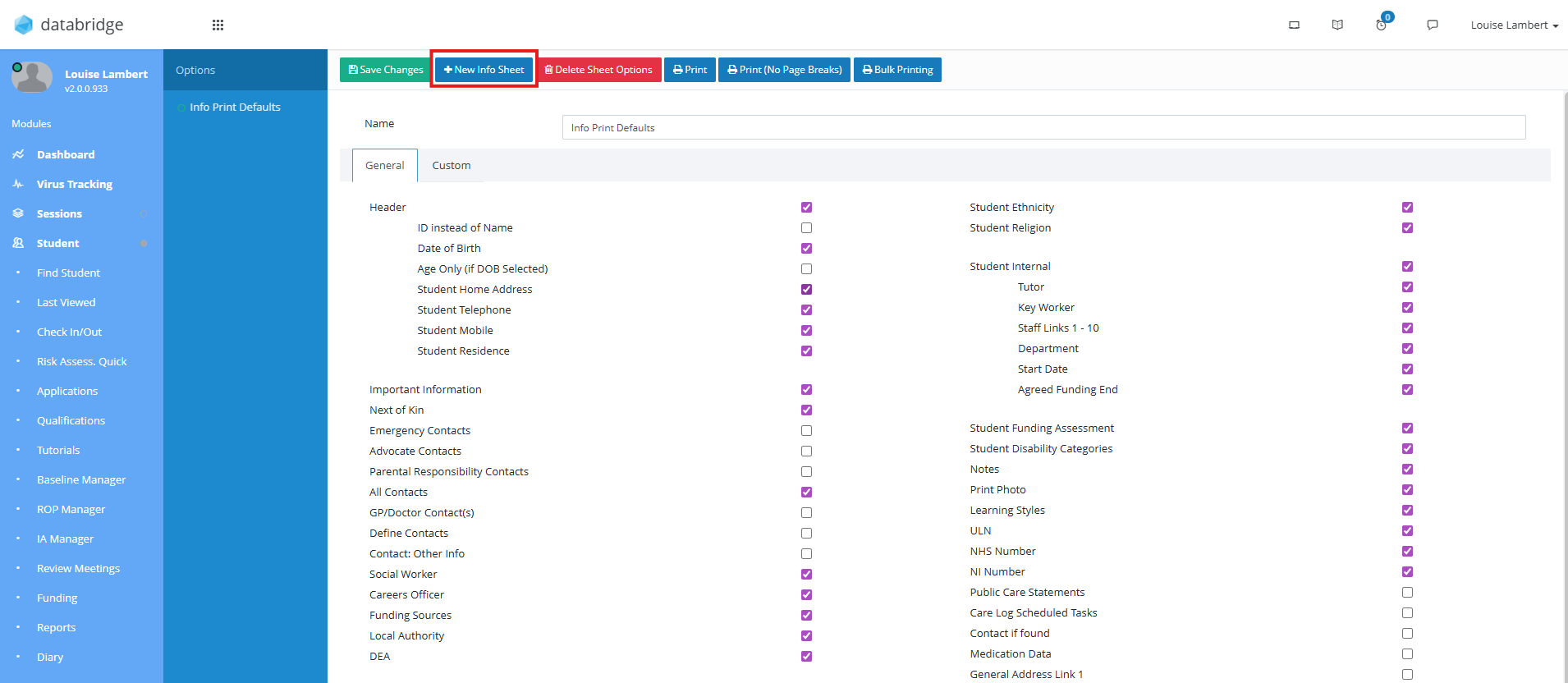
3. To create a new Information Sheet click + New Info Sheet.
Note:
If this is your first visit to this screen, it's likely you will have one option displayed on the left called 'Info Print Defaults'. This setting is used for the most regularly printed details and will automatically display the options for this setting on the right hand side.
4. You can now click on this new setting in the list on the left hand side, give it a title and select the relevant options to capture, before clicking Save Changes.
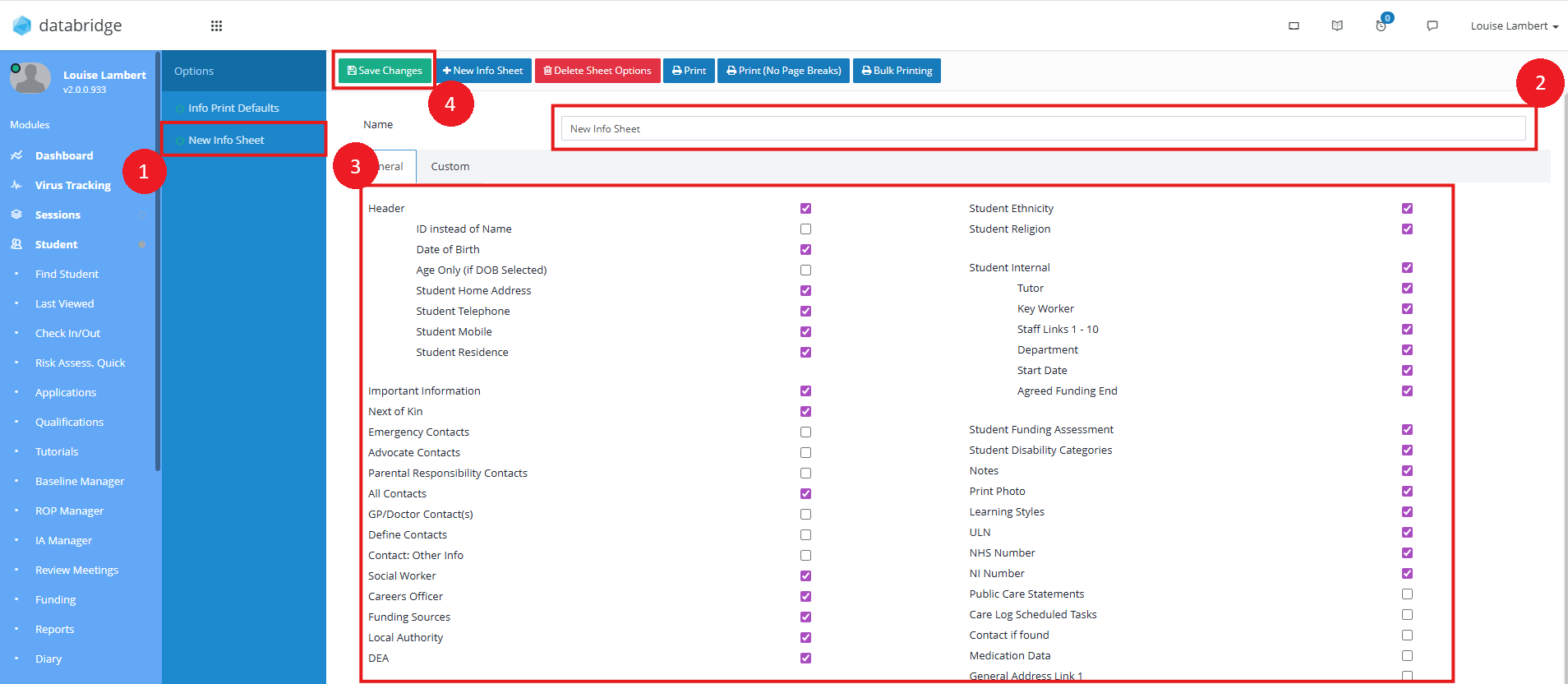
5. Once you are happy with the options selected to include on the printout, you can select one of the Print options at the top of the screen to Print this information.
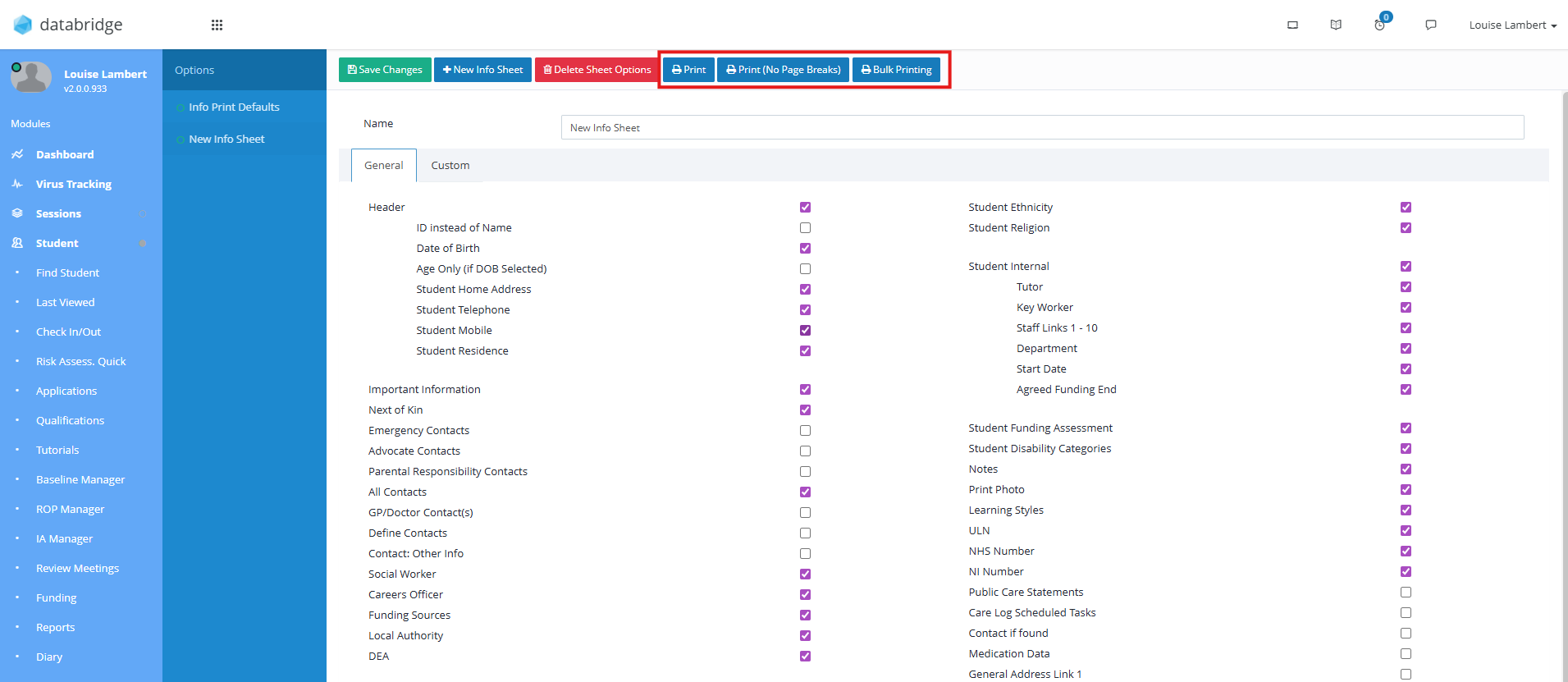
Print - Produces a PDF of the Information Sheet
Print (No Page Breaks) - Produces a PDF of the Information Sheet but excludes adding a page break between each section.
Bulk Printing - Displays a modal to select multiple Students to bulk print Information Sheets.
Was this article helpful?
That’s Great!
Thank you for your feedback
Sorry! We couldn't be helpful
Thank you for your feedback
Feedback sent
We appreciate your effort and will try to fix the article