This guide will look at how to add Essential Staffing Requirements for a student. This will then alert users creating a session if these requirements are not met.
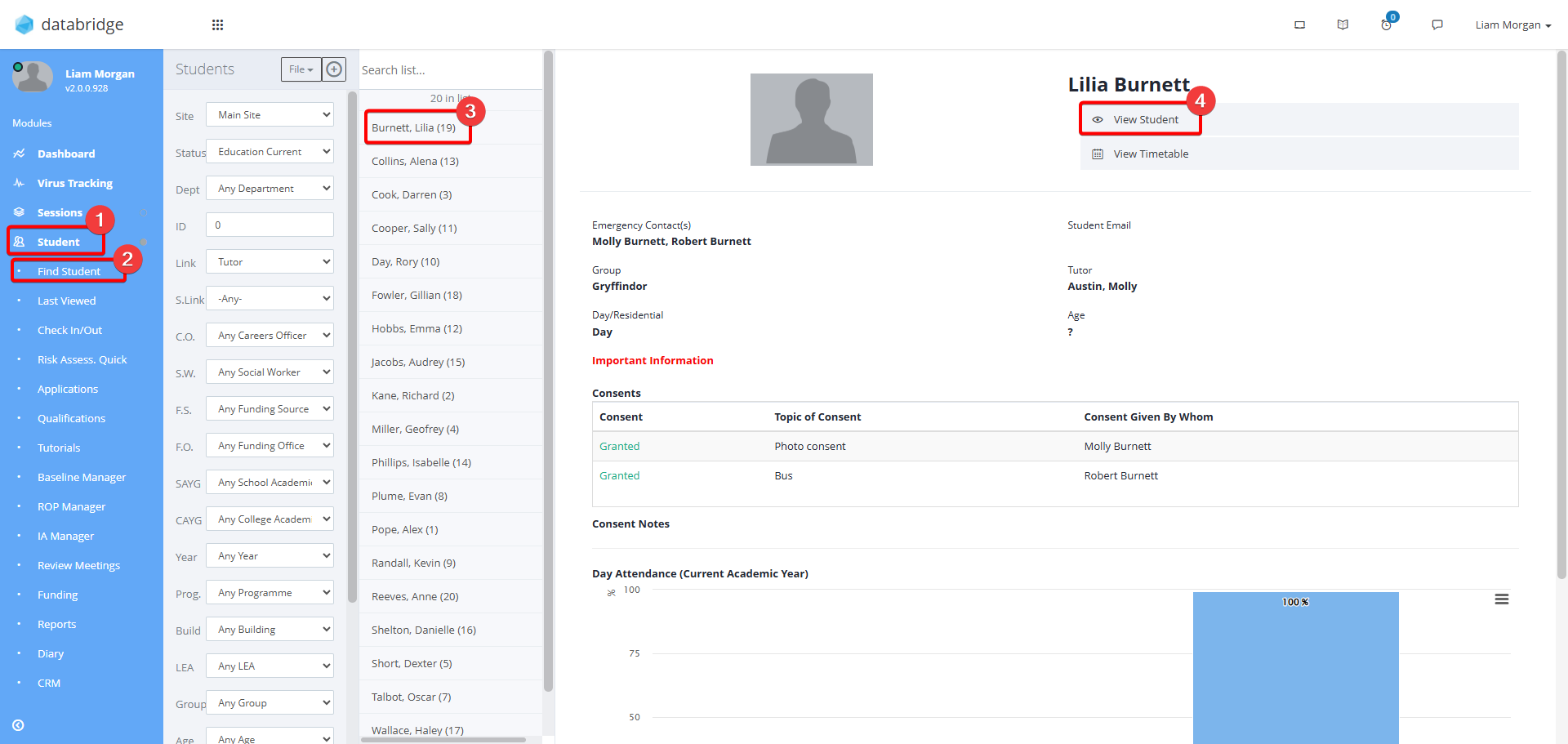
1. First navigate to the student's record by clicking Student > Find Student > *Student Name* > View Student.
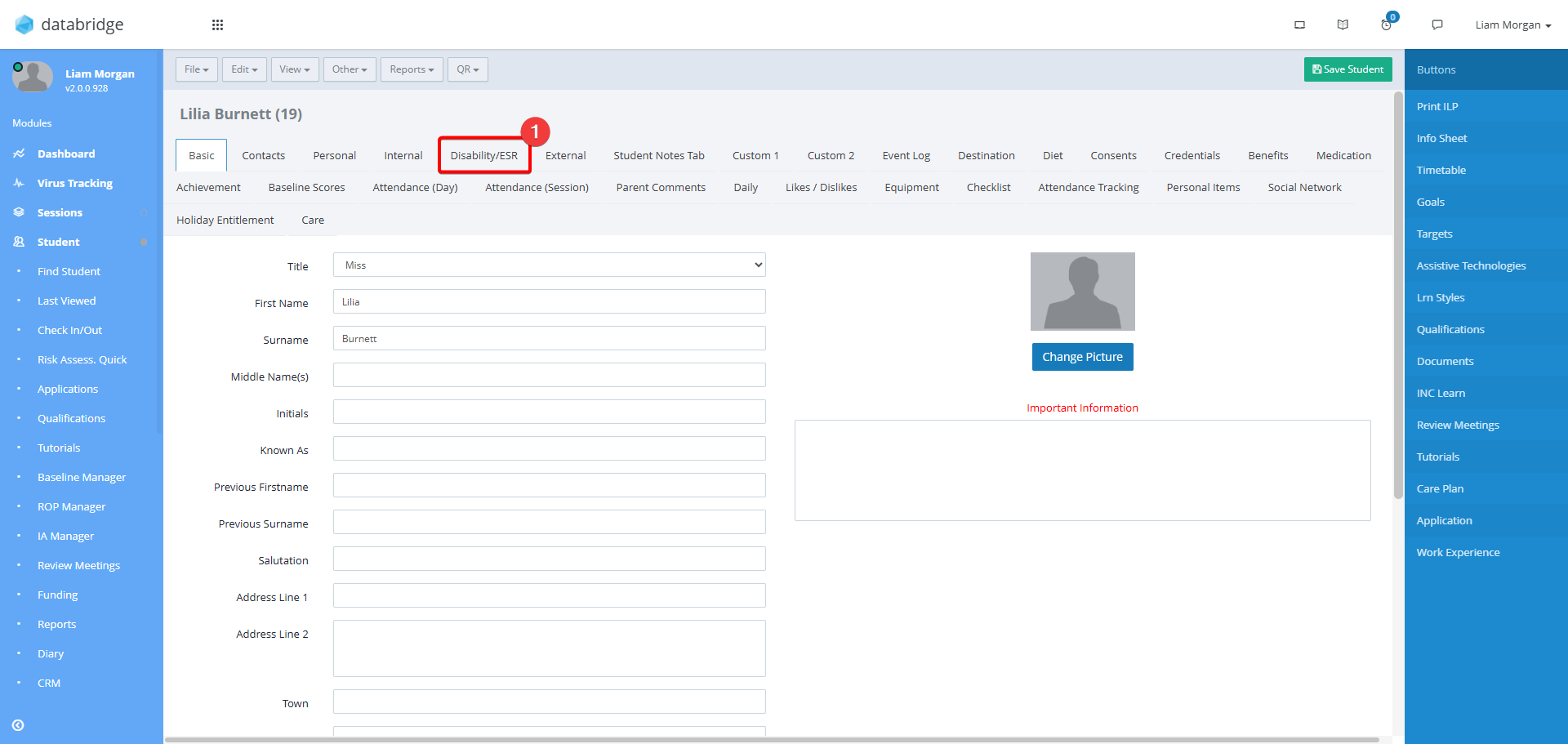
2. Click the Disability / ESR Tab.
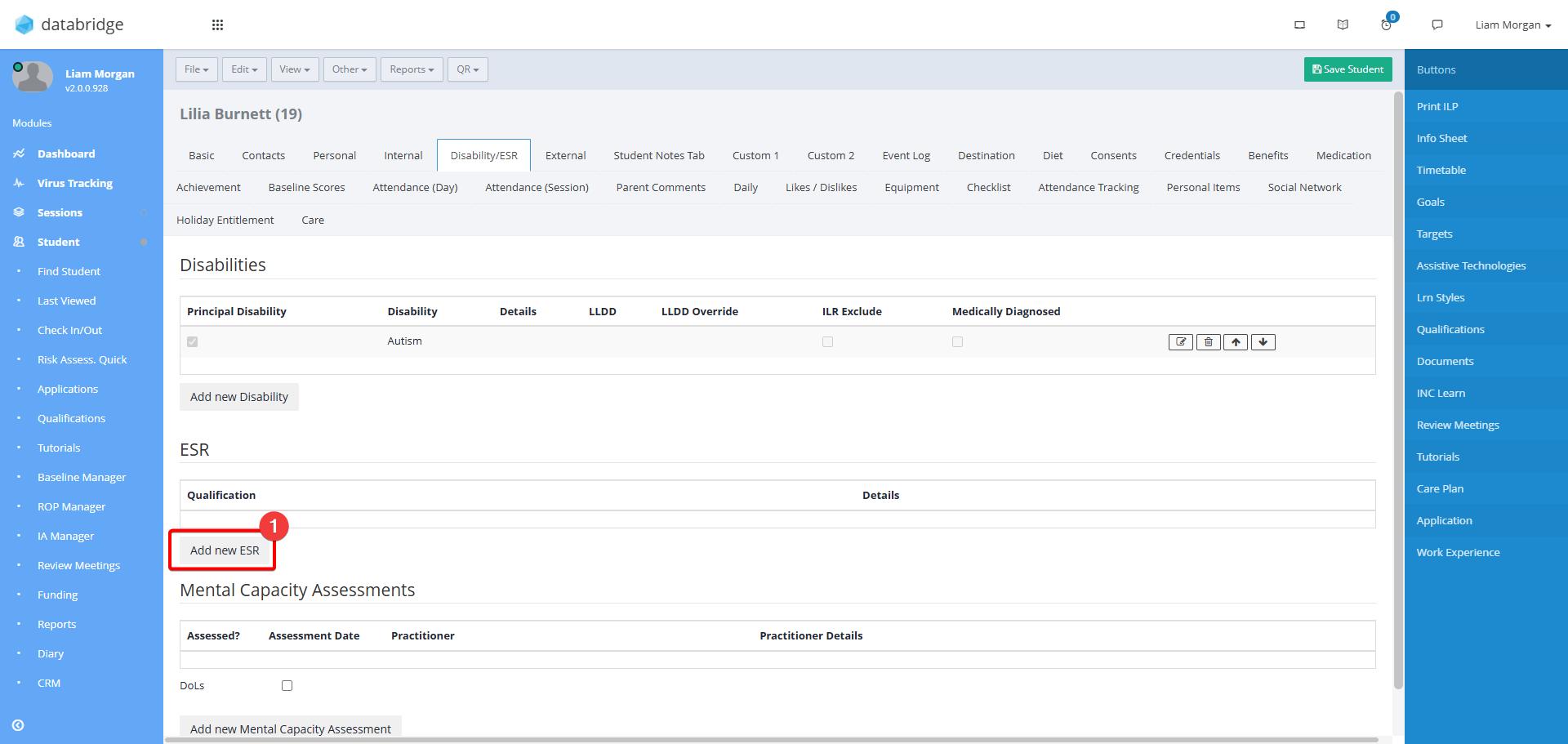
3. Click Add New ESR.
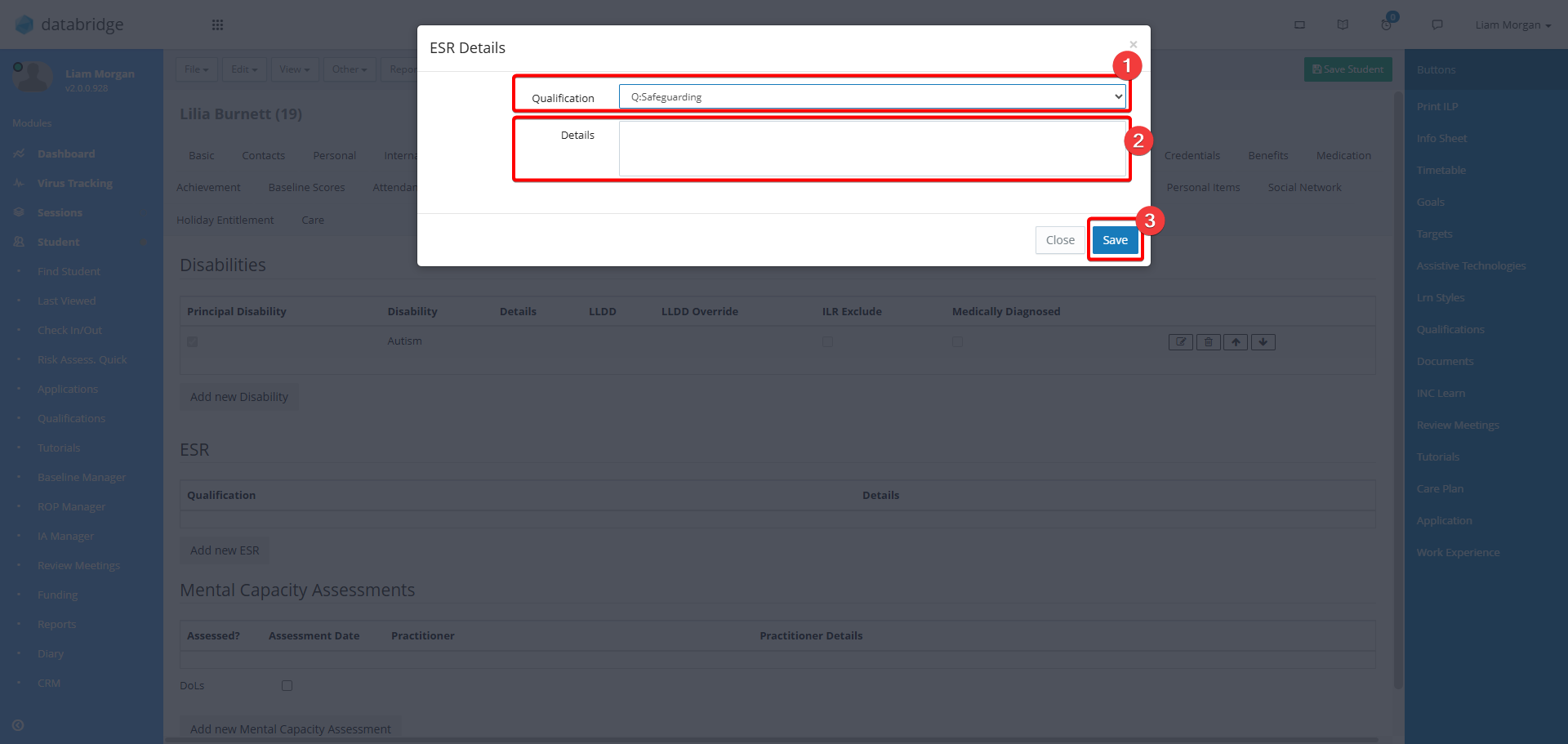
4. Select the required qualification or training from the Qualification dropdown, and optionally add any additional information in the Details textbox. Then, click Save.
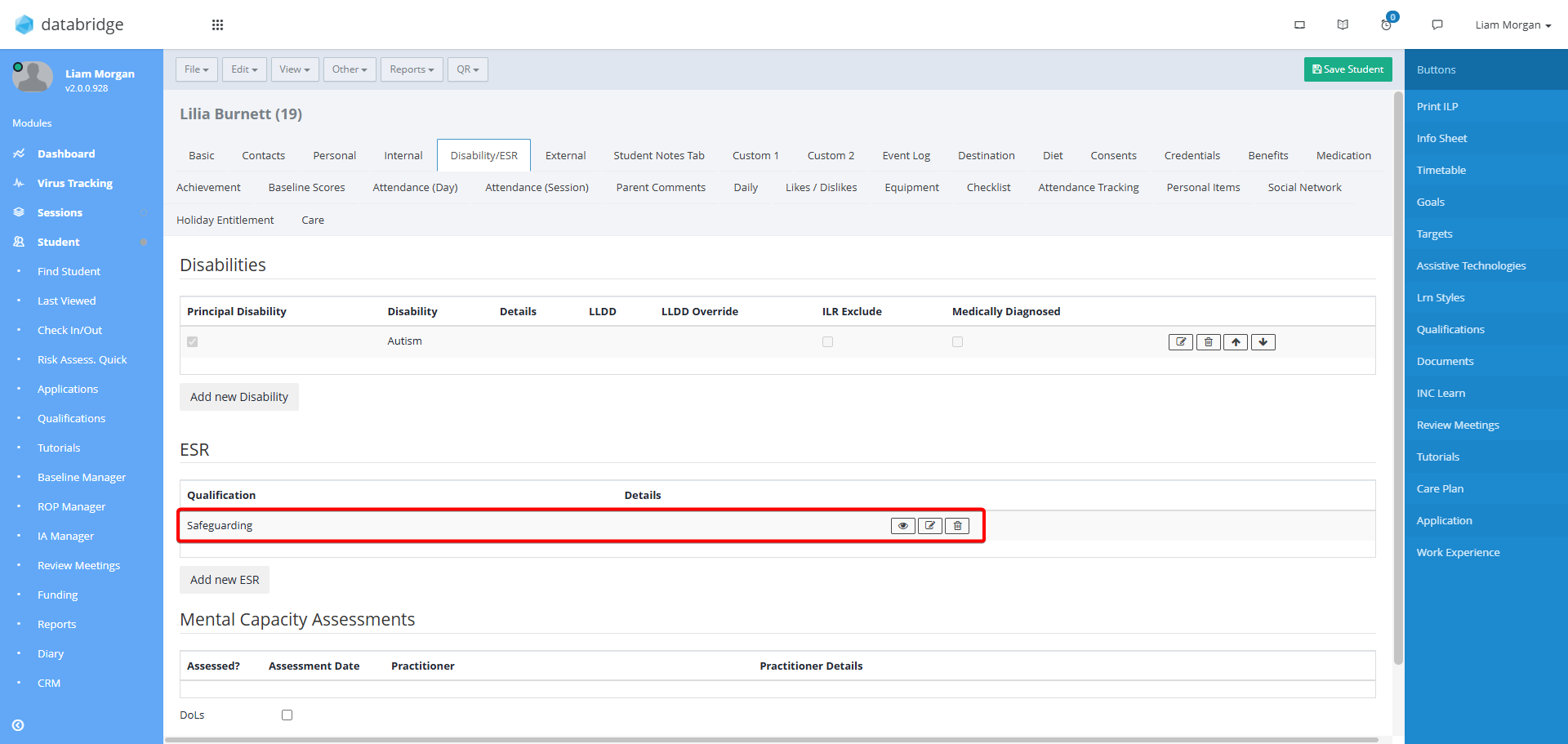
4. This will close the Details box where you will see the new ESR. Next to each requirement there is an Eye Icon, a Notepad Icon, and a Trash Icon:
- The Eye Icon displays any staff members that meet the requirement
- The Notepad Icon allows you to edit the details, opening the same window as step 4.
- The Trash Icon deletes the entry.
Was this article helpful?
That’s Great!
Thank you for your feedback
Sorry! We couldn't be helpful
Thank you for your feedback
Feedback sent
We appreciate your effort and will try to fix the article