This guide will look at the Residence Manager screen in Databridge. This screen is used to help staff such as Support Workers, Nurses or others working in a residential setting with Students.
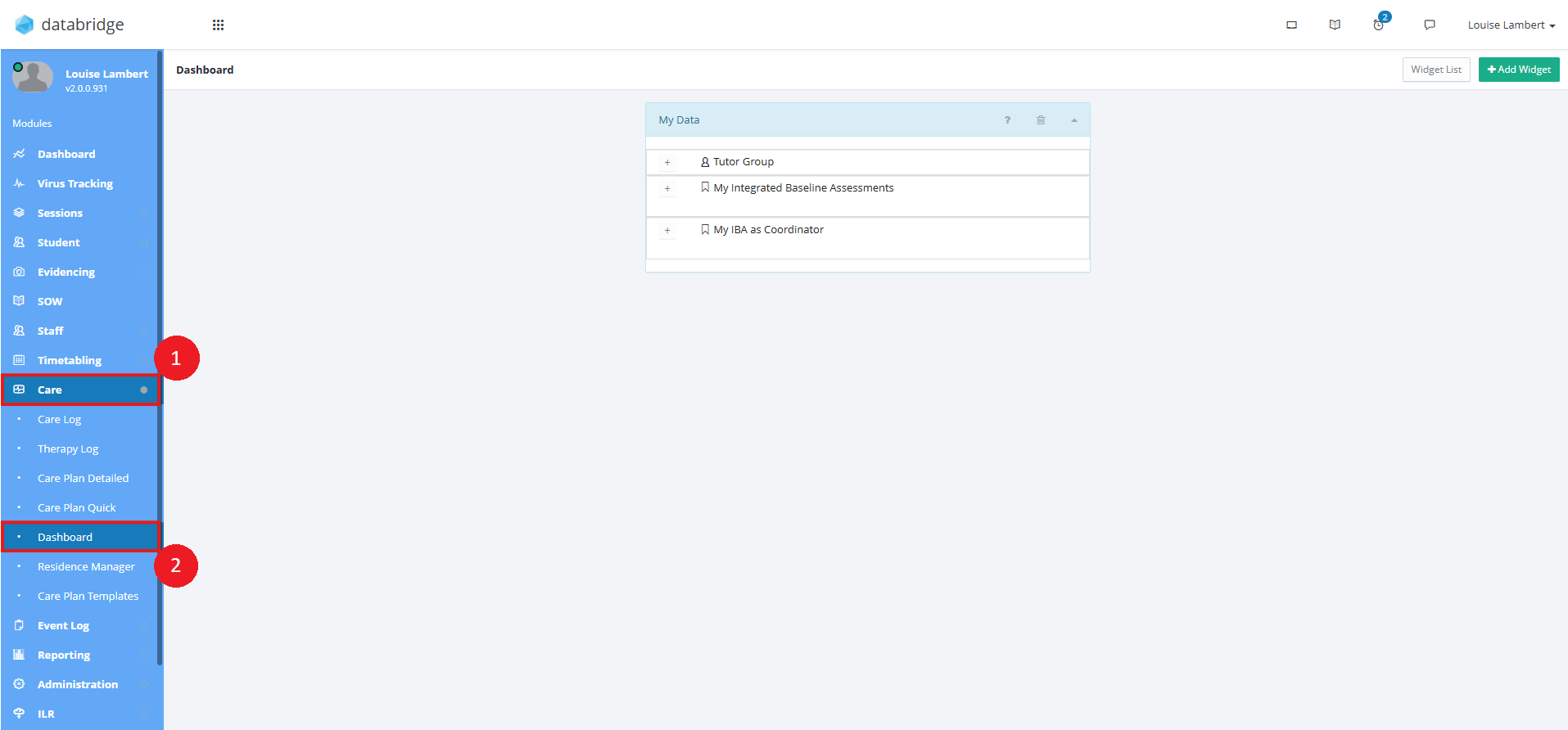
1. First, navigate to Care > Residence Manager.
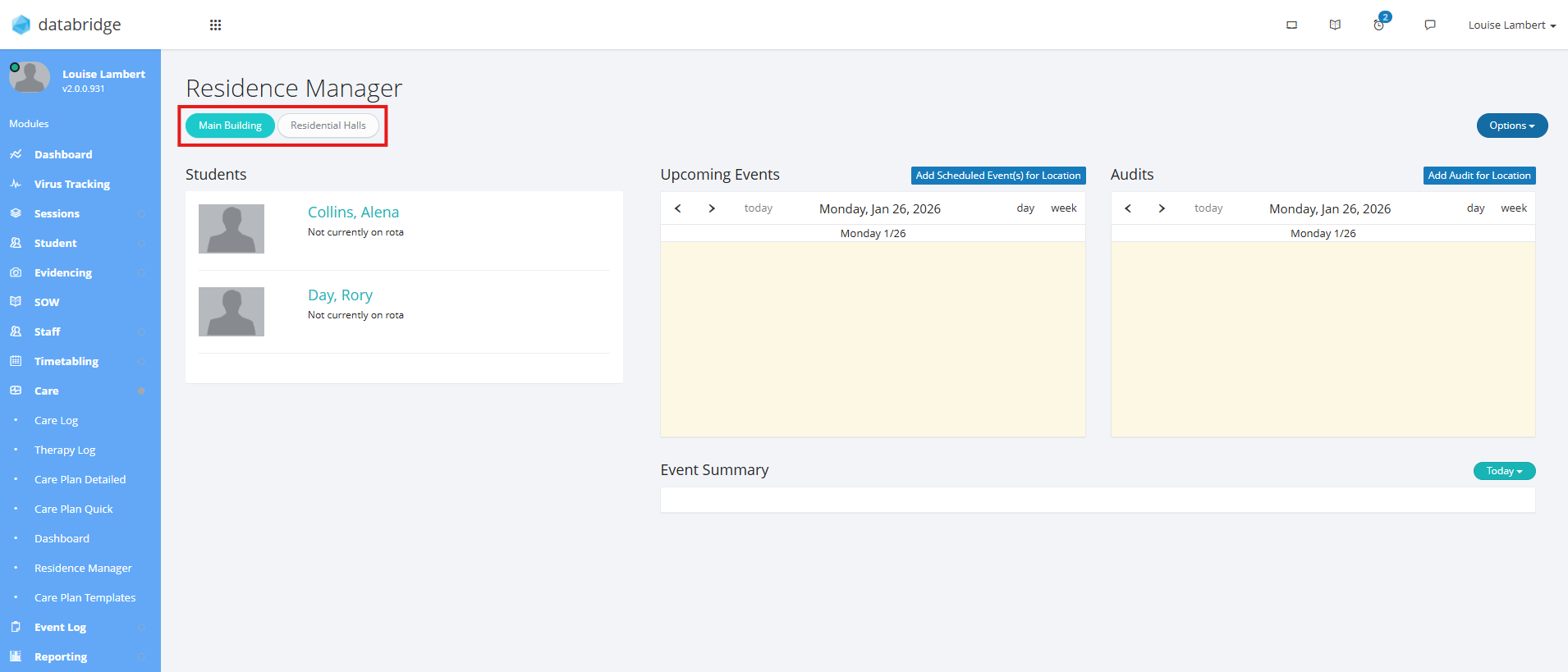
2. Use the buttons across the top to select the Residential building you wish to view.
Note:
You will need to specify in Standard Values > Buildings which ones are residential for them to appear here.
Clicking on a Building will display a list of Students linked to this particular Building, and any related Scheduled Events, Audits or recorded Events for the Student's listed or Location.
Note:
For a Student to appear under a residential building here, you need to specify this on the Personal tab of their Student Record under the Residential area, using the Change Room button.
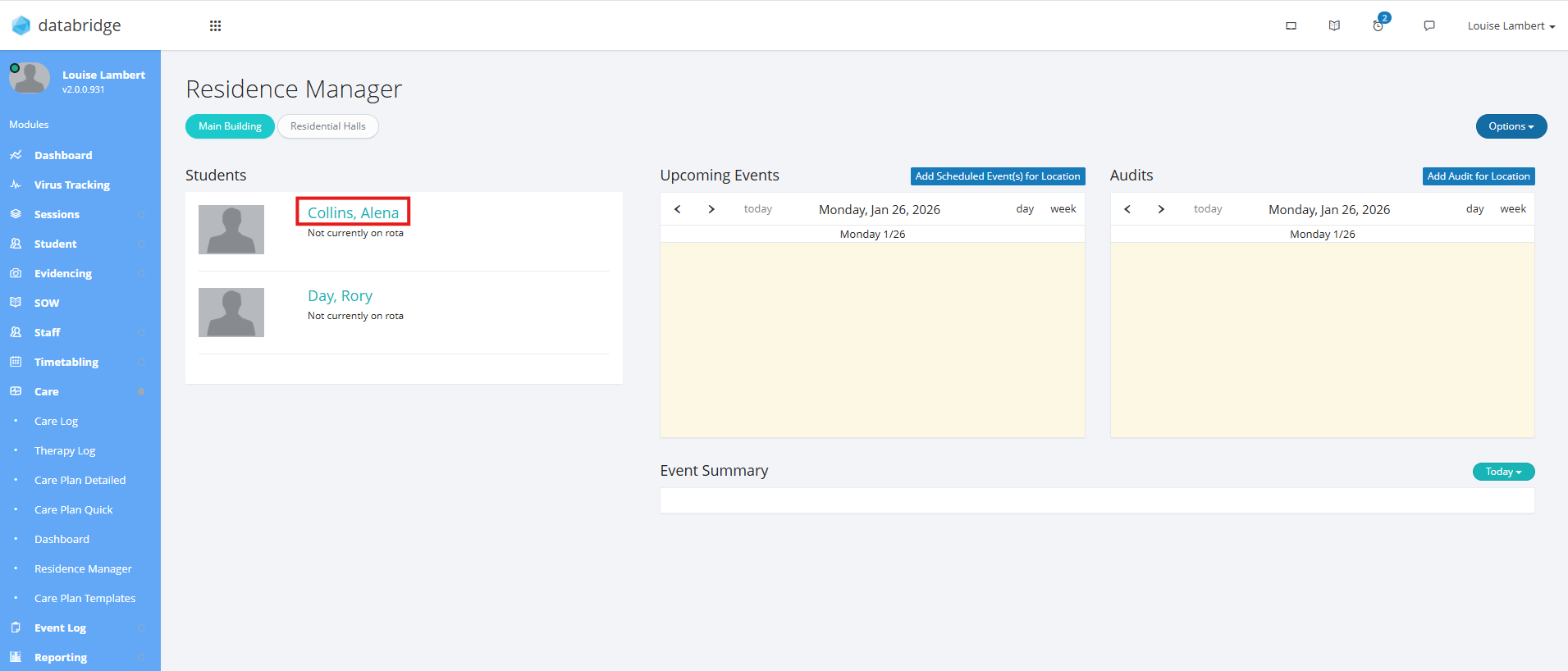
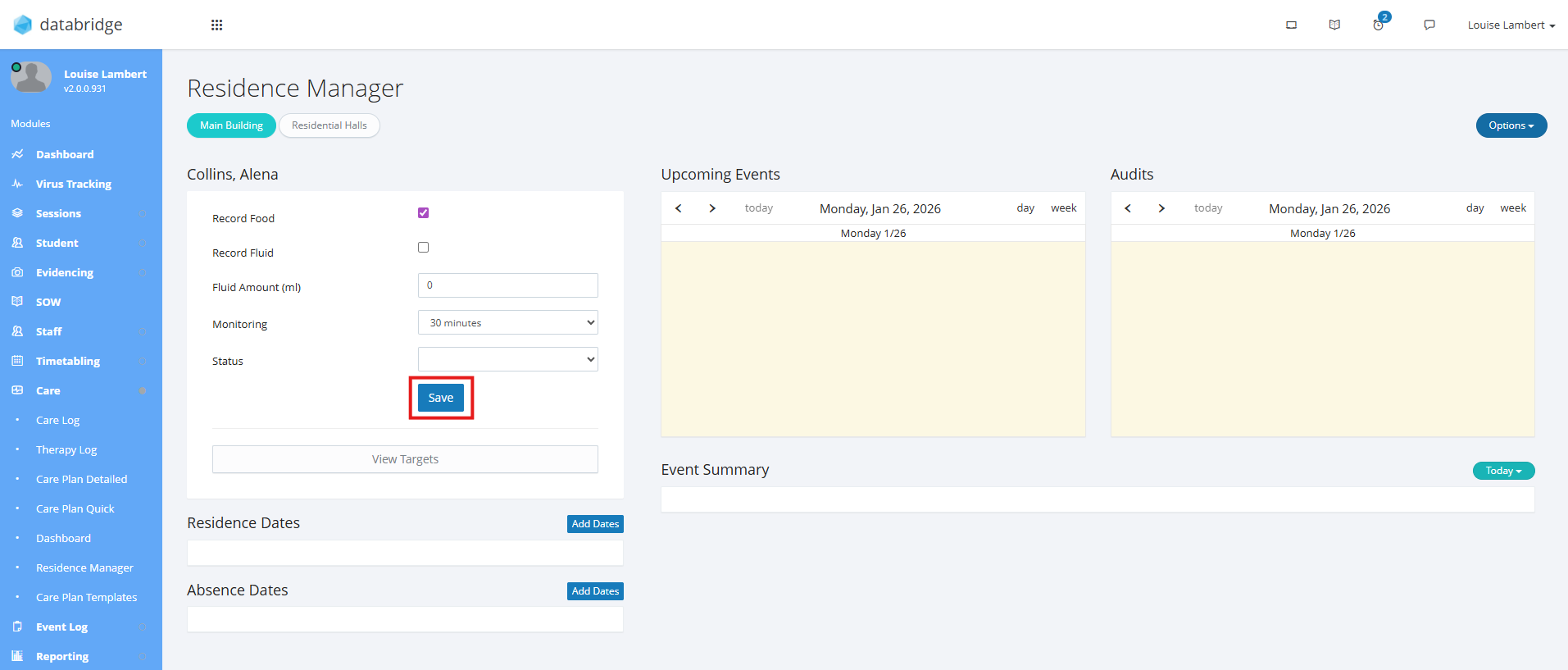
3. Click on a Student's name to view and edit individual details.
4. On the left, there are several details you can set for the Student.
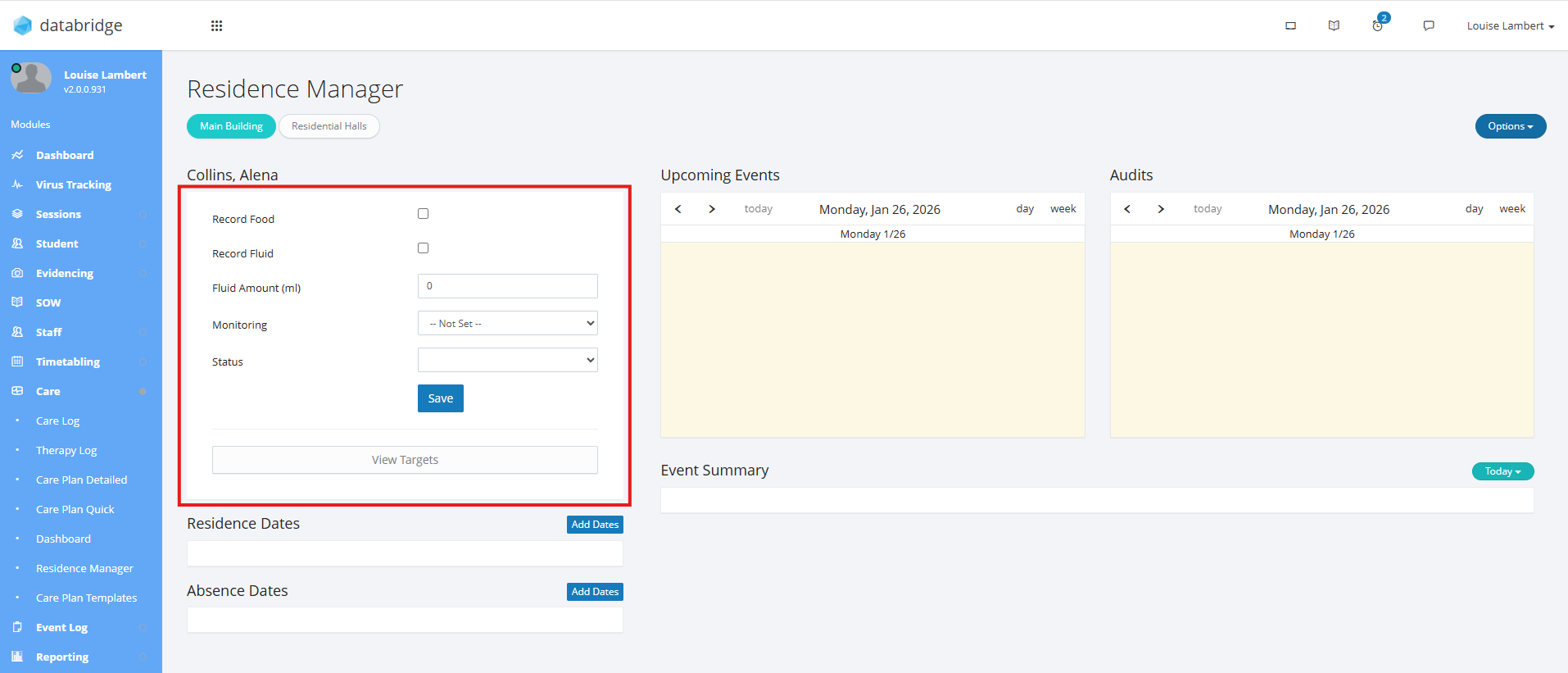
Record Food - Tick to show a food icon on the list screen so Staff know to record this.
Record Fluid - Tick to show a drink icon on the list screen so Staff know to record this.
Fluid Amount - If recording a fluid, enter the amount to expect/aim towards. The drink icon will show this value when hovering over it.
Monitoring - Select a duration to show an eye icon on the list screen so Staff know they need to monitor this Student. The duration will display when hovering over the icon.
Status - If using these, select a Care Status e.g Respite. The Student will then appear in the list under this Status at the top, as well as a Residence.
5. Click the blue Save button after making any changes.
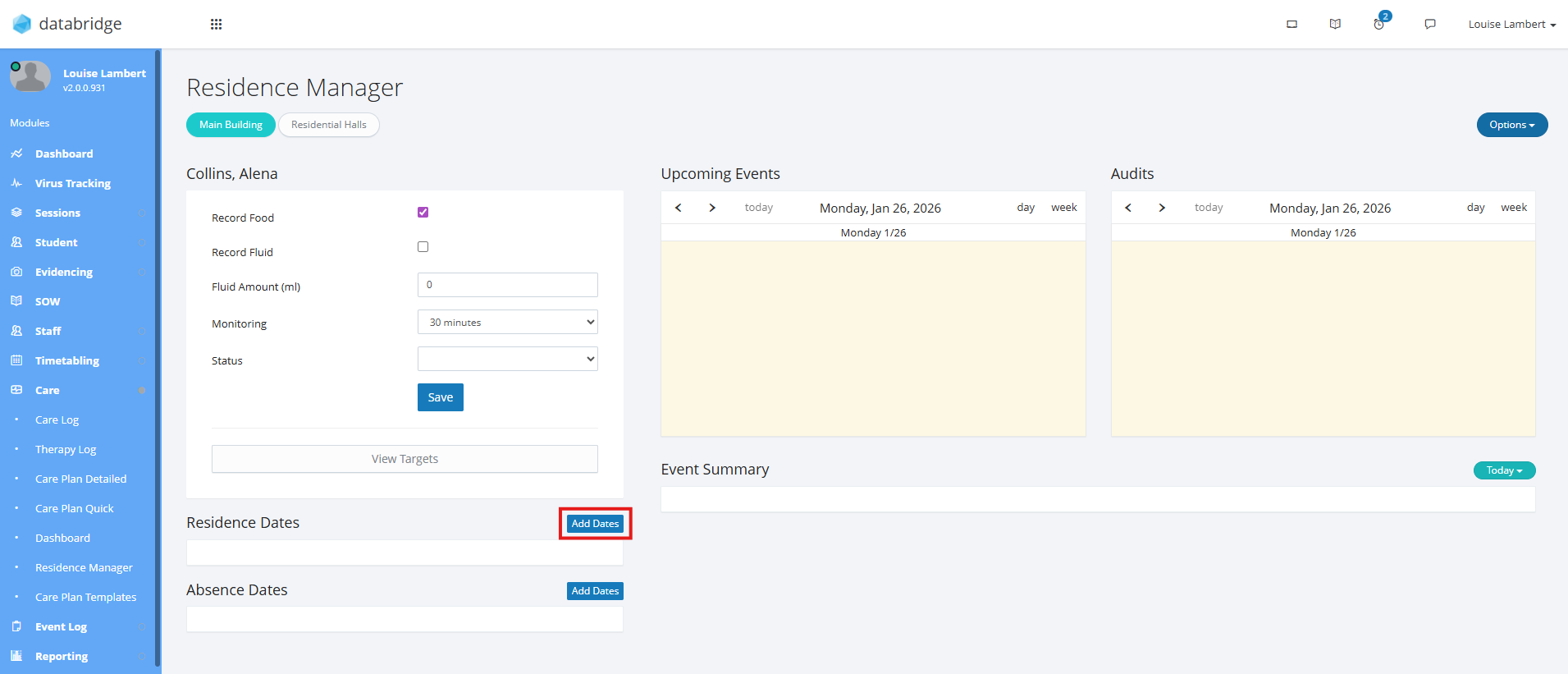
6. To set which dates, days and times a Student is at the Residence, click Add Dates in the Residence Dates area.
7. A pop up window will appear where you can fill out the relevant dates and times the Student is expected at the Residence. Click the green Save button once you have filled out the relevant details.
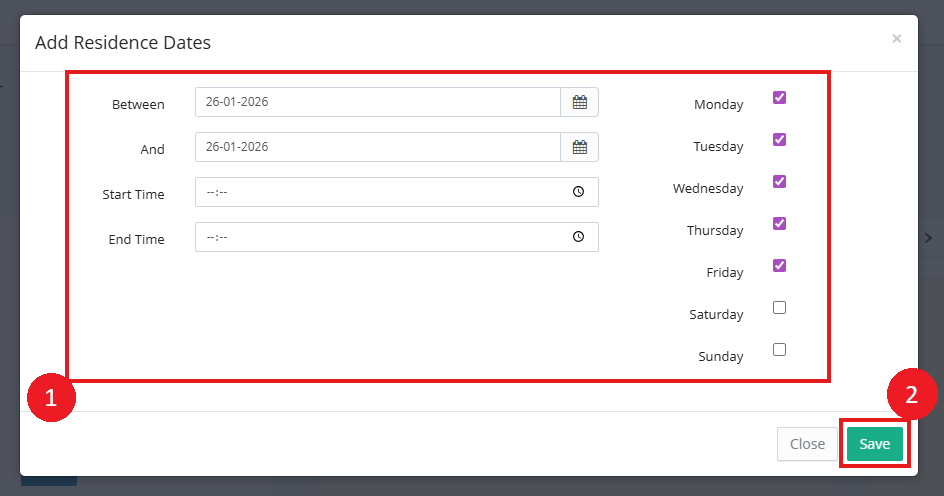
Note:
You can add multiple of these records so if the Student has breaks from the residence rather than one long stay, you can add all the relevant times they are there.
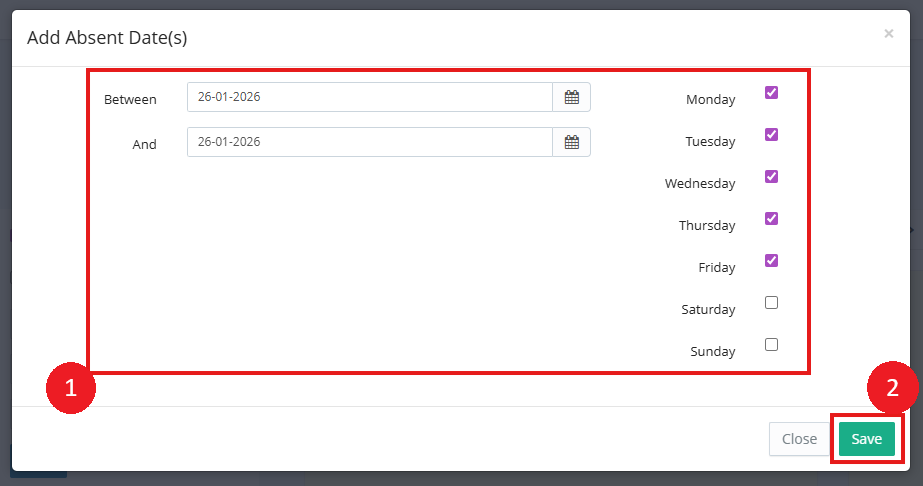
8. To indicate which dates a Student will be absent from the Residence (e.g for Holidays), click on the Add Dates button in the Absence Dates area.
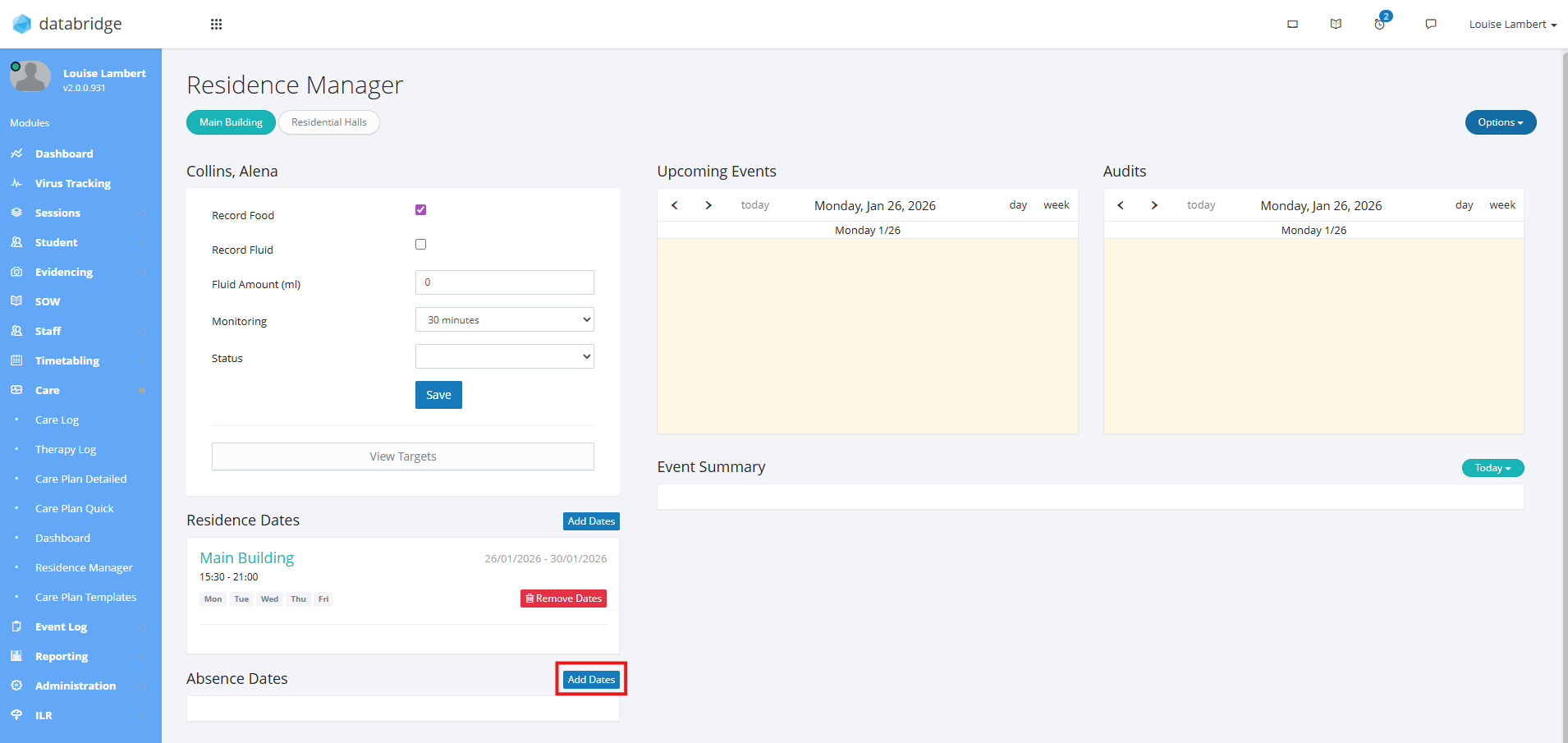
9. A pop up window will appear where you can fill out the relevant dates and times the Student will be absent. Click the green Save button once you have filled out the relevant details.
Was this article helpful?
That’s Great!
Thank you for your feedback
Sorry! We couldn't be helpful
Thank you for your feedback
Feedback sent
We appreciate your effort and will try to fix the article