This guide will look at how to manage your new starters and leavers ready for a new academic year.
TABLE OF CONTENTS
Managing Leavers
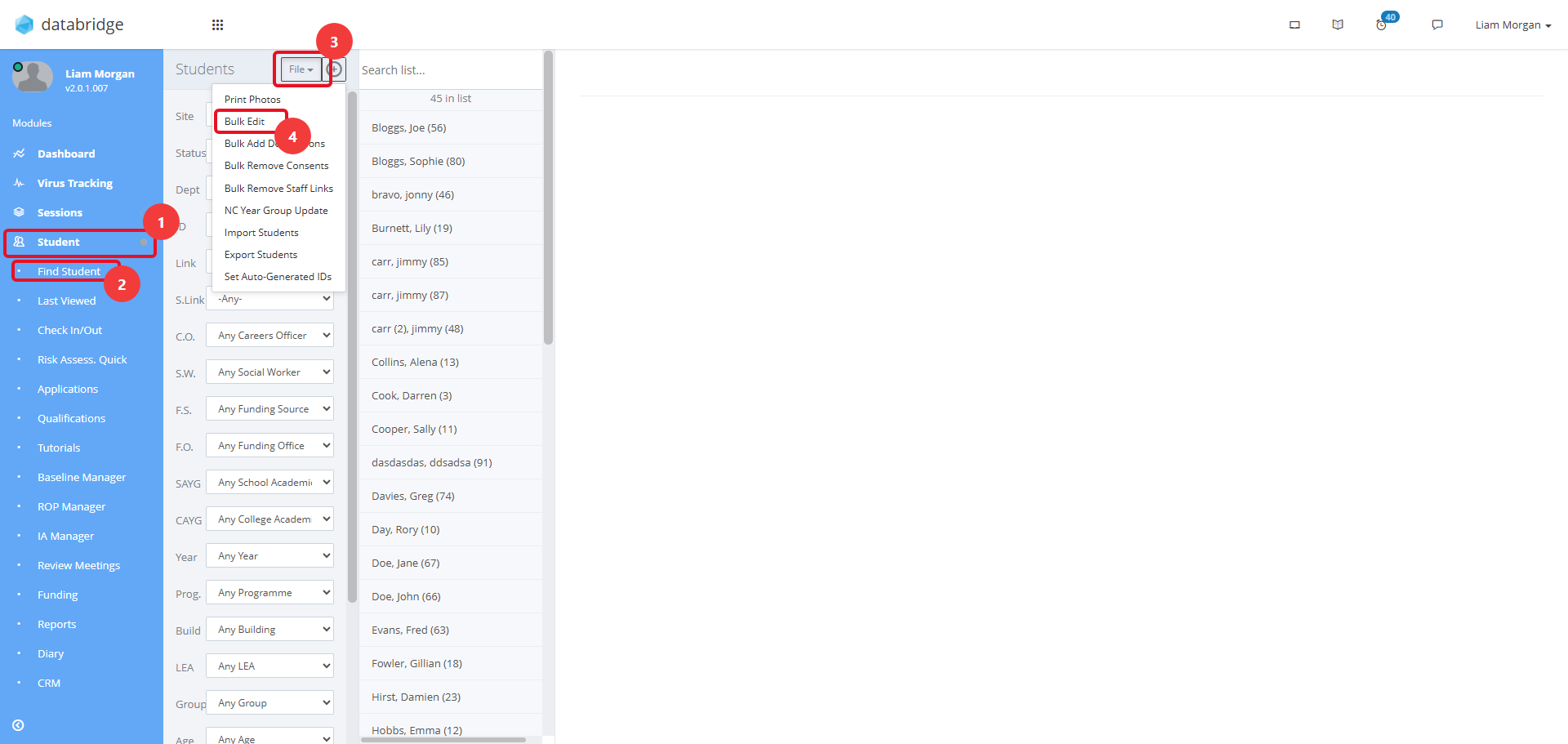
1. All leavers need to be given an End Date and need to have their Status changed. This can be done in bulk by navigating to Student > Find Student > File > Bulk Edit.
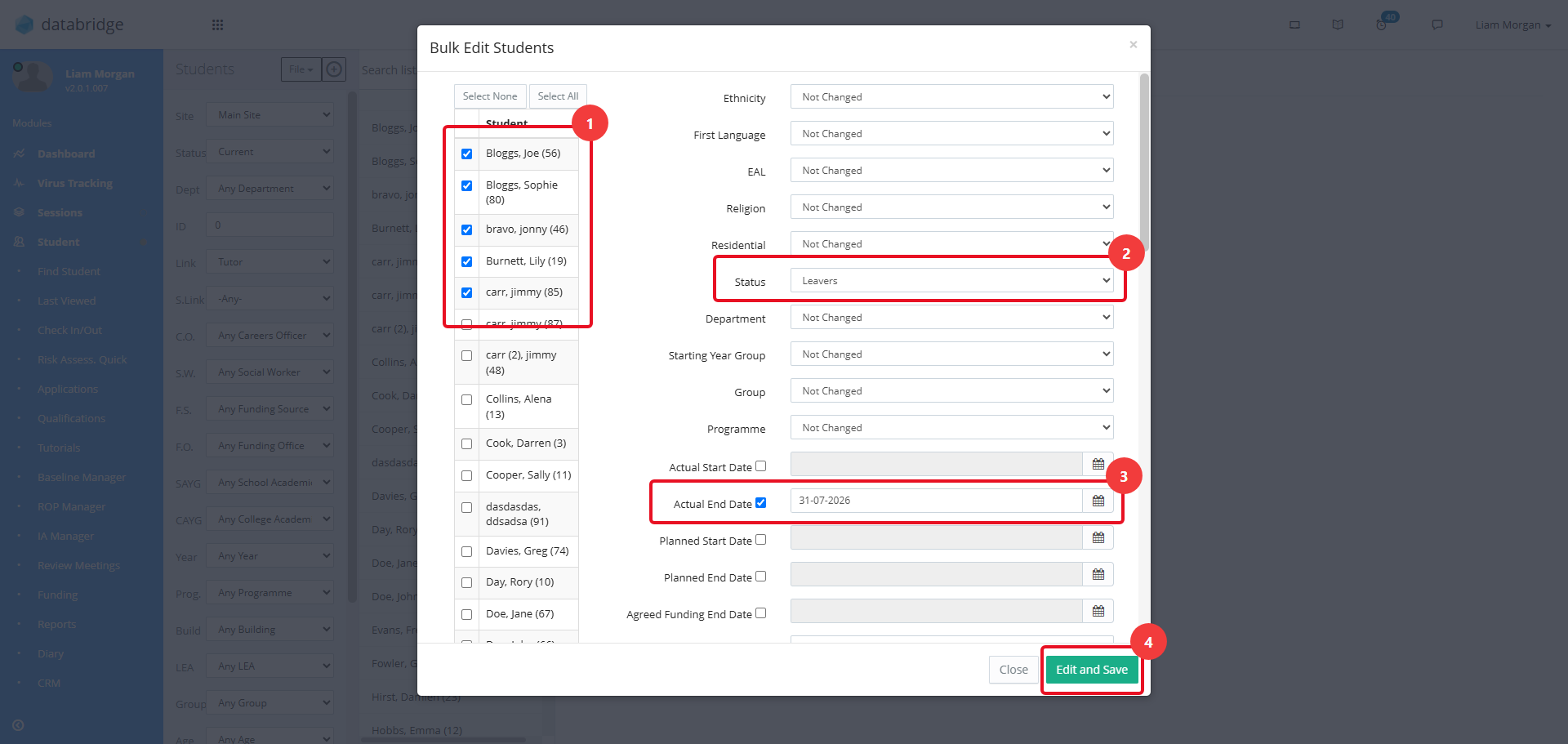
2. Select the relevant Students by clicking the checkbox next to their name(s). Change the Status dropdown to the appropriate status. Tick the Actual End Date checkbox and enter the end date which will apply to the selected Students. Then, click Edit and Save.
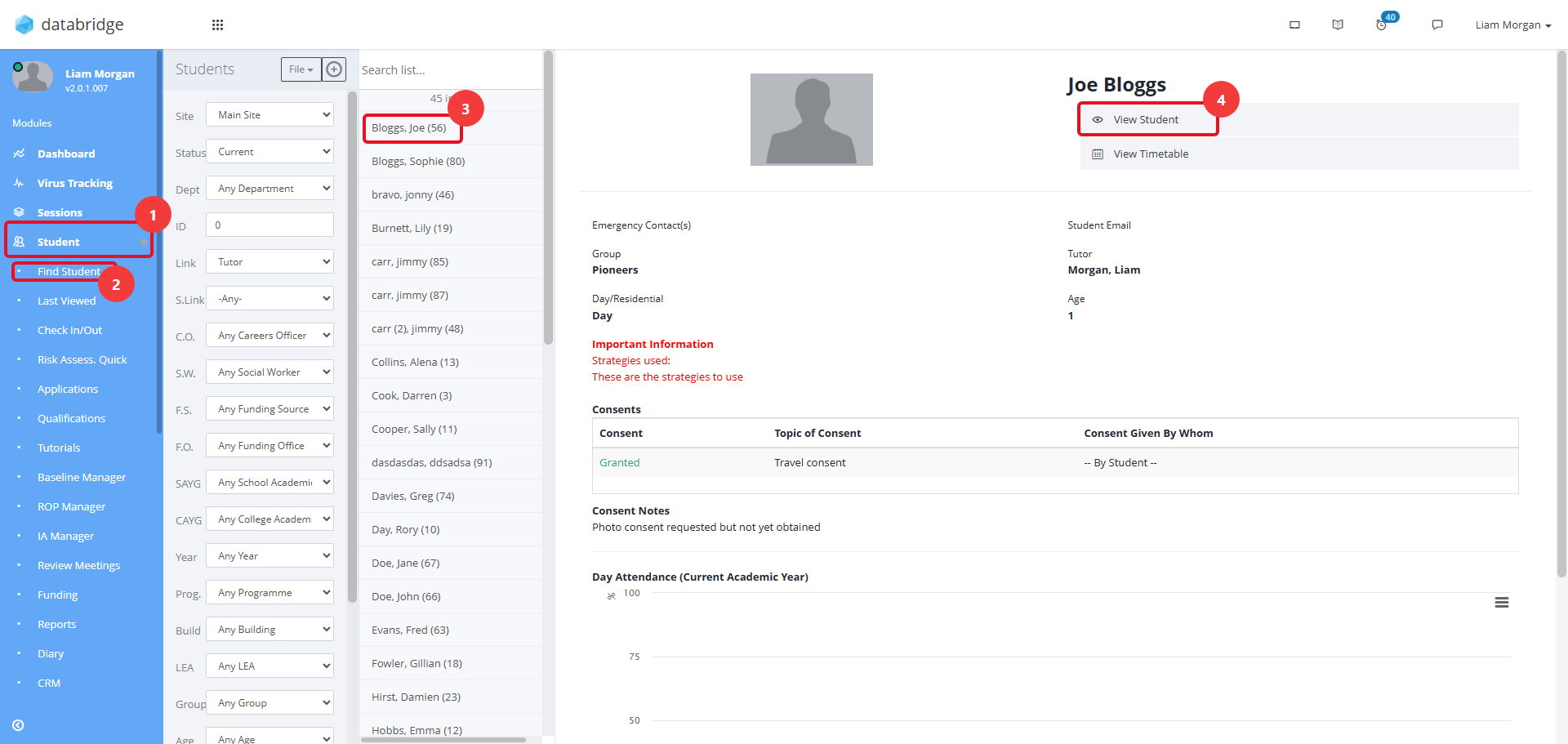
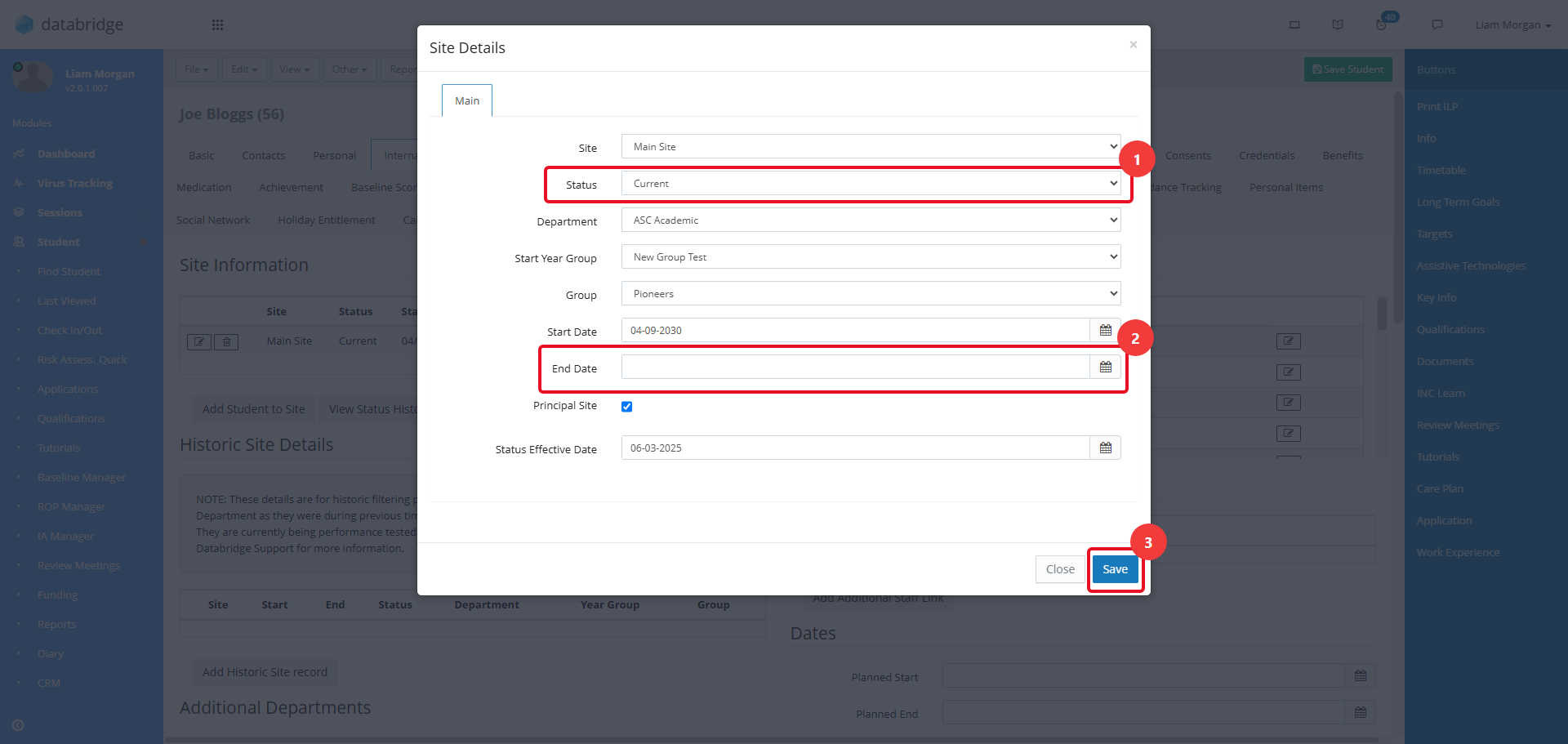
3. If either of these fields need to be changed on an individual basis, they can both be found on the Internal Tab of the Student Record. Navigate to Student > Find Student > *Student Name* > Student
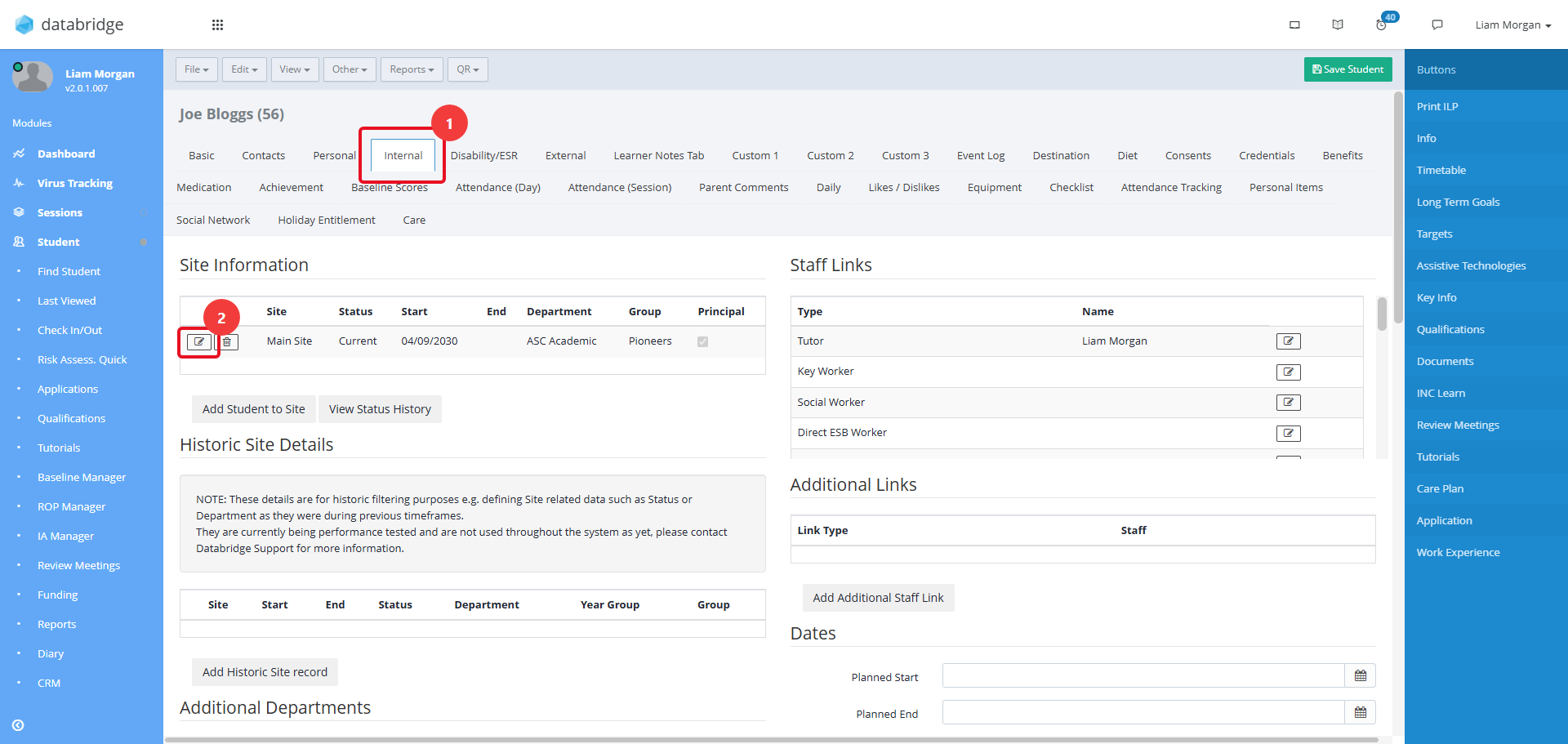
4. Click the Internal Tab and then click the Notepad Icon within Site Information.
5. Edit the fields as needed, then click Save.
Managing New Students
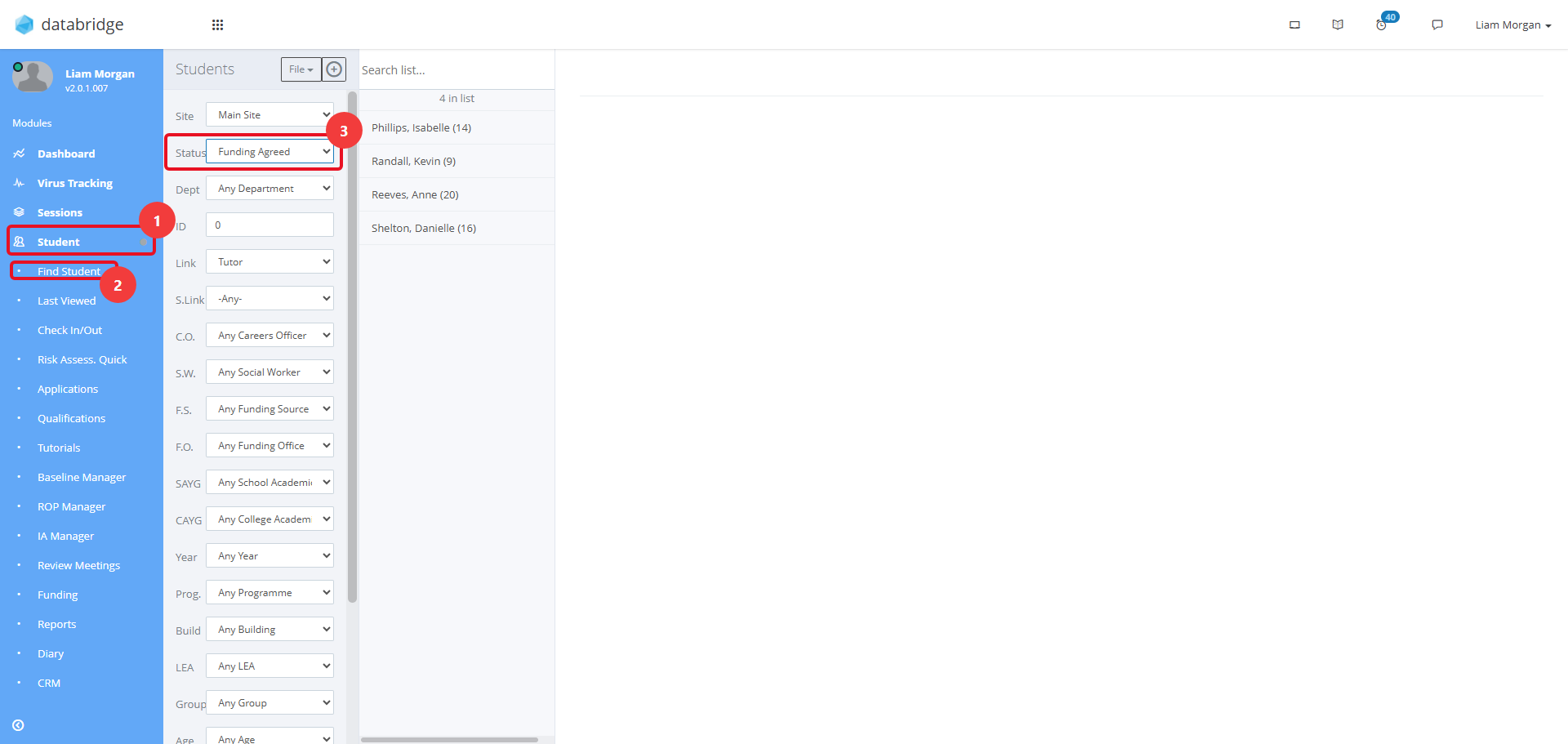
1. If you have been capturing the information for prospective students on Databridge, you simply need to change their status and add a start date. First, navigate to Student > Find Student and Change the Status dropdown to whatever status your prospective Students are being held in
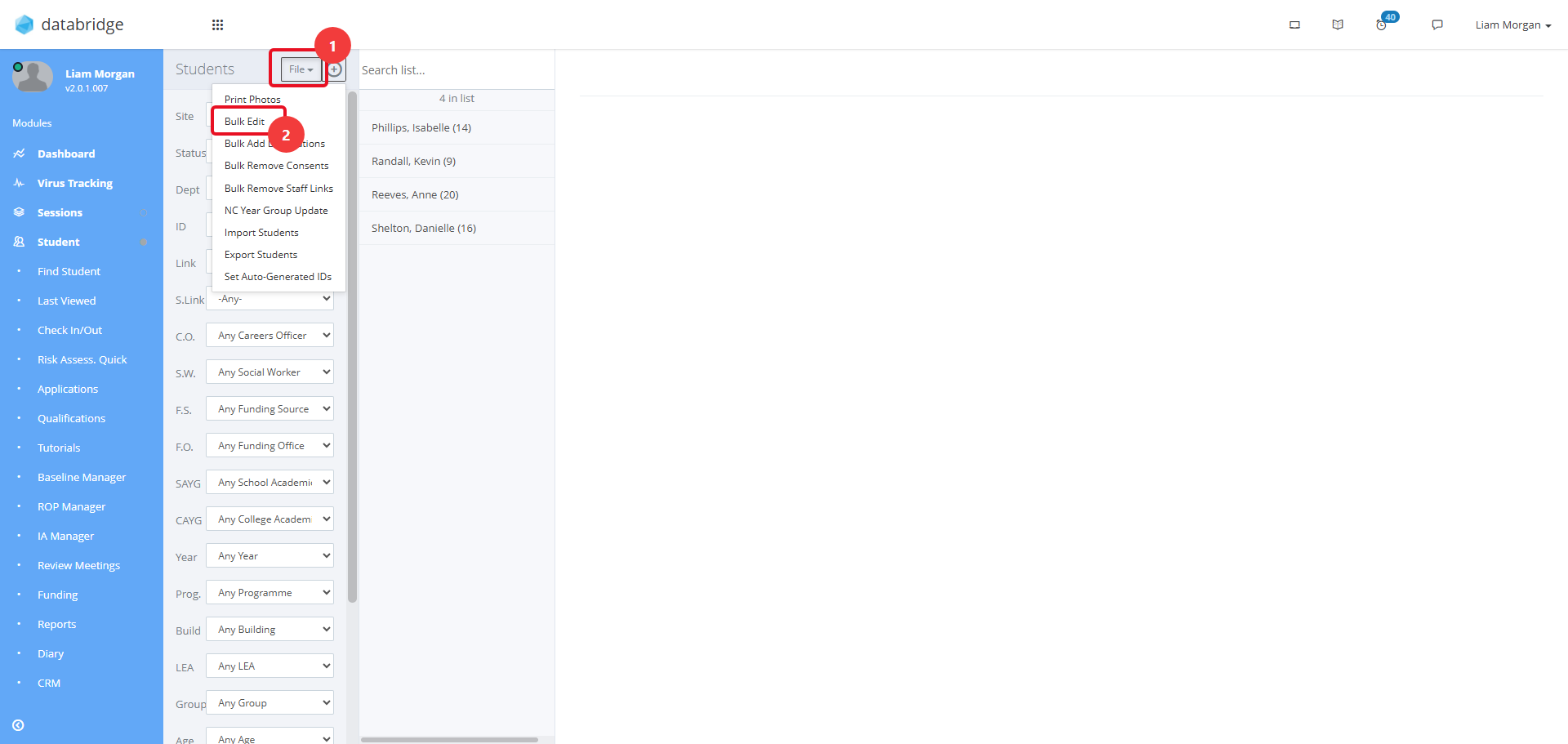
2. Click File > Bulk Edit.
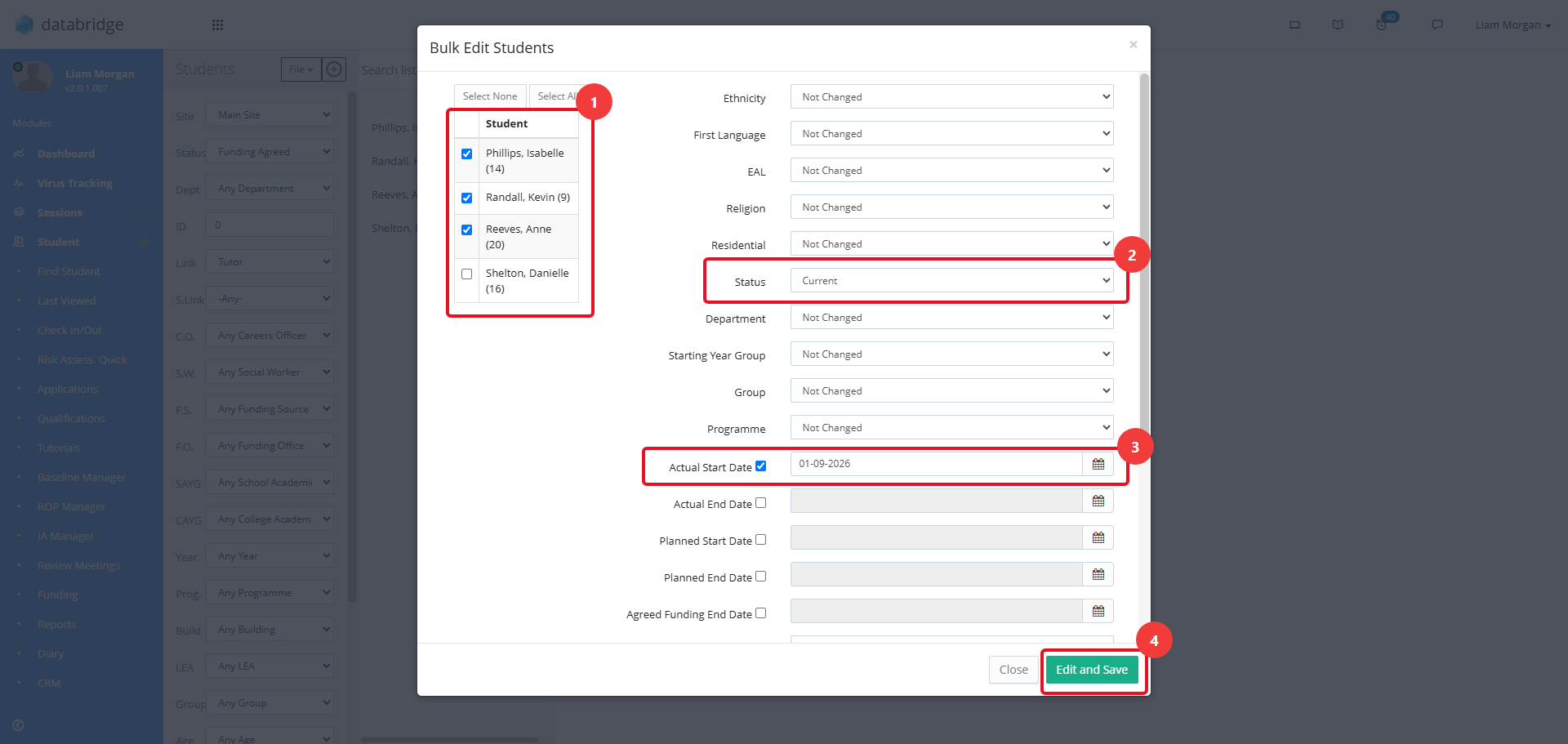
3. Select the relevant Students by clicking the checkbox next to their name(s). Change the Status dropdown to the appropriate status. Tick the Actual Start Date checkbox and enter the end date which will apply to the selected Students. Then, click Edit and Save.
4. If either of these fields need to be changed on an individual basis, they can both be found on the Internal Tab of the Student Record. Navigate to Student > Find Student > *Student Name* > Student
5. Click the Internal Tab and then click the Notepad Icon within Site Information.
6. Edit the fields as needed, then click Save.
Was this article helpful?
That’s Great!
Thank you for your feedback
Sorry! We couldn't be helpful
Thank you for your feedback
Feedback sent
We appreciate your effort and will try to fix the article