This guide will look at the Print ILP screen in Databridge for producing an individual learning plan.
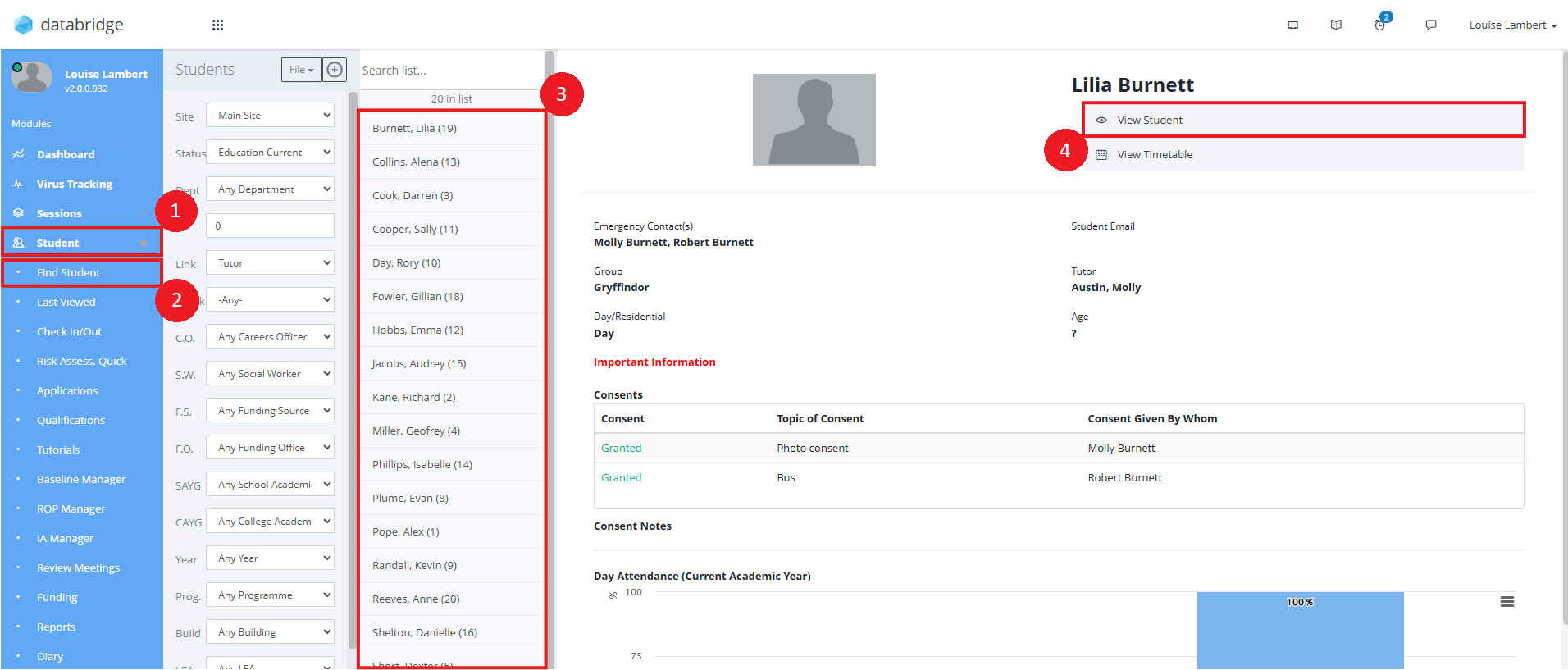
1. To access the Print ILP screen, first navigate to a Student's record via Student > Find Student > *Selecting the relevant student from the list* > View Student
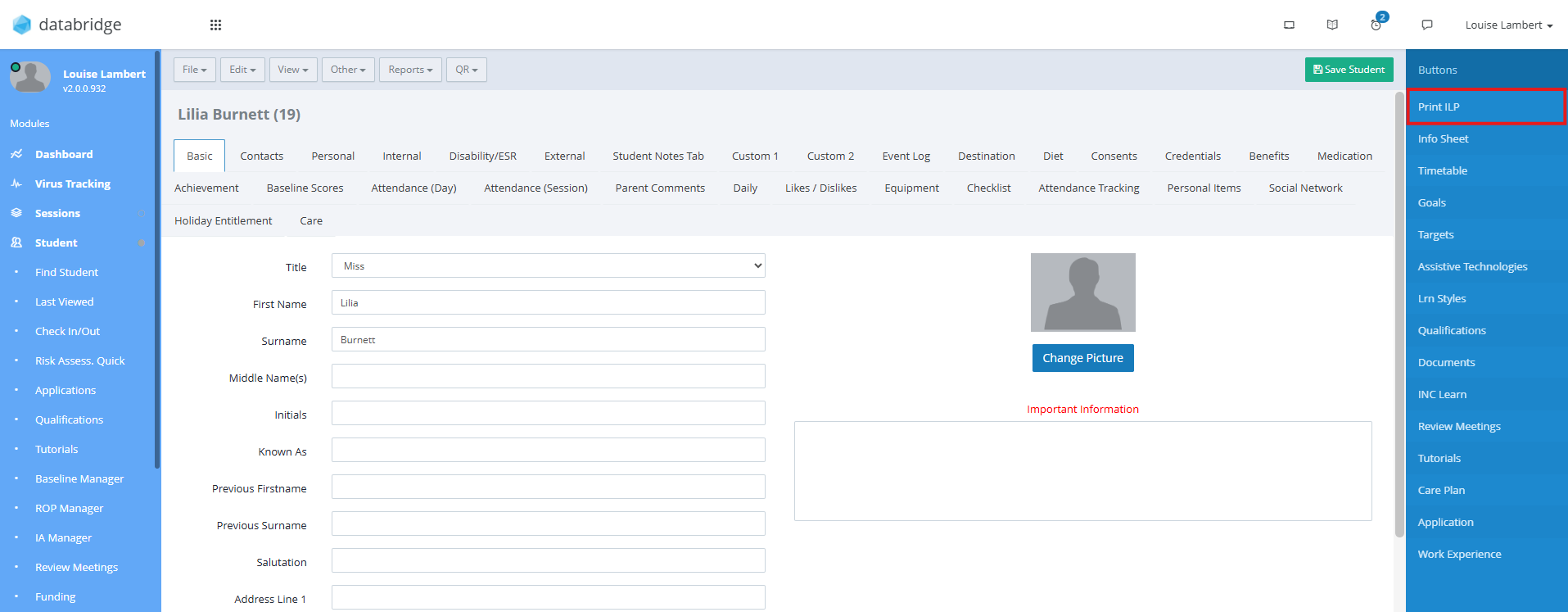
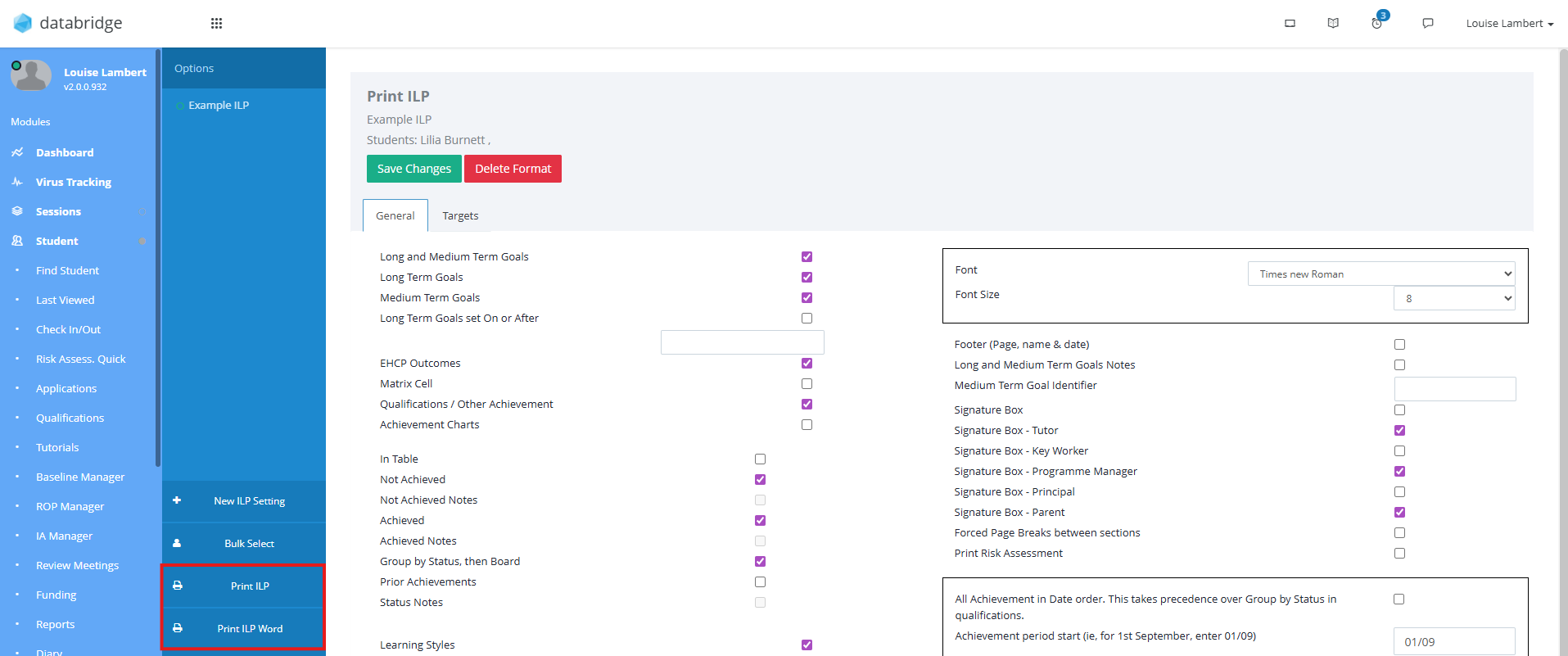
2. Select Print ILP on the right hand side.
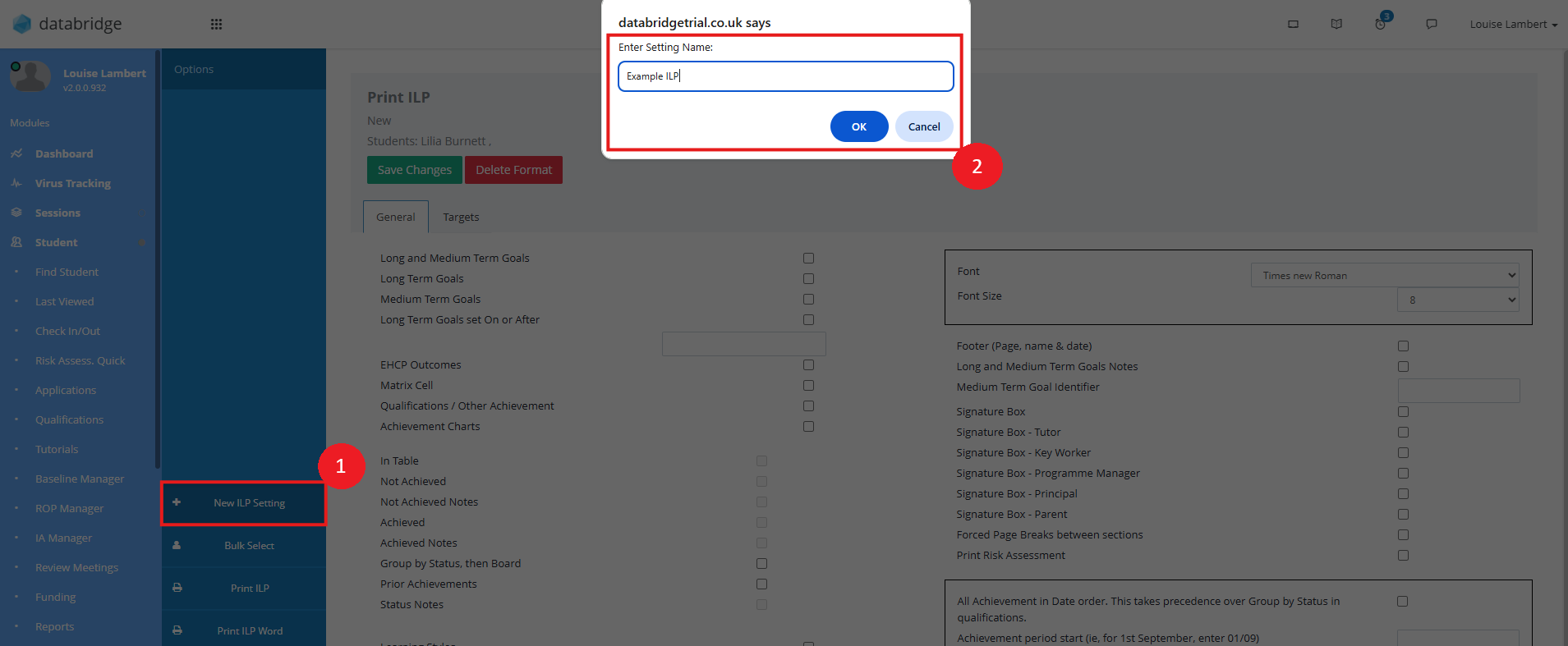
3. Click + New ILP Setting, give it a title and click OK
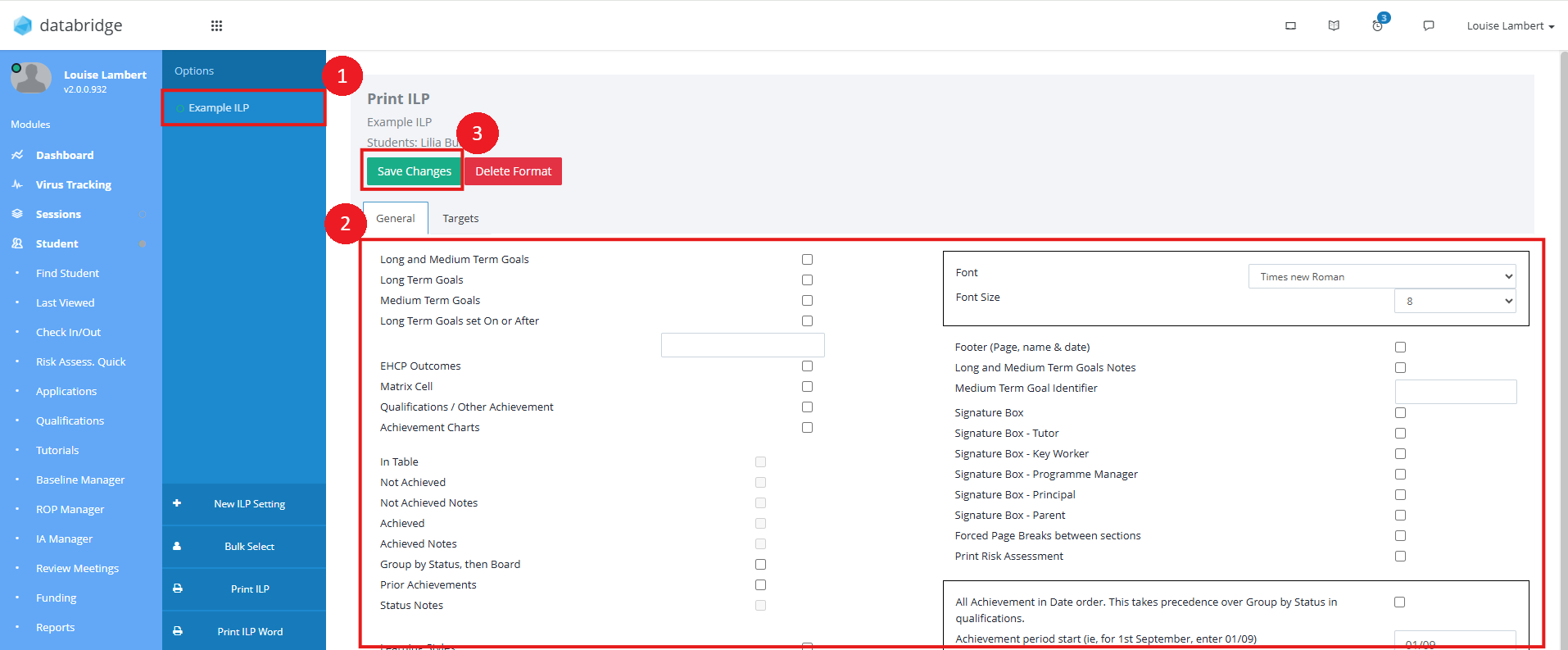
4. This setting will now appear in the list on the left hand side. Click on the title and use the checkboxes on the right to select the options you wish to include on the ILP. Once you are happy with these, click Save Changes.
5. To print this plan, click either Print ILP to print as a PDF or Print ILP Word to print to Word.
6. If you wish to print more than one ILP at once, you can click Bulk Select, tick all relevant Students and click Select.
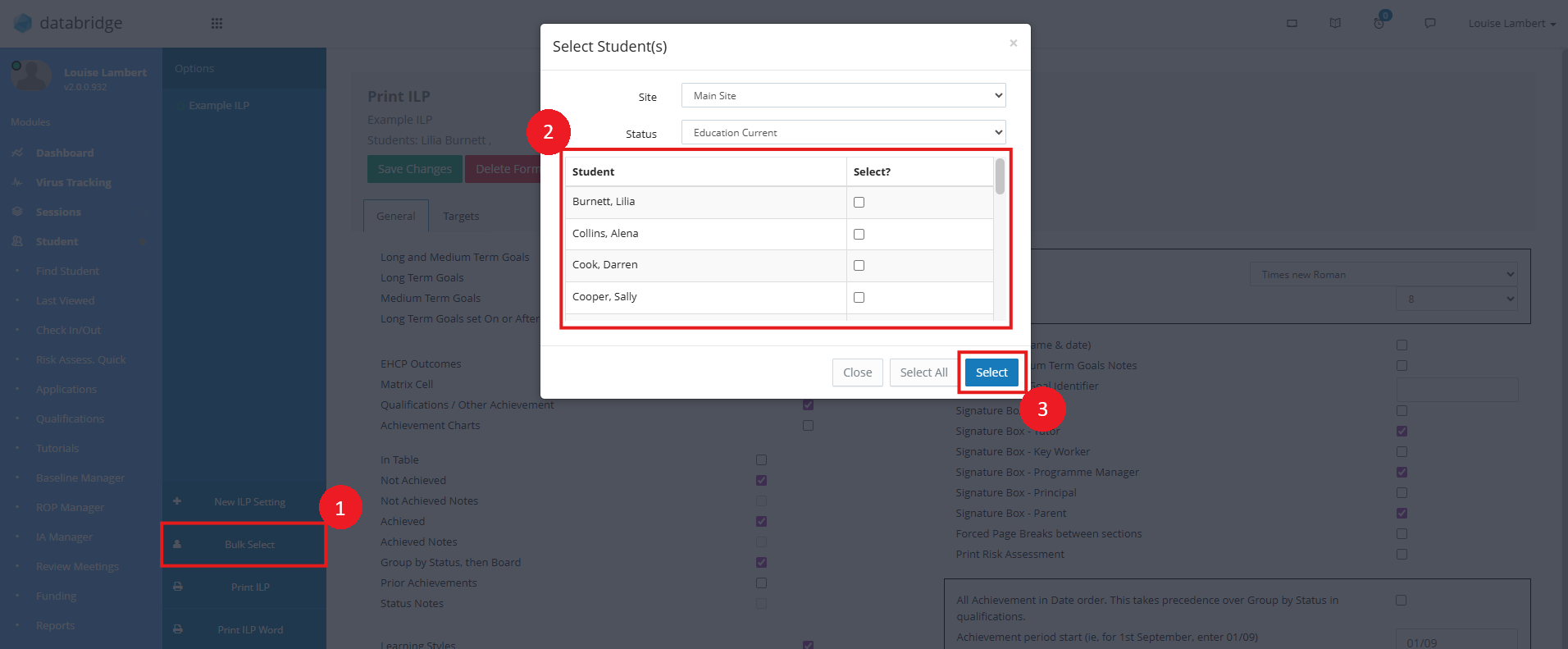
The selected Student's will now appear at the top of the screen and when you Print using either option, it will do so for all the Students selected.
Was this article helpful?
That’s Great!
Thank you for your feedback
Sorry! We couldn't be helpful
Thank you for your feedback
Feedback sent
We appreciate your effort and will try to fix the article