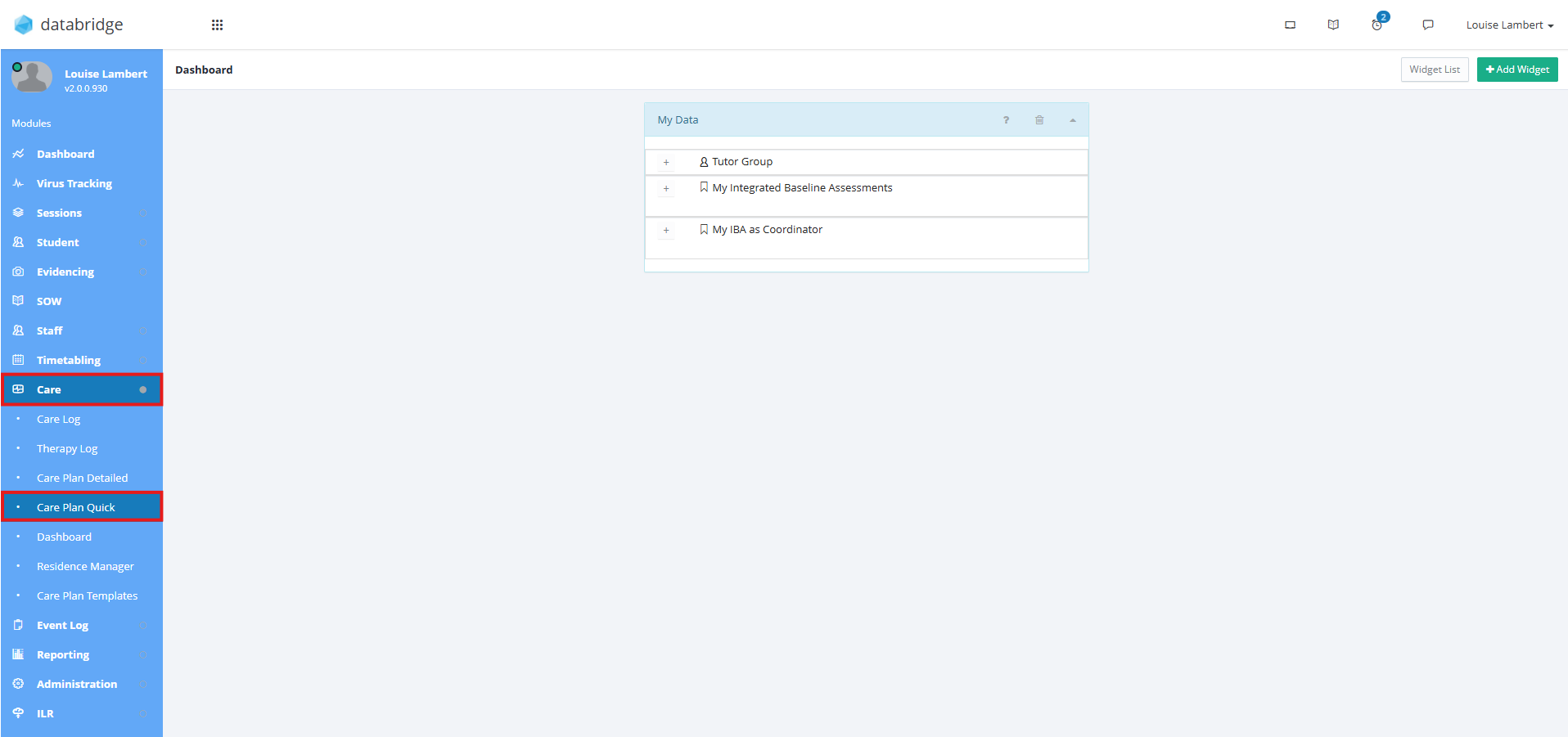
This guide will look at how to use the Care Plan Quick screen within Databridge. This area is used to easily view Student's Care Plans and has no edit function.
1. First, navigate to Care > Care Plan Quick
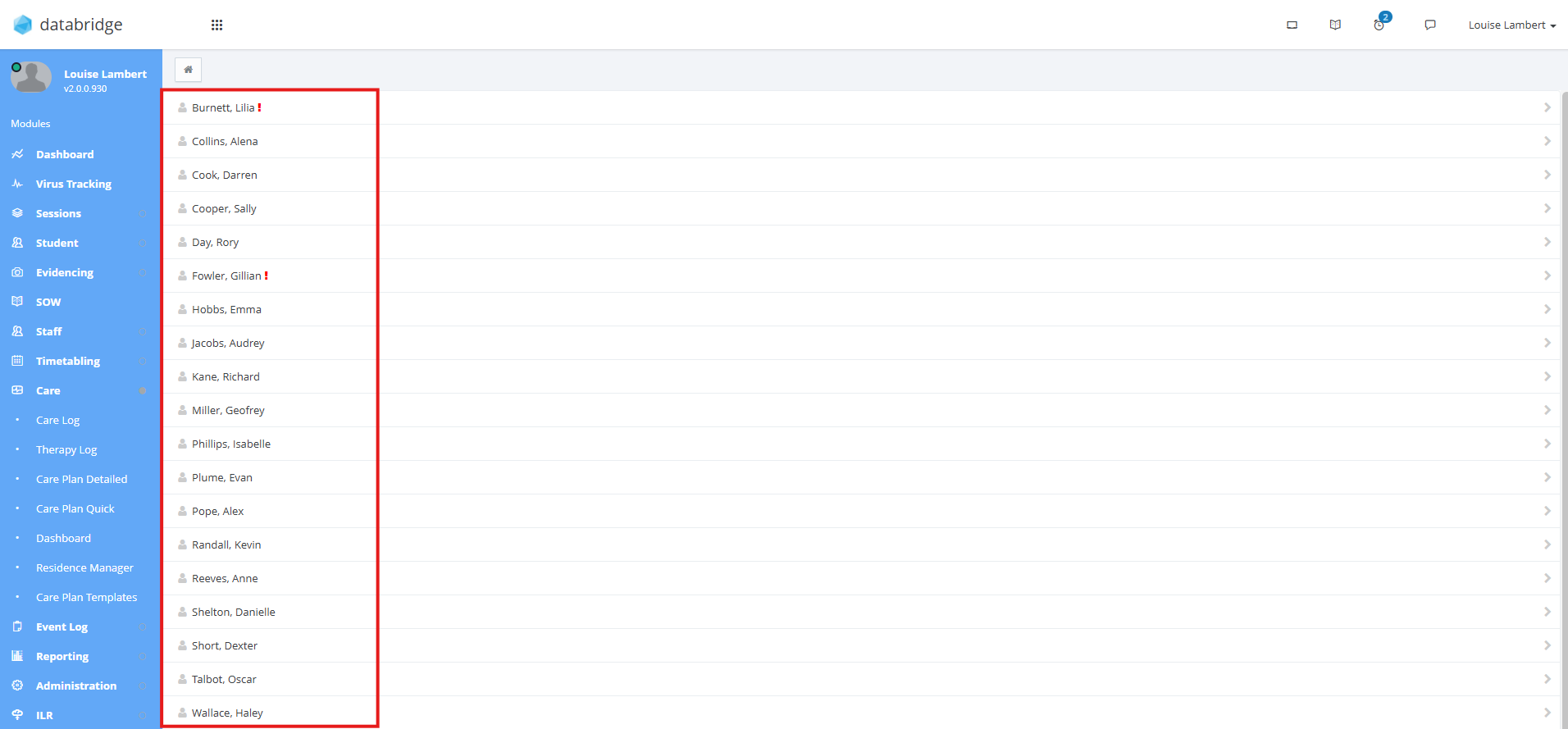
2. Each Student will appear on screen in a list. If there is information within a Student's Care Plan you have not yet viewed, a Red Exclamation Mark will appear next to their name. Click on the Student who's Care Plan you wish to view.
Note:
To turn on these read receipts, head to Administration > Policies > System Policies > Care Plan Policies and tick Require staff to confirm read of Statements (v2)
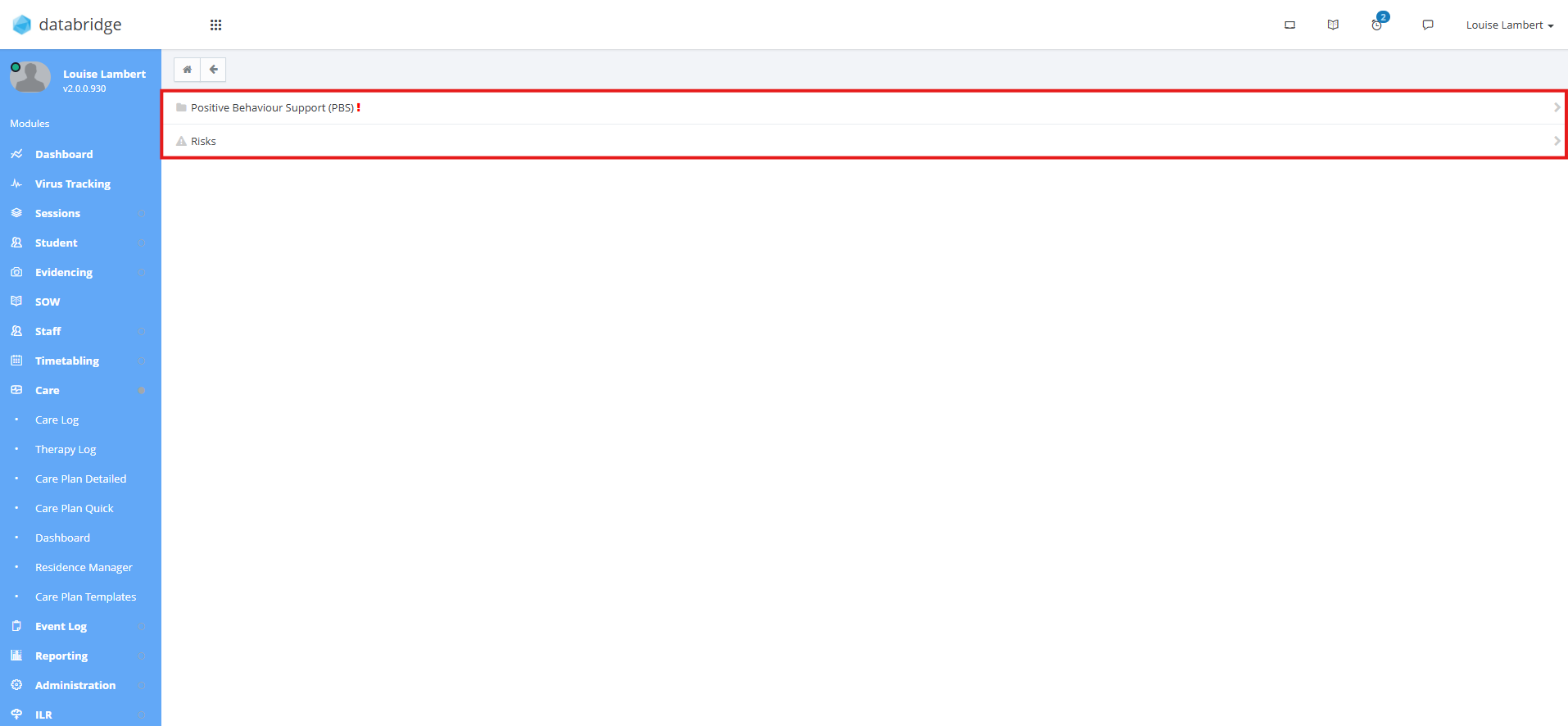
3. This will bring up a list of all the Categories in their Care Plan, and any Risk Assessments. Click on the Category to view the Statements attached to it.
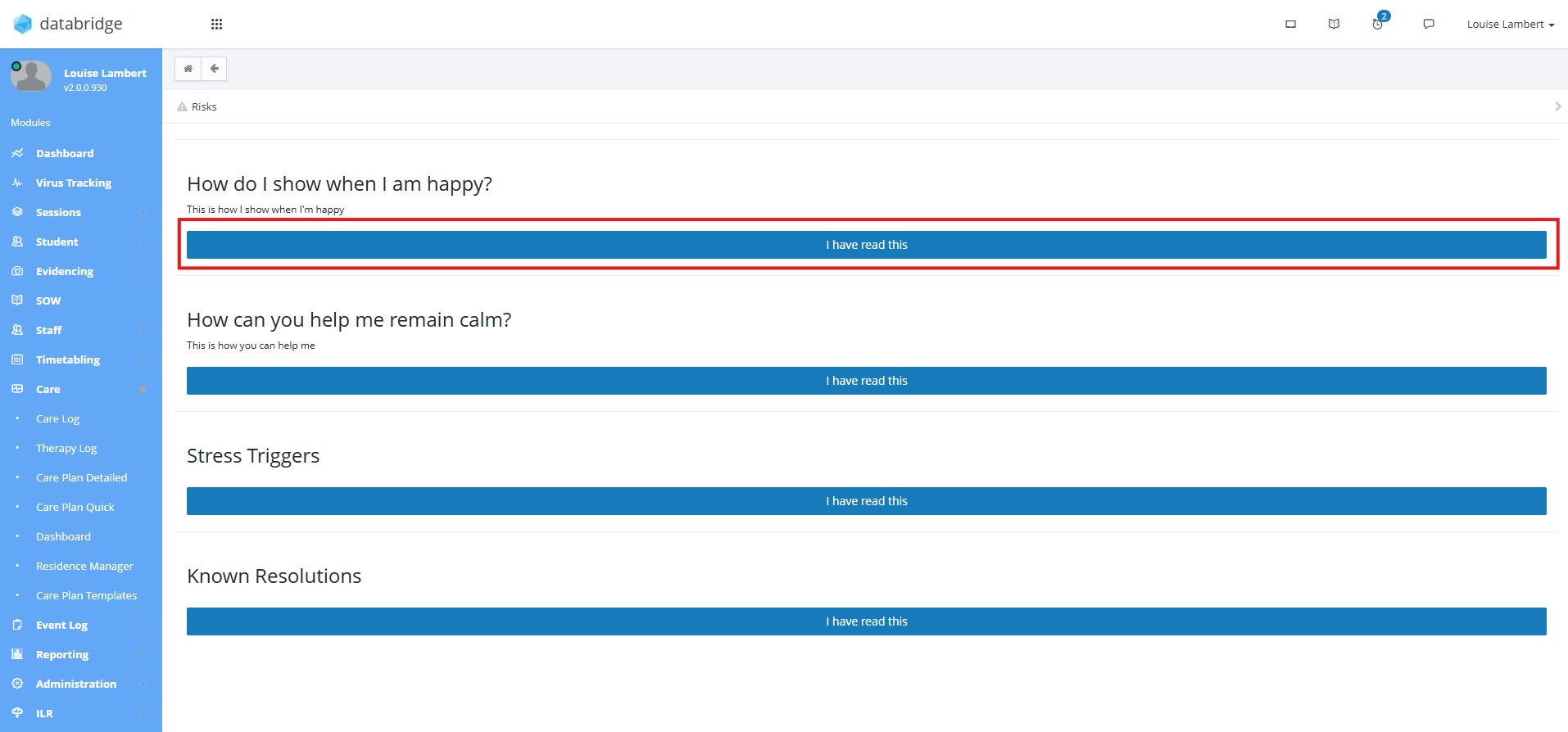
4. Here, you can view the Care Statements and click 'I have read this' to confirm you have seen this information.
Was this article helpful?
That’s Great!
Thank you for your feedback
Sorry! We couldn't be helpful
Thank you for your feedback
Feedback sent
We appreciate your effort and will try to fix the article