This guide will look at how to use the Governance Report Builder. This area of the system allows you to compile information from multiple areas, such as Attendance, Event Logs and Targets, into a single report.
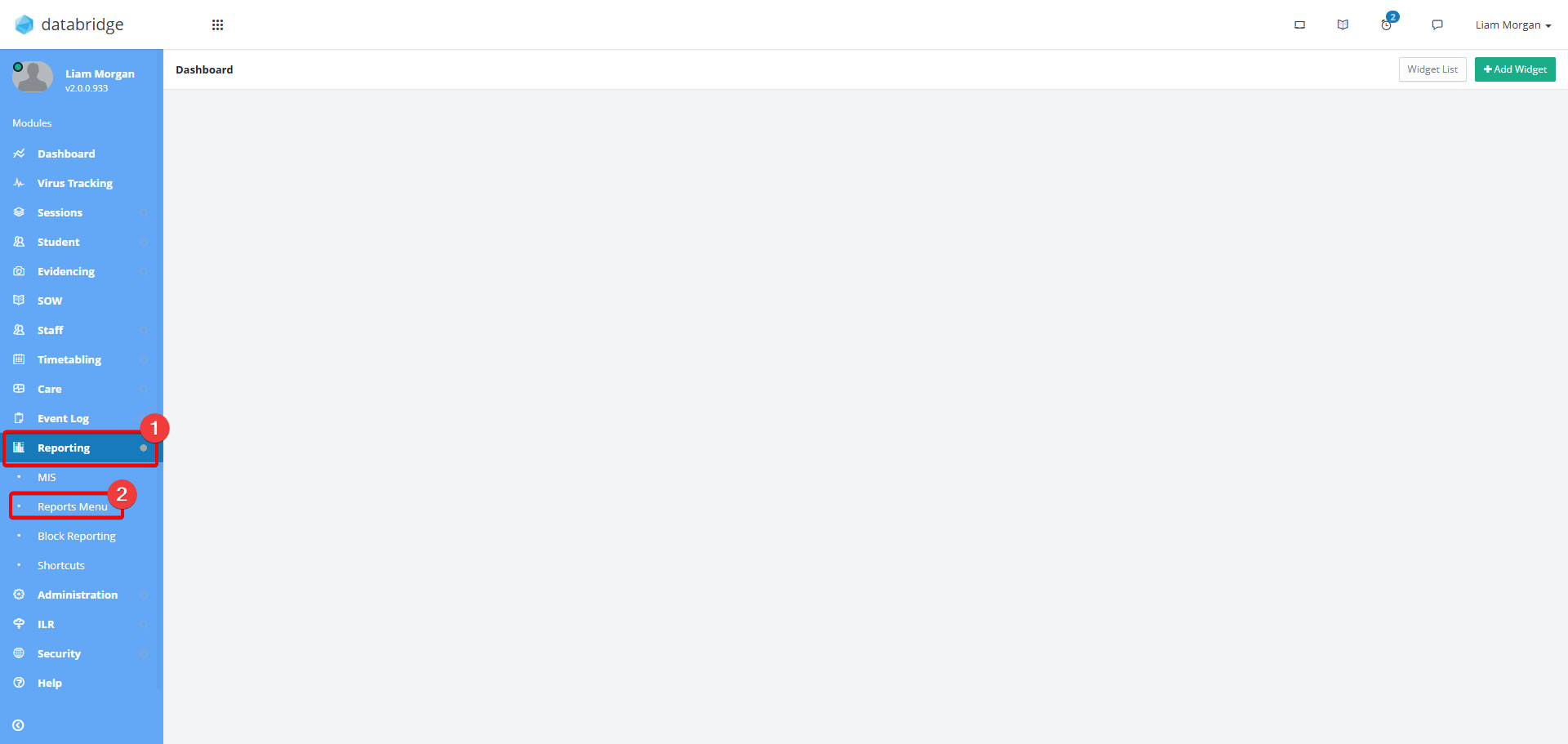
1. First, navigate to Reporting > Reports Menu.
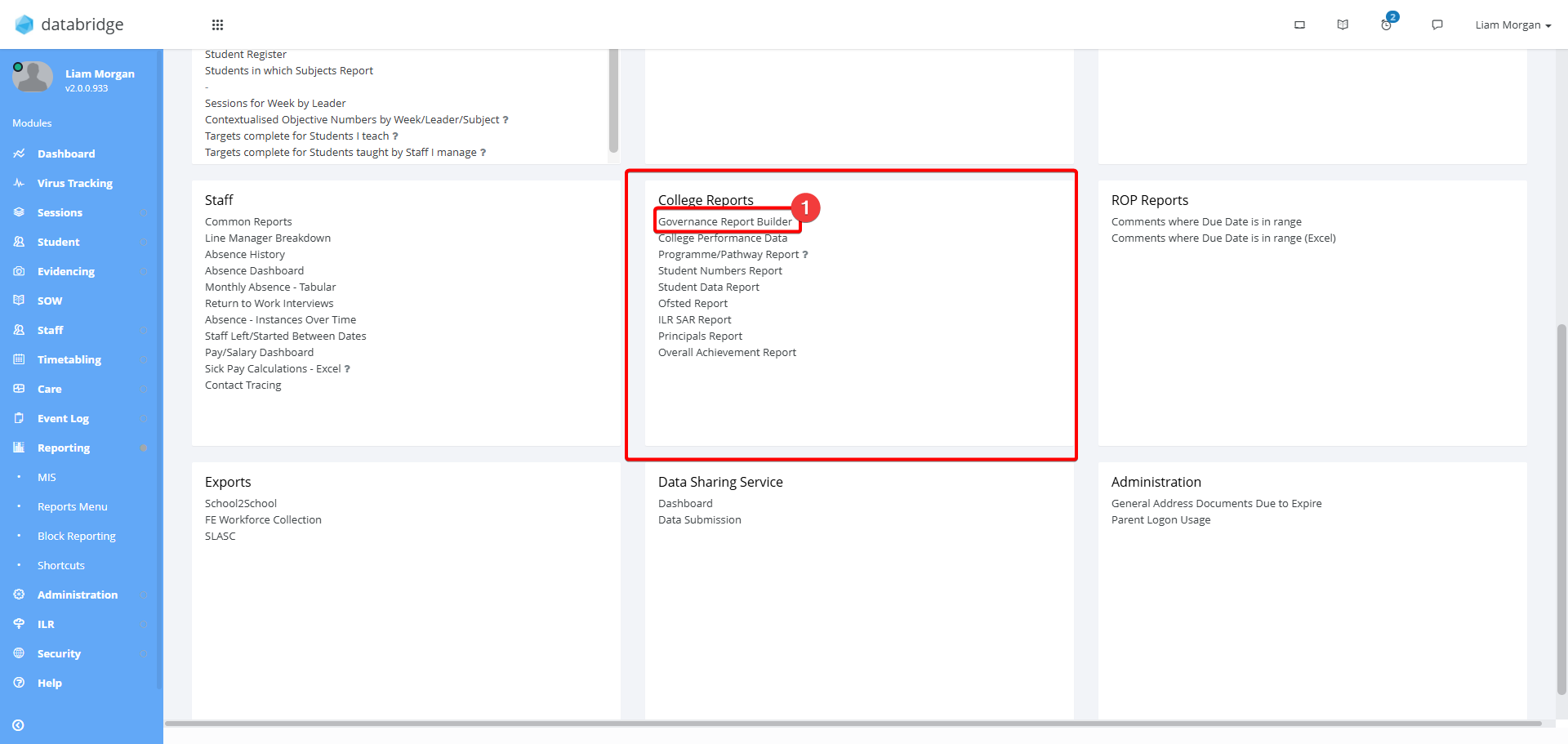
2. Within the College Reports section, click Governance Report Builder.
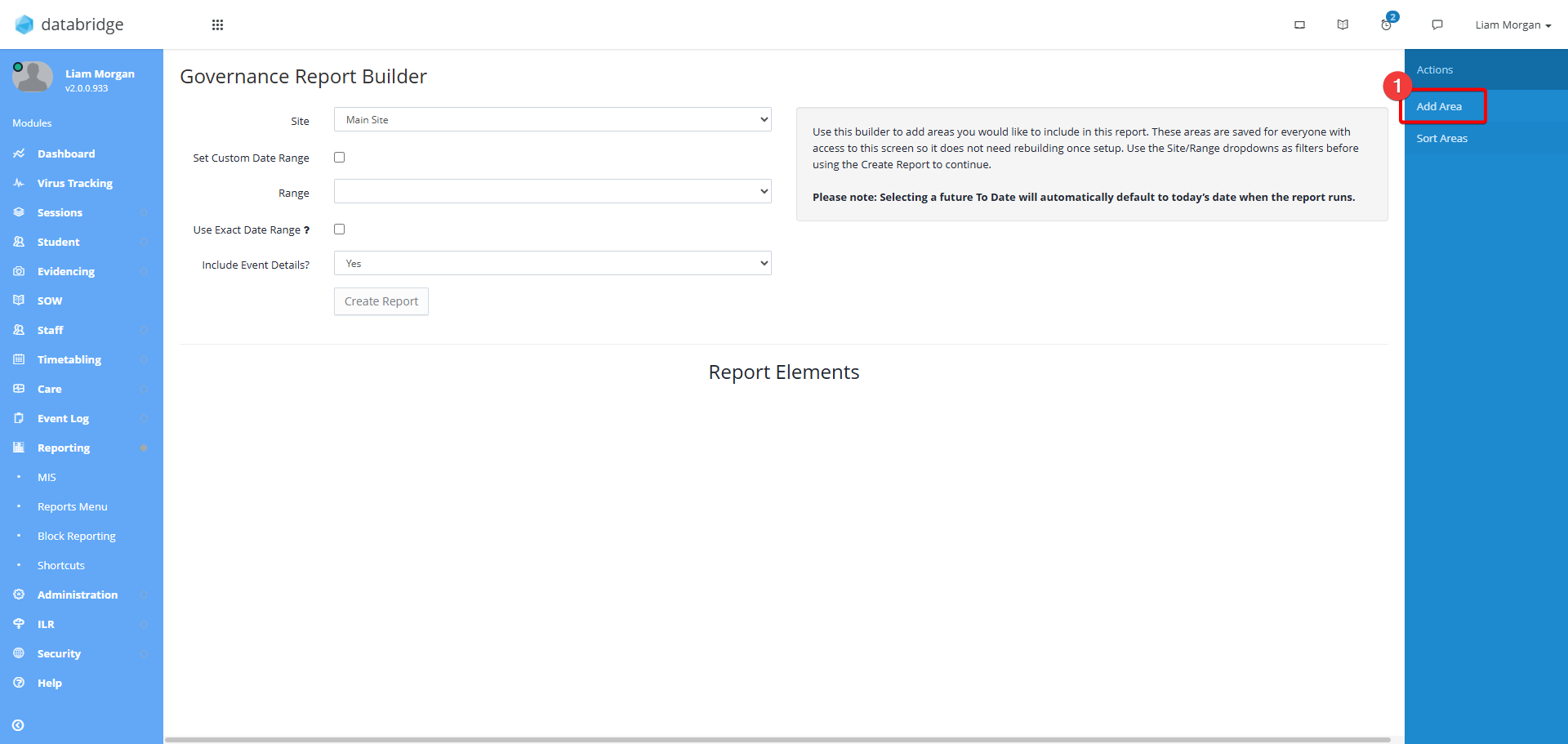
3. To build the structure of your report, click Add Area from the right hand side of the screen.
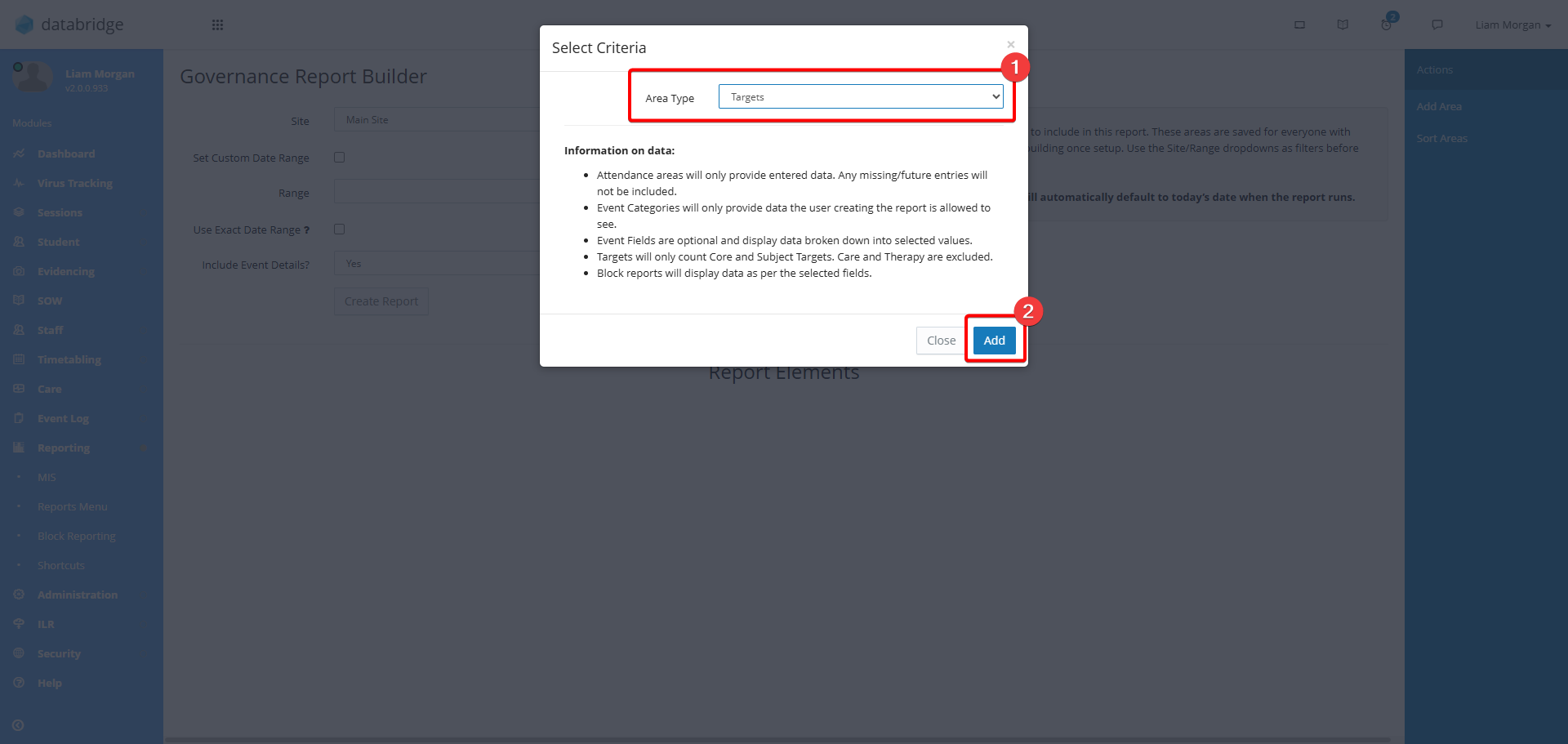
4. Select the relevant area from the Area Type dropdown menu, then click Save. Selecting Block Report or Event Category will prompt another dropdown menu to be filled in where you select a particular Event Log Category or Block Report.
5. The newly added area will now appear on screen. Repeat this process as needed to add all the desired areas of the report. Clicking the Trash Icon will remove an area, and you can click Sort Areas to rearrange their order.
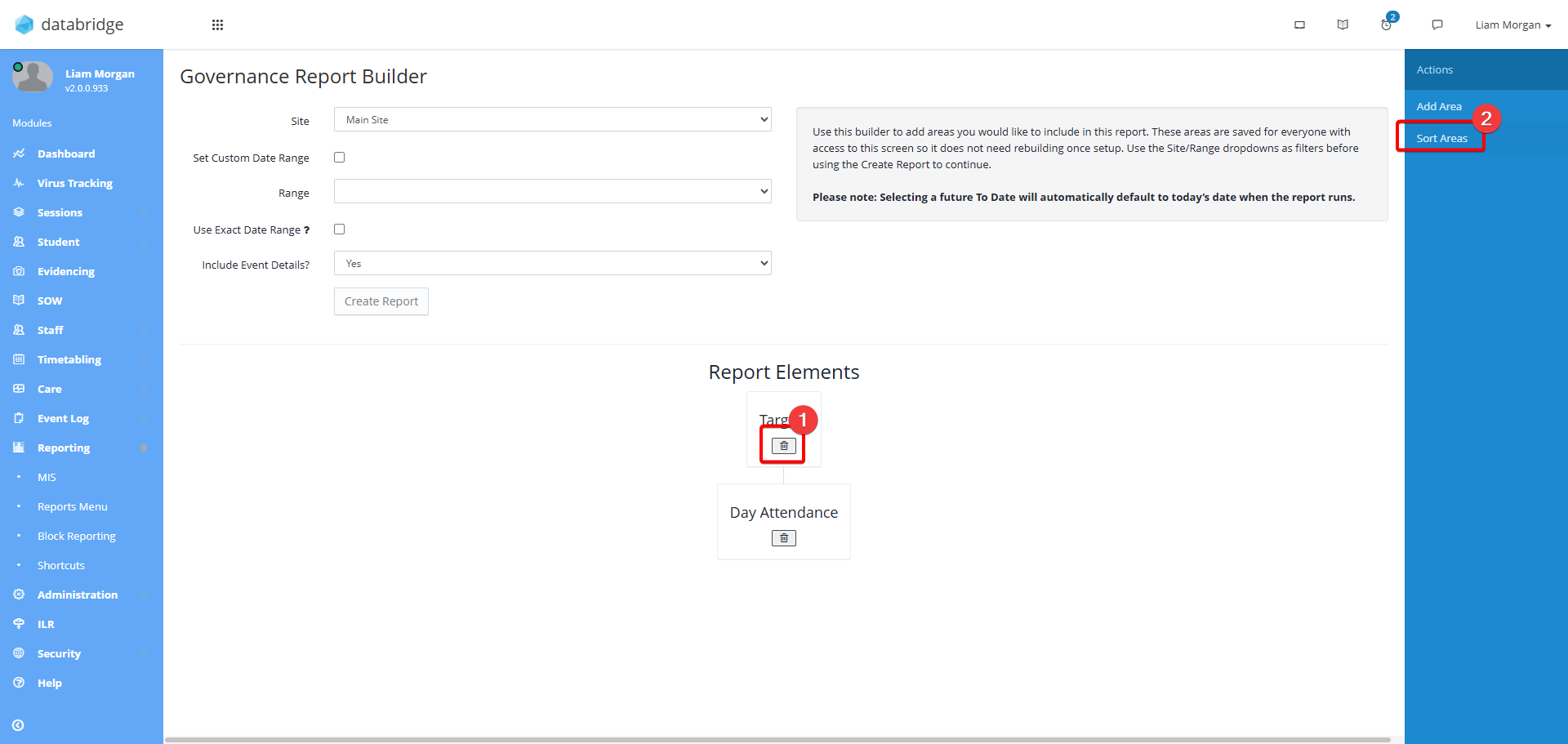
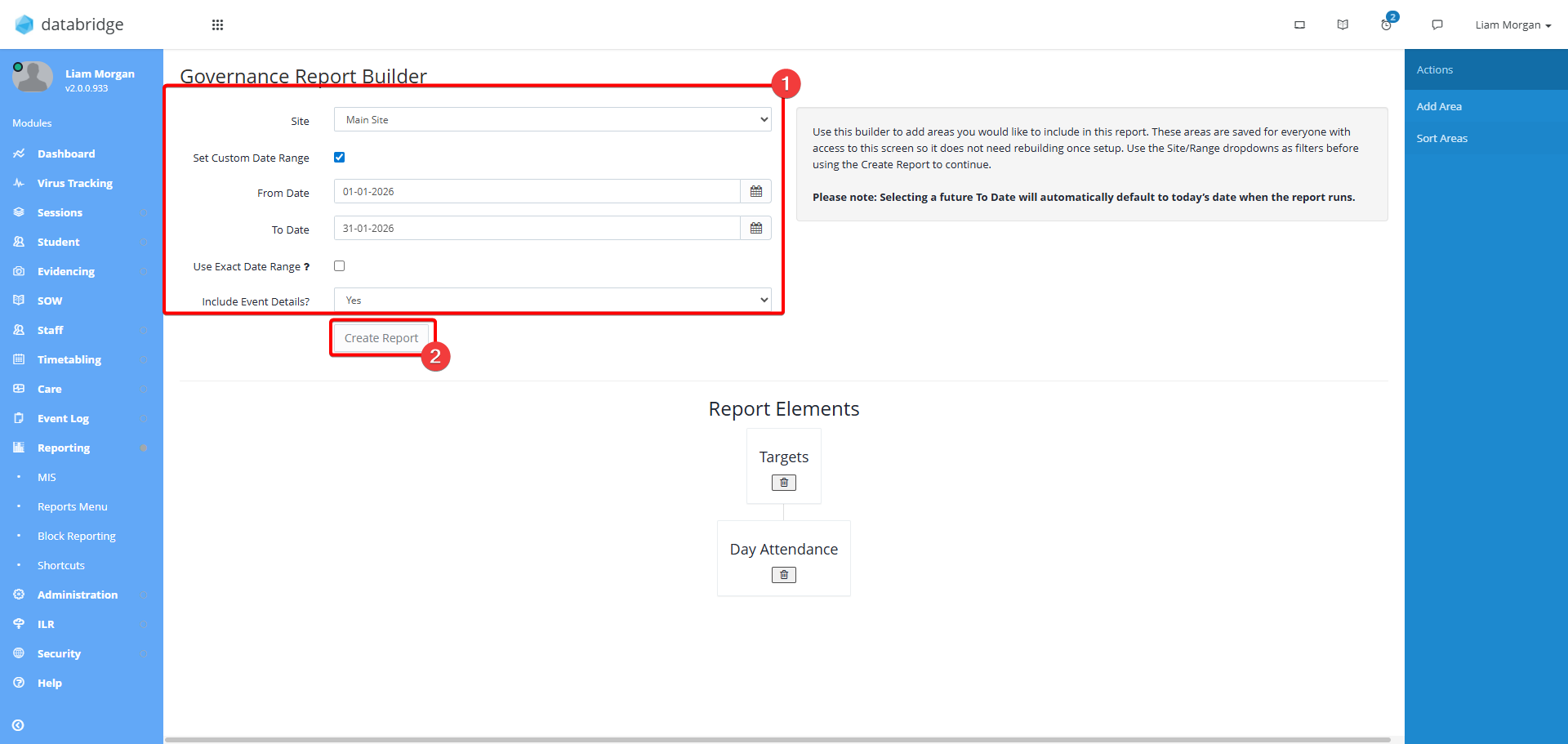
6. Before running the report, lastly select your filters from the dropdown at the top of the screen:
- Site - Select the Site that you want to report to pull information for
- Range - Select a date range for the report. This can either be custom by ticking the Use Custom Date Range checkbox, or can use pre-set date ranges that pull from Standard Values >Term Dates.
- Include Event Details - Selecting Yes here will pull through the information typed into the Main Details box within from any Event Logs being reported on.
Once the filters are set - Lastly, click Create Report.
Was this article helpful?
That’s Great!
Thank you for your feedback
Sorry! We couldn't be helpful
Thank you for your feedback
Feedback sent
We appreciate your effort and will try to fix the article