This guide will look at the Staff Applications screen which is used to record any prospective Staff Members.
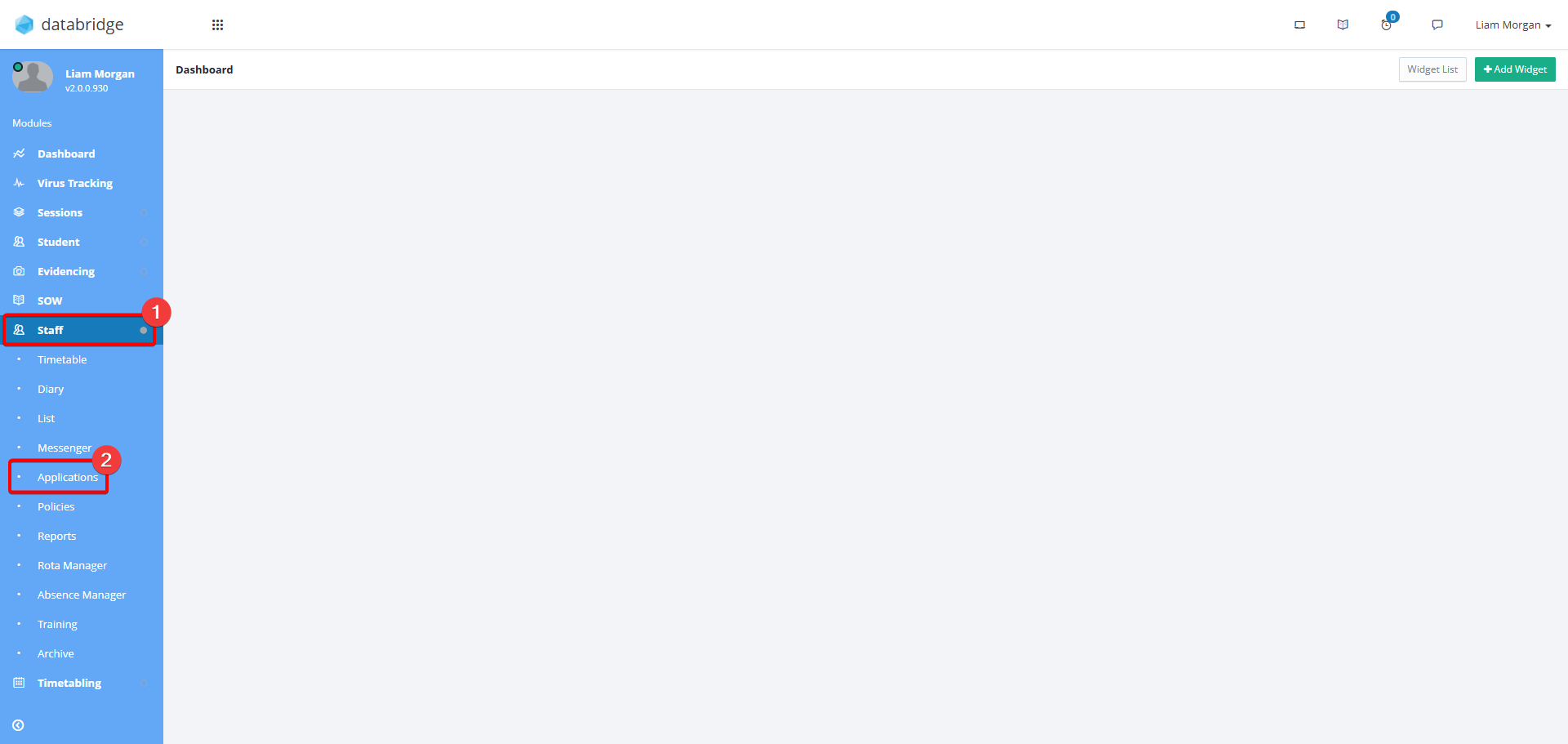
1. Before any Applicants can be added, a Vacancy first needs to be created. Navigate to Staff > Applications.
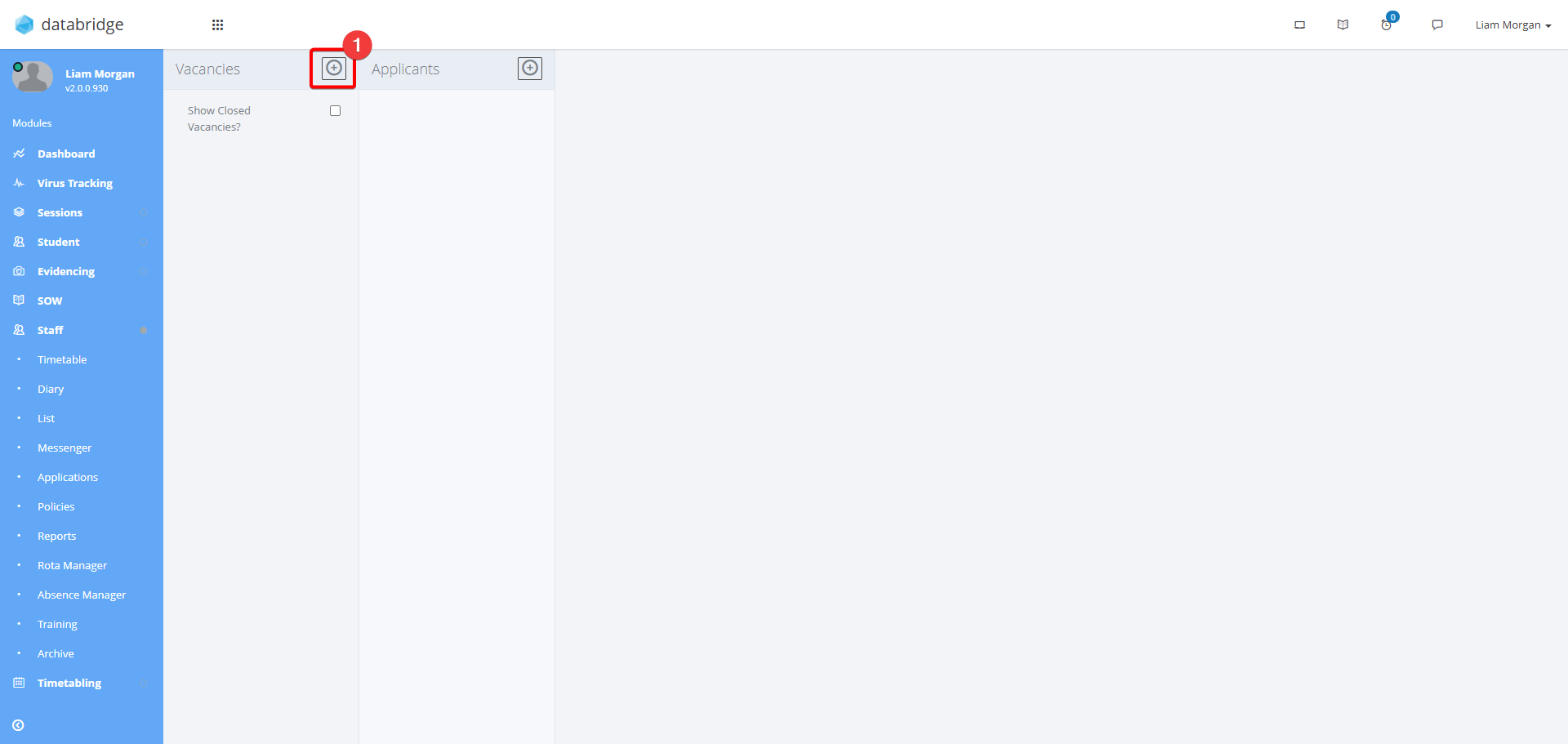
2. Click the + Icon next to Vacancies.
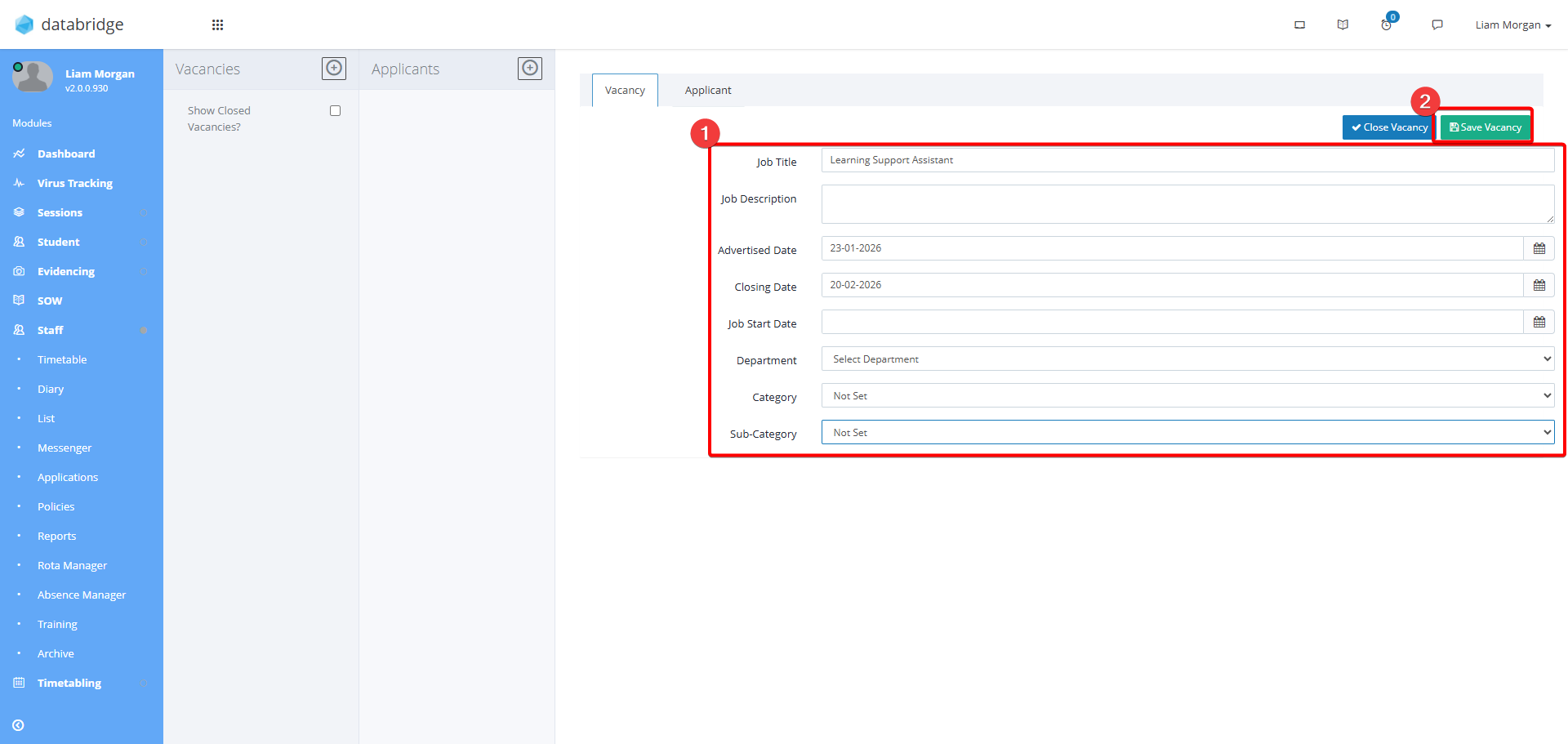
3. Enter the Vacancy details within the fields that appear, then click Save Vacancy.
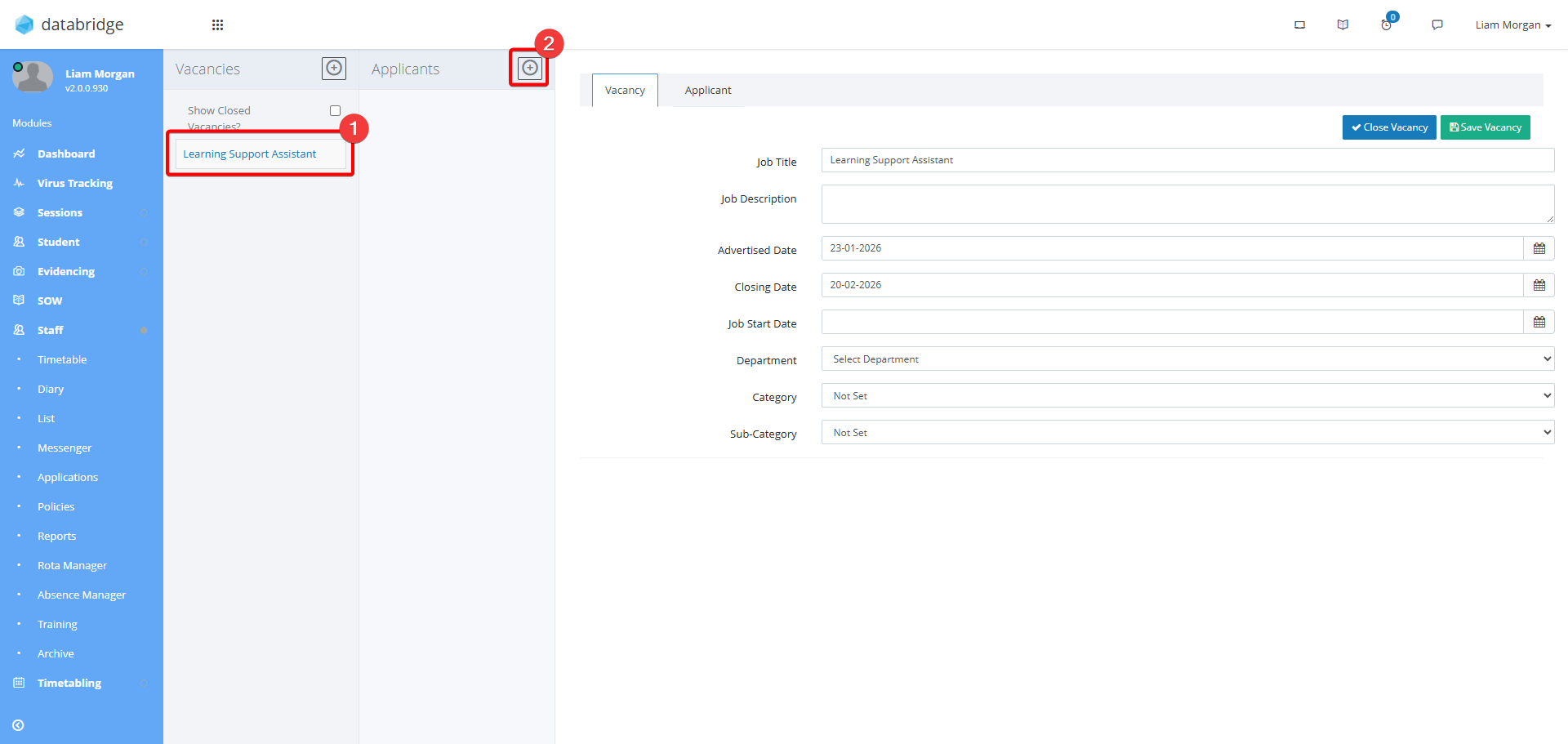
4. The Vacancy will now appear within the list on the left. To add applicant, first click the Vacancy then click the + Icon next to Applicants.
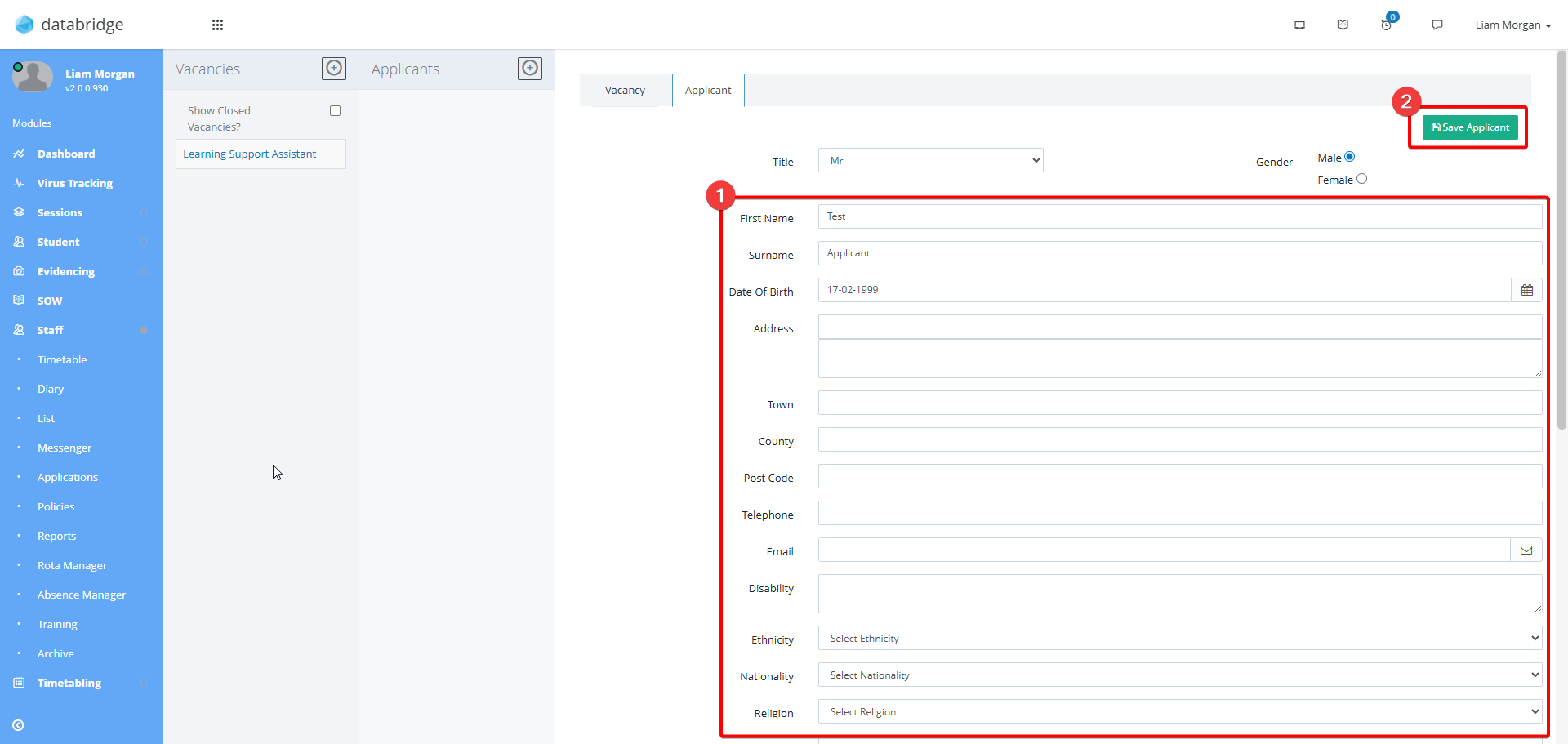
5. Enter the Applicant details within the fields that appear, then click Save Applicant.
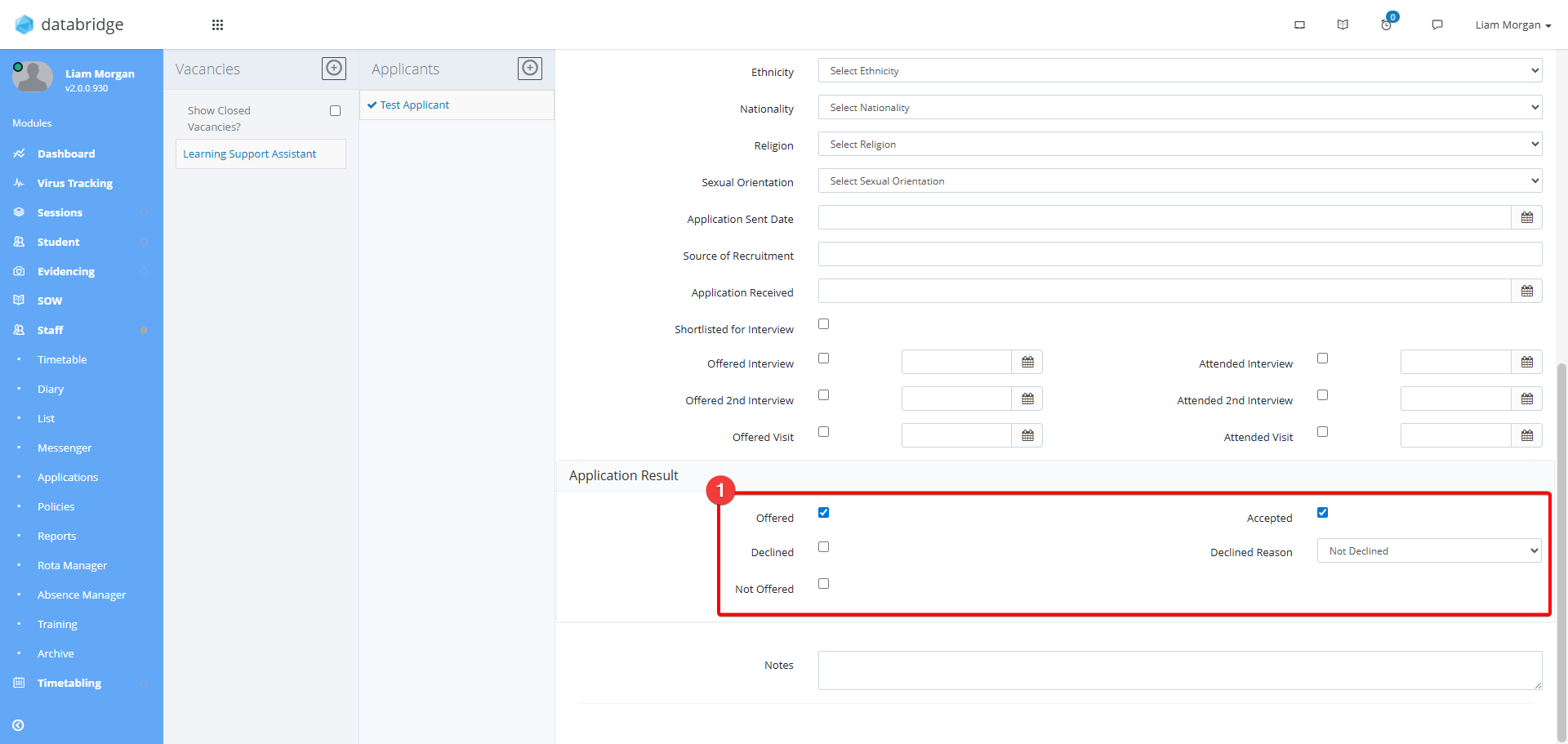
6. At the bottom of the Applicant fields there are checkboxes to record the result of the Application. Checking the Accepted Checkbox, then Save Changes will display a prompt to convert the Application into a Staff Record.
Was this article helpful?
That’s Great!
Thank you for your feedback
Sorry! We couldn't be helpful
Thank you for your feedback
Feedback sent
We appreciate your effort and will try to fix the article