Recording Staff Training and Qualifications
For Staff members you can record their qualifications, training, and any conferences they have attended. This includes recording any previously obtained qualifications, any they have obtained during their employment with your provision, as well as letting you plan any future qualifications.
To start adding qualifications and training, there is some setup work first required.
Configuring Qualifications
There are several configuration areas for Qualifications, and these can be found under Administration > Standard Values > Staff Values.
First is Qualification / Training Categories. Selecting this will generate a window where you are able to add categories such as GCSE and NVQ.

Selecting the ‘Add Value’ button will allow you to add the Categories you wish.
Selecting the ‘Show/Hide Deleted’ button will allow you to toggle view any previously removed Categories.
The second configurable area is Qualification / Training Providers. Selecting this will generate a window where you can view any already added Providers (Company or Organisation providing the Qualification) and add any new.

Selecting an already added Provider will lengthen the window showing all relevant details of said provider.
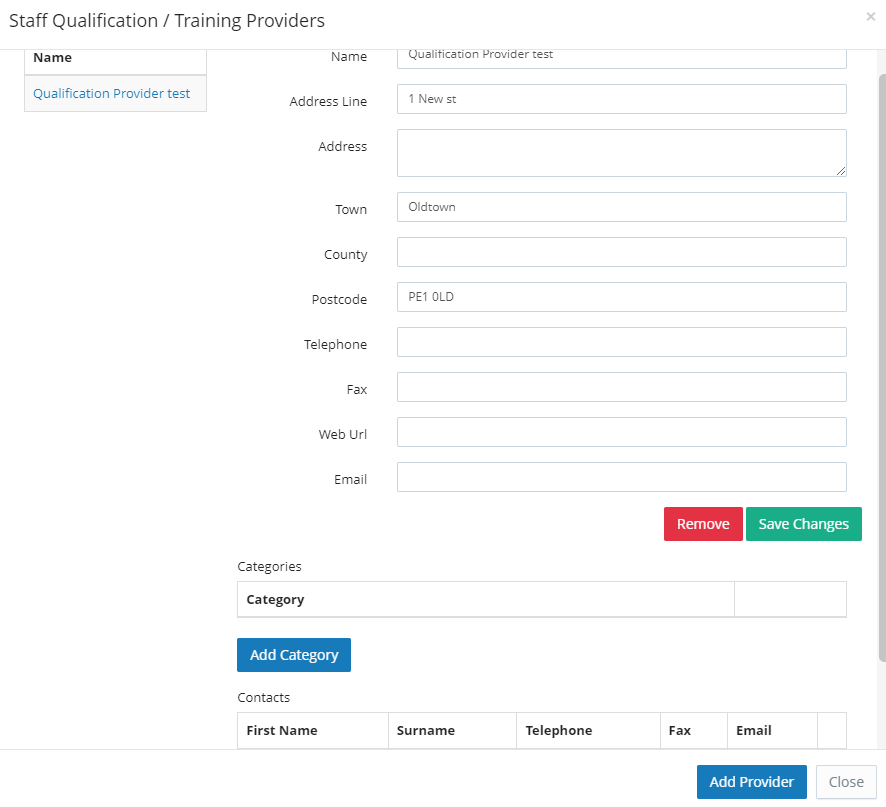
Selecting the ‘Add Provider’ button will also lengthen the window, but with a blank form to be filled in.

You will note here that you can use the ‘Add Category’ button to link the Providers to a Category that we set in the previous step.
The third configurable area is Qualification / Training Status. Selecting this will open a window where you can add the relevant statuses for you Qualifications such as ‘Complete’ and ‘Did not Complete’.
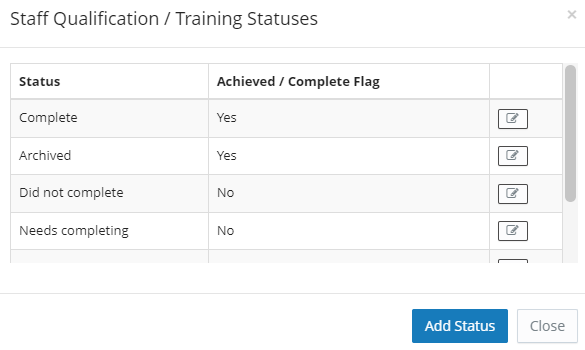
Selecting the notepad icon will allow you to edit any already set Statuses.
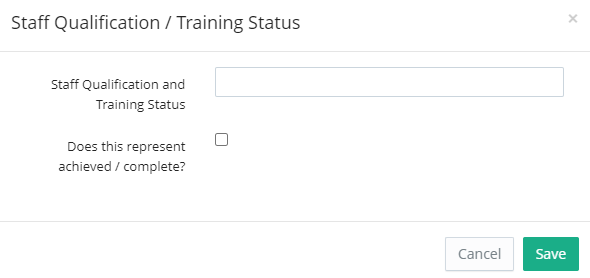
Using the ‘Add Status’ button will open a window where you can add the Status title, and a checkbox where you can select if this Status represents achieved/complete.
The fourth configurable area is Qualification / Training Types. Selecting this will open a window where you can view/add types such as ‘Full’ or ‘Part’ Qualifications.
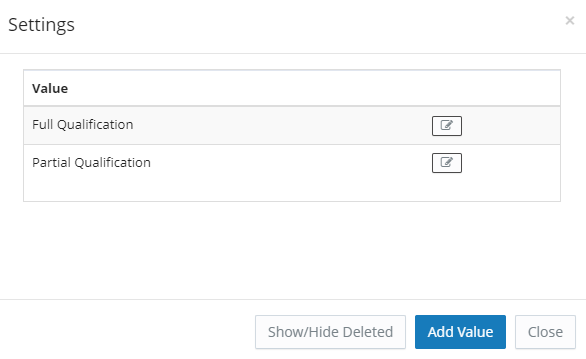
As before, selecting the notepad will allow for you to edit and already saved Type.
Selecting the ‘Add Value’ button will allow for you to create a new Type.
Selecting the ‘Show/Hide Deleted’ button will allow for you to toggle view any deleted types.
The fifth configurable area is Qualification / Training Sub Titles. Selecting this will open a window where you can add any Sub Titles, for example a module name.
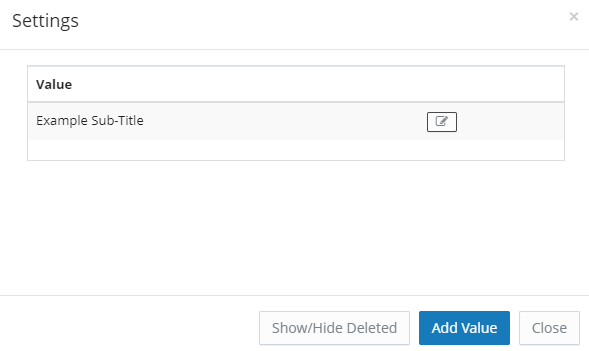
As before, selecting the notepad will allow for you to edit and already saved Sub Title.
Selecting the ‘Add Value’ button will allow for you to create a new Sub Title.
Selecting the ‘Show/Hide Deleted’ button will allow for you to toggle view any deleted Sub Titles.
ASK HARRIGAN ABOUT FLAG?
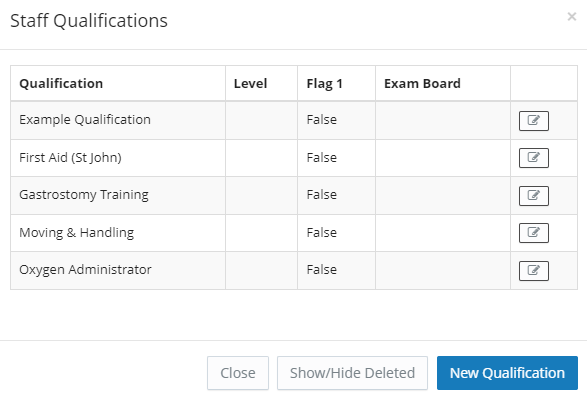
The final area of configuration for Qualifications is Qualifications. Here you can view and edit any already added Qualifications, as well as add any new.
Configuring Training
Before adding Training to your Staff’s profiles, you will need to do some setup.
To do this navigate to Administration > Standard Values > Staff Values > Training.
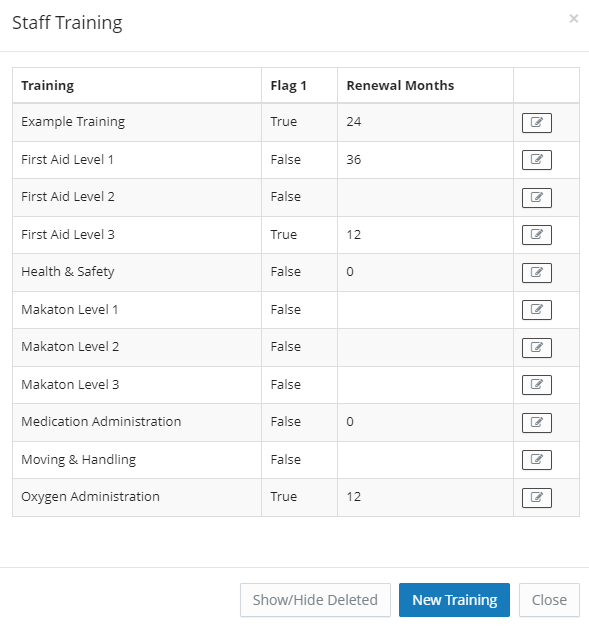
Selecting Training will open a window where you can view/edit any already saved training using the notepad icon.
Selecting the ‘Show/Hide Deleted’ button will allow for you to toggle view any deleted Training.
Selecting the ‘New Training’ button will generate a new window where you can add new training.
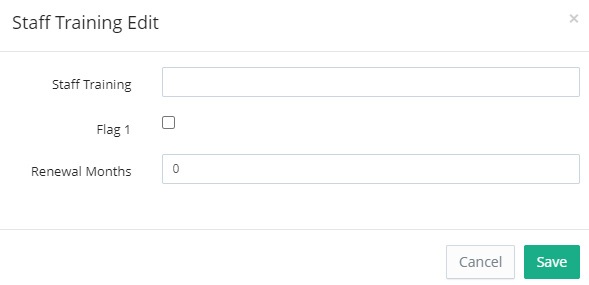
Add a suitable name in the ‘Staff Training’ field.
The Flag 1 checkbox can be used if you wish as a custom field. To configure the label for this checkbox, go to Administration > Standard Values > Defaults > System Labels > Staff > Training Flag 1
Finally set a Renewal Months value if required to configure a period in months to require the training to be done again. Click Save to add the configuration item.
You are now ready to start adding Qualifications and Training to your Staff Profiles.
Was this article helpful?
That’s Great!
Thank you for your feedback
Sorry! We couldn't be helpful
Thank you for your feedback
Feedback sent
We appreciate your effort and will try to fix the article